
Snagging Apps UK: What Builders and Site Managers Should Look For
A snag list in a spreadsheet works until there are sixty snags, six trades and a client asking which ones are really closed. Here is what a snagging app should do instead, what the options cost, and how snagging works in BuildersAI.

- Author
- William Charlesworth-Jones
- Category
- Construction Software
- Published
- Updated
- Reading time
- 8 min read
This guide is about choosing software. How to plan and carry out a snagging inspection, room by room and trade by trade, is in our snagging lists guide. If you only need a sheet to walk round with, use the free snagging list template (Excel or PDF, no sign-up) or the worked example in our snagging list template post.
What Does a Snagging App Do That a Spreadsheet Does Not?
A spreadsheet holds the list. It does not hold the evidence or the people. The photo is on somebody’s phone, the location is a line of text the trade has to interpret, the trade finds out by email, and “done” in the status column means whoever typed it thought it was done.
An app keeps the photo, the place and the history on the snag itself, tells the trade on their phone, and separates “I have fixed it” from “it has been checked”. That separation is what makes a closed list worth showing to a client at handover.
What Should a Snagging App Do?
- For: Pin the snag to the drawing. “Plot 5, lounge door” is clearer as a numbered pin on the floor plan, and the trade can open the drawing straight at the spot.
- For: Raise a snag from a photo. Take the picture, draw a ring round the defect, and raise the snag from it with the photo already attached.
- For: Work with no signal. New homes often have no signal until the broadband is in. Snags raised offline should be sent when the phone reconnects.
- For: Fixed is not the same as verified. The trade marks a snag as fixed. Somebody else checks it and closes it, or sends it back.
- For: A photo of the fix. Offered when the trade marks it fixed, so the before and after sit together.
- For: The client or main contractor can raise snags. Without becoming a full user who can change the programme.
- For: A snag list to send. A PDF with photos for the client, a list filtered to one trade for that trade, and a spreadsheet for anyone who wants to tick things off.
- For: A record at handover. Each plot’s snags, with their photos and who verified them, in the handover pack.
A per-user price matters more for snagging than for most jobs, because the people who need to see a snag include every trade on site and often the client.
What Are the Options, and What Do They Cost?
Paper or Excel. Free, and fine for a single walk round on a small job. The template post covers where it stops working.
A dedicated snagging app. An app built only for snagging and inspections can suit a snagging contractor or a surveyor who does nothing else. For a builder the snags then sit apart from the drawings, the programme and the trades’ other tasks.
Fieldwire. A field management app for tasks and drawings, priced per user. Its UK pricing page lists a free Basic plan for up to 5 users and 3 projects, then Pro at £33 and Business at £54 per user per month billed annually, or £46 and £67 billed monthly. At those prices a team of 10 on Pro is £3,960 a year billed annually (checked 23 November 2026; see our Fieldwire pricing guide).
Procore. An international construction platform. It publishes no prices: its UK pricing page says it charges an upfront annual fee by product, based on annual turnover, with unlimited users (checked 23 November 2026). See our Procore pricing guide.
BuildersAI. Snagging is part of the site app, with drawings, tasks, photos and the handover pack. £149 a month + VAT for up to 10 people is £1,788 a year + VAT, whoever on the team raises or fixes snags. £299 + VAT covers 11 to 50 people and £599 + VAT 51 to 100. Every plan starts with a 14-day free trial, with no card needed. See pricing.
How Snagging Works in BuildersAI
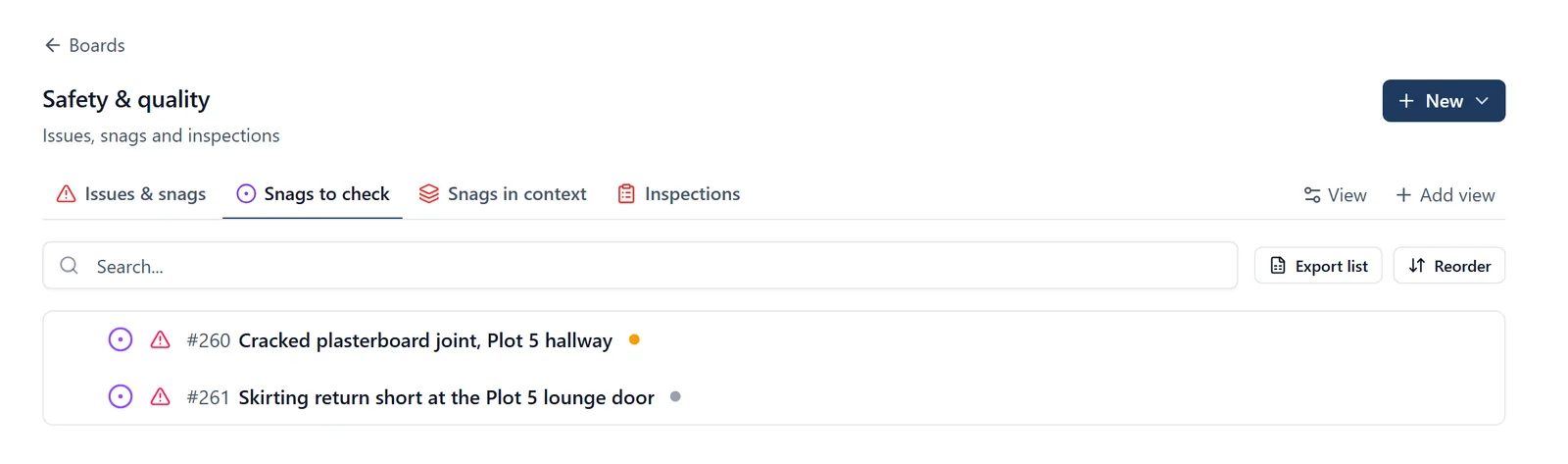
A snag in BuildersAI is one kind of work item, alongside tasks, issues and inspections, so it can be assigned, dated, labelled by plot and found on the same boards as the rest of the job.
1. Raise it where you see it. Open the drawing and press Add a snag here, then tap the spot. The snag goes on the drawing as a numbered pin. Or open a photo, ring the defect with the pen, and press Raise a snag: a new snag opens with the photo on it. Both work on the phone with no signal.
2. Send it to the trade. Assign it to the person who has to fix it and give it a target date. They are told on their phone.
3. The trade marks it fixed. That sets it to Awaiting check, and the app offers Add a photo of the fix. On the drawing the pin turns from red to amber.
4. A manager verifies it. Only a project administrator can verify a snag, which sets it to Complete. If the repair is not right, Send back returns it to Open for the trade to do again. The record keeps both acts and who did each, which is what the snag sign-off feature is for. A board view filtered to snags awaiting check is the round to walk, and it stays current by itself.
5. Let the client or main contractor raise snags, if you want to. A project administrator can switch on People following this job can raise snags in the project settings. A follower then gets one button, Raise a snag, including on a drawing’s Add a snag here, sees the snags they raised and how each is going, and can comment on them. They cannot change anything else. It is off until somebody switches it on.
6. Send the snag list. In a browser, Export list on a view filtered to snags gives a spreadsheet, or a PDF document laid out for the client. Tick Photos and a fixed snag shows the photo it was raised from under Before and the fix under After, up to three of each, dated. Add a column to write in if somebody is walking the plot with a pen. Filter to one trade’s snags to send that trade their list.
7. Hand over. The handover pack for a plot is one ZIP with its drawings, a page for each inspection and snag with their photographs, the plot’s photos and documents, and an index to print. Our guide to the new build plot handover pack explains what goes in it.
For a first walk round, a walk-round lets you talk and take photos as you go. Afterwards each point you made can be saved as a snag with its photos, and a PDF report goes in the project’s files. Our site inspection app guide covers walk-rounds and inspection forms.
What BuildersAI Does Not Do With Snags
- Pins go on PDF drawings, and on a DWG through the PDF made of it. A drawing that is a picture takes no pin yet.
- Placing a pin on an existing snag, moving a pin or taking one off is done in a browser. Raising a snag on the spot works on the phone.
- The printed snag list names the drawing a snag is on but does not print the drawing with it.
- The handover pack is made in a browser, not on the phone, and it is a copy of the project record. It is not a warranty, a certificate or a signature, and it says so on its first page.
- A follower raising snags is off by default and is switched on per job by its administrators.
FAQ
What is a snagging app?
An app for recording defects on a phone with a photo and a location, assigning each one to the trade who has to fix it, and tracking it until the repair has been checked. Most also produce a snag list to send to the client.
Should I use an Excel template or a snagging app?
A template is enough for a single walk round on a small job. An app is worth it once several trades are fixing snags at the same time, the client wants to see progress, or you need photos of the fix as evidence at handover. Our free snagging list template is an Excel or PDF download if you want to start there.
Can I pin snags to a drawing?
In BuildersAI, yes. Open a PDF drawing, press Add a snag here and tap the spot. Open snags show as numbered pins: red is still to do and amber is fixed and waiting to be checked.
Can the client raise snags in BuildersAI?
Yes, if the job’s administrators switch on People following this job can raise snags. The client, as a follower, can then raise snags and comment on the ones they raised, and cannot change anything else on the job.
Does a snagging app work without signal?
In BuildersAI, raising a snag on a drawing or from a photo, and adding a photo of the fix, work with no signal. They are sent when the phone is back online.
How much does snagging software cost?
It varies. Fieldwire charges per user (Pro is £33 per user per month billed annually, or £46 billed monthly, checked 23 November 2026), and Procore publishes no price. BuildersAI is £149 a month + VAT for up to 10 people, £299 + VAT for 11 to 50 and £599 + VAT for 51 to 100, flat with every feature, after a 14-day free trial.
BuildersAI
See Snags Pinned, Fixed and Verified
See a snag raised on a drawing, fixed by the trade and verified by the site manager, then try it on one of your own plots.
14-day free trial. Every feature. No card.
Written by
William Charlesworth-Jones
Founder, BuildersAI
William grew up in a family that builds houses for a living and has been around construction sites for as long as he can remember. He has seen first hand that eight-figure sites are often run on WhatsApp and spreadsheets, and started BuildersAI to cut the invisible costs that take chunks of margin across a site. His aim is for BuildersAI to be the all-in-one site management platform built in the UK, for UK sites.
LinkedIn