
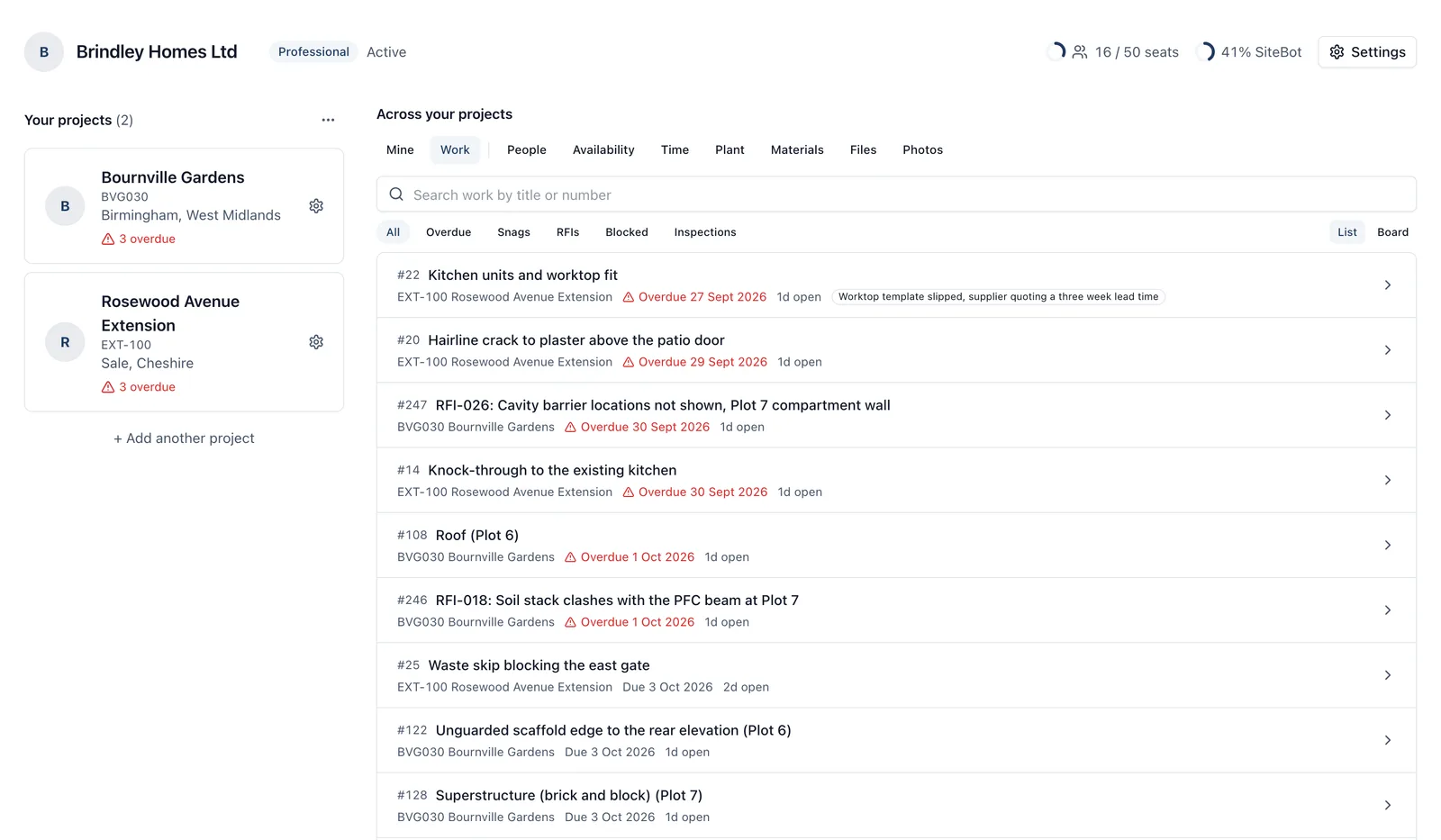
All projects is the one screen that spans every job you are on, instead of one at a time. It is where you see your own work across four sites, where an admin finds everything overdue in one list, and where you hunt for a document or a photograph when you cannot remember which job it was filed under.
On the phone, All projects is for administrators. It has every tab but Availability: see the “all_projects_mobile” topic. This page describes the browser. Everybody else’s phone has a project picker instead.
How to get there (app.buildersai.co.uk):
- Click the BuildersAI logo in the very top-left corner of any screen. That is the way back out of a project
- Or click the project name beside it, and choose “All projects” at the bottom of the list that opens
The project list. On a wide screen, if you administer at least one of these jobs the list sits down the left with the tabs beside it. If you administer none of them it is a single centred list with the tabs underneath.
- Click a project to go into it
- Once you have more than eight, a “Search projects” box appears above the list. It matches the name, the job number, the town, and the organisation or person the job is filed under
- Archived jobs are collapsed into their own section at the bottom, behind a small arrow. Searching opens it by itself, so a finished job can never hide behind it
- Under a job you administer, a red line with a warning triangle says how many items are overdue. Nothing there means nothing is overdue
- The cog on the right of a row opens that project’s settings without going into the project
- A demo project also has a bin. That deletes it there and then, unlike a real project, which goes through a seven day grace period
- “Export summary” above the list downloads a spreadsheet of the projects you administer
- ”+ Add another project” sits under the list
The tabs, beside the list under a heading that reads “Across your projects”: Mine, Work, People, Availability, Time, Plant, Materials, Files, Photos.
- Everyone gets Mine, Files and Photos
- If you are an admin of at least one project, you also get Work, People, Availability, Time, Plant and Materials. Those six add up other people’s work, who is off, the company’s machines and what has been billed, so they are only offered to somebody entitled to see them
- An admin lands on Work. Everybody else lands on Mine, which is their whole screen
- Work, People and Time only ever cover the jobs you administer. If that is three of your five projects, the heading says “Across the 3 projects you administer” rather than pretending otherwise. Plant is the exception: a machine moves between every site, so it shows the whole company’s machines and bookings, and names a booking’s site only to people on that site or running the company
One company at a time. If you work for more than one company account, the organisation name beside the logo decides which jobs this whole screen covers. Change it there and the screen changes with it.
Whatever you are looking at is in the address bar, the tab and the chip both, so you can copy the link, send it to a colleague, and they land on the same thing.
Mine: everything about you, on every job. Four chips:
- My work: open work assigned to you anywhere, soonest due first, each row naming the job it belongs to. Your own reminders are in it. Work you raised but nobody assigned to you is not, and neither is work you were only mentioned in. Finished items drop off
- My timesheet: your own time, day by day, a line per job. The same week is My Timesheet in every project’s sidebar. See the “site_attendance” topic
- Notifications: your notifications from every job in one list: urgent and unread first, then the rest of the unread, then the newest, with an “Unread (4)” button when you have any. Click one sent to one job to open that job’s own notifications. An announcement sent to several jobs names them all and opens nowhere, as there is no single job to open
- My corrections: the changes to your own recorded times you have asked for, under Waiting, Approved, Rejected and All. While one is still waiting you can Withdraw it
Work: everything open, across the jobs you administer. Admins only.
- A “Search work by title or number” box sits above the chips. Type a word from the title, or a number like 214
- Six chips underneath: All, Overdue, Snags, RFIs, Blocked, Inspections. One at a time, not tick boxes, so “overdue snags” is not one click yet
- List and Board at the right of the chip row put the same results into a list or into a board with a column per outstanding status: Open, In progress, Blocked and Awaiting check. The cards do not drag here, because a hand-sorted order that spans jobs would mean nothing. Change a status inside the item instead
- A row shows the item number, the title, the job, the due date (red, with a triangle, when it is late) and how many days it has been open. A padlock means the item is private, so do not repeat it in the site meeting
- Click a row and the item opens in a window over the list. Read it, comment, assign, change it, exactly as you would inside the project. Close it and you are back on the same list in the same place
- It covers live projects you administer. Archived jobs are not in it, and neither are reminders or notes
- A long list says “Showing 50 of 300” with a Load more button. Past a point it stops widening and tells you to open a project for the rest
People: who is on your sites, and what they are carrying. Admins only. Two chips:
- People: everybody on the jobs you administer, busiest first. Each row says how many projects they are on, how many open items they hold and how many are overdue. An “On site now (3)” button narrows the list to whoever has checked in today, a green On site badge appears beside the name, and the line under it says which site and what time they arrived, on that site’s clock. Click a name to open their profile
- Certifications: every card that has expired or expires within the next 30 days across those same jobs. One row per card, naming the projects it stops work on. Click a row to open its holder. Read the note at the bottom of that list. It can only see cards held by admins and members, so subcontractors who are on your job as followers do not appear at all, and an empty list is not proof that everybody on site is in date
Handing one person’s work to somebody else (on the People chip):
- Click Reassign on their row. The button is only there when they have open work
- Tick the items to move. Nothing is ticked to start with, and All and None sit at the top of that column. The list is open work on projects you administer: resolved and closed items, reminders and notes are left alone
- Pick who takes it, on the right. Anybody who is not on every project in your selection is greyed out and says so, for example “Not on 2 of these projects”. Work handed to somebody who cannot open it is invisible to them and looks handled to everyone else. Untick the items on those jobs and they become available
- Click Reassign 12 items
The person you took it from comes off each item and the person you chose takes their place. Anybody else already assigned stays on it. It is all or nothing, so if one item cannot move, none of them do. The new assignee is notified once per item, every change is recorded in the project’s activity, and it cannot be undone, though you can reassign it back. A very large handover comes in passes: it moves the first 50, then you reopen it for the rest.
If you run the company account, the People chip shows the organisation’s own list of everybody it deals with, rather than the workload directory, because that list is what your seats are counted over. Reassign is on those rows too. See the “organisation_and_seats” topic.
Availability: who is off, and the work they were given. Admins only. See the “availability” topic.
Time: hours, and the arguments about them. Admins only. Four chips:
- Time on site: Today, This week, This month or Custom. A line under the buttons names both dates and how many full days that is, both ends counted; on Custom the arrows step by the length you picked. One row per person per job per day, because a day is what you can check against the site diary, with the total at the top right. Warnings appear with it: a check-in with no check-out counts no time until somebody fixes the record, a range of more than one page covers only what is on screen, and a line counts check-ins made away from the site. Such a day carries “away from site”; open it to see how far each check-in was. The hours still count as recorded: it is a question to ask, not a correction the app has made (the “site_attendance” topic says how the distance is measured). A number on the Time on site chip counts records from the last 90 days that need looking at, a wider window than the report opens on
- Timesheets: what people reported on their timesheets, beside their time on site, day by day, for everybody or one person you choose. When nobody checked in, only what was reported is shown. See the “site_attendance” topic
- Requests to decide: corrections your team has asked for in the organisation chosen at the top, under Waiting, Approved, Rejected and All, with Approve and Reject on each. A number on the chip is how many are waiting on your decision. If more wait in another of your organisations, a line over the list says so
- Corrections log: every change made to recorded times in that organisation, however it was made: an approved request, somebody’s own change, or an admin editing in place. Filter by what happened (Times changed, Added, Discarded, Restored, Deleted), by request or direct, and by date, and search the reasons people gave. The system writes it itself, so no hour changes without appearing here
Exporting hours: the Export button is at the top right of Time on site.
- Spreadsheet (CSV) is always there. The file opens with a note saying which dates it covers, because a spreadsheet outlives the screen that made it
- When the jobs belong to a company account you also get Generic spreadsheet, Xero bill, QuickBooks bill and “Past exports”. Past exports lets you check whether August was already invoiced without producing another export to find out
We call it “time on site”, never “hours worked”. These are check-ins: a record of somebody being at a place, only as complete as the check-ins that were made, and not an account of what they did there.
Plant: which machine is on which site. Admins only. The company’s machines down the side and the days across, each booking a bar in its site’s colour, with a red box naming any machine booked on two sites at once. Booking a machine, half days, clashes, and keeping the list of machines are all in the “plant_board” topic.
Materials: what went to site from the yard, and whether it has been charged. Admins only. Every material line on every job you run.
- It opens on To charge, oldest first, so the longest waiting leads. Charged, Not chargeable and All are the other chips, each with its count
- Search by the material, where it came from, the invoice number or the line’s number, and narrow it to one job with the box beside the search
- A row shows the material and how much, the job, where it came from and the day it went. A line asked for from site and not sent yet says the day it is needed. Finished (archived) jobs are included and marked, because that is where an unbilled line hides
- Tick lines and click Mark charged, and add the invoice number they went on. Not chargeable is for a warranty call-back or your own cost. Back to charge undoes either
- Export list downloads the lines on screen as a spreadsheet to price and invoice against. Private lines are left out and the file says how many. A material line carries no price
- Click a line to open it. Logging a line, and what it carries, are in the “working_on_a_task” topic
Files: one search across every job’s documents. Everyone gets this.
- The box says “Search documents by name”, and the list is newest first
- Each row names the job and the folder the document sits in, and the folder name is a link straight into that folder on that job
- Archived jobs are included and marked Archived, because a document is usually wanted years later, precisely when there is an argument about it
- It is read only on purpose. To rename, move, comment on or set who can see a document, click through and do it in its own project
- It matches the file’s name. To search the words inside your documents, use the Files screen in the project itself
Photos: one search across every job’s pictures. Everyone gets this.
- The box says “Search photos by name, caption, tag or place”. It reads the file name, the title and note somebody typed, the description and tags the app worked out, the tags people added, the place, and the title of the task an image is attached to
- Pictures are grouped under the day they were taken, dated on that photo’s own project’s clock, and every tile has its job written across the bottom
- Filed and unfiled photos show together, which is why the number here can be bigger than a project’s own Gallery shows. It loads a page at a time, and where there are more than it can page through it says to search or open the project
- The same six chips as a project’s Gallery decide where they come from: Gallery, Everywhere, Tasks, Task comments, File comments, Site diary
- The pair of buttons above the chips switches between the grid and the map, and “Jump to” beside them opens a small calendar of the days that actually hold photos
- On the Gallery chip, albums from every job sit above the grid. An album card names its job, because six sites will all have one called “Handover”
- Archived jobs are included, and their pictures carry an Archived badge
- A tile or a map pin opens that photograph on its own project’s page. Uploading, picking several at once, changing dates and setting who can see a photo all stay in the project’s own Gallery
Or just ask me. Open me from All projects and I become “SiteBot, all projects”: I can answer across every job at once, catch you up on announcements, say who is on site, find work, and search your documents and diaries. That conversation is read-only, so I cannot create, change or complete anything from there, and I cannot read this help guide from there either. Open a project and ask me inside it when you want something done, or when you want a “how do I” answer like this one.
Who can do what:
- Everyone on any project gets All projects, with Mine, Files and Photos
- An admin of at least one project also gets Work, People, Availability, Time and Materials, covering only the jobs they administer, and Plant, covering the whole company’s machines
- Marking materials charged needs you to be an admin of the job the line is on
- Reassigning work needs you to be an admin of the projects that work sits on
- The accounting exports appear only to the owners and admins of the company the jobs belong to
- Nothing on the Files or Photos tab changes a document, a photo or an album. They are found here and changed in the project they belong to
- A follower gets Mine, Files and Photos like anybody else, and each is still narrowed to what a follower may see: the work assigned to them, and only the documents and photos set to “Everyone”