
01
Every job’s late work in one list
All projects lists the overdue work from every job, each row naming its job, so you see which sites need you today.
More on All projects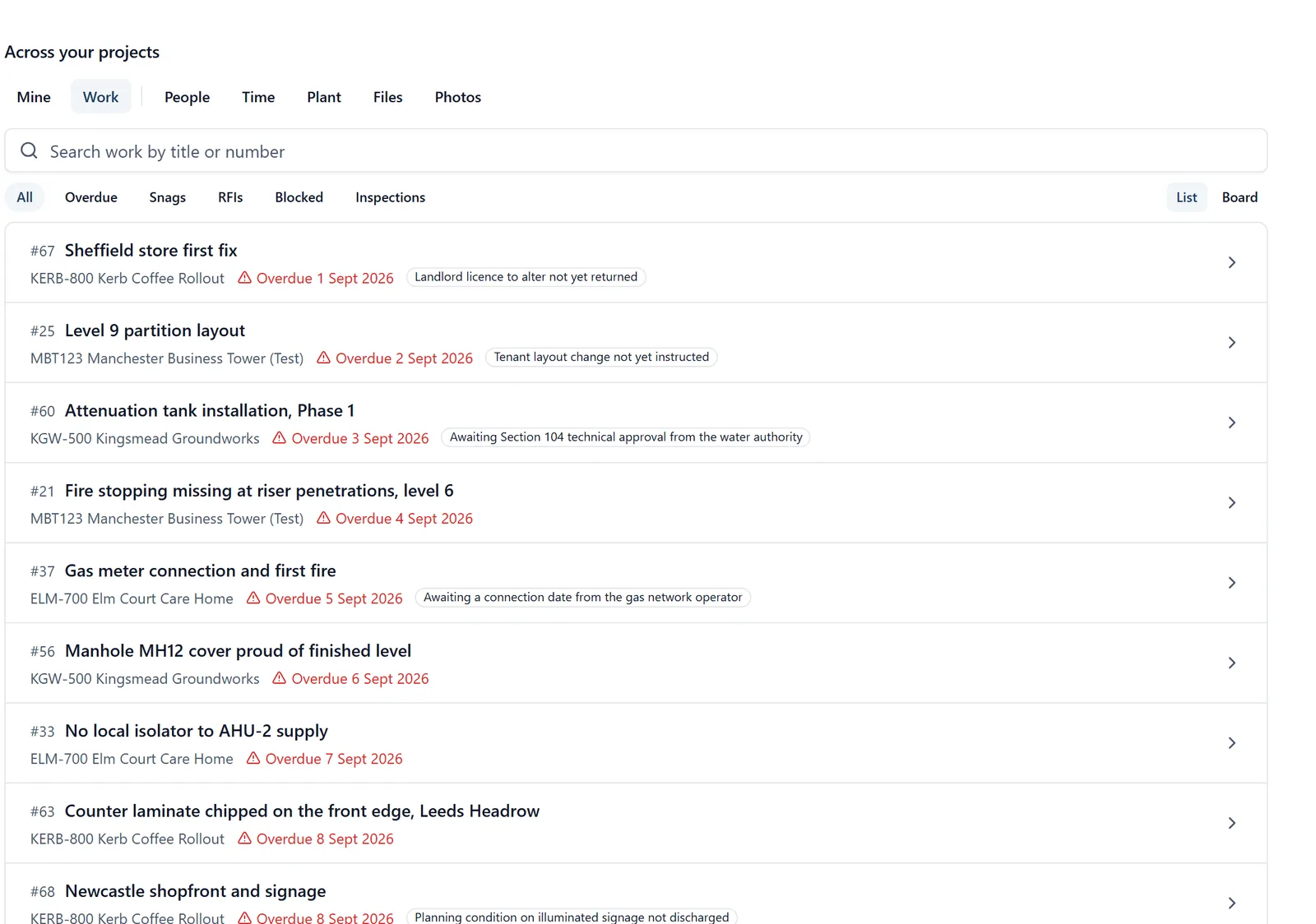
Every live job's margin on one page, beside the programme and what is happening on site.
14-day free trial. Every feature. No card needed.
The price, the orders, the invoices and the margin sit on the same job as the drawings and the programme, so there is no separate spreadsheet to keep up to date.
Step 1 of 5
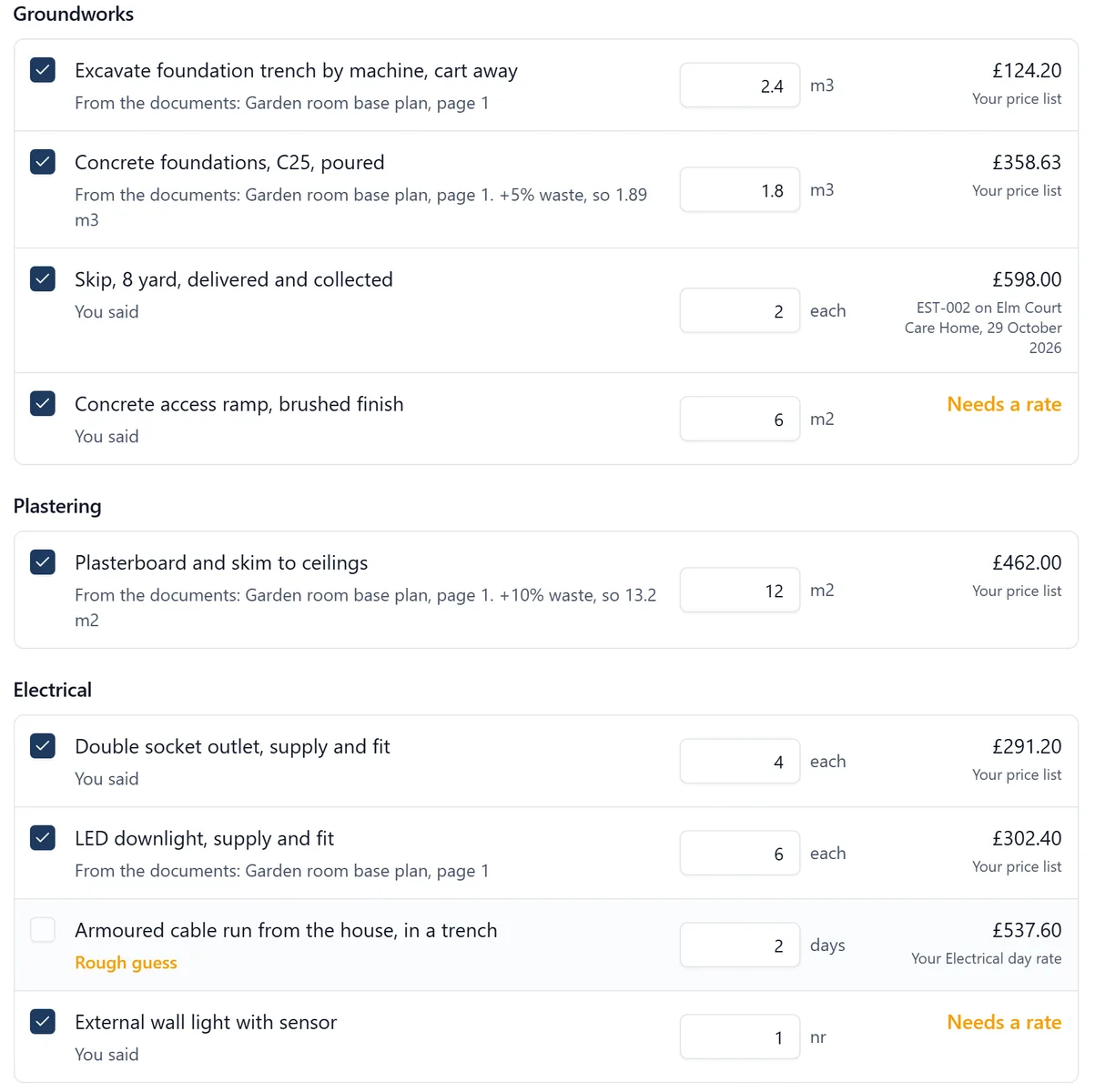
An estimate is trades and lines, each your cost plus a markup on the line, the trade or the whole job. Bring in your price list or your QS’s spreadsheet, or let SiteBot draft the lines from your drawings, priced from your own rates and past jobs, for you to check.
Step 2 of 5
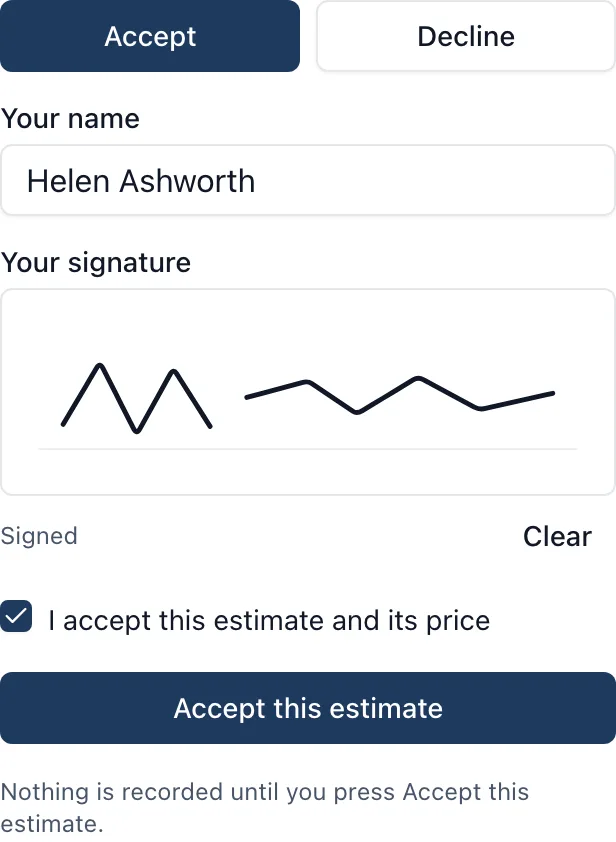
The client gets your estimate on your letterhead, never your costs or markups, and accepts it on their phone with a signature. Once accepted it is locked, and it becomes the job’s quote on the Cost Tracker.
Step 3 of 5
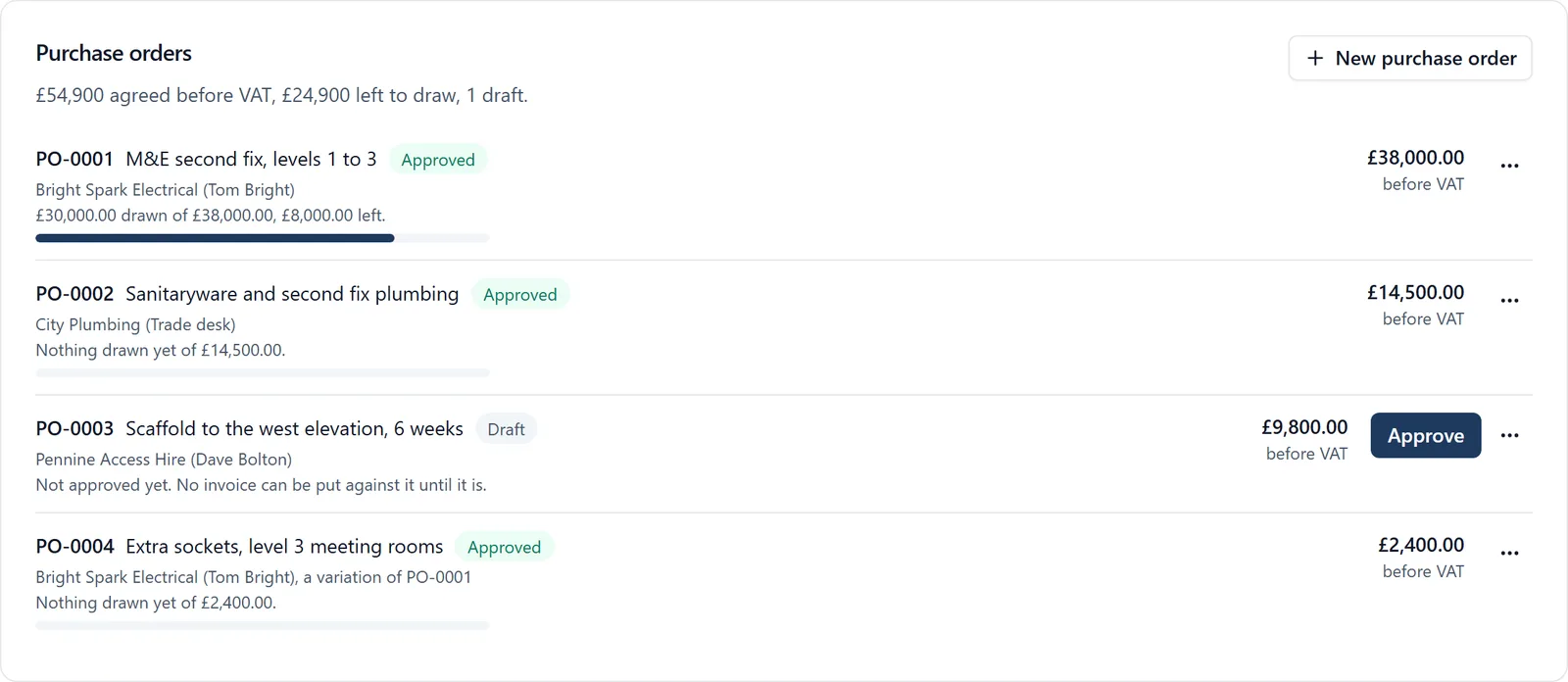
Raise a purchase order and send it to the supplier, who approves it from a link. Every invoice on it draws it down, and BuildersAI refuses one that would take more than is left.
Step 4 of 5
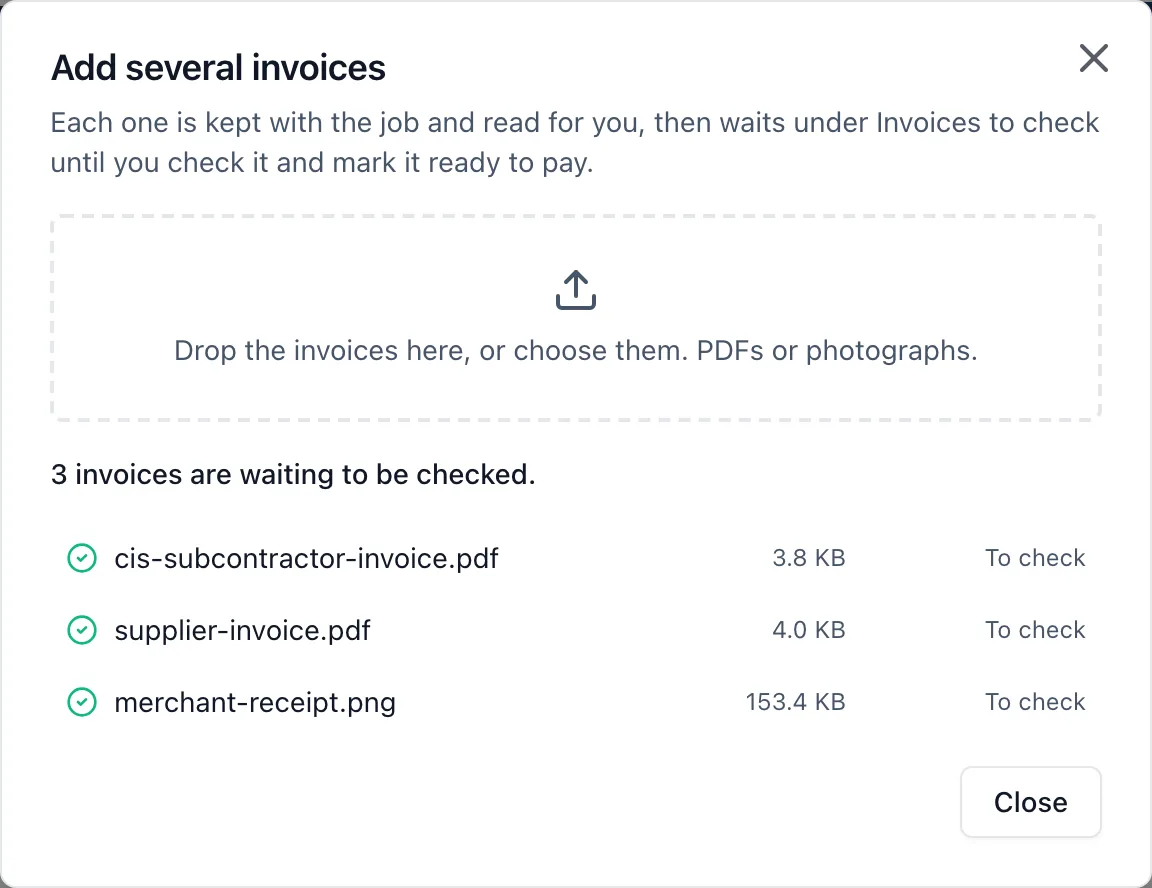
Drop the week’s PDFs and photos in together. Each one is read for you, filling in the supplier, invoice number, net, VAT, reverse charge and CIS deduction, and waits for you to check it and mark it ready to pay.
Step 5 of 5
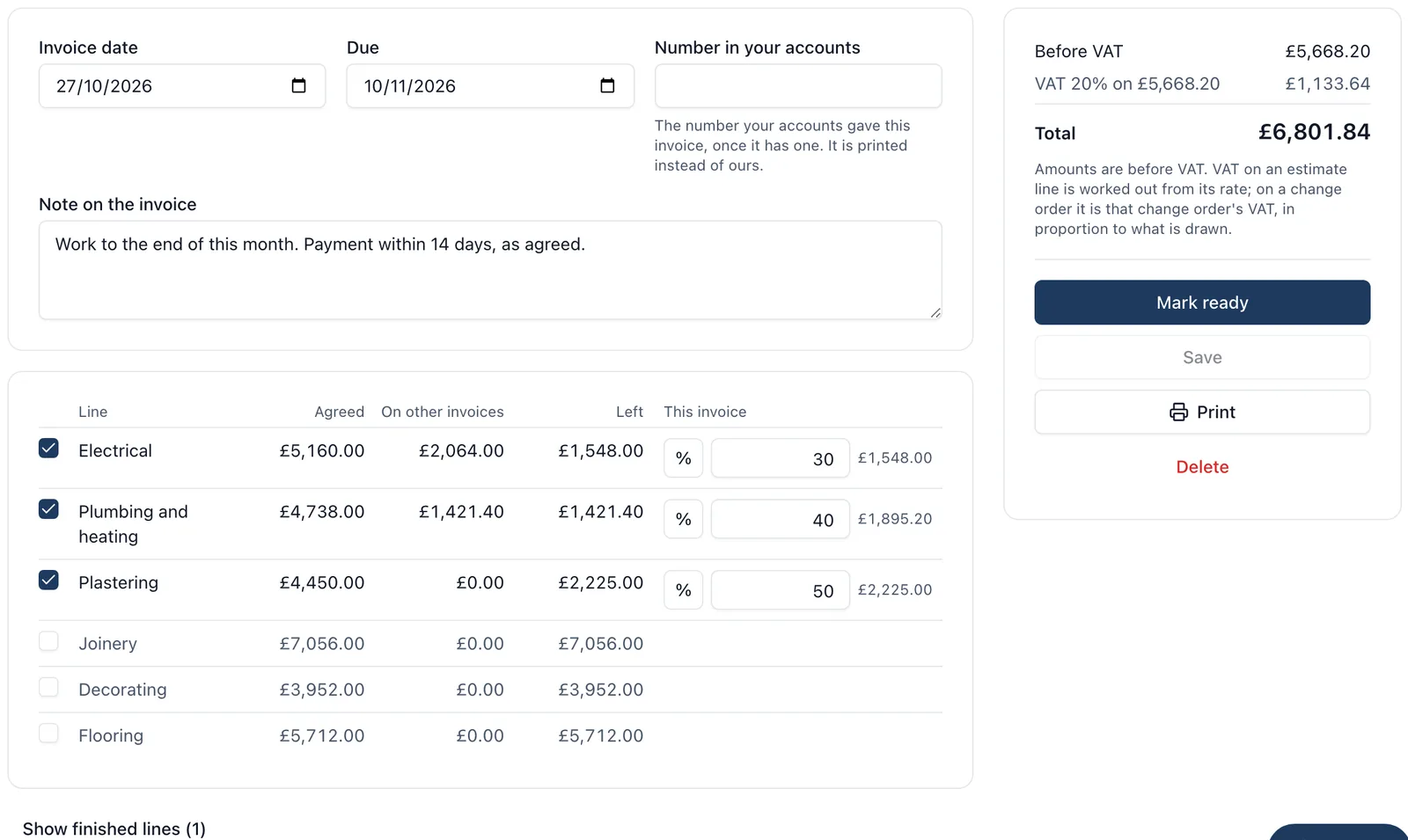
Tick the lines of the accepted estimate and signed variations (change orders), and draw a percentage or an amount from each. It shows what is agreed, what is on earlier invoices and what is left, so nothing is billed twice.
Also on the money side
For each job: tasks done and late, the quote, what has been spent, what is still to draw on orders, the forecast margin, what has been invoiced and what the client has paid.

Every problem you hear about late has already cost you money.
You know the site you visited this week. The rest is a Friday phone call.
By the time a problem reaches you, it has already cost money. Groundworks behind, a phase slipping, a key trade not showing. You hear about it after the damage is done.
The lads build from an old revision and you pay to put it right.
HSE, a client or a subbie disputes it. Without a dated record, it is your memory against theirs.
The pattern is always the same: you find out too late, too far from the problem. BuildersAI shows you what is happening on every site, every day.
Three things that let you run several sites from one app.
01
All projects lists the overdue work from every job, each row naming its job, so you see which sites need you today.
More on All projects 02
Photos, tasks done, who was on site, drawing revisions and announcements are all dated. When HSE asks or a client disputes, the record is already filed.
More on evidence packs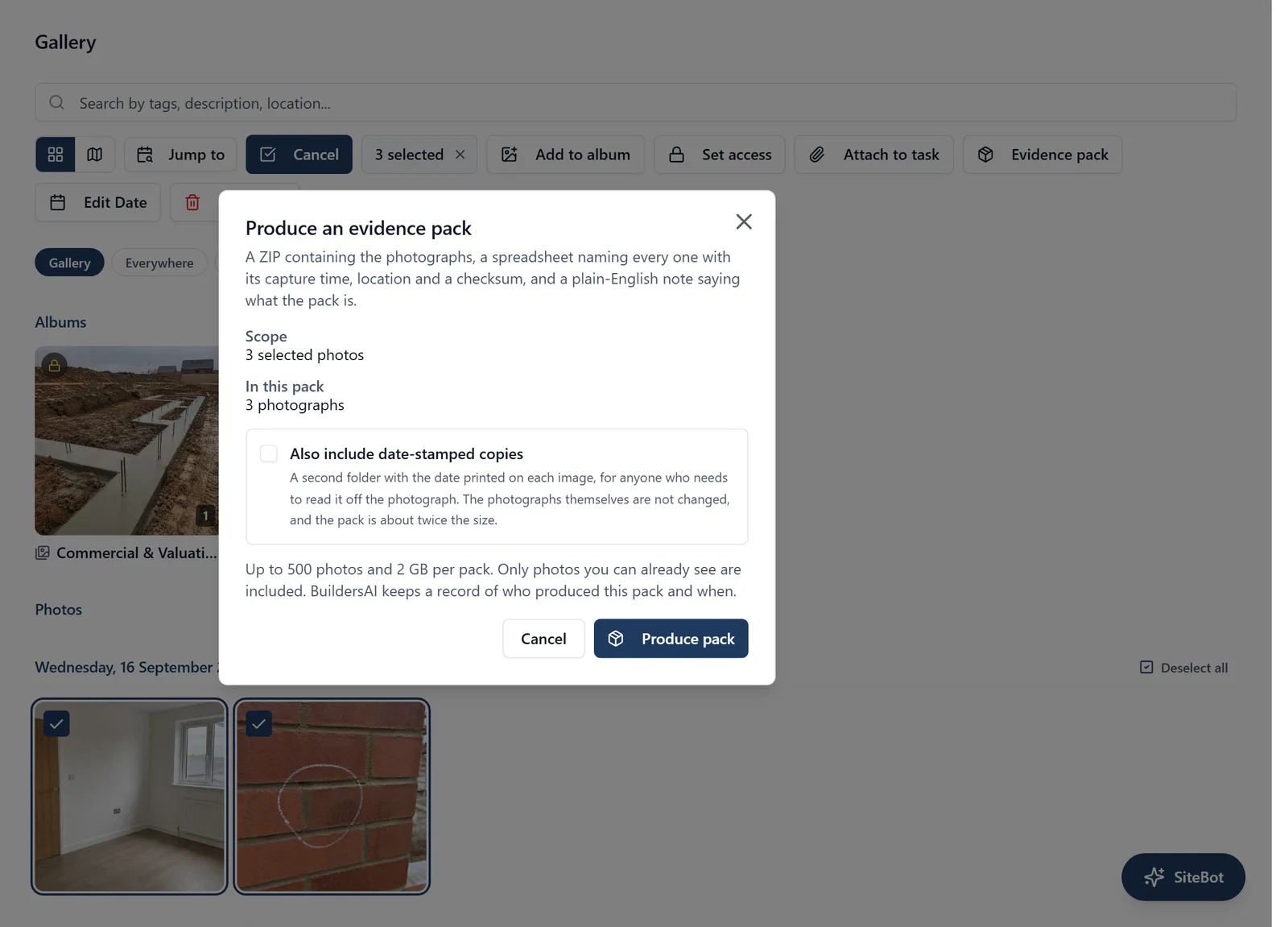
03
Every person’s CSCS and other cards on one register, scanned from a photo, with alerts before anything expires. RAMS and site inductions are signed on each person’s own phone.
More on the compliance register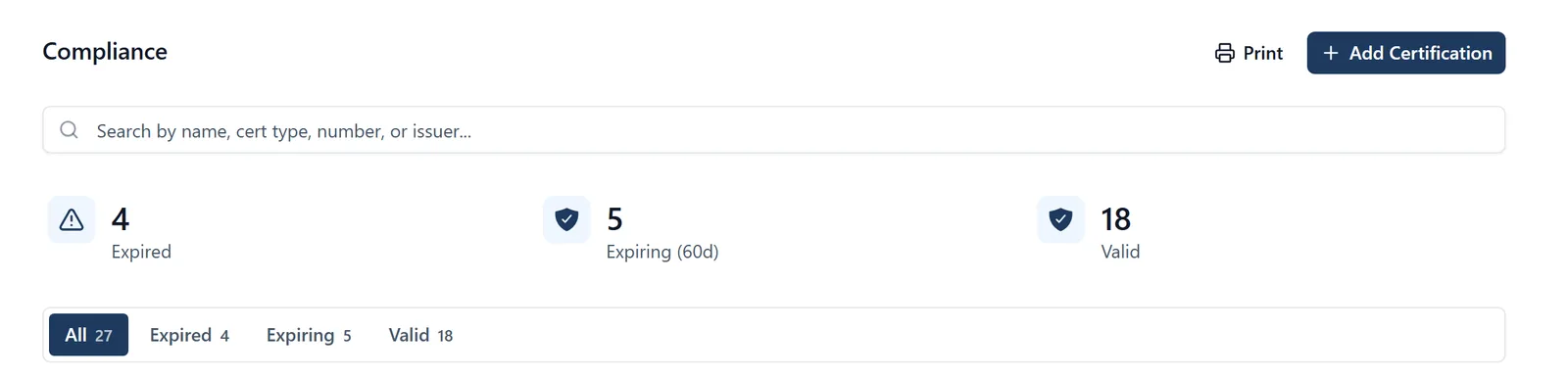
If your company uses Claude or ChatGPT, connect it to BuildersAI and ask it to read and update your projects for you: the programme, the site, the documents and the money.
It works with any AI app that can add a custom connector (the industry name is MCP), including ChatGPT, Claude in the browser, the Claude desktop app and Claude Code. For your company’s owners and admins, once one of them switches it on.
Things to ask it
Your AI app asks you before it uses a tool, and BuildersAI records every call it makes.
It sees and changes only what you can in BuildersAI. On a job whose costs you run, it can read the Cost Tracker and draft estimates, orders and variations (change orders).
Anything that sends, signs off or announces waits for you in BuildersAI: an estimate, a purchase order, an email, the week’s plan. Nothing goes until you confirm it.
Every call is recorded in plain words, and a task’s history names the app it came through. Your company decides whether it may read money and whether it may change it.
It cannot remove people, change anybody’s role, or touch your plan or billing. Turn it off and every connected app stops at once.
FAQ 08
Straight answers. If yours is not here, email us and you will hear back the same day.
Yes. Price a job from your own rates or your QS’s spreadsheet, or have SiteBot draft the lines from your drawings and past jobs for you to check. The client accepts it on their phone and it becomes the job’s quote. Purchase orders, supplier invoices with CIS, labour from time on site and month by month invoices to the client all follow from it. BuildersAI does not take payments.
Yes. A company’s owners and admins can connect Claude or ChatGPT, or any AI app that takes a custom connector (MCP), and ask it to read and update their jobs. It works as them, anything that leaves the company waits for them to confirm it, and everything it does is listed.
Your site managers and the lads log the day, photos and check-ins on their phones, and you see it as it happens, without ringing round. Overdue work on every job you run is in one list.
No. If they can use WhatsApp, they can use BuildersAI. We set your first job up from your own documents, so you are running in a day.
Yes. All data is encrypted in transit and at rest, stored in EU data centres. BuildersAI is registered with the ICO and compliant with UK GDPR. You own your data and can export it at any time. Certification records and audit trails are access-controlled by role.
It saves them calls and hunting for the right drawing, and they tick tasks off on the phone. The onboarding call is free and gets every site started.
Yes. The Cost Tracker shows each job’s quote, what has been spent and what the client has paid, and whether you are ahead or behind. Only admins see it. Labour comes from time on site, supplier invoices are read from a PDF or photo, and with QuickBooks Online connected, payments are read back from your books.
Yes. All projects puts every job you run in one place: work, people, time, plant, materials, files and photos across them, with each item naming the job it came from. It is in the browser, and admins now have it on the phone and tablet too.
Get started
A 14-day free trial with every feature, no card and no contract. We set your first job up from your own documents, so you are running in a day.