
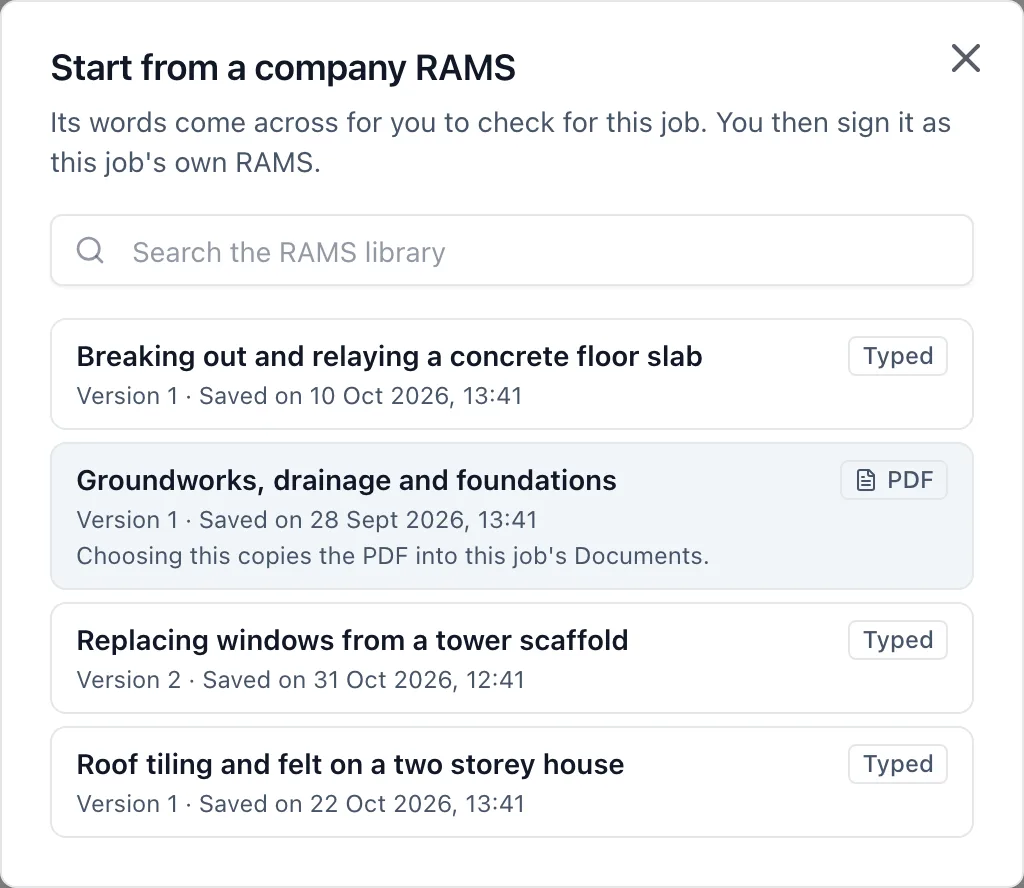
You do not have to put every RAMS into every job by hand. Your company keeps the RAMS it uses again and again in one RAMS library, and any of its jobs can start a RAMS from one. The site checks it for that job, changes what is different, and signs it there.
A RAMS started from the library is that job’s own RAMS. It has its own number, signatures, approval and briefing, exactly like one written from scratch. Nothing is signed in the library itself.
Your company is responsible for what its RAMS say. BuildersAI keeps them and copies them; it does not check them.
Who can do what:
- The company’s owners and admins add RAMS to the library, change them and stop using them
- Admins and members of the company’s live jobs can start a job’s RAMS from the library
- Followers, such as a client, cannot see the library
Adding a RAMS to the library
How to get there (app.buildersai.co.uk):
- Click the BuildersAI logo in the top-left corner to reach All projects
- Check the company name beside the logo. The library belongs to that company
- Click RAMS library
To add one:
- Click Add a company RAMS
- Choose how it is written:
- Fill it in here: say what task it covers, write the method statement, tick the hazards and write what is done about each, and choose the PPE
- Use your own PDF: choose your own RAMS document and say what task it covers. Only a PDF can be used, so save a Word document as a PDF first
- Leave Where the work is empty if each job will say where
- Click Add to the RAMS library
From a job’s RAMS: if a good RAMS is already on one of your jobs, open it there and click Add to the RAMS library. What it says is copied into the library. Its signatures and the people on it are not. Only the company’s owners and admins see this button.
Changing one, and versions
Click Change on a company RAMS, make the change and save. Every save makes a new version: version 1, then version 2, and so on.
RAMS already on jobs are never changed. Each job’s RAMS stays exactly as it was written and signed, and says which version it was started from. When a newer version exists, the job’s RAMS says so, and admins and members of the job can press Start from version 2 (or whichever is newest) to start a new RAMS from it. The library also shows how many jobs still have an older version, and Issue version 2 puts the new one on those jobs in one go (see below).
Stop using takes a RAMS out of what jobs are offered. RAMS already on jobs stay as they are, and Use again brings it back. A company RAMS cannot be deleted, because jobs’ RAMS say they came from it.
Starting a job’s RAMS from the library
In the browser:
- Open the job and click RAMS
- Click From the RAMS library
- Pick the company RAMS. You can search the list
- A new draft opens with its words filled in. Check every line for this job, say where on site, link its task and choose who signs it
- Save it, then sign it as usual. It goes for approval like any other RAMS
If the company RAMS is a PDF, a copy of the PDF is put into this job’s Documents when you choose it, and attached to the new RAMS, so everybody who signs is signing this job’s own copy. When a project admin does this, the copy is kept to the job’s admins and members. When a member does it, the copy is an ordinary document on the job, which a follower such as the client can open too.
The job’s RAMS shows Started from the company RAMS, with its name and version.
Issuing a RAMS to many jobs at once
The company’s owners and admins can put a company RAMS on several jobs, or all of them, in one go, and sign it once.
In the browser:
- On All projects, open RAMS library
- Click Issue to jobs on the company RAMS
- Tick the jobs. Only live jobs you are an admin of are listed. All and None are there to save clicks
- If you like, tick your company’s subcontractor firms to brief. Each firm’s people on each job are asked to sign it once it is approved there
- Click Next. BuildersAI checks each job and lists any it cannot go on, with why
- Read the declaration, which names every job, type your name and sign in the box
- Click Sign and issue
Each job gets its own RAMS, signed by you as the person raising it. It then waits for that job’s own approval, and that job’s other admins are told, exactly as when a RAMS is written on the job. Each job is answered one by one: one job that cannot take it never stops the others, and Try the others again goes back over the ones that did not.
A job is left out, with the reason, when you are not one of its admins, it is a lead not yet won, a demo, archived, being deleted, or read only because the plan does not allow changes. A job that already has this version is not given it twice.
A PDF one is copied into each job’s Documents, kept to that job’s admins and members, and attached to its RAMS.
A typed company RAMS needs at least one hazard ticked before it can be issued, because a RAMS with no hazard cannot be signed on a job. Only the newest version of a company RAMS can be issued.
Your company’s RAMS form
The company’s owners and admins can give every job’s RAMS a starting point. On RAMS library, click Form defaults:
- Your own hazards: hazards your company deals with that are not on the usual list. They are offered on every job’s RAMS, beside the hazards the job already offers. Nothing is ever taken off a job’s list
- PPE ticked on a new RAMS: leave it as it is to tick hard hat, hi-vis, safety boots and gloves, or choose your own
- Standard method statement: filled in on a new RAMS on any job that has no standard method statement of its own. A job’s own always comes first
Changing these never changes a RAMS already written: each RAMS keeps its own words.
From a previous RAMS, on any of your company’s jobs
From a previous RAMS now lists RAMS from this job and from your company’s other jobs that you work on, each marked with its job. Pick one and a new draft opens with its words to check for this job. In the browser, a RAMS that is a PDF on another job is copied into this job’s Documents for you.
On the phone:
- On a job’s RAMS, press + and choose From a previous RAMS. RAMS from your company’s other jobs are listed with the job’s name, and this works with no signal
- A RAMS that is a PDF on another job is not offered on the phone. Start from it in the browser
- Press + and choose From the RAMS library to start from a company RAMS. Typed ones work with no signal; a PDF one is started in the browser, where the PDF can be copied into the job
- Your company’s form defaults reach the phone too
- Adding to and changing the library, issuing and the form defaults are done in the browser
Things worth knowing
- The library is your company’s. Another company never sees it, and a job that is not in a company has no library
- Demo projects are kept apart: their RAMS are not offered to real jobs
- Archived jobs’ RAMS are still offered under From a previous RAMS, because an old job’s RAMS is often the one worth reusing
- Starting from the library never skips anything: the new RAMS still needs its author’s signature, its approval, and each person’s signature before they start
See the “rams” topic for writing, signing and approving a RAMS on a job.