
A lead is work you are pricing or chasing that has not been won yet: an enquiry from a client, a tender, a job a past client mentioned. In BuildersAI a lead is kept like a project, so its drawings, files, emails and estimate live in one place from the first conversation. When you win the work you mark it as won and it becomes a job, with everything still in it. Nothing is copied or moved.
Adding a lead (app.buildersai.co.uk):
- Click the BuildersAI logo in the top-left corner to reach All projects
- Click Leads in the row of tabs, then New lead. You can also choose A lead on the New project page
- Give it a name, for example “Extension at 14 Oakfield Road”, and the site address if you have one
- Fill in what you know: the Client, their email and phone, an Estimated value (your rough figure, in pounds), when you Expect to hear by, Where it came from, and your Next action with the day for it, such as “Call Mrs Patel about the drawings” on Friday
- Click Add lead. It opens like any project, with a line across the top saying it is a lead
What you can do on a lead:
- Upload drawings and documents, and send and receive emails about the work, exactly as on a job
- Price it: open Cost Tracker and write an estimate, then send it to the client by link
- Ask suppliers for prices with an enquiry or a tender package
- Keep the Next action up to date: it shows in the line at the top of the lead, on the Leads tab, and on Today when its day has come
- Click Lead details in the line at the top to change the client, the value, the dates, the next action or who is chasing it
The parts of a project that are only for work on site are hidden on a lead, on the web and on the phone: site presence, inductions, sign-offs, accidents, toolbox talks and compliance. They appear as soon as it is won. A lead has no set-up checklist on its Home either: that is for a job.
Who is on a lead: your company’s owners and administrators, and anyone you add to it, such as an estimator. Your company’s site staff are not put on a lead, so their phones do not fill up with work you have not won. They are put on it automatically when you mark it as won, as on any new job. A lead cannot have followers, so a client is never added to work you have not won yet. Reach them by email and by the estimate’s link, which need no account.
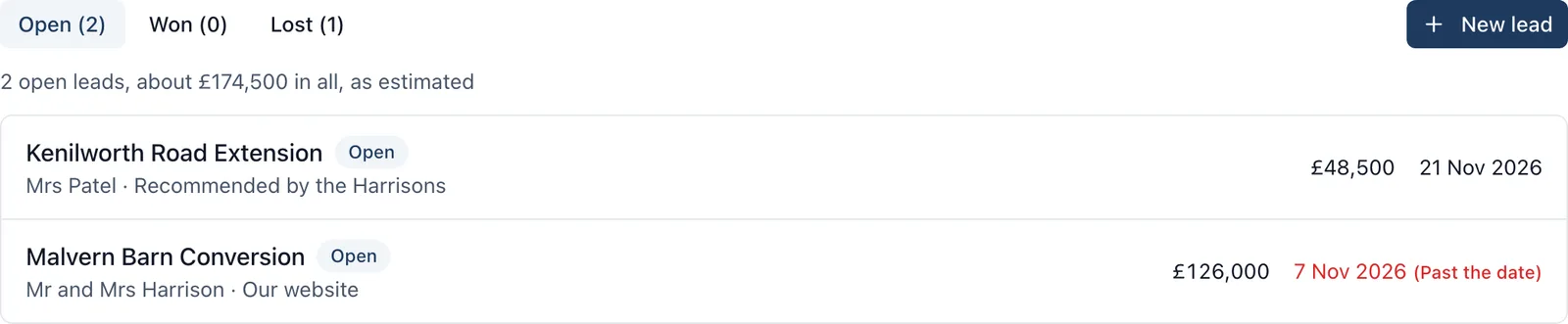
Seeing all your leads: the Leads tab on All projects lists the company’s leads. Open shows the ones you are still chasing, with each one’s client, estimated value, the date you expect to hear (marked Past the date once it has gone) and its next action (marked Due when its day has come). Under each one it says when an email about it last came or went, and where its estimate stands: a draft, sent, accepted or declined. The line above the list adds up the estimated values of the open leads. Won and Lost show what happened to the rest, and Lost says how many were lost for each reason. In the project list on the left, open leads sit in their own Leads section above the archived projects, and the project switcher at the top marks each lead.
Leads to chase: on All projects, Today lists the open leads whose next action is due today or has gone past, the oldest first, so nothing is forgotten.
When you win it:
- Open the lead and click Mark as won in the line at the top. If the client has accepted an estimate on it, the line asks whether it is won
- Click Mark as won again to confirm
It is now a job, listed with your other jobs, and the accepted estimate is its quote. Your company’s site staff are put on it, and followers can be added. This cannot be undone. A lead that has been archived from Project settings has to be brought back first.
When you lose it:
- Open the lead and click Mark as lost
- Choose why: Price, Timing, Went with someone else, No reply, We turned it down or Something else
- Add anything else in your own words if you like, for example “Went with a cheaper quote”, and confirm
It is archived with everything in it and shows under Lost on the Leads tab. To bring it back, open it from there and click Reopen.
Who can do what: a lead’s administrators add its details, mark it as won or lost, and reopen it. Members can work on it but not change its details or its outcome. On the Leads tab, only administrators see the list.
On the phone: your leads are in the project list under Leads, each marked Lead. Open one and its Home says it is a lead; its files, drawings and tasks are there, and the site pages are hidden. Adding a lead and marking it as won or lost are done on the web.