
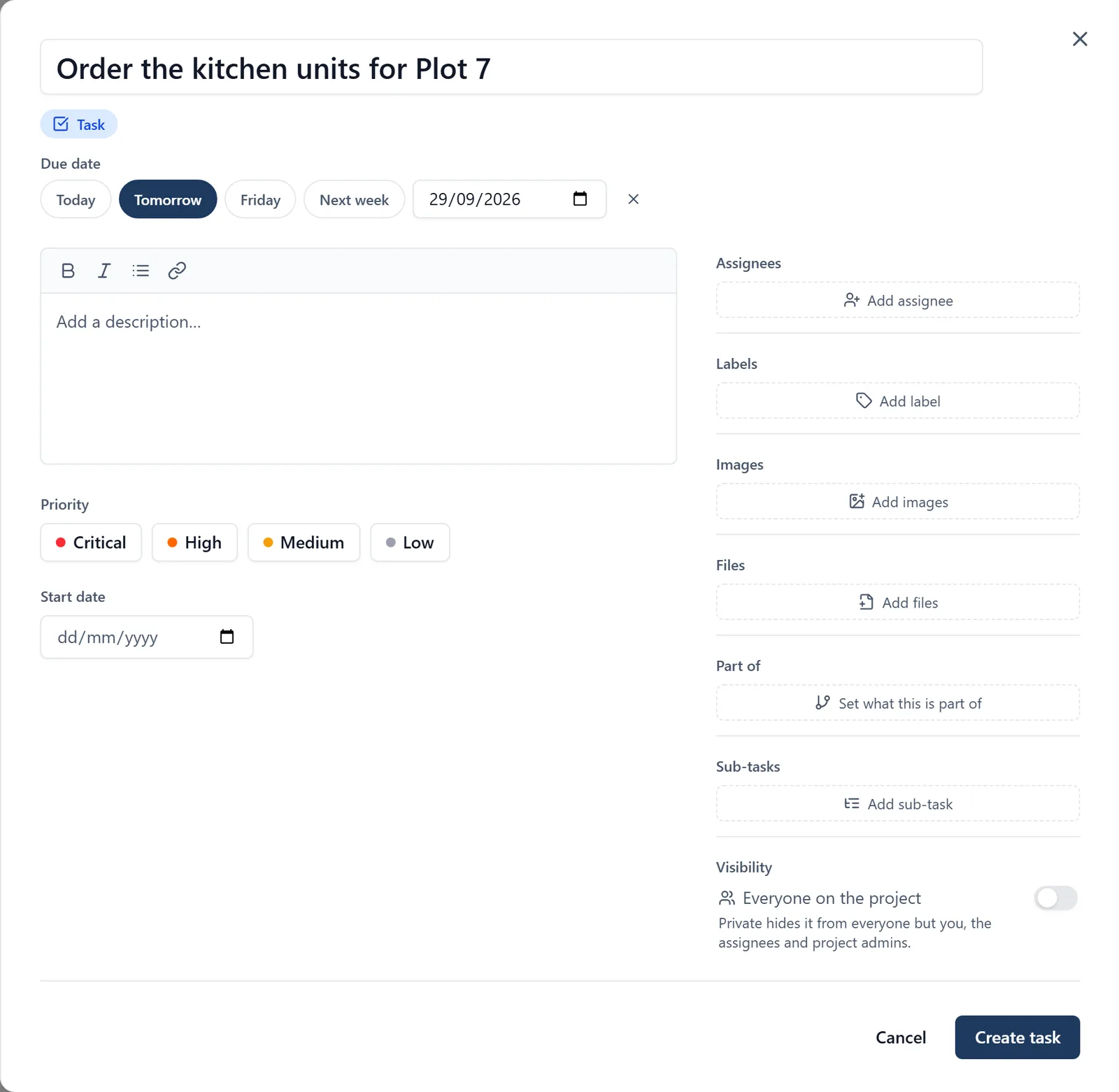
Work items help you track everything that needs doing on your project. This topic covers the kinds of item there are, how to raise one, and how to find it again. What you do to a task once it exists (completing it, the comment thread, photos and files, phases, start dates and making it private) is in the “working_on_a_task” topic.
Kinds of work item:
- Task: a job to complete (e.g. “Install scaffolding on Block B”)
- Issue: a problem to fix (e.g. “Water leak in basement”)
- Delivery: something arriving on site, with a delivery date, the supplier, the ticket or order number, and how it turned out
- Material: something you sent to site from your own yard, van or stock, with the day it went, how much, where it came from, and whether it has been charged to the client yet
- RFI: a question for the design team, with a date a response is needed by, who it is with, and the answer when it comes back
- Inspection: a check to be carried out, with an inspection date, who is inspecting, and whether it passed
- Snag: a defect to put right, with a target fix date
- Reminder: a personal reminder only you can see (e.g. “Order more bricks on Monday”)
You create a task, issue, delivery, material, RFI, inspection or snag on a board. A reminder is made on My Reminders instead.
A board or view that has no kinds chosen shows everything except materials, so a day’s worth of cement and timber does not fill up your programme. Pick Materials in a view’s kinds to see them there, or use the Materials tab on All projects, which lists every line on every job you run.
How to find tasks and issues: Work items live on boards. A board is a page for one part of the job, and each board holds saved views of the work on it.
- Open the side menu (tap the three-line icon ☰ in the top-left corner) and tap Boards
- Tap the board you want, then pick a view from the tabs across the top
- Views an admin has pinned are also listed under Boards in the side menu, so the ones your team uses every day are one tap away
In a browser, Boards is in the left-hand sidebar and works the same way. The “boards” topic covers boards and views in full.
How to find your reminders:
- Open the side menu (☰ in the top-left)
- Tap “My Reminders”
Creating a new work item:
- Open a board and one of its views (side menu → Boards)
- Tap the round + button in the bottom-right corner
- Choose the kind of item. A view can be set up to accept only certain kinds, so an issues view offers issues
- Fill in a title. It is the only thing you have to give. Everything else is optional, and which fields you see depends on the kind you picked:
- Description: more detail about the work
- Priority: Critical, High, Medium, Low, or None. A reminder has no priority
- Start date: the day the work begins. Tasks, deliveries, RFIs, inspections and snags have one. An issue and a reminder do not
- The date it is wanted by. The field is named for the kind, so it reads Due date on a task, Delivery date on a delivery, Remind me on for a reminder, and so on. Once you have picked a day you can add a time to it as well, and once there is a time, an Until time, so an inspection or a site meeting reads “9:00 to 10:00”. Move the task and the whole window moves with it. An issue has no date field at all. While you are creating one, the date sits right under the title, with Today, Tomorrow, Friday and Next week (the coming Monday) one tap away. Friday and Next week show only when they are more than a day off. The days are for tasks and the other dated kinds, not reminders: a reminder keeps just the date picker, where you add the time it goes off
- Assignees: who should do it (tap to pick team members). A reminder has none, because it is only ever yours
- What the kind carries. A delivery asks for the supplier and the ticket or order number; a material asks how much, the unit (bags, lengths, metres) and where it came from; an RFI asks who it is raised with; an inspection asks who is inspecting. You can fill these in now or later, and the “working_on_a_task” topic covers recording how it went
- Private: a switch under the description, on everything except a reminder. See the “working_on_a_task” topic
- Tap the button at the bottom of the form. It reads “Add Task”, “Add Snag”, and so on for the kind you picked
A task with no date is asked once, never made to have one. On the phone and in a browser, the first time you press the button on a task with no date, the form asks “Add a due date? Undated tasks rarely get done.” instead of creating it. Tap one of the days on the question to create the task with that date, or Create without a date to create it as it is. Pressing the button again does the same. Only tasks are asked: a delivery, an RFI or an inspection gets the same one-tap days, but no question.
Creating one in a browser:
- Open a board and click New at the top-right
- Pick the kind from the menu
- The same fields are there, with more beside them. The date sits under the title with the same one-tap days, and a small cross beside them clears it. The description has formatting buttons, and the column down the right lets you add labels, drag in photos or files, set Part of so the job sits inside a phase, tick off Sub-tasks, and set Visibility
- Click Create task (or Create snag, Create delivery, and so on) at the bottom
Setting Part of, ticking off Sub-tasks and changing Visibility are covered in the “working_on_a_task” topic.
Creating a reminder:
- Go to My Reminders (side menu → My Reminders)
- Tap the round + button
- Enter a title and optional due date/time
- Tap “Save”
Or just ask me: Say something like “Create a high priority task to fix the roof leak” or “Remind me to order materials on Friday at 9am”. When you ask me to create or change anything, I’ll read it back to you in one line first. The app will not let me write a change in the same reply that proposes it, so the change is always put to you before it can happen and you get a turn to say “cancel”.
Give me the whole list at once. Paste a programme or a round of snags into the chat, or type them one to a line, and say what they go under and how to label them: “add these under #12, labelled External Envelope”. I read every line back to you once, as a numbered list, and they all go in together, labels and sub-tasks included. There is no need to ask for them one at a time.
Adding a whole list of tasks at once (browser):
- Paste a list. On a board, click New at the top-right, then Paste a list…. Paste the tasks one to a line, straight from an email, a document or a spreadsheet. Indent a line (with Tab or a few spaces) to make it a sub-task of the line above; numbering like 1.1 and 1.2 works as well. Bullets and numbering are tidied off, and a title that simply starts with a number, like “2nd fix”, is left as it is
- Copied from a spreadsheet, a start date and a finish date in the columns after the name come across too, read the UK way (05/09/2026 is the 5th of September). One date on its own is taken as the finish. You can also drop a .txt or .csv file onto the box
- Choose what they are (tasks, snags, and so on), a task to put them all inside, and labels for every one of them, then check the preview on the right. It shows exactly what will be created, in order, and says which lines it could not use and why
- Click Create. The message that follows has an Undo that removes the whole list again, for when the wrong text went in
- If the same run of tasks comes up on job after job, save it once as a template and add it to any project from the same New menu. Three standard programmes come ready to use: a commercial fit-out, a new build plot and a refurbishment. See the “task_templates” topic.
Filtering and searching:
- Each view already carries its own filters (which kinds of item, which statuses, labels, “Assigned to me”, “Overdue only”), so switching view is usually the quickest way to change what you are looking at
- There is a search box on a board, and it only affects your own screen. It reads titles, task numbers and descriptions, not labels
- No date: a chip beside the search box, with a count, whenever the view holds open work with no date. Press it to see only the tasks, deliveries, RFIs and inspections with no date on them or on anything under them, so a phase whose sub-tasks all have days is not counted. Like the search box it is yours alone, and switching view turns it off. The phone has the same chip above the list. A browser’s Gantt view does not offer it
- Labels are the project’s own tags on work, for example Snagging or Awaiting materials. Putting one on a task, making new ones and filtering by them are covered in the “labels” topic
Every task has a number:
- Every task, issue, delivery, material, RFI, inspection and snag is given a number the moment it is created, written as #12. Reminders have no number: they are yours, not the project’s
- In a browser the number sits beside the task’s title, on its row in a list and at the front of a card. Your phone does not print it on the task, but its search box still finds it, and I name it when I read a task back to you
- The number is how you point at a job. Type #12, or just 12, into the search box on a board and the list narrows to it. Write #12 in a comment to refer to it. Or ask me: “what is #12 waiting on?”
- Numbers run per project, so #12 on one job is not #12 on another. That is why a result from another site always names the site it belongs to
- A number never changes. It records when the task was made, and it stays the task’s name for good, so a comment or a printed sheet that says #12 always means the same job
Why the programme counts 1, 2, 3 instead:
- A programme is read in the order the work happens, and that is rarely the order the tasks were typed in. So a Gantt view numbers its rows down the page, 1, 2, 3, with 1.1, 1.2 for the tasks inside a phase, and the printed programme and its spreadsheet download carry the same numbers
- Move a row and the numbers follow, because the number is simply where it sits. To straighten a programme that was built out of order, reorder it (by start date, usually) or drag the rows: see the “boards” topic
- Hover the number to see the task’s own #12. Filtering a view hides rows without renumbering the rest, so 2.3 is the same task wherever you look
Using the same set of tasks again (browser): If every plot or every floor runs through the same twelve jobs, save them once and drop them in again.
- Open a board and click New at the top-right
- At the bottom of that menu, under the kinds, click From template…
- Pick a template: your organisation’s own, or one of the standard programmes listed under them. The dialog lists exactly what it will add, and warns you if the view you are on will not show some of them (a view is a filter, not a folder). You can file the whole set inside a task you already have, or leave them where the template puts them
- Click the Add button, which counts them for you: “Add 12 tasks”
- Making one: set the tasks up once on a real job, then open the task at the top of the set, click the … button at the top-right of it and choose Save as template. It keeps the structure, the order, the kinds, the labels and what waits on what. Dates, people and progress are left behind
- Manage templates, the button in the same dialog, renames, edits and deletes them, and can build one from nothing
- If the project belongs to a company account, the template goes into that company’s library and is offered on every other job in it. On a project with no company account behind it, the template is your own
- Adding the same template twice gives you two separate sets, which is the point
- It is a browser feature. Set the plot up from a template at your desk, then work through the tasks on site on your phone
Who can do what:
- Admins and members can create, edit, and complete work items
- Followers can only view them, and only the ones they are involved in. On a task they are assigned to or created, a follower can also comment and add photos, but cannot @mention anybody or edit or delete what they posted
- Only admins can create or change the boards and views themselves. See the “boards” topic
- Reminders are always private: only you can see your own reminders
- Anyone who can create a task can add a set from a saved template, or paste a list. Saving, editing and deleting templates is an admin job on a project that belongs to a company account, because a template is how the business runs a job