
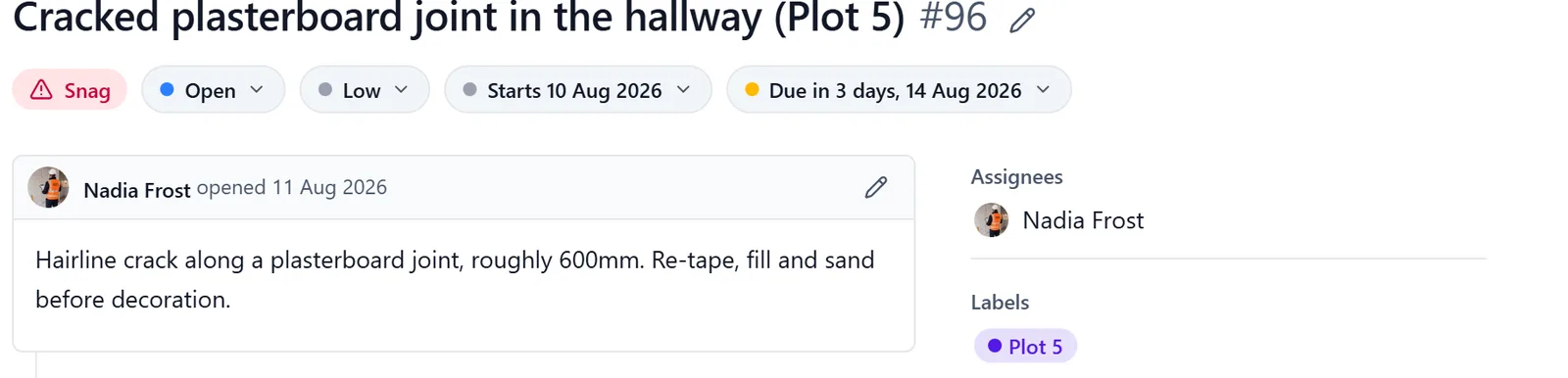
This is what you do with a task, issue, delivery, RFI, inspection or snag once it exists: set its status, talk on it, put photos and files on it, give it dates, file it under a phase, and keep it private. Raising one, the kinds there are, and finding it again are in the “work_items” topic.
Completing a task:
- On your phone, tap the checkbox on the left of the task in the list. Tap it again to reopen the task
- Hold that checkbox down instead of tapping it, and you can set any status: Open, In Progress, Blocked, Resolved or Cancelled
- In a browser, click the circle on the left of the row. Click it again to reopen the task
- Right-click that circle to set any status without opening the task
A snag is checked by somebody else:
- Snagging has two parties, so a snag has one more step than everything else. The trade puts it right and marks it fixed; a project administrator then checks it
- Marking a snag as fixed sets it to Awaiting check. Tap the checkbox on your phone, click the circle in a browser, or use Mark as fixed on the snag itself
- A snag awaiting check is still outstanding work. It stays in your open counts and on the overdue list, because somebody still has to look at it
- To see the list to walk the site with, filter a view by the Snag kind and the Awaiting check status
- Only a project administrator can set a snag to Resolved, which on a snag means verified. Open the snag and use Verify. If you are a member the app tells you a manager checks it, rather than letting you try and refusing
- Not happy with the repair? Send back puts the snag to Open for the trade to do again. Anybody who can edit the snag can send it back. Say why in the comment thread
Raised in error? Cancel it, do not resolve it:
- Cancelled is for work that is not going to happen: raised by mistake, a duplicate, or a decision not to do it. Every kind can be cancelled
- Resolving it instead would put a repair on the record that never happened, which is the thing to avoid
- A cancelled item is not counted as outstanding and not counted as done. It leaves your open counts and it never appears as completed work, so it cannot flatter a progress figure
- Nothing asks you for a reason, so write one in the comment thread. The item’s own history records who cancelled it and when
Blocked asks you why:
- Set a task to Blocked from the task itself and the app asks “Why has work stopped?”. In a browser, open the task and click the status pill under its title. On your phone, open the task, tap Edit at the bottom, then pick Blocked under Status
- Type a short reason. It goes on the site diary against the day work stopped, which is what a delay claim is argued from months later
- You can skip the question. The browser has a Skip button, and cancelling the box on your phone does the same. The task still goes to Blocked, just with nothing recorded against it
- Take the task back out of Blocked and the reason is cleared, so an old excuse never sits on work that is running again
- Changing the status any other way does not ask: the checkbox on your phone, the circle on a row in a browser, or dragging a card into the Blocked column. If you want the reason on the record, open the task and change it there
What a delivery, a material, an RFI and an inspection carry: These four kinds hold facts an ordinary task does not, in their own block under the description. Put them there rather than in the title or the description: the diary, the dashboard and I can all read a field, and none of us can read a sentence.
- A delivery carries the supplier, the ticket or order number, and how it went: Received in full, Part delivered, or Rejected
- An RFI carries who it is raised with, and the answer when it comes back. The app records the date the answer arrived by itself, so you cannot get it wrong later
- An inspection carries who inspected (building control, NHBC, the clerk of works) and how it went: Passed, Passed with conditions, or Failed
- A material carries how much went, the unit, where it came from, and whether it has been charged: To charge, Charged (with the invoice it went on), or Not chargeable
Materials, and charging for them:
- Log a line on the job it went to, from New, then Material, or by asking me: “log 20 bags of cement to Kingsmead from the yard”. Its date is the day it went to site. A line asked for from site and not sent yet stays open until somebody marks it done
- Every new line starts as To charge. Only a project admin changes that: in a browser from the line’s own page, or several at once on the Materials tab of All projects, which an admin also has on the phone (see the “all_projects” topic). Anybody on the job can still correct the quantity
- A material line carries no price. The invoice number is what ties a line to your accounts
Filling them in:
- In a browser, open the item and click the pencil on the block under the description. Fill in what you know and click Save
- On your phone, open the item, tap Edit at the bottom, and the fields are under the description. How it went is a row of chips: tap one to pick it, tap it again to clear it
- Leave “how it went” empty until it has happened. There is no “awaited” to choose, on purpose. Empty means nobody has said yet, which is the honest state of a delivery booked for Thursday, and the dashboard counts those separately rather than lumping them in with the ones that arrived
- Change an item from one kind to another and the fields of the old kind are cleared, so a task never keeps a supplier from when it was a delivery
Where they show up:
- On the site diary, after the item’s name: “20 packs facing brick (Ibstock, ref IBS-20264, Part delivered)”. Without them the diary can only print whatever somebody typed in the title
- On the project dashboard, in a card called “How they went”: deliveries and inspections in the range, by outcome, with a pass rate, and materials by whether they have been charged. It counts them by the day each was booked for, so a delivery with no date is in no range at all
- In my answers. Ask me “did the bricks turn up on Tuesday”, “which inspections failed last month”, or “which RFIs are still unanswered and who with”. You can ask me to record them too: “note that the Ibstock delivery arrived two packs short”
Talking on a task: Every kind except a reminder has a comment thread on it. A reminder has none, because nobody else can see it.
- Open the task and scroll past the description
- Write in the box at the bottom of the thread
- Type @ and the first letters of a name to mention somebody, then pick them from the list that appears
- To point at another task, type #. In a browser that opens a picker you can search by number or title. On your phone you type the number yourself, and #12 still comes out as a link
- Click Comment in a browser, or tap the send arrow on your phone
- A mention is more than a nudge. For a follower it opens that task and its whole thread to them, so think before mentioning a client on a task that discusses money. See the “permissions” topic
- A task in a list carries a small badge showing how many comments on it you have not read
- The task’s history is part of its thread, on your phone too. Each change sits among the comments in the order it happened, with who and when: status (closed and reopened), priority, the due date, the phase, title and description edits, people, labels and links to other tasks. That is where “who moved this date?” is answered, even with no signal
Putting photos and files on a task:
- In a browser, open the task. In the column down the right, Add images and Add files open one dialog, Attach from the project, at its Photos or its Files tab. Tick as many as you like from any tab, search all three at once, then press Attach. Once a section has something in it, its button becomes a small + beside the heading
- What you pick is linked, not copied: the same photo as in the Gallery, the same file as in Files. Something limited to members or admins can be picked too, and the dialog says who on the task will not see it. Closing it with anything ticked asks first, and offers to attach them
- Something new from your computer: Upload from this computer at the bottom of that dialog, or drag it onto the section. Images takes photos and videos, Files takes documents: PDF, Word, Excel, CSV and plain text
- Or put it on a comment instead. Drop the file onto the comment box, or click the paperclip that reads “Drop or click to add files”. A comment takes photos and videos, PDF, Word, Excel, CSV, text (.txt, .rtf) and CAD drawings (.dwg, .dxf). On a phone, the paperclip left of the comment box offers Camera, Gallery or Files, for photos and videos
- On your phone, open the task and tap Add at the end of Attachments, under the description. It opens the same Attach from the project, which works the same way, with anything already on the task greyed out
- Something new from your phone: Add from this phone at the bottom of that screen takes a photo or picks from your library or Files, even with no signal: it goes up when you have one. Taking something off a task is still a browser job
- Who can add: admins and members, on any task they can see, and nobody while the project is read-only. A follower can add photos to a task they created or are assigned to, with Add photos, which opens the camera and library on a phone and your computer’s files in a browser, never the rest of the project
- Photos already in the Gallery go on from the Gallery, on the phone and in a browser: select them, a whole day at a time if you like, and choose Attach to task. They stay gallery photos, with their dates and locations, and show on the task as well. See the “photos” topic
- A photo uploaded onto a task is not a gallery photo. It has no capture record behind it, so it cannot be given a date, filed into an album, or deleted from the Gallery. It is still findable: the Gallery in a browser has a row of chips above the pictures, Gallery, Everywhere, Tasks, Task comments, File comments and Site diary, and every picture says where it came from (“Task #12”, “Comment on #12”) and links back to it
- One picture can be linked in more than one place, and its Info panel lists every one
Attaching a drawing, and being told when it is out of date:
- Attach the drawing itself, not a copy of it. In a browser, the Files section of a task has a second control beside the +, Attach a drawing. It lists the project’s drawings; tick one and the current issue of it goes on the task. Uploading a downloaded copy instead makes a new file that nothing links to the drawing, so when the drawing is reissued the task carries on showing the old one with nothing to say about it
- A superseded attachment says so. When the file on a task has been replaced since, whether it is a drawing that has been reissued or a document revised in Files, the attachment carries an amber v1 and a line reading “Version 3 is the current one”, with Open it straight through to the current version. On your phone the tile carries the same badge and tapping it asks which version you want
- Nothing is swapped behind your back. The attachment still points at exactly what was attached, because that is the record of what the job was sent. The badge is a warning, not a repair
- A drawing limited to members or admins (see the “permissions” topic) can be attached too, and the picker says so beside it: a follower on the task does not see it, exactly as they do not see any other file above their access level
Linking tasks in sequence:
- A task can say what it comes after: something that has to happen before it. Moving that one then offers to shift everything that follows it, keeping the gaps between them. It is a different thing from Part of, which is how a task sits inside a phase, and the “task_dependencies” topic sets the two side by side.
Start dates, and what puts a task on the programme:
- Tasks, deliveries, RFIs, inspections and snags carry a start date as well as the date they are wanted by. The two together draw the bar on the programme, from the start to the finish
- Give a task only one of the two and you get a single day on the chart. Give it neither and it still appears in the list down the left, with “Not scheduled” where its bar would be
- An issue carries no dates at all, so an issue never gets a bar. A reminder is never on the programme either: it is one moment rather than a stretch of work, and it lives on My Reminders
- A phase takes its bar from the work inside it, running from the earliest start underneath it to the last finish. Give the phase dates of its own as well and you see both: the dates it was scheduled for, and where its work actually sits
- Start dates can be set on your phone as well as in a browser. The chart itself is browser only
Phases and sub-tasks (browser): Putting one task inside another is how a phase is built.
- Open the task you want to move, and find Part of in the column down the right
- Search by number or title, and click the task it belongs under
- Or work the other way: open the phase, find Sub-tasks, and tick the tasks that belong in it
- Everything that is part of a task moves when that task moves, and you are shown the list and asked before it happens
- Dragging a row up or down only reorders it among its own brothers and sisters. It never moves a task into a different phase, so a phase cannot be changed by a slip of the mouse. That is what the Part of field is for, so the move is deliberate
- On your phone you can see a task’s phase and its sub-tasks on the task itself, but setting them is a browser job
Keeping a task private: Anything except a reminder can be made private. A private task is visible to three sets of people: whoever created it, anybody assigned to it, and the project’s admins. To everybody else on the job it does not exist, and neither do its comments, its labels or its photos.
- In a browser: open the task and find Visibility at the bottom of the column down the right. It reads “Everyone on the project” or “Private”. Turn the switch on. In a narrow window that column sits further down the page instead
- On your phone: open the task, tap Edit at the bottom, and the Private switch is under the description. You can also set it while you are creating the task
- Only whoever created it, or a project admin, can move that switch. Somebody assigned to a private task can work on it and change everything else about it, but cannot open it up to the project
- A sub-task of a private task is hidden too. Its own switch reads off, and moving that switch will not reveal it. The task above it is where that has to change
- A hidden task carries a small padlock, on its row and on the task itself, so you can tell at a glance which of your work the rest of the site cannot see
- A private task cannot be saved as a template
Who can do what:
- Admins and members can edit, complete and comment on work items
- Only a project admin can verify a snag, which is the step that sets it to Resolved. Members can take a snag as far as Awaiting check, and can send one back. See “A snag is checked by somebody else” above
- Followers see only the ones they are involved in. On one they created or are assigned to they can comment and add photos, but not mention anybody or change anything else; the rest are read-only to them
- Only whoever created a task, or a project admin, can move its Visibility switch. Anybody assigned to a private task can work on it, but cannot open it up to the project
- A reminder is yours alone, so it has no comment thread and nobody else ever sees it