
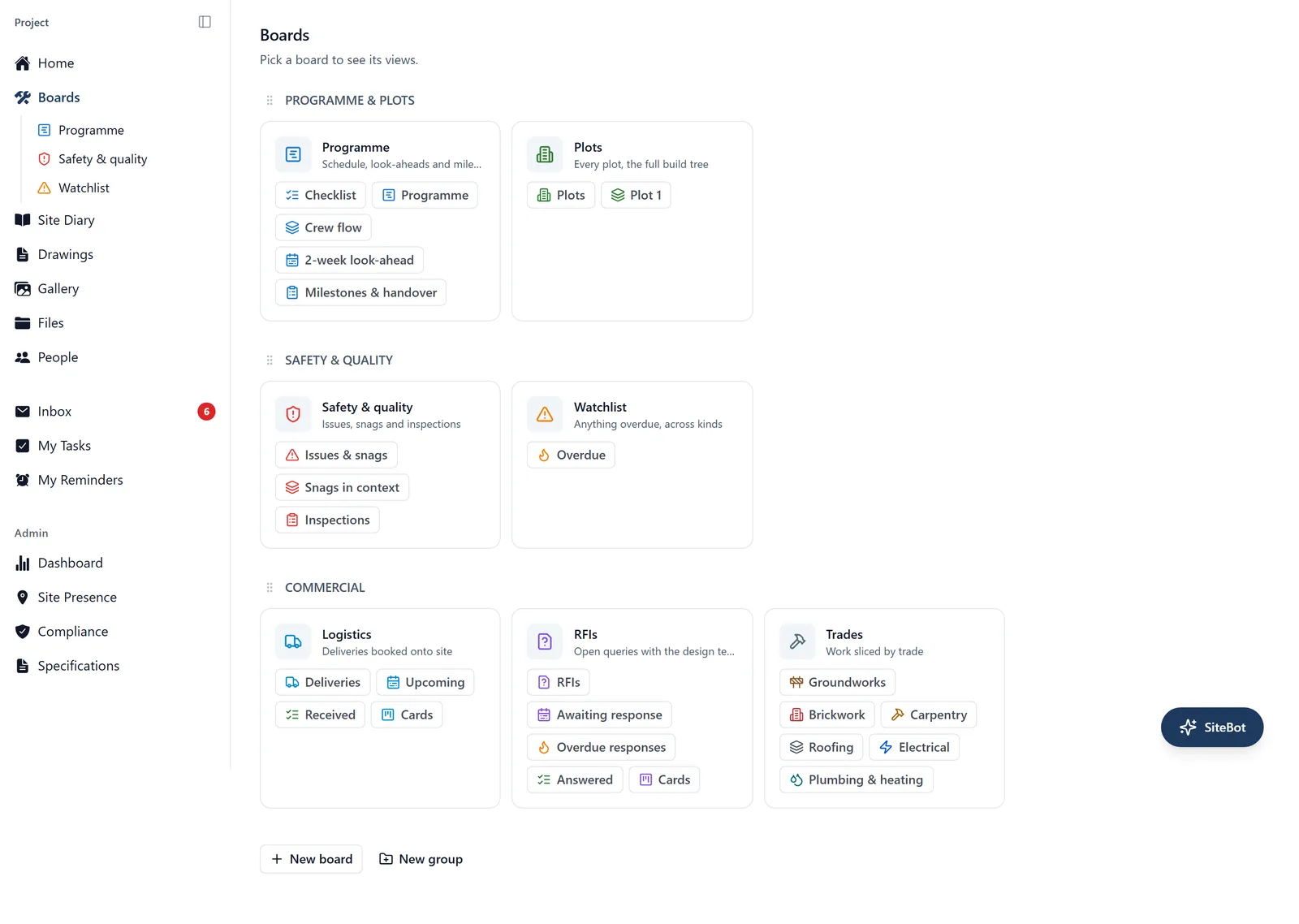
Tasks, issues and everything else on the job live on boards. A board is a page for one part of the project, for example “Programme”, “Safety & quality” or “Plots”. Each board holds one or more saved views, which are different ways of looking at the work on it.
Where to find them:
- In a browser (app.buildersai.co.uk): click Boards in the left-hand sidebar. That opens the board gallery, so pick a board, then pick a view from the tabs along the top.
- On your phone: open the side menu (☰ in the top-left) and tap Boards, then tap a board to see its views as tabs across the top.
- Views that an admin has pinned are listed underneath Boards in both places, so the ones your team lives in are one tap away.
- A brand new project already has two of them pinned: the List view on the Tasks board and the List view on the Issues board. That is why Tasks and Issues sit under Boards before anyone has set anything up
- A pinned row is named after its board while that board has only one view pinned, so it reads Tasks. Pin a second view on the same board and each row adds the view’s name after the board’s, so you can tell them apart
A new project starts with two boards, Tasks and Issues, each with a List and a Cards view. An admin can rename those, add more, or file them into groups.
A demo project can come with more. A demo may arrive with boards already built for the kind of job it is, so do not be surprised by names nobody on your team created. Bournville Gardens, the housing demo, comes with Programme, Plots, Safety & quality, Watchlist, Logistics, RFIs and Trades, filed into three groups. 14 Beechwood Road, Manchester Business Tower and Rosewood Avenue Extension keep the plain Tasks and Issues, and a demo made from one of the older templates keeps the boards it came with. Either way they are ordinary boards, so an admin can rename them, add views to them, or delete them.
The three view layouts (browser):
- List: the work as a checklist, with phases and their sub-tasks nested underneath. Drag rows to reorder them.
- Cards: a kanban board with a column per status: Open, In Progress, Blocked and Resolved. Drag a card into another column to change its status. Two more columns appear when they are needed rather than sitting empty: Awaiting check when the board holds a snag, and Cancelled only once something on the board has been cancelled.
- Gantt: the programme, drawn as bars on a timeline, with arrows between linked tasks. Modes are Classic, Crew flow, Look-ahead and Milestones, there are toggles for dependencies and for the baseline, and Revisions keeps the history of every baseline taken and why. The “task_dependencies” topic covers it properly.
What a view holds: A view is saved for everyone on the project, not just for you. It can carry:
- Which kinds of item to show: Tasks, Issues, Deliveries, RFIs, Inspections, Snags
- Which statuses to show (Open, In Progress, Blocked, Awaiting check, Resolved, Cancelled), which labels (the “labels” topic covers what a label is and who can change them), “Assigned to me”, and “Overdue only”
- A view worth building on any job with snagging on it: kinds set to Snags and statuses set to Awaiting check. That is the round to walk, and it stays current on its own
- On a List or a Gantt: how many levels of the tree to open
- On a List only: whether to show the parents of anything that matches, greyed out, so you can see where it sits
- On a Gantt: the mode, zoom and grouping it opens on
Your search box, the “No date” chip beside it and the branches you have expanded are yours alone and are not saved onto the view. The chip shows only the open work with no date on it or on anything under it (the “work_items” topic has the detail), and switching view turns it off.
Creating and changing boards and views (admins only):
- Open Boards in the sidebar
- Use New board at the top of the gallery, or the cog on a board card to rename it, change its icon and colour, write a one-line summary, or delete it
- Open a board and use Add view on the tab strip, or the View cog to edit the tab you are on
- In the view editor you choose the layout (List, Cards or Gantt), the filters, which board it belongs to, and whether to pin it to the sidebar
- A view can also have an icon and a colour of its own, under Icon & colour, separate from the board’s. It shows on the view’s tab, and on that view’s button on the board’s card in the gallery, so a board’s tabs can be told apart at a glance. Left on Auto, the tab shows the icon for its layout instead
Or just ask SiteBot. An admin can have the assistant do any of the above from the chat, on the phone as well as in a browser: “make a board called Plot 4”, “add a Gantt view for overdue snags”, “pin that view to the sidebar”. It confirms what it is about to change before writing anything.
Boards can be filed into groups, which are the sections in the gallery. Admins create and rename those the same way, and can drag boards between them.
Deleting a board does not delete any work: its views move to the default “General” board. Deleting a view does not delete any tasks either.
On your phone: browse, or ask. You can open any board and any saved view on mobile. The view’s filters for kinds, statuses, labels, “Assigned to me” and “Overdue only” are applied, and the mobile app shows the results as a list whatever layout the view uses. A No date chip sits above that list whenever the view holds open work with no date, and works as it does in a browser. The depth settings do not come across: Levels and “Show parents of matches” are browser only, so a view an admin set to open one level deep arrives on your phone as a flat list of everything underneath. The Cards (kanban) and Gantt layouts are browser only, and so is the drag-and-drop rearranging. Building or changing a board or a view on your phone is done by asking SiteBot rather than through the screens.
Adding a saved set of tasks: the New button on a board ends with “From template…”, which adds a whole saved set of tasks in one go, with its structure, order and what waits on what, and “Paste a list…”, which turns a list you already have into tasks. Browser only. See the “task_templates” and “work_items” topics.
One order for the whole project: There is a single manual order for the work items, shared by every view and by the mobile app. Reordering is an action that changes it for everyone, not a per-view setting.
Sorting the work into a new order (browser):
- The whole project: on any board view, the Reorder button sits at the right-hand end of the row that holds the search box. Click it and pick what to order by: Start date, Due date, Task number, Title (A to Z), Status, Priority, or Reverse current order. Only an admin has that button. Title reads the numbers in titles the way you would, so “2 Drylining” comes before “10 Snagging”
- One row at a time: drag it. On a List, drag the row itself; on a Gantt, drag the small grip at its left edge. Either way it moves within its phase
- One phase and everything under it: hover a row that has sub-tasks and click the small … button that appears on it, or right-click the row. The same list of choices appears. Admins and members can do this, on a List view or on a Gantt. It reaches every level underneath, not only the row below
- Anything bigger than a small tidy-up asks you to confirm first. It says how many tasks will move, reminds you that everyone sees the new order, and tells you when some of what is moving is hidden by the view’s filters
- Straight afterwards a message offers Undo for about ten seconds, which puts the old order back exactly. Once it has gone, the only way back is to reorder again
- Or just ask me, on the phone as well as in a browser: “put the second fix phase in due date order”. I will tell you how many tasks would move and put it to you first. The app will not let me write a change in the same reply that proposes it, so you always get a turn to say cancel. There is no undo once it is done through me
Sending a list to somebody who is not on the app (browser):
- Export list, beside the search box on any board view, offers two ways out of the app. Both carry what the view shows, and whoever receives either needs no account
- Spreadsheet (CSV) is for a recipient who will work through the list and tick things off. One row per item: the number, kind, title, description, status, priority, due date, until when (for a task with a time window), whether it is overdue, who it is assigned to, its labels, what it sits under, when it was raised, when it was completed, and why it is blocked if it is
- Document (PDF) is for a recipient who is being shown what the job is: a package of works for a subcontractor, or a snag list for a client. It is laid out to be read and to be sent on as it stands
- It is the usual way to send one trade its snags: make a view filtered to Snags and to that trade (by label, or by assignee), then export it and email the file
- Both say where they came from: the job and its job number, the board and view, which filters were on, and for the document the date and time it was produced and who produced it. A list outlives the screen that made it, so it has to say what it is
- Private items are left out of both, and both say how many, since a file can be forwarded to anyone. Photos, comments and attachments are not in either; open the item in BuildersAI for those
- Everything the view’s filters match is in it, whether or not you have expanded it on screen, in the same order as the List. What you type in the search box narrows the file the same way it narrows the screen
- Nothing comes back: a file somebody has edited cannot be uploaded to update the items. The button is not there while the view is empty
- On a Gantt view the Print dialog has its own Download schedule (CSV), which carries the dates and dependencies instead; the “task_dependencies” topic covers it
Making the document (browser):
- Pick Export list, then Document (PDF). Choose what goes on it, then press Print and pick Save as PDF in your browser’s print dialog. Leave Background graphics switched on, or the colours drop out
- Preview shows the real first page before you produce anything
- The choices are the paper (A4 portrait, or A4 landscape to give the descriptions more width), whether to include the descriptions, whether to include who it is for and the labels, and whether to add a column to write in, which is what a snag list walked round a plot with a pen wants
- Nothing on the document is a link, because whoever you send it to has no login to follow one with
- The document is a snapshot of the moment it was made, which is why it prints the date and time on it. It does not update itself, so send a fresh one rather than expecting the old one to change
- Sub-tasks are indented under what they sit beneath, so the shape of the work survives onto paper. A row whose parent is not on the list says which item it sits under instead
- Printing the programme as a chart is a different thing and lives on the Gantt view’s own Print button; the “task_dependencies” topic covers it
Who can do what:
- Everyone, including followers, can open boards and views and read what is on them
- Admins and members can create and change the work items on them
- Only admins can create, edit, delete or reorder boards, groups and views, either through the browser screens or by asking SiteBot
- A follower sees only the items they are involved in, so a board can look empty to them while holding plenty of work for other people
My Tasks is not a board. It is your own list of what you are involved in, with filters that only you see. It sits under Boards in the sidebar and in the side menu.
What is on My Tasks:
- Four tabs, because there are four different questions: Assigned to me, Created by me, Mentions me and Everything mine. On the phone the labels are shortened to Assigned, Created, Mentions and Everything
- Each tab carries a count, so you can see where your work is without opening them one by one. A tab holding nothing shows no number
- One Filters button holds the rest: which kinds to show (Tasks, Issues, Deliveries, RFIs, Inspections, Snags), Show completed, Overdue only, No date only, labels, and the order (Board order, Due date, Priority, Newest). Reset puts it all back
- No date only shows your open work that nobody has given a day. It and Overdue only cannot be on together: choosing one switches the other off
- It opens on Assigned to me, showing work that is still open, in the project’s own order
- The choices are yours alone and nobody else sees them. Your tab, the kinds, Show completed and the order are waiting for you next time on either device. The phone remembers the labels, Overdue only and No date only as well, while the browser starts those three fresh, and what you type in the search box is never kept
- It covers the project you are in, one project at a time. Your own private reminders are not on it, they are on My Reminders
- The number beside My Tasks in the sidebar and the side menu is not the size of the list. It counts only what needs attention now