
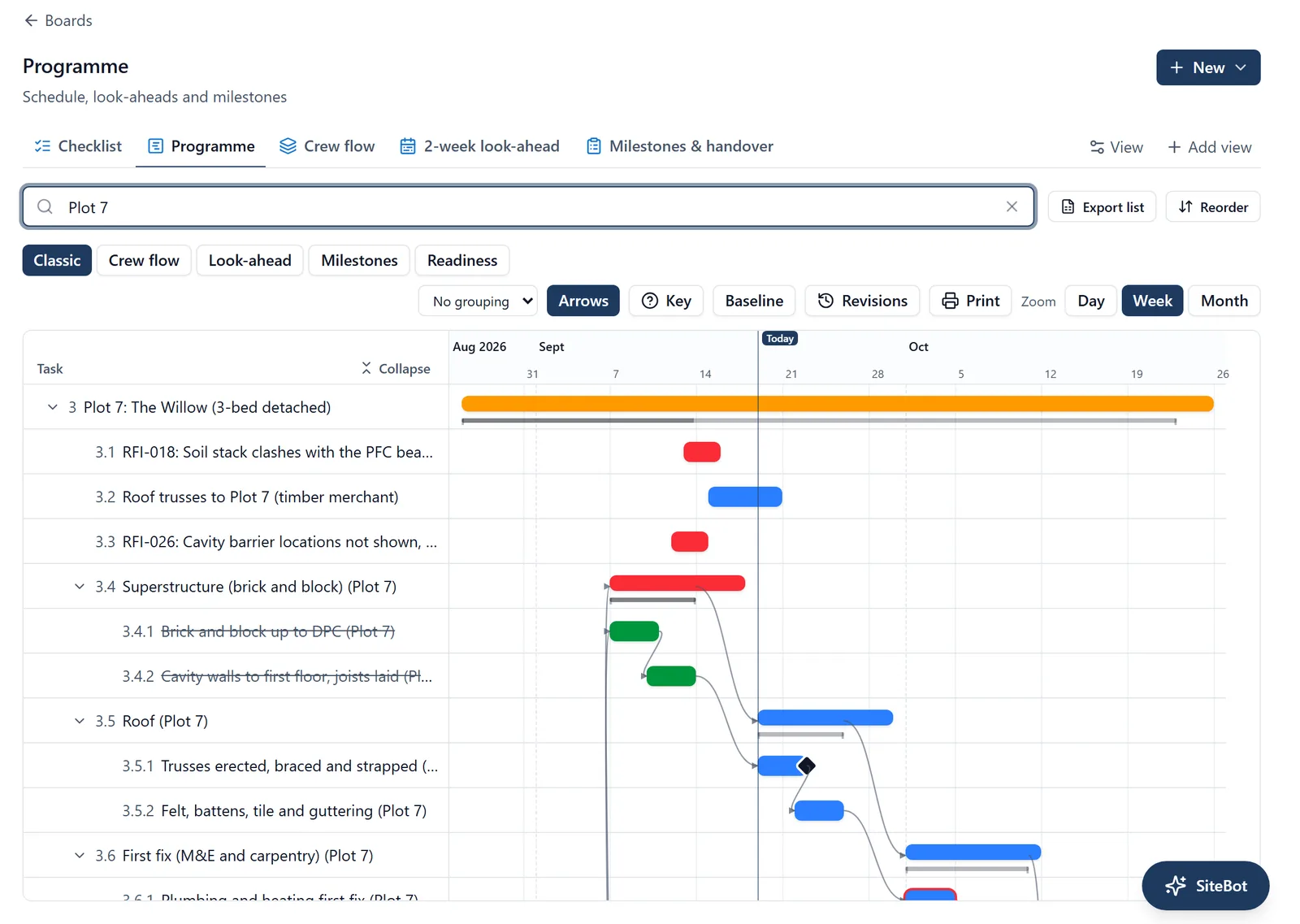
Tasks can be linked in sequence, so the programme knows what has to happen before what.
The two ways work is connected: Two tasks can be connected in two different ways, and they do different jobs. Both of them move dates, which is exactly why they get mixed up.
- Comes after is order. “Plasterboard” comes after “First fix plumbing”. The two can sit anywhere in the programme, under different phases or different plots, and the chart draws an arrow from one to the other.
- Part of is grouping. “First fix plumbing” is part of “Plot 3: First fix”. It decides where a task is listed and which phase’s bar it sits inside.
The short way to hold it: Part of says where the work lives, Comes after says when it happens.
Both of them move work: Move a task and everything that comes after it is offered up to move with it. Move a phase and everything that is part of it is offered too, because a phase’s bar spans the work inside it: shift the phase on its own and the bar would not appear to move at all.
So “if I move Site setup, does everything under it move as well?” has a one word answer, and the answer is yes. You are asked first, and shown exactly which tasks would move and what their new dates would be, every single time.
Comes after is not the same as a prerequisite: A prerequisite is something that must be DONE before this work can start, like a delivery or an inspection. It moves no dates and draws no arrow; it tells people when work is not ready. See the “prerequisites” topic.
How to say one task comes after another:
- Open the task that happens second
- Find the Comes after section (it sits above Part of and Sub-tasks)
- Search for the task that has to happen first and pick it
- It is saved straight away
Remove one the same way, with the X next to it. Removing a link never changes any dates.
You may still see the word predecessor in another planning package, or on a programme somebody has sent you. It means the same thing as Comes after.
What happens when a linked task moves: When you change the dates of a task that other work is tied to, a confirmation appears listing everything that would move with it: what comes after it, what comes after that, and anything that is part of it. You tick which ones should move and confirm.
- Everything moves by the same number of days, so the gaps between tasks stay exactly as they were. Move a task 3 days later and a task that started a week after it still starts a week after it. The exception is a task with a gap stated on it, which keeps that gap instead: see “Saying how long to wait” below.
- Everything inside a task moves with it, and it is listed in the confirmation under the task it belongs to.
- Completed tasks are never moved.
- Whoever is assigned to a task that moved gets a notification.
- The dialog is what does it: tick what should move, press Confirm, and only the ticked ones shift. Untick parts of the chain to move only some of it.
Saying how long to wait (browser): Concrete has to cure, screed has to dry, and a delivery takes a fortnight to arrive. Those are not slack in a programme, they are part of it, so you can write the wait down on the link rather than leaving it in the dates.
- Open the task that has to wait
- Under the name of the task it comes after there is a small line reading Moves with it
- Click it, type the number of days, and press Set
From then on that task sits exactly that many days after the one before it finishes, and it says so. What changes:
- If the task before it takes longer, this one moves out to keep the wait. Without a stated gap it would not move at all, and the wait would quietly shrink.
- If the task before it moves earlier or later, this one follows and keeps the wait exactly.
- Setting a gap offers the move straight away, in the same confirmation dialog, rather than waiting for something else to happen first.
- The gap is drawn on the arrow on the Gantt (+3d), so anybody reading the programme can see the space is deliberate. It turns amber when the two tasks are closer together than the gap asks for, and the Conflicts button says by how much.
- Days are calendar days, not working days. Concrete cures at the weekend, and so does plaster dry and a pallet of bricks sit in the yard. Whether the programme should skip weekends is a separate question we have not answered yet.
- A negative number is an overlap, for work that deliberately starts before the task before it finishes (“start second fix two days before first fix is done”). That also stops the conflicts button flagging an overlap you meant.
- Leave it alone and nothing changes. Every Comes after link starts with no gap stated and behaves exactly as it always has. Moves with it is not the same as a gap of zero: zero means “starts the day after”, which is a rule, and no gap means nobody has said anything.
- Admins and members can set one. On your phone you can see the gap on the task, but it is set in a browser: how long concrete has to cure is a planning decision rather than a site one.
Seeing it all: the Gantt chart A Gantt view shows the programme as bars on a timeline, with arrows drawn between linked tasks. The arrows are Comes after links only, so an arrow always means “this genuinely follows that”, not a loose association.
- Hover any bar and the readout names what that task comes after, whether or not the arrows are switched on. It also tells a phase apart from the work inside it: hover the thin bracket and it says “work inside”, hover the solid bar above it and it says “scheduled dates”.
- Key in the toolbar explains every mark on the chart: the bar colours, a phase’s bracket, the milestone diamond, today’s line, the baseline and the arrows. It is the same key that prints on the programme.
- Drag a bar to move it, or drag its edge to resize. A tooltip shows the dates and the size of the change as you drag.
- The rows are numbered 1, 2, 3 down the page, with 1.1, 1.2 for what sits inside a phase, so the programme reads in order when you walk someone through it. Hover a number to see the task’s own #12, which never changes. See the “work_items” topic.
- To move a row up or down, hover it and drag the small grip that appears at its left edge. A line shows where it will land. It moves within its phase, never into another one, and the numbers follow it. With the grip selected, Alt and the up or down arrow move it one place. Admins and members can do this, on Classic with no grouping.
- Milestones show as a diamond at their due date, and can be dragged too. A task becomes a milestone by carrying a label named milestone, and nothing else marks one: see the “labels” topic.
- A conflicts button appears when a task is scheduled to start before the task it comes after has finished, or closer to it than a stated gap allows. It says which, and by how many days. Click a conflict to jump to that task on the chart.
- Modes: Classic, Crew flow (line of balance), 2-week look-ahead, Milestones, and Readiness (what starts soon and whether it can, see the “prerequisites” topic). An admin can save the mode, time grain and grouping onto the view, so it opens the way it is meant to be read.
Making a milestone: A task becomes a milestone by carrying a label named milestone. There is no milestone type to pick and no box to tick.
- Make the label once, in a browser. Open any task, click Labels in the right-hand panel, then Edit labels at the foot of the list. On the Labels page click New label and name it milestone. An admin or a member can do it
- Put that label on the tasks that mark a real date: handover, watertight, a section finished
- Open a Gantt view. Those tasks now draw a diamond on the chart, and the printed programme counts them
Capitals do not matter, “Milestone” works as well as “milestone”, but the word has to stand on its own: a label called “Milestone plan” is a different label and does not count. Put it on the piece of work itself rather than on the phase above it, because a task with sub-tasks under it does not draw a diamond. The diamond is a browser thing, since there is no Gantt on the phone, though you can put the label on a task from the phone.
On your phone: Comes after and the confirmation dialog work on mobile too, in the same words. Shifting a chain does need a connection: moving several tasks from an out-of-date offline copy could quietly overwrite someone else’s change, so while you are offline you can still edit the task’s own dates, but the cascade is held back until you are online.
The rest of the programme toolbar (browser only): The controls sit in a row above the chart. Revisions and Print are on the Classic and Look-ahead modes.
- Revisions is the programme’s history: what it used to say, when it changed, and why. Each revision records every task’s dates as they stood when an admin re-baselined the programme, who did it and the reason they gave, and each one is kept rather than replaced by the next. The newest is the baseline: turn Baseline on and each task grows a thin faint bar underneath it at its planned dates, so slippage is visible at a glance
- In Revisions, pick a revision to see what has moved since it, or What changed at Rev 3 to compare it with the one before. It leads with the planned finish then and now, then lists every task that moved later or earlier and by how many days, was added, or was removed, numbered the way the programme is. Largest move first puts the biggest slips at the top, and Download CSV writes the comparison to a spreadsheet, saying which two versions were compared and why
- Only an admin captures a revision, with Capture revision in that same window, and not while the project is read-only. It asks why the programme is being re-baselined and shows what has moved since the last revision before it records anything. It covers every task in the project, not only the ones on screen. A revision cannot be edited or deleted afterwards, which is what lets it be relied on later. Anyone who can see the programme can read the history, though a follower sees only the tasks they can see on the programme itself
- Tasks with no slack are ringed in red, and while Arrows is on the arrows between them turn red too. That is the critical path: if one of those slips, the finish slips
- Every bar is filled in from the left by how far along it is. A finished task is full, one in progress is half, and a phase shows the average of the work underneath it
- Print puts the programme on paper or into a PDF. You choose A3 or A4 landscape, the time scale, how much of the calendar to include (the whole programme, the next 4 or 12 weeks, this quarter, or your own dates), which of Start date, Finish date, Duration and Total float to print beside the names, and whether to add a cover sheet and a legend. It tells you how many sheets that comes to before you commit, and Preview shows you them. In your browser’s print box, choose Save as PDF, set margins to None and leave background graphics on. Anyone who can see the programme can print it
- Days the site does not work (weekends under the project’s Working week, plus any Extra days off in Project Settings) are shaded on the chart and on the printed sheets. Dragging a bar still moves calendar days, including days off: the shade is for reading, not for automatic re-planning
- Download schedule (CSV) is in that same dialog, covering exactly the rows that would print, for when you want the dates in a spreadsheet
- The Milestones mode is the picture for a progress meeting: a cumulative progress curve, planned against actual, above a grid of every plot against every stage, each square marked Complete, In progress, At risk or Not started
- Change the mode, the zoom or the grouping and the tab is marked Modified, with Reset beside it. That change is yours alone and lasts for this visit only. An admin also gets Save to view, the button that makes it the way the tab opens for everyone
Or just ask me: “What is task 42 waiting on?”, “What follows the foundations?”, “If the roof slips a week, what else moves?”, “Push plot 3 back 3 days and move everything that follows”. I will show you exactly which tasks would move and their new dates before anything is changed.
What the groupings expect from the way the work is set up (browser): On a Gantt, Classic has a Group by menu and Look-ahead is always grouped. They read the shape of your task tree, so they only make sense if the work is built that way.
- By plot uses the top-level task a piece of work sits under, and names the lane from everything before the colon in its title. “Plot 3: The Willow” gives a lane called “Plot 3”. A top-level task with nothing under it becomes a lane of its own, named the same way
- By phase uses the task one level below that, so a plot holding First fix, Second fix and Snagging gives those three lanes
- By trade reads a label on the task. A label that says who does the work (a trade from Add a set on the Labels page, or any label given a Done by) gets a lane of its own, and so do labels named exactly electrical, plumbing, groundworks or safety, in lower case. Anything else lands in “Other”
- By assignee uses the first person assigned, and everything unassigned goes into one lane. By status works on any project, whatever shape it is in
- Grouping only ever lists the tasks at the bottom of the tree, the ones with nothing underneath them
- Crew flow and the Milestones grid need that same shape and say so rather than draw without it: plots at the top level, phases nested under each one, and dates on those phases
- If your programme is a flat list, use Classic with no grouping, or the Look-ahead grouped by assignee
Who can do what:
- Admins and members can link tasks and reschedule chains
- Followers can view the programme but not change it