
There are two main ways to navigate:
1. Bottom bar (always visible)
At the very bottom of the screen, you’ll see five icons. Tap any of them to go to that section:
- Home (house icon): the site and its weather, checking in and out, what needs you, announcements, and shortcuts to the diary, the boards, your tasks and your reminders. In your first week on a project somebody else set up, a Your first day card sits at the top with three things to do on site
- Drawings (document icon): Construction drawings and plans
- Gallery (images icon): Site photos
- Files (folder icon): Documents and folders
- People (person icon): Team members list
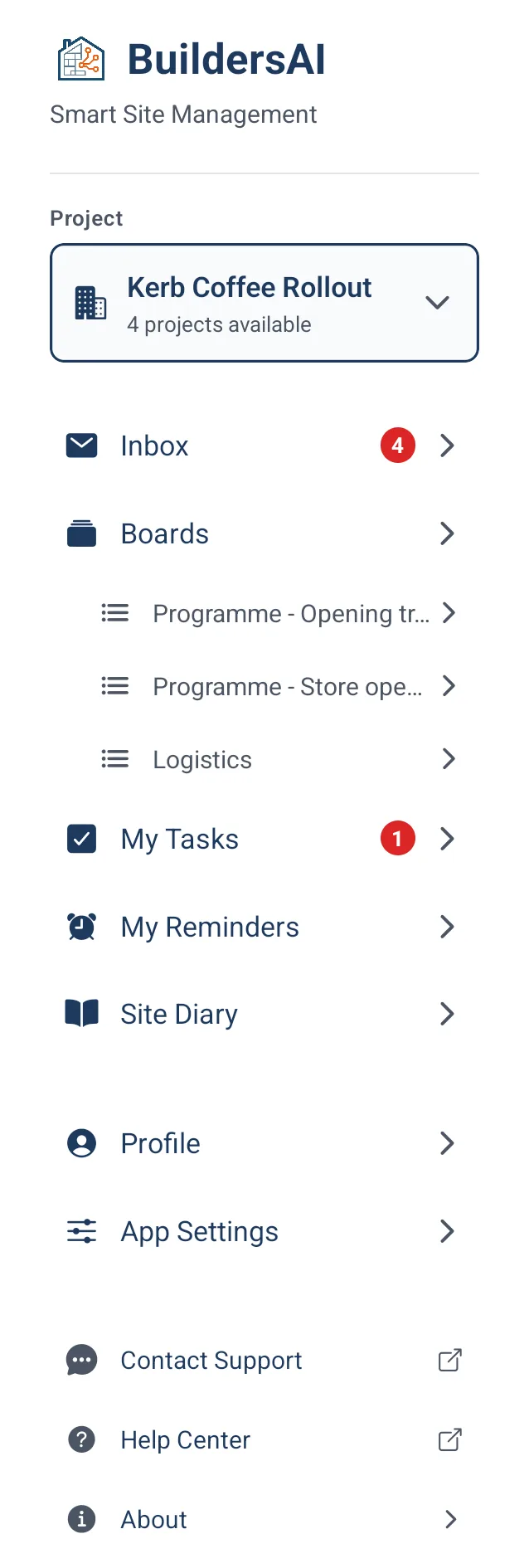
2. Side menu
To open the side menu:
- Look at the top-left corner of the screen
- Tap the icon that looks like three horizontal lines (☰)
- A panel slides out from the left side
The side menu contains:
- Your current project name at the top: tap it to switch to a different project
- Notifications: announcements, drawing updates, invitations and mentions
- Boards: the project’s work, organised onto boards and their saved views. Any pinned views are listed directly underneath
- My Tasks: everything you are involved in, across the project. The number beside it counts what needs you now: work assigned to you that is due today or overdue on site (tasks, deliveries, RFIs and inspections), plus issues and snags marked critical or high, since those carry no due date. Anything you have finished, anything not yet due and anything at a lower priority stays in the list without adding to the count, and the browser counts it the same way
- My Reminders: Your personal reminders (only you can see these)
- Site Diary: the project’s day-by-day record of what happened on site, to read and write up (members and admins)
- Project Dashboard: the job’s numbers on one screen, headed “Site Intelligence” when it opens (admins only). See the “project_dashboard” topic
- Team Compliance: Certification overview for the whole team (admins only)
- Site Presence: Attendance history and reports (admins only)
- Specifications: Extracted specs from uploaded documents (admins only)
- Project Settings: Project configuration (admins only)
- Profile: Your details, certifications, and notification preferences
- App Settings: Site check-in, privacy, and offline file management
- Contact Support: Send an email to the support team
- Help Center: Opens the help website
- Logout: Sign out of the app (red button at the bottom)
Switching projects:
- Open the side menu (tap ☰ in the top-left)
- Tap the project name shown at the top of the menu
- A list of your projects appears. Tap the one you want to switch to
In a browser there is one more step out. Click the BuildersAI logo in the very top-left corner and you leave the project altogether, landing on All projects: your project list plus a strip of tabs that spans every job at once. On a phone’s browser the logo is at the top of the menu that the ☰ button in the top-left opens. In the mobile app an administrator has the same step out: All projects, the first row of the side menu. See the “all_projects” and “all_projects_mobile” topics.
The round + button: On some screens (like Gallery, Drawings, People) you’ll see a round coloured button in the bottom-right corner. This is for creating new items. Tap it to see what you can add.