
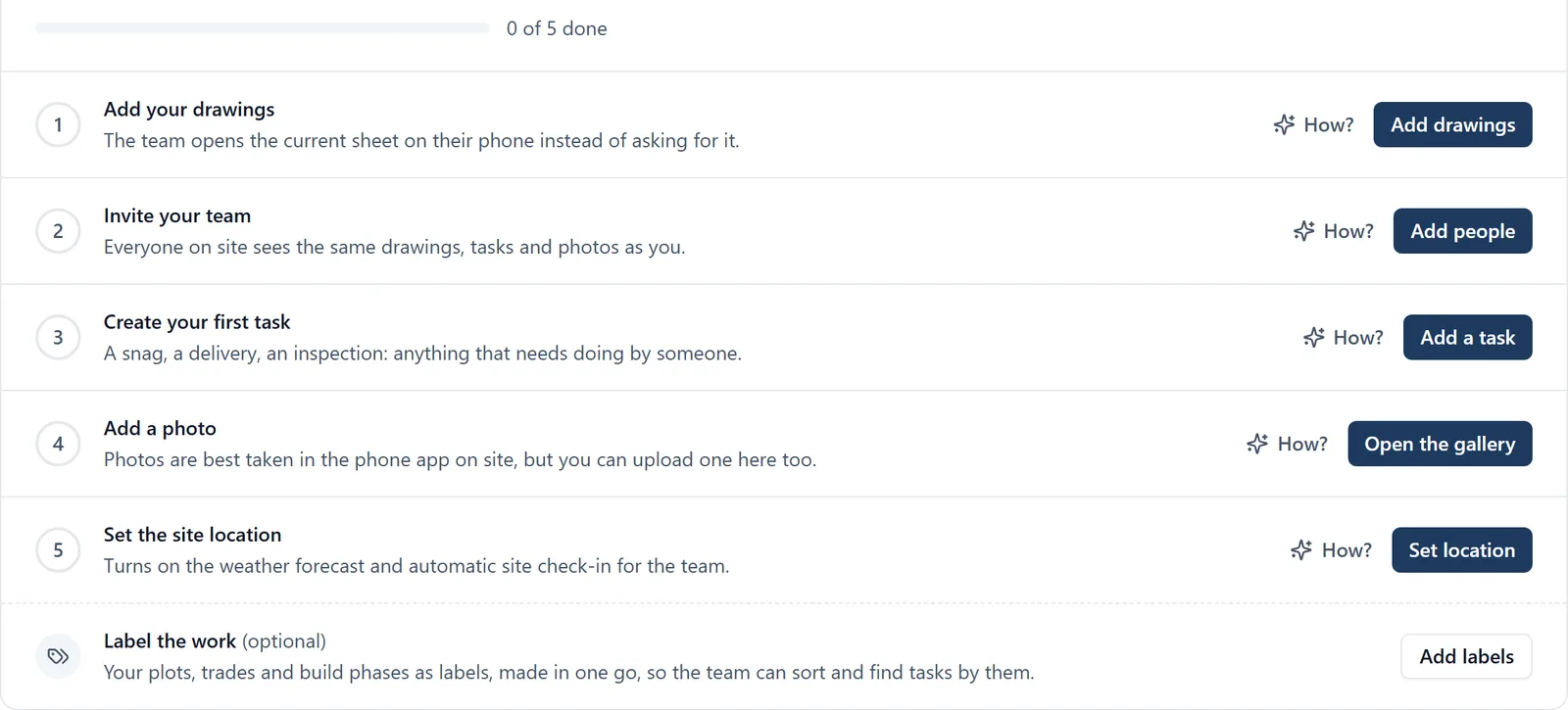
A brand-new project on the web app opens on a “Set up your project” panel at the top of the Home page. It lists five jobs and ticks each one off by itself when the project’s data shows it is done. You never tick anything by hand, and you can do the jobs in any order. When all five are done the panel disappears and the full sidebar appears.
The five jobs, and where to do each one:
- Add your drawings. Click Drawings in the sidebar, then Add drawings, and drop in your PDFs (many at once is fine). Ticks as soon as the first drawing is in.
- Invite your team. Click People, then Add people, and type each person’s email address. Someone who already has a BuildersAI account gets the project straight away. Someone who does not gets an email asking them to sign up with that address, and the project attaches automatically when they do. This job ticks when the second person is actually in the project, so it can show “invited, waiting” for a while after you send the emails. That is normal. Still the only person a day after setting it up? The project’s admins get an email and, where the app is on their phone, a notification, then one more of each two days later. An owner or admin of your company who is not on the project gets the emails only. The reminders stop as soon as somebody else is in the project or waiting to sign up for it.
- Create your first task. Click Boards, open a board, and add a task (a snag, a delivery, an inspection, anything). Ticks on the first one.
- Add a photo. Photos usually come from the phone app on site (camera, works offline), but on the web you can click Gallery and upload one. Ticks on the first photo.
- Set the site location. Click Project Settings (bottom of the sidebar, admins only) and enter the address or drop a pin. This turns on the weather forecast, and each check-in records how far from site it was made. Ticks when the project has a location.
Under the five jobs, an optional extra: “Label the work”. Until the project has its first label, the panel offers an Add labels button that makes the project’s plots, trades, build phases and logistics as labels in one go, with a preview of every label before any is made. It is not one of the five jobs: it counts towards nothing, and the panel is done without it. Admins and members see it; it goes away as soon as the project has any label. The “labels” topic has the details.
While the project is being set up the sidebar is shorter on purpose. You see Home, Drawings, Gallery, Boards and People. Notifications is not in the list because it is the bell in the top-right corner, on every screen. Everything else (Site Diary, Files, My Tasks, My Reminders and the admin pages such as Dashboard, Site Presence, Compliance and Specifications) sits under one “More” entry at the bottom of the list. A section moves up on its own once it has something in it, and the whole sidebar appears when the five jobs are done. An admin can also open Project Settings and choose “Show everything” to skip straight to the full sidebar.
Each time a job completes a small message appears at the bottom-right of the screen saying what was done and what to do next.
If you are a member rather than an admin, the panel shows the same five jobs, with a note on the ones only an admin can do (inviting people and setting the location). Ask your project admin to do those.
The people you invite get a first-day card on their phone. When a member or admin joins a project somebody else set up, the top of the project’s Home on their phone shows Your first day with three things to do on site: check in when they get to site, see the work given to them, and add a photo from site. Each ticks itself when it is done, even with no signal, and tapping one goes to where it is done. If nobody has given them any work yet, the middle step says so and names who runs the job. The card shows for their first seven days on the project and goes once the three are done or they tap Hide. Whoever set the project up never sees it, and nor do followers, who do not check in or add photos.
Where has the panel gone? It disappears when all five jobs are done, or if you closed it yourself after finishing the first job. The sidebar still grows as content arrives, and Project Settings still has “Show everything”.