
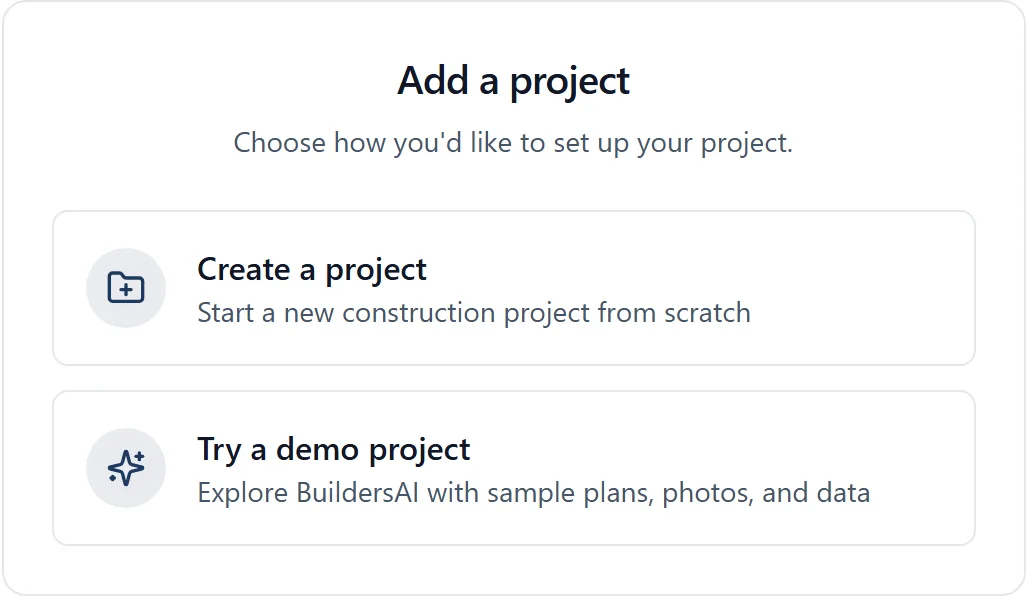
You can create a new project on either the mobile app or the web app. Both work and use the same account.
On the mobile app:
- Open the side menu (tap the three-line icon ☰ in the top-left corner)
- Tap your current project name at the top: this opens the Projects screen
- Tap the “Create New” button near the top of the project list
- Fill in:
- Project name (required)
- Optional details (description, address). You can also add these later in Project Settings
- Tap Save. The new project is created and you’re taken into it
If you have no projects yet, the empty state on the Projects screen also shows a “Create New” button.
On the web app (app.buildersai.co.uk):
- Go to app.buildersai.co.uk in a browser and sign in
- On the Projects screen, click “Create New” (or visit
app.buildersai.co.uk/projects/new) - Fill in the same details and click Save
Just want to try the app? Choose “Try a demo project” when adding a project. You pick a sample project and a fresh copy with photos, drawings, tasks and a team is made for you. Five are offered: 14 Beechwood Road (a two-storey extension to a 1930s semi, halfway through the build), Manchester Business Tower (a commercial office fit-out), Orchard Rise (eight new homes, built plot by plot), Kestrel Mere Classroom Block (a classroom block beside a school that stays open, for an academy trust) and Rosewood Avenue Extension (a kitchen extension on a family home). You can create as many as you like and delete them when you are done. A demo you already made from one of the older templates carries on working as it is.
Orchard Rise and Kestrel Mere keep up with the calendar. Open one on a later day and it has moved on with you, counted in working days: today’s check-ins, the diary written up to yesterday, and the day’s decisions due today rather than long overdue. It keeps moving until you start making it your own (ticking something off, commenting, adding a photo or a task) or your trial ends, and from then on it stays exactly as you left it. Checking in, asking SiteBot or opening a drawing does not stop it.
When you first sign up, the app asks what kind of sites you run: extensions, refurbs and one-off houses; housing developments, plot by plot; or commercial and public jobs for a client. Each answer says which demo it opens (14 Beechwood Road, Orchard Rise or Kestrel Mere Classroom Block), and that demo is made for you straight away. Or create a project of your own, under the answers, skips the demo. The other demos are there later, from Try a demo project. If you already answered that question on the website, at buildersai.co.uk/get-started, you are not asked again: the demo you chose there is made as soon as your account is ready.
Joining someone else’s project instead: You don’t need to create one. When a project admin adds your email address, the project is simply there the next time you open the app or the website, with nothing to accept. If you did not have an account yet, sign up with the same email address the invitation was sent to: the project attaches itself automatically and signing up takes you straight into it, without asking you to create a project of your own.
If you are asked to create a project or try a demo, you have not been added yet, and the most common reason is that your colleague used a different email address from the one you signed up with. Ask them to add the address the app shows you on that screen, then tap Check again, or simply come back to the app once they have: it looks again every time you open it.
Finding a project again later: Every project you are on is listed on the Projects screen. In a browser, click the BuildersAI mark in the top-left corner of any screen to get back to it. On the phone, open the side menu (☰) and tap the project name at the top.
- Search: once more than eight projects are listed, a search box appears above them. It is there on the phone and in the browser
- Archived jobs: a finished job is archived rather than deleted, because the records have to outlive the build. Archived jobs are folded away in an Archived section at the bottom of the list, with a count beside it. Open that section to see them. A search opens it for you, so an old job can never hide behind it. Same on both
- Deleting a demo: a demo project has a small bin beside it, on the phone and in the browser. It removes the demo and its sample data straight away, after one confirmation. Real projects do not go that way: they go through the 7-day grace period described in the “project_settings” topic
- The cog on a row (browser only): opens that project’s settings without going into the project
- Export summary (browser only): at the top right of the list. It downloads a spreadsheet (a CSV file) with one row for each project you are an admin of, carrying the name, the code, the timezone, open tasks, overdue, open snags, open RFIs, blocked items, who is on site now, how many members, the date of the last diary entry, and expired or soon-to-expire cards. If you administer none, the button is not there
After creating a project:
- You’re set as admin automatically
- On the web app the project opens on a “Set up your project” panel with five jobs. Work down it and the project is ready for the team. See the “project_setup” topic for what each job is and where to do it
- Set the project timezone if your site isn’t in the UK (Project Settings, then Timezone)
Note on subscriptions: Some plans limit how many projects or members you can have. If you hit a limit, the app will tell you and point you to your organisation settings.