
BuildersAI can extract key specification data from uploaded documents and make everything searchable.
Where to find Specifications (admins only):
- Open the side menu: tap the three-line icon (☰) in the top-left corner
- Tap “Specifications”
- On the phone you’ll see the total number of specifications, then a row of chips: one for each category with a count on it, then Pending, Verified and Rejected. Tap a chip to filter the list
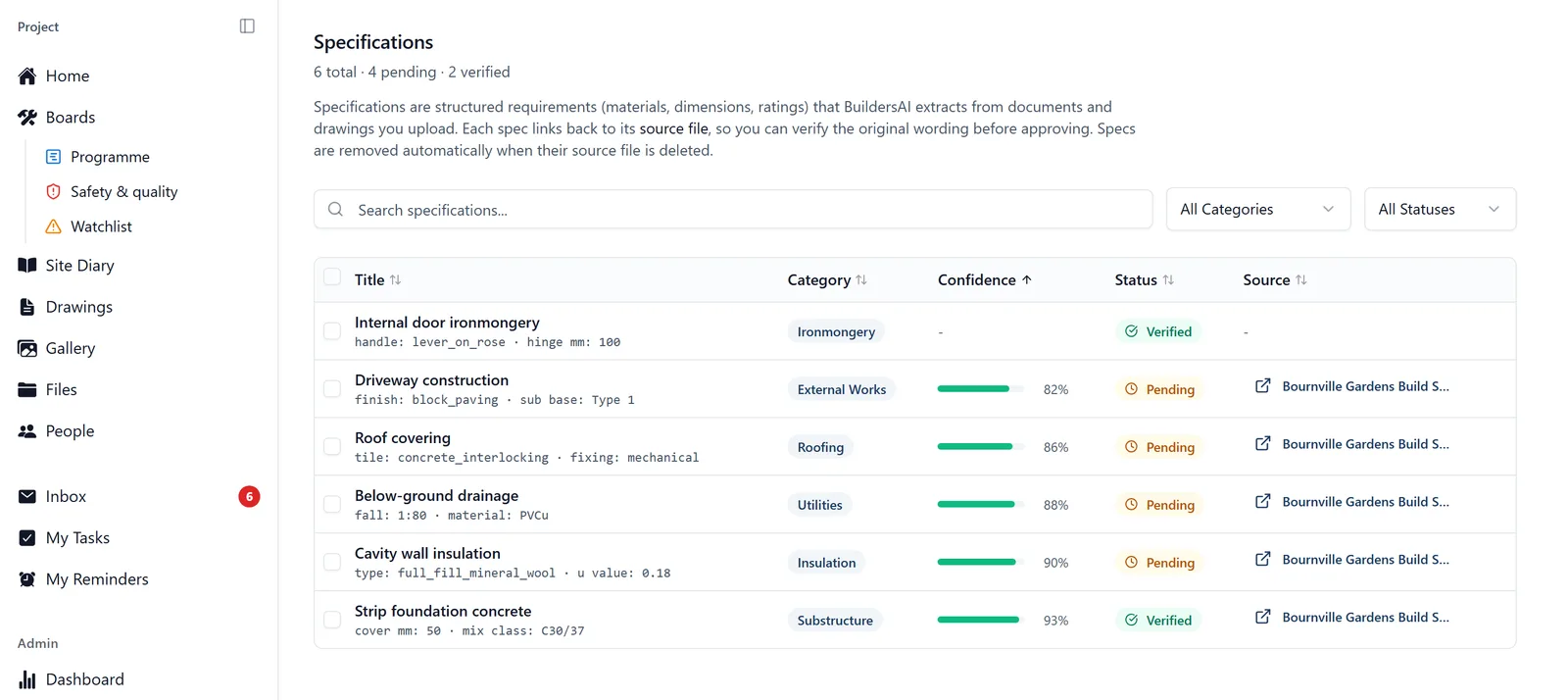
On the web app: Specifications is in the left-hand sidebar. Across the top is a running count: how many specifications in total, how many are still pending and how many are verified. Under that are a search box, a category filter and a status filter (Pending, Verified, Rejected). The specifications themselves are a table, and clicking a column heading sorts by it.
How specs are extracted:
- Specifications come out of the PDFs and spreadsheets you upload: both the documents in Files and the drawings in the Drawings section
- Reading starts as soon as the file lands, whether it went into Files or into Drawings. A drawing is read the same way a document is: the title block, the general notes, the callouts and any schedule printed on the sheet
- The AI reads them and pulls out key details: materials, dimensions, methods, room schedules, and site decisions
- Word documents, images and CAD files are stored and shared as normal, but nothing is read out of them, so save a specification as a PDF if you want it picked up. An IFC or a DWG is stored and shared, but its text is not read: issue the drawing as a PDF as well if you want the specifications off it
- These are stored as individual specification entries you can browse and search
Searching specifications:
- In the Specifications screen, type in the search bar to find specs by keyword
- Or ask me: “What does the spec say about brickwork?” or “Find the door schedule”
- This searches across extracted spec entries (materials, dimensions, methods, decisions)
Searching documents (full text):
- You can also ask me to search across all processed documents: “Find anything about fire ratings” or “What documents mention the subcontractor?”
- This searches the full text of uploaded documents, not just extracted specs
Opening one specification: Tap a specification on the phone and it opens out underneath. Click one on the web app and a panel slides in from the right. Either way you get three things.
- The details BuildersAI pulled out, laid out as a list: material, dimension, rating, and whatever else the source said
- Extraction Confidence: a bar with a percentage on it, which is how sure BuildersAI is that it read the source correctly. Green from 80 percent up, amber from 50, red below that
- Source: on the web app, the file the specification came from, the part of that file it came out of, and a View source file link. On the phone it is a View Source button. Either one opens the original document so you can read the wording yourself
That last one is the check to do before you approve anything you are about to order against.
The source link knows the page. Where BuildersAI recorded which page a specification was read off, the link says so (“View source file, page 4”) and opens the document at that page rather than at the front of it. On the phone the page is listed under Source and the viewer opens there. That saves scrolling a forty-page specification or a drawing set to find the one sheet the value came from. Not every specification has a page: a spreadsheet has none, a scanned document read by character recognition cannot be pinned to one, and anything extracted before this was added does not carry one. Those open at the first page, as they always did.
Confidence is not the same thing as status. Confidence is BuildersAI marking its own homework. Status is you saying whether it got it right. The web app’s table has a Confidence column: sort by it, clicking the heading twice if you need to flip the order, and the least certain come to the top. That is where the mistakes are, so review those first.
Checking a specification (admins only): Every specification starts as Pending. You give it a verdict:
- Approve if it matches what the source document actually says. It becomes Verified
- Reject if BuildersAI got it wrong. It becomes Rejected
Nothing here is a one-way door. Reset puts a specification back to Pending, so a verdict given in a hurry can be undone.
On the phone: open a specification and the buttons are on it. Reject, Approve, and Reset to Pending once it has a verdict. One at a time.
On the web app, when there are a lot of them:
- Tick the boxes on several rows and use Approve, Reject or Reset in the bar that appears above the list, to deal with the lot in one go
- Or open one and work down the list from the keyboard: j for the next one, k for the one before, a to approve, r to reject. Approving or rejecting moves you on to the next one by itself. The shortcuts are printed along the top of the panel, so there is nothing to memorise
The colours in the list: Verified is green, Pending is amber, Rejected is red.
Who can do what:
- The Specifications screen is admins only. On the web app a member or a follower who opens it is turned away with “Access restricted”. On the phone it is not in the side menu for them at all. That is deliberate, not a fault
- Only admins can approve, reject or reset a specification. Anybody else who tries is refused, with a message saying to ask a project admin
- But anybody on the project can ask me, and nobody needs the screen to do it. A joiner can ask me “what fire rating do the flat entrance doors need?” and get the answer, with the document it came out of named
- One difference worth knowing: if you are a member or a follower, I only quote you specifications an admin has approved. Admins see the pending and rejected ones too. That is another reason for an admin to work through the review queue: until a specification is approved, the crew cannot get it from me
- A follower is only ever given approved specifications. A pending or rejected one is not sent to a follower’s browser or phone at all, by me, by a link or any other way
- Searching the text of documents works the same way. Ask me and I will read it back to you, whatever your role, as long as you are allowed to see the document