
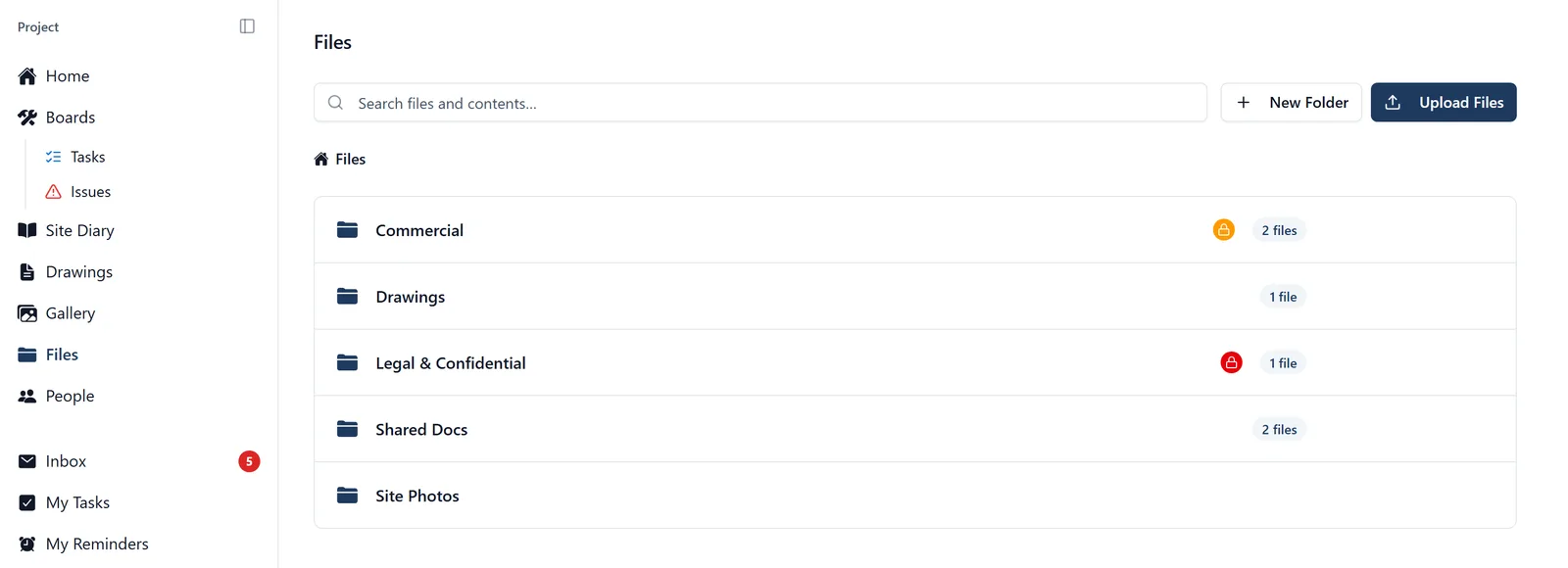
Store, organise, and share project documents.
How to get to Files:
- Tap the folder icon in the bottom bar (fourth icon from the left)
On the web app: Files is in the left-hand sidebar. Click it and you get the same folders and files. A folder opens as its own page, with a trail of links along the top leading back through the folders above it to the top, so you can bookmark a folder and come straight back to it later.
The buttons on a row (web app): move your mouse over a file’s or folder’s row and small buttons appear on the right of it. An arrow moves it, a pencil renames it and a bin deletes it. Admins also get a padlock, which sets who can see it. They stay hidden until you hover, and a follower gets none. There is no menu icon to look for.
Browsing files:
- Tap the folder icon in the bottom bar
- You’ll see the top-level folders and files
- Tap a folder to go inside it
- Tap a file to open or preview it
Creating a new folder:
- Go to Files (folder icon in the bottom bar)
- Navigate to where you want the new folder
- Tap the round + button in the bottom-right corner
- Choose “New Folder”
- Type a name for the folder and confirm
Uploading a file:
- Go to Files (folder icon in the bottom bar)
- Navigate to the folder where you want to put the file
- Tap the round + button in the bottom-right corner
- Choose “Upload File”
- Pick a file from your phone. You can pick several at once, and they go up one after another
- The file uploads (maximum size: 50 MB per file)
Uploading on the web app: click Upload Files at the top of the Files page, to the right of the search box. Drop the files into the box, or click it to browse for them. It takes several at once and shows a line for each one as it goes up.
Bringing a whole folder across (web app only): if your paperwork is already filed in folders somewhere else, on OneDrive, SharePoint, Dropbox or a server, you do not have to do that filing a second time here. Click Import Folder at the top of the Files page, then drag a folder into the box or click to choose one. Subfolders come too, as deep as they go.
Before anything is uploaded it tells you what it found: how many files, how many folders, how much it comes to, and which folder here they are going into. It also says how many things it is leaving behind, and you can see exactly which. It leaves behind file types BuildersAI does not store, anything over 50 MB, empty files, and the odds and ends your computer writes into folders by itself, such as Thumbs.db.
A big import asks you first. Past 500 files or 1 GB, a box appears confirming the number and where they are going, and the button does nothing until you tick it. If what you picked is nearly all photographs it says so and points you at the Gallery, where a photo keeps the day and place it was taken; that is advice, not a refusal. The most one import takes is 5,000 files, and past that it asks you to bring the folders inside it in separately.
You can stop it. While it runs there is a Stop button. Anything already uploaded stays, nothing is removed, and the summary offers to import the rest, so stopping to check costs you nothing.
A few things worth knowing:
- The folders come in under wherever you are. Standing at the top of Files puts them at the top; standing inside a folder puts them inside it
- A folder of the same name that is already here is used, not repeated. So you can bring the same folder in again later without ending up with two of everything
- A file whose name is already in that folder is saved as a new version of it, the same as uploading one on its own. A file that is here already and has not changed is left completely alone, and it tells you how many
- Admins can set who can see it, once, for the whole import. It goes on the folders the import creates, and everything inside them inherits it. A folder that was already here keeps whatever it had
- Anything that fails is named, with the reason, and there is a button to try just those again without redoing the ones that worked
- Leave the window open while it runs. With several hundred files, reading the documents for search and specifications happens quietly afterwards rather than all at once, so a file can sit at “waiting to be read” for a while after it has arrived. That is normal and nothing is lost
- This is a web app feature. There is no folder import on the phone
Uploading a file that is already here, revised: drop it in and BuildersAI notices that the folder already holds a document by that name, and offers to save it as a new version of that document rather than as a second file beside it. The folder then still lists one row, at the version that is live, and the older issue keeps its place in the history along with everything anybody said about it. There is a New version button on a document’s own page for doing it outright. See the “file_versions” topic, which covers reading the history, opening an older issue, and who can see what.
What to upload: PDFs, Word files (.doc, .docx), Excel files (.xls, .xlsx), CSVs, photos (JPG, PNG, GIF, WebP), plain text (.txt, .rtf) and CAD drawings (.dwg, .dxf). The web app offers you exactly that list. The phone’s file picker does not filter, so it will offer you other kinds of file as well, but stick to the list.
What BuildersAI reads, and what it only stores: This is the one that catches people out, so it is worth reading twice.
- BuildersAI reads the text out of PDFs and spreadsheets (.xlsx, .xls, .csv). Only those. Once a file has been read you can search for words inside it, and any specifications in it get pulled out for you
- Everything else is stored and shared perfectly well, but nothing is read out of it. A Word document, a photo, a CAD file: they upload, they sit in the folder, and anybody allowed to see them can open them. But searching inside them will never find anything, and they will never produce a single specification
- So if you upload the specification, the RAMS or a survey as a Word document, it is invisible to “search inside documents” and it produces no specifications. Nothing warns you and no message appears. Save it as a PDF and upload that instead, and both start working
- On the web app a small mark beside a file’s name says where it has got to: a clock means it is waiting to be read, a turning cog means it is being read right now, and a red cross means reading it failed. No mark at all means there is nothing to wait for: either the file has been read, or it is a type we do not read
- On the phone the same thing is a small tag beside the name reading Pending, Processing or Extraction failed, and no tag at all once there is nothing to wait for
Renaming is not how you revise something. A rename changes what a document is called. Uploading the revised file as a new version is what records that it changed, and a version keeps the document’s name on purpose, so a file called “Spec_RevC_FINAL.pdf” does not quietly retitle the row everybody finds it by. See the “file_versions” topic.
Sharing a file from the phone: press and hold it and tap Share to send it by email, WhatsApp and so on, under its own name.
Renaming a file or folder (admins and members):
- On the phone, press and hold on the item, then tap Rename
- On the web app, move your mouse over the row and click the pencil on the right
- Type the new name and confirm
Moving a file or folder (admins and members):
- Press and hold on the item
- Tap Move
- Pick the destination folder and confirm
- You can’t move a folder into itself or into one of its own sub-folders. The app will warn you if you try
Setting who can see a file or folder (admins only): Every file and every folder sits at one of three levels, and an admin can change it:
- Everyone: any project member, including followers
- Members only: members and admins. Hidden from followers
- Admins only: only project admins can see it
To change it on the web app, move your mouse over the row and click the padlock on the right, then pick the level from the list headed “Who can view this”. To change it on the phone, press and hold the item and tap Set access.
A file or folder does not have to carry a level of its own. If it does not, it inherits the one from the folder it sits in, and the menu offers Inherit from parent, naming the level it is getting at the moment.
Where an item has its own level and the folder around it has a different one, the tighter of the two wins. Locking a folder to Admins only hides everything inside it, whatever those things are set to on their own. Opening a folder back up does not unlock anything that was locked down individually.
Reading the padlocks in the list:
- No padlock at all: everyone on the project can see it
- Amber padlock: members only
- Red padlock: admins only
- A closed padlock means the level was set on that item itself. An open padlock means it is inherited from the folder above it
Working on several items at once (admins and members): On the web app, tick the boxes on the left of the file rows, then use Move or Delete in the bar that appears. Folders have no tick box on the web app, so move or delete a folder on its own.
On the phone, tap the tick-box icon in the top-right corner, tap the files and folders you want, then tap Move or Delete in the bar at the bottom.
Admins also get Set access in that bar, on the web app only.
Giving a file a plain-English name (members and admins): A file keeps whatever it was called when it was uploaded, and nobody should have to decode “SCAN_0043.pdf”. You can put a title on it without renaming the file itself.
- On the web app, open the file, move your mouse over the name along the top and click the small pencil beside it. There is a description box under the preview with the same pencil in its corner
- On the phone, press and hold the file and tap Edit title. The description is web only
- The list then shows your title, with the original file name in smaller text underneath it
- Members and admins can do this. Followers cannot
Every file has its own link (web app): Right-click a file’s name in the list and choose “Copy link address”. Send that to a colleague and it opens straight on that file. They still have to be allowed to see it: the link gives nobody access they did not already have.
Talking about a document (web app): A question about a drawing or a RAMS belongs on the document, not in a text message nobody can find again next month.
- Click the file to open it
- The document fills the left of the screen. Down the right is its discussion: who uploaded it and when, any changes to its title or description, and the comments
- Type in the box at the bottom of that column and post it
- Type @ and a name to mention somebody
The file’s row in the list shows how many comments it has, so you can see at a glance which documents are being argued about.
Two things worth knowing:
- Mentioning somebody in a comment on a file does not send them a push notification. This is different from a comment on a task. They will see it the next time they open the file, so if it is urgent, tell them another way as well
- A comment on a document also appears in that day’s Site Diary, alongside the rest of the day’s discussion
Members and admins can post comments on a file. Followers cannot, though a follower can comment and add photos on a task they are assigned to or created (see the “permissions” topic).
On the phone, comment threads are on photos only. Documents open on the phone for reading, but to comment on one you need the web app.
Offline access (the phone): Two things happen here, and only one of them is automatic.
- Automatic: once you have opened a file, it stays on your phone. You can open it again with no signal
- On purpose: every file row has a small cloud icon on the right of it. Tap that to pull the file down now, before you go somewhere with no signal. It turns into a green tick once the file is safely on your phone. Tap the green tick to take it back off again
- A whole folder at once: press and hold the folder and tap Download All. Everything in it comes down for offline use
- The Drawings screen has the same cloud icon on each row, and the same green tick once a drawing is on your phone. To take a drawing back off there, press and hold it and tap Remove from Offline
Anybody on the project can download files to keep. It is not an admin thing.
To see what you are already holding on the phone, how much room it is taking up, and how to clear it all out, see the “mobile_settings” topic.
Searching for files: There is a search box, and it does more than you would expect.
On the web app: the box sits at the top of the Files page and says “Search files and contents”. Type two letters or more and it runs two searches at once.
- It looks for your words in file names, across every folder in the project, not just the folder you are standing in. Each result says which folder it is in
- It also looks inside your PDFs and spreadsheets. Those results come lower down, under a heading that says Inside documents, and each one shows you the sentence your words were found in, so you can tell which file to open before you open it
On the phone: tap the round + button in the bottom-right corner, then tap Search. Typing searches file names straight away, across the whole project, not just the folder you are in. Underneath the results is a button, Search inside documents. Tap that to search the text inside your PDFs and spreadsheets, which takes a moment longer.
Remember that only PDFs and spreadsheets are read, so searching inside documents will never find anything in a Word file. See “What BuildersAI reads, and what it only stores” above.
Searching everything at once (web app): press Ctrl+K (Cmd+K on a Mac) from anywhere in the web app, as long as you are not typing in a box. It looks across your projects and covers documents, tasks, comments, the site diary and the projects themselves, grouped under headings.
Finding a document when you cannot remember which job it was on (web app, admins on the phone): “Where is that asbestos survey, it was one of the Birmingham jobs” is the question this one answers.
- Click the BuildersAI logo at the top left. (Or click the project name beside it and choose All projects at the bottom of the list)
- Click the Files tab
- You get documents from your projects, newest first, with a search box that looks through their names
- Each row says which job the document is on and which folder it sits in. The folder name is a link: click it and you land in that folder, on that job
Archived jobs are included, and they are marked as archived. This screen is for finding a document and handing you off to it. You cannot rename, move or comment on anything from here: open the file in its own project to do any of that. On the phone it is for administrators: All projects, Files.
Or just ask me: “Find the risk assessment” or “Where is the health and safety plan?” and I will go and look for you.
Who can do what:
- Everyone can browse and open the files they are allowed to see
- Admins and members can create folders, upload files, and rename, move or delete a file or folder
- Only admins can change who is allowed to see a file or folder
- A folder holding a document you are not allowed to see will not delete, and says so: ask an admin
- A follower cannot upload to Files or change anything in it, and sees only the files and folders set to “Everyone”. The one thing a follower can add is photos, on a task they are assigned to or created