
Supplier invoices and cost codes
Every supplier and subcontractor invoice on the job it belongs to, coded and ready for your accounts.
- Browser
- For directors and owners
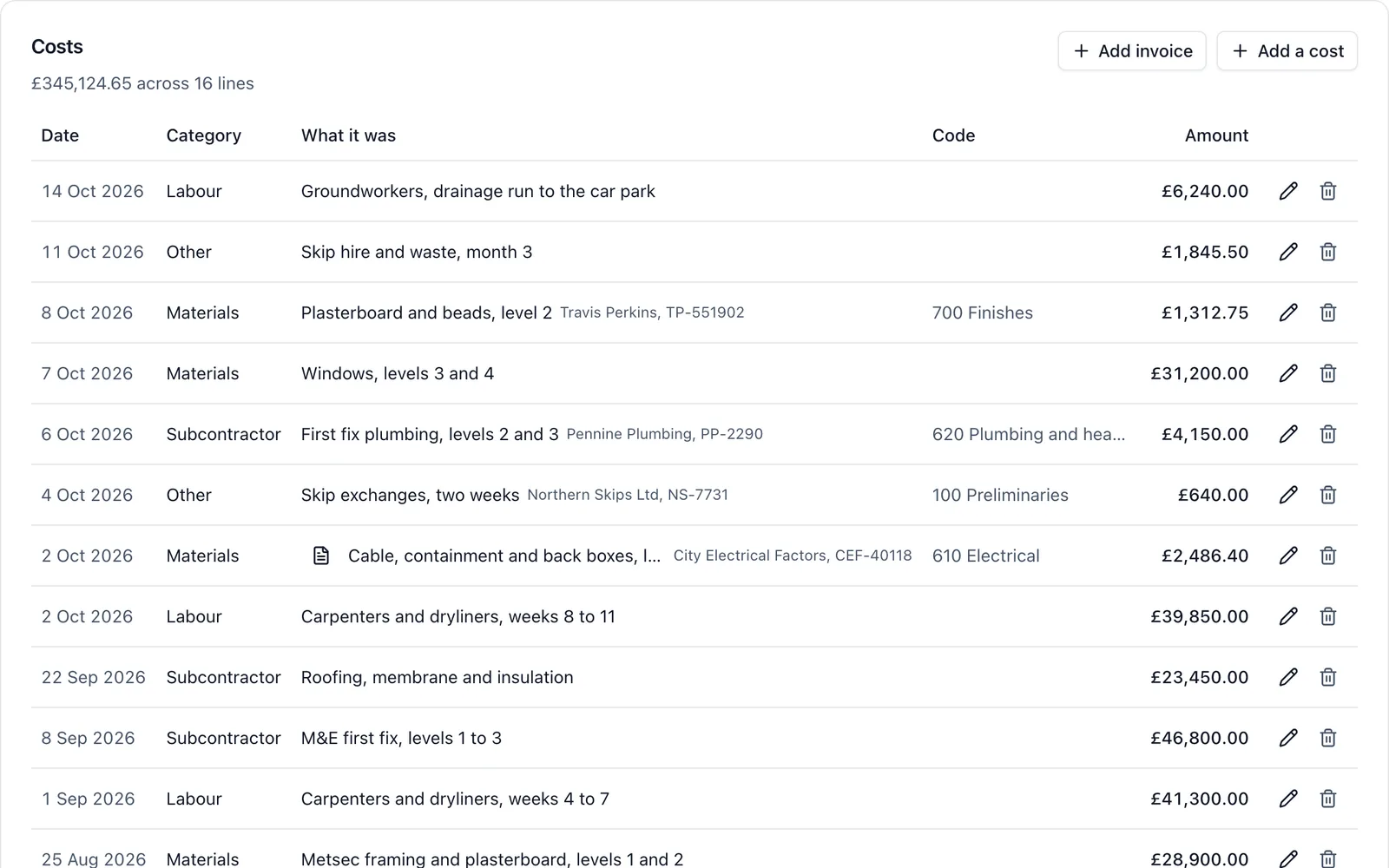
Supplier invoices usually arrive in an inbox, get printed, and are matched to a job weeks later by whoever does the books. Here each one goes on the job when it arrives, with the code your accounts already use.
What it does
- Drop in the invoice as a PDF or a photo of the receipt, and press Read the invoice to have the supplier, invoice number, dates, net and VAT filled in for you to check. Or type them in yourself
- Anything it is not sure of is marked, and nothing goes on the job until you have checked it and added it
- Pick the supplier from your contacts or type a new one
- Give it a cost code. The company sets its codes up once from a short starter list, and each one maps to a QuickBooks account or a Xero code
- It counts as a cost on the job, so the Cost Tracker shows whether you are ahead of the client or carrying the job
- See what each job has spent under each cost code
- Export supplier invoices, timesheet hours or both as bills in a file for QuickBooks or Xero, and each export is recorded so nothing goes across twice without you knowing
What it does not do
It does not choose the cost code for you, and a scanned PDF with no text in it usually cannot be read: photograph the paper instead, or type it in. The export is a file you import rather than a live link to your accounts. The PDF stays in BuildersAI. It does not raise the invoice to your client.
Who sees it
Only the job’s admins, and the owners and admins of the company. On a cost plus job you can choose to show the client the invoices behind their price.
Which plan
This is included in every plan, from £149 a month. Plans differ by how many people they seat, not by what the software does. See pricing.
How to use it
The manual page for this is in the Help Centre, and it is the same guide SiteBot reads inside the app. Read the guide.