
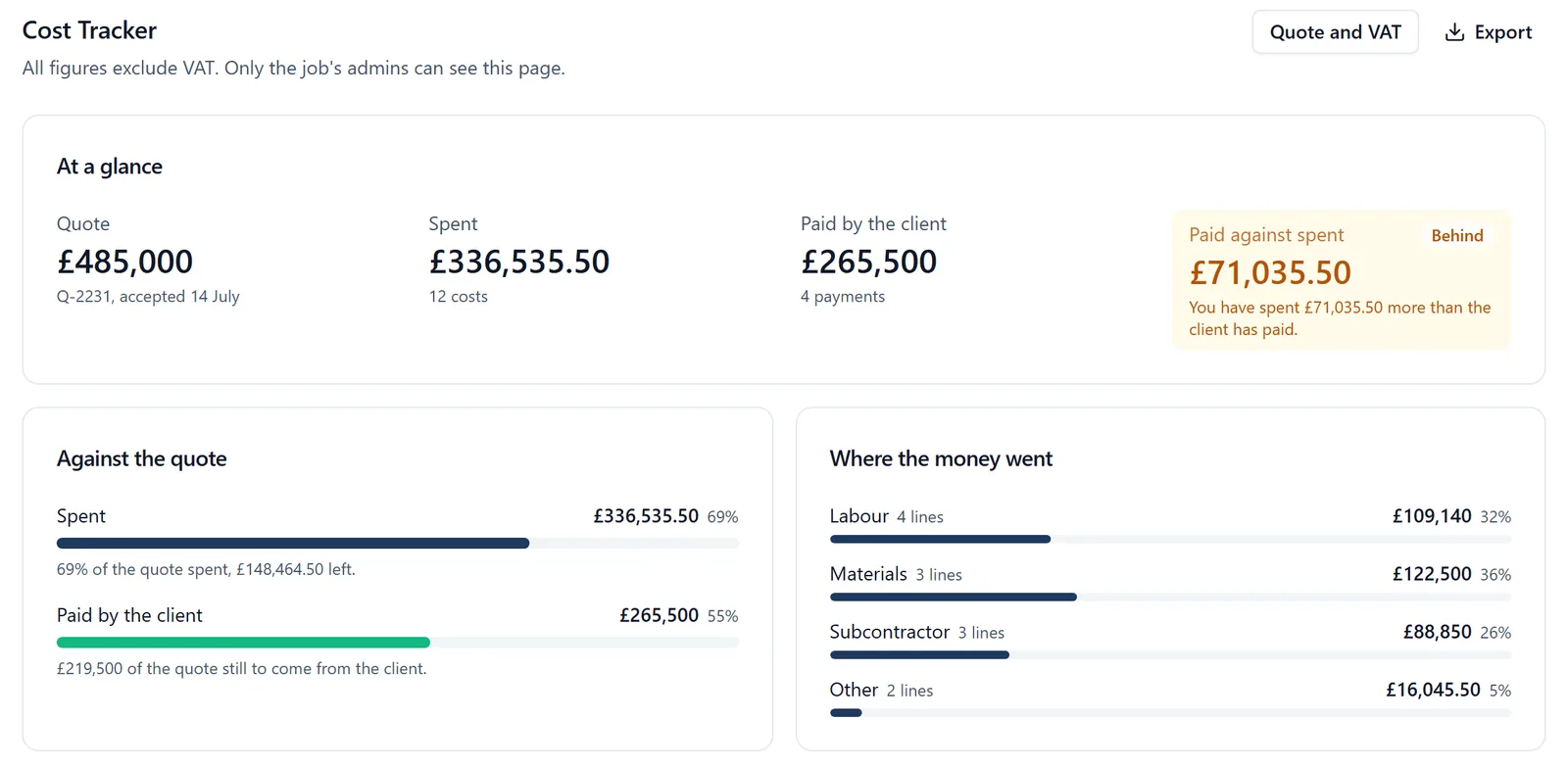
The Cost Tracker keeps one job’s money in one place: what the job was quoted at, what has been spent on it, and what the client has paid. It answers the question a spreadsheet per job used to: are you ahead of the client on this job, or are you carrying it and is it time to invoice? It is for the job’s admins only, and it is a browser page: there is no Cost Tracker on the phone.
How to get there (app.buildersai.co.uk):
- Open the project
- In the sidebar on the left, under the Admin heading, click Cost Tracker. It is the last entry in that group
- On a brand new project the sidebar is shortened, so the Admin group is behind “More” at the foot of it until the project is set up
Who can see it: only the job’s admins. The owners and admins of your company are admins of every job by default, so they see it on every job. Members and followers never see a figure: the entry is not in their sidebar, the page tells them it is not theirs, and the figures are never sent to them, not to their phone, not in an export, and not through me. I can tell anybody how the Cost Tracker works, but I cannot read its figures for anyone, admins included, so for the numbers themselves open the page.
Before the first figure: the quote, and VAT
Click Quote and VAT at the top of the page (or Record the quote on a job with nothing recorded yet).
- Figures on this job are: choose Excluding VAT if your business is VAT registered, and type every figure before VAT. Choose Including VAT if it is not, and type every figure as it was paid. Every figure on the job, the quote included, is on that one basis, and the page says which under its heading
- Quote: what the job was priced at. It is the budget every cost is tracked against. It is optional: a job priced by the day can still track costs and payments
- Quote reference: optional, such as the quote number and the day it was accepted
- Changing the VAT basis later converts nothing. The figures already recorded stay as they were typed and are read on the new basis, and the dialog says so. Change it only if the figures were entered on the wrong basis
Recording what has been spent:
- In Costs, click Add a cost
- Choose the Category: Labour, Materials, Subcontractor or Other
- Choose the day it was spent, say what it was (for example “Carpenters, week 3”), and type the amount, on the job’s VAT basis
- Click Add cost
Recording what the client has paid:
- In Payments received, click Add a payment
- Choose the Type: Deposit, Stage payment or Invoice paid
- Choose the day it was received, give the reference it was paid against (for example “INV-0042, stage 2”), and type the amount
- Click Add payment
Type amounts as you would write them: 1250, 1,250.50 or £1,250 all work. Every amount is above nothing: to record a credit or a refund, correct the line it credits.
At a glance:
- Quote: what the job was priced at, with its reference
- Spent: every cost added together, and how many there are
- Paid by the client: every payment added together
- Paid against spent: the difference between the last two, with Ahead or Behind beside it and a sentence saying who is out of pocket. Behind, in amber, means you have spent more than the client has paid: you are carrying the job, and it may be time to invoice. Ahead, in green, means the client has paid more than you have spent
Against the quote puts spend and payments side by side on the same scale: how much of the quote has been spent and what is left of it (or how far over it the job has gone, in red), and how much of the quote is still to come from the client. Where the money went splits what has been spent into Labour, Materials, Subcontractor and Other.
Correcting or removing a line: every line in the two lists has a pencil to change it and a bin to remove it. Removing asks first, and names the line in full with its amount and day, because two payments often share a description. Every change, including a removal, is kept in the project’s audit trail.
Exporting it: Export at the top of the page downloads the job’s money as a spreadsheet, oldest first: the date, cost or payment, the category, the description or reference, and the amount, with money out and money in in separate columns so each sums on its own. The top of the file says which job, the day it was exported, the VAT basis, the quote and the totals.
When the project is read-only (the company’s trial has ended or its subscription has lapsed), every figure stays on the page and the export still works, but nothing can be added, changed or removed until a plan is chosen. The heading says why.
What it does not do (yet):
- Every figure is entered by hand. Labour from timesheets, materials sent to site and supplier orders are not pulled in
- It does not write quotes for your client or raise invoices, and it does not replace Xero, Sage or QuickBooks: it sits beside your accounts package, and the export is there to take the figures to it
- There is no Cost Tracker on the phone, and no figure is ever shown to site staff