
Every project has a Mail page for emailing people who will never use BuildersAI: a merchant, a client, building control, the scaffolder. Their reply comes back to the project, filed against the job, with any attachments saved to Files. Nobody has to set anything up. It is a browser job: the phone has no Mail screen.
How to get there (app.buildersai.co.uk):
- Open the project
- Click Mail in the sidebar
- New email writes to somebody; New enquiry asks several suppliers for a price
Only administrators and members of the project see Mail. Followers do not.
Sending an email:
- Everybody goes in the one To field. Pick them from your directory (your own people, and the firms and contacts your company keeps), or type any email address and press Enter
- Colleagues on the project are kept in the loop. An administrator or member of the project shows as kept in the loop on their chip: they get the email and every reply, whichever button the other person presses, and people outside never see their address. Everybody else is somebody you are writing to, and that includes a follower on the project and a colleague who works on other jobs
- An email only to colleagues on the project goes to all of them
- Emailing several people is private by default. Each person you are writing to gets their own email and their own conversation, and nobody sees who else you sent it to. To email them together instead, choose As a group under the To field: one email, they see each other’s addresses, and every reply goes to all of them. The Send button says which it will be before you press it
- Replying on a conversation to more than one person outside asks you to confirm it as a group first, because each of them will see the others’ addresses
- An administrator chooses who on the project can see the thread: Members and admins, or Admins only for anything with prices in it. Everything that comes back on the thread follows that choice, files included. An email a member sends is always visible to members and administrators
- Attach files, drawings and photographs from the project, or upload something new (see below). Attachments can total 35 MB in one email
- It goes out with your name and your company’s name on it, and a copy lands in your own inbox
Attaching files, drawings and photos:
- Under Attachments, Files, Drawings and Photos open one dialog at that tab. Upload adds something new from your computer instead
- Files has the same folders as the Files page: open one, tick what you need, go back up and open another. Select all takes a whole folder
- Drawings lists the register. A drawing attaches its current issue
- Photos has the Gallery’s albums and days, and its chips for photos on tasks, in comments and in the site diary. Select all beside a day takes the whole day. Writing from a task, that task’s own photos come first
- Tick as many as you like from any tab. They wait in the tray at the bottom until you press Attach, which puts them all on the email at once. Closing the dialog with anything ticked, by Escape or Cancel, asks first and offers to attach them
- The search box searches all three tabs at once and each tab says how many it found: files by name and by the words inside them, in every folder; drawings by number, title or discipline; and every photo on the project by its name, title, note, tag, place or what is in it. On the Gallery chip, Search everywhere instead widens it to photos on tasks, in comments and in the diary
- Anything for members or admins only shows a lock. You are asked once before it is attached, because everybody you email will be able to open it
Their replies:
- The reply appears on the thread in BuildersAI, and a copy is emailed to you and anybody else following the thread
- Replying from your own email to that copy works too: it is filed on the thread and passed on to them, as long as your email provider proves the reply came from you, which most do. If it cannot, the reply is filed but not passed on, and the thread says so on that message. Reply from BuildersAI instead
- Writing to them from your own email with the thread’s address in Cc is filed on the thread too, and nobody you wrote to is sent it a second time. Their answer comes back to the thread only if they reply to everyone, and the thread has to have been started in BuildersAI first
- Attachments they send become files on the project, so you do not have to save and drag them in
- Each message you sent says what happened to it: Sent, Delivered, or Bounced with the reason
A supplier replied to your own address instead: Every thread shows a filing address, starting f-, with a Copy button. Forward the email there and it is kept on the thread under the person who wrote it, with a note that you forwarded it in. Nothing is sent back to them.
On a task: Open a task and use Email somebody or Ask for a price in its side panel. The email or enquiry is filed against that task, and listed there as well as on the Mail page.
Asking several suppliers for a price (enquiries):
- Click New enquiry on the Mail page, or Ask for a price on a task
- Say what needs pricing. This is also the email’s subject
- Choose the suppliers to ask. Each one gets their own email and their own conversation, so no supplier sees who else you asked, and a reply goes to you and nobody else
- The message is filled in asking for the price, the lead time and how long the price holds. Add what you need priced, attach a drawing or schedule if it helps, and send
Recording the quotes:
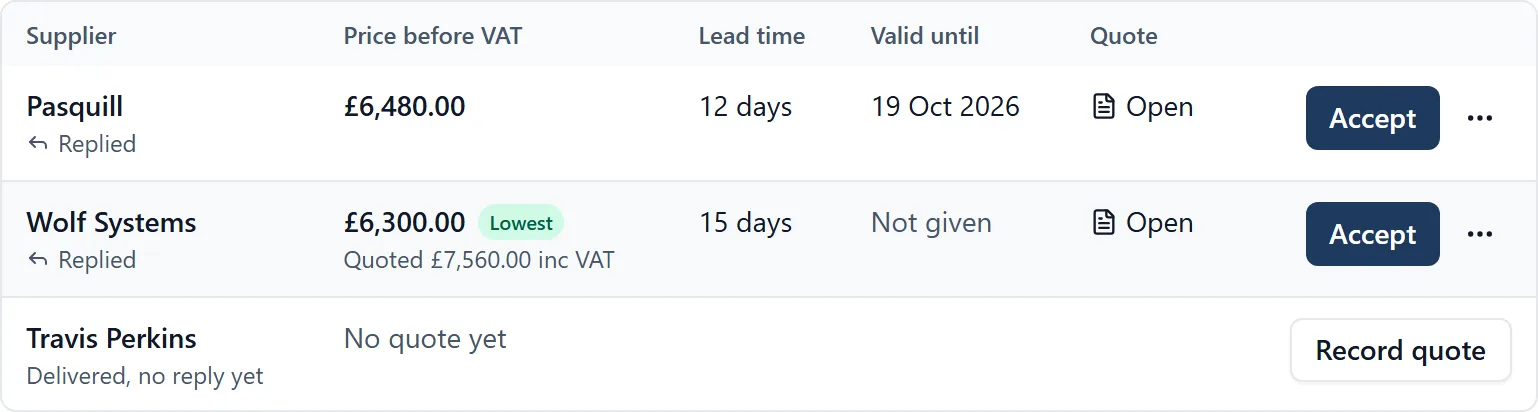
- Open the enquiry from the Enquiries tab. Each supplier is a row, with whether they have replied yet
- Click a row to see that supplier’s conversation underneath. Under their reply, Record as quote opens a short form with the supplier and the quote document already chosen
- Type the price as they gave it and tick Includes VAT if it does. Add the lead time and the date the price is valid until if they said
- A price given over the phone can be recorded too: use Record a quote from the enquiry’s menu and choose Another supplier
- If a supplier sends a revised price, record it again. The new price replaces the old in the comparison, which says what it was revised from
Comparing them: Prices are compared before VAT, so a price quoted with VAT sits fairly beside one quoted without. Once there are two prices, the lowest is marked Lowest. The lowest is not always the one to take: the lead time and how long the price is valid are beside it for that reason.
Accepting a quote and ordering:
- Click Accept on the quote you want
- The order email is written for you. Check it and change anything you need to. It goes to that supplier only, as a reply on their conversation
- Tick Thank the other suppliers if you want the others told they were not chosen. The note never mentions the price, and each gets it on their own conversation
- Tick Add the delivery to the programme to create a delivery task with the supplier and your order reference already filled in, and the date if you know it
- Click Accept and send order
The enquiry then says who it was ordered from, at what price, when and by whom, with a link to the delivery. Whether the delivery arrived, and complete, is recorded on the delivery task as usual.
Changing your mind:
- An enquiry can take more suppliers until a quote is accepted: Ask another supplier
- Reopen the enquiry from its menu if an order was a mistake. The emails already sent stay as they are, but the enquiry stops saying it was ordered, and the accepted quote can then be corrected or deleted
- Cancel the enquiry stands it down without ordering anything
Who can see prices: An enquiry an administrator raises is for administrators only, including every reply, quote and file that comes back. An administrator can open it to members from its menu. An enquiry a member raises is visible to members and administrators.
What Mail does not do: BuildersAI does not read prices out of quote documents: a person types them, and the document is kept beside them. It does not number purchase orders, track invoices or keep costs. Your own order number goes in the order reference on the delivery.