
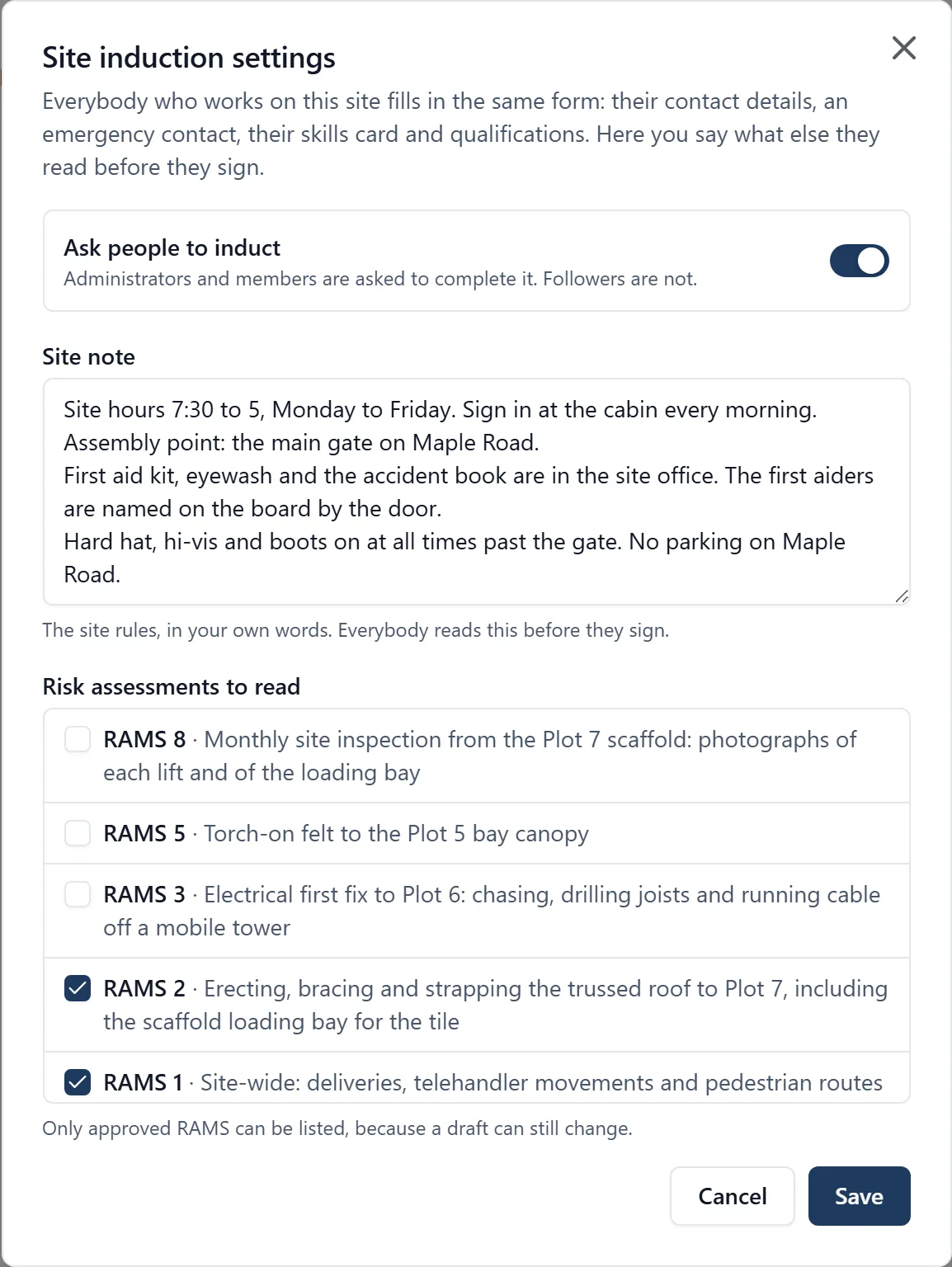
A site induction is the form everybody who works on a site fills in on their first morning: how to reach them, who to ring if something happens to them, which skills card they hold, what they are qualified to do, and a signature saying they have read the site’s rules and its risk assessments. The site manager checks it and countersigns it. It replaces the paper form in the site cabin, and it lives in the project’s Inductions section on both the mobile app and the web app.
Why it matters: When something happens on site, the first two questions are who was there and who to ring. On paper the answers are in a folder in the cabin, if the form was filled in at all, and nobody can tell from the office who has not done theirs. Here every induction carries the time it was signed and countersigned, the site manager sees at a glance who has not been inducted, and the emergency contact is one tap away on a phone.
Where to find it:
- In a browser, Inductions in the project’s menu
- On the phone, Inductions in the menu
Setting it up (administrators):
- Open Inductions and press Set up site inductions (or Settings once it is set up)
- Switch on Ask people to induct
- Write the site note: the site rules in your own words. Hours, where to sign in, the assembly point, where the first aid kit is, where not to park
- Tick the risk assessments to read. Only approved RAMS can be listed, because a draft can still change
- Press Save
The form’s fields are the same on every site: contact details, an emergency contact, the skills card and qualifications. The site note and the RAMS list are what you choose for each project.
Who is asked: Every administrator and member of the project. Followers (clients and subcontractors who follow the job) are not, because they never see the site’s RAMS. A visitor signs the visitor register instead.
Doing your induction: Open Inductions (or tap the line in Needs you on the home page) and press Start your induction. The form shows what the site asks you to read first: the site note, and each risk assessment, which you can open and read. Then:
- Your phone number, email and who you work for
- Your emergency contact: their name, number and how you know them
- Your skills card: pick its colour (green, red, blue, gold, black or white), another scheme’s card (ECS, CPCS, NPORS, JIB), or No card, then the card number and when it expires
- Your qualifications for the work, such as SSSTS, IPAF or PASMA. Certificates already on your profile are offered with one tap
- Tick to say you have read the site note and the RAMS
- Check your printed name, sign in the box with your finger, and press Sign and send
It is sent in one go, and it works with no signal: the whole form, the signature included, is saved on the phone and sent when there is signal again. Once it is sent, what you wrote and your signature cannot be changed.
Who can see it: Only you and the project’s administrators. An induction carries your phone number and somebody else’s, so other members of the team never see it.
Countersigning (administrators): The site’s administrators get a notification when somebody sends their induction, and it appears at the top of the Inductions page under Waiting for you to countersign. Open it, check the details, and either:
- Countersign it, by signing under a declaration that you have checked the details and gone through the site rules with them. They are told straight away
- Send it back, with a reason, for example that their emergency contact is their own number. They are told, and fill it in again with their answers already there
Nobody countersigns their own induction while anybody else could. If you are the only administrator in the business, you countersign your own and the record says nobody else reviewed it.
Who has been inducted: The Inductions page lists everybody on the site with where they stand: Not inducted, Waiting to be countersigned, Inducted, Asked to redo or Sent back, and the chips narrow it to one. The People page shows the same beside each name, and a person’s page has a Site induction section. A line also says when somebody’s skills card has expired.
When the rules change: Changing the site note or the RAMS list does not make anybody redo their induction. Everybody inducted before the change is marked Signed before the rules changed, and a line at the top of the page offers Ask them to redo it. You can also ask one person from their induction. Their countersigned induction stays on record; they are told, and fill in a new one starting from their last answers.
If your details change: Open your induction and press Redo my induction. The one on record stays as it was, and you fill in a new one, starting from your old answers, for the site manager to countersign.
Withdrawing one: Until it is countersigned, you can withdraw your own induction, and an administrator can remove one from the queue. Once it is countersigned or sent back, nobody can delete it: it is the site’s record.