
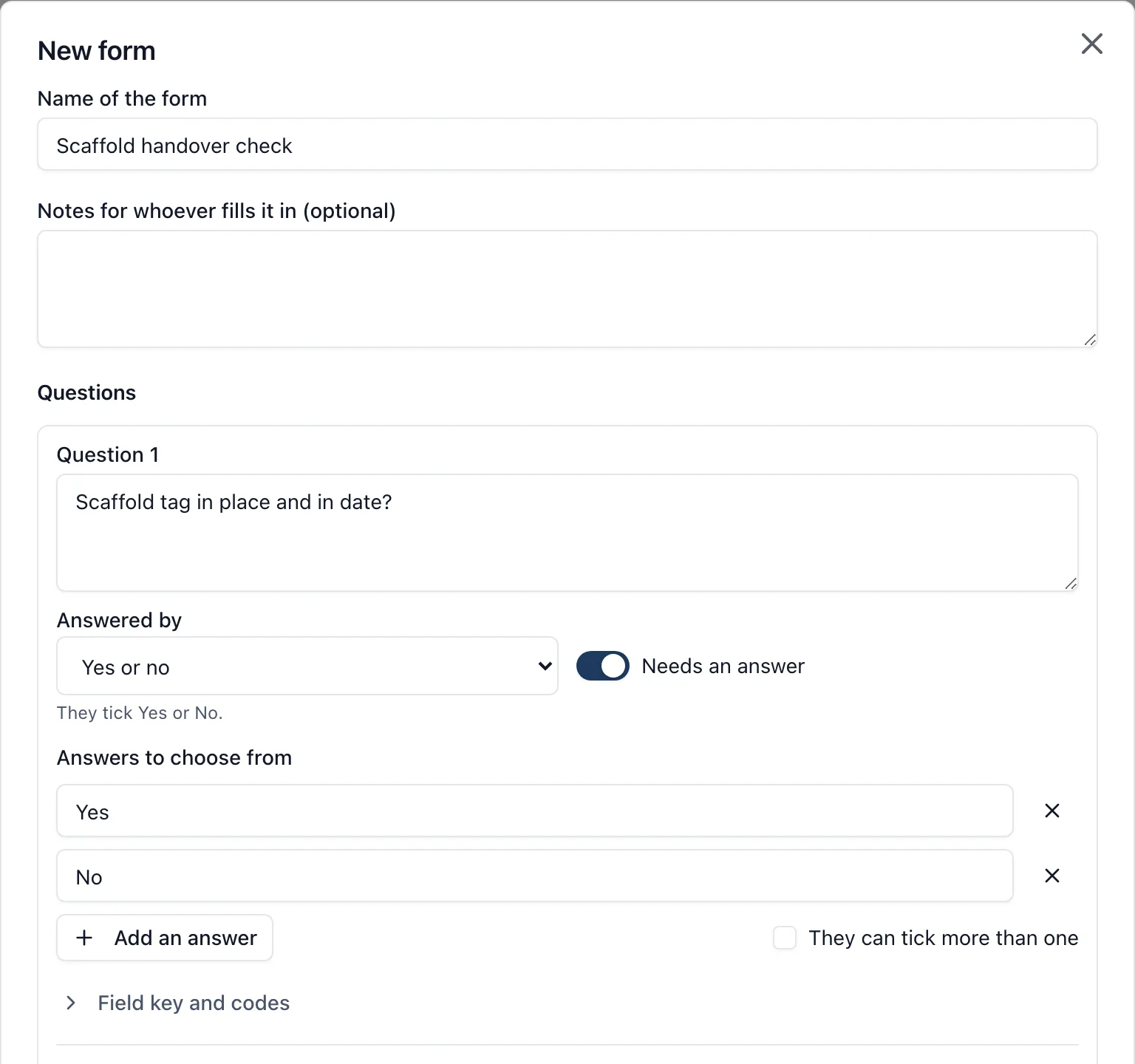
Your company can make its own forms: a daily site check, a permit, a handover sheet, whatever you fill in on paper today. You write the questions, and each question is answered in one of these ways:
- Multiple choice: they tick an answer from a list you write. You can let them tick more than one
- Yes or no: they tick Yes or No
- Typed answer: they type their answer in a box
- Number or measurement: they type a number, such as a height in mm. You can give it a unit, which is shown beside the box and the answer
- Date: they choose a day
- Photos: they take or choose photos, such as of the opening or a sketch on paper. You choose how many it takes, up to 20
- Table of rows: they fill in as many rows as they need with the columns you set, such as an accessory and how many, or each engineer’s name and signature. Up to 8 columns and 30 rows
- Signature: they write their name and sign with a finger or a mouse
You can also lay a form out in sections:
- Heading: starts a new section, such as The opening or Getting it in
- Text to read: a note they read and do not answer, such as how to measure, or a safety instruction (up to 2,000 characters)
The people working on your company’s jobs then fill them in on the job, on the phone with no signal or in a browser. Each form filled in is kept on the job, can be read back and printed, and cannot be changed once it is sent.
Your company is responsible for what its forms ask. BuildersAI keeps them; it does not check them.
Who can do what:
- The company’s owners and admins make forms, change them and stop using them
- Admins and members of the company’s jobs fill them in and read the ones filled in on their jobs
- Anybody a form is given to fills it in, on its job or on no job (below)
- Followers, such as a client, cannot see forms
Forms filled in on a job are read by the people on that job. An owner or admin of the company who is not on the job does not see them there, but can export them (below).
Making a form
Owners and admins make forms in a browser, or on the phone with signal (see On the phone below).
How to get there (app.buildersai.co.uk):
- Click the BuildersAI logo in the top-left corner to reach All projects
- Check the company name beside the logo. The forms belong to that company
- Click Forms
To make one:
- Click New form
- Give it a name, such as Daily site check, and any notes for whoever fills it in
- Click Add a question and write the question
- Under Answered by, choose how it is answered, or Heading or Text to read
- For multiple choice, write the answers to choose from (2 to 60), and tick They can tick more than one if they can. For a number, write its unit if it has one, such as mm
- Leave Needs an answer on if the form cannot be sent without it, or switch it off to make the question optional
- Add the rest of the questions. Move up and Move down put them in order
- Click Save
A form can have up to 150 questions, headings and blocks of text.
Questions that appear on an answer. Open Only ask this on some answers on a question, heading or block of text, choose an earlier multiple choice question under Appears after, and tick the answers that show it. For example, “Why not?” can appear only when “Door fitted?” is answered No. A question that is not on show is never needed, and anything typed in it before it was hidden is not sent. If you change the words of an answer, the questions that depend on it follow.
Somebody checks each one. Switch this on to have every form filled in wait until an admin of the job checks it or sends it back. The person who filled it in cannot check their own. Tell the job’s admins each time one is filled in tells them about a form that needs no checking; they are told anyway when one is waiting to be checked.
Make a copy beside a form starts a new form with the same questions, called Copy of and its name.
Field keys and codes are for getting your answers out into another system later. Open Field key and codes under a question to give it a key, such as DoorHeight, and to put a code beside each answer to choose from, such as a product code. Both are optional, they are not shown to the person filling the form in, and no two questions can share a key.
On the phone, an owner or admin can make and change forms too: on All projects, tap Forms. It needs signal to save. Field keys and codes are kept as they are and changed in a browser.
Changing a form, and versions
Click Change, make the change and save. Every save makes a new version: version 1, then version 2, and so on. Forms already filled in are never changed. Each one keeps the questions exactly as they were when it was filled in, and says which version it was.
Stop using takes a form off every job. Forms already filled in from it stay where they are, and Use again brings it back. A form cannot be deleted, because forms filled in on your jobs came from it.
Filling one in on a job
On the phone:
- Open the job, then open the menu and tap Forms
- Tap Fill in a form (once forms are listed, tap + first) and choose the form
- Answer the questions. Questions marked Needed must be answered. A number box takes a number only, such as 1200 or 12.5, not 12mm
- For a signature, write the name and sign in the box. Clear starts the signature again
- Tap Send
With no signal, the form is kept on the phone and sent when the phone is back online. If it cannot be sent when it arrives, the phone says why.
In the browser: open the job, click Forms in the menu on the left, then Fill in a form, and the same steps.
Photos with no signal. On the phone, photos taken for a form are kept with it and go up when the phone has signal. Until they arrive, anybody opening the form elsewhere sees that a photo is on its way.
Giving a form to someone
An owner or admin of the company can give a form to one or more people to fill in, on a job or on no job, with a day it is wanted by and a note. An admin of a job can give forms on that job.
- In a browser, open All projects, then Forms, and open the form (or open a job’s Forms page)
- Click Give to someone
- Choose who fills it in, then On a job (and which) or Not on a job
- Add a day it is wanted by and a note if you like, then click Give the form
They are told within a minute or two, on their phone, or by email if they have no phone app or chose email. On a job it waits for them at the top of the job’s Forms page under Given to you. What is given to them is under All projects, Mine, Forms, on the phone and in a browser. Filling it in marks it done; if it is sent back, it is theirs to fill in again. Given on the company’s Forms tab shows who has what, and what is late. Take back one that has not been filled in with Take back. A form they had already filled in on a phone with no signal still arrives.
Forms on no job
Some forms belong to no job: a van check, a yard inspection. An owner or admin of the company can fill one in from All projects, Mine, Forms. Anybody else fills in a form on no job when it is given to them, once each time it is given. It works on the phone with no signal.
A form on no job is kept by the company. Only whoever filled it in and the company’s owners and admins can read it, under On no job on the company’s Forms tab. If it needs checking, an owner or admin of the company checks it there, in a browser. It goes to your own system and into exports like any other form.
Pinning a form to a drawing
A form filled in on a job can be pinned to the spot on a drawing it is about, such as a door survey on the door it surveys.
- Open the drawing (a PDF) and choose Fill in a form here
- Tap or click the spot, then choose the form and fill it in
The drawing then shows the form as a square pin beside its snags. Tap or click it to open the form, and the form’s own page says where it is. A pin is part of the record: it is set when the form is sent and is never moved. A drawing kept for administrators takes no pin, because everybody working on the job reads its forms.
Reading and printing
The job’s Forms page lists every form filled in on it, newest first, with who filled it in and when, and whether it is Waiting to be checked, Checked or Sent back. In a browser, To check shows only those waiting; on the phone the page says how many wait for you instead. Open one to read the answers and signatures.
To print one, open it and click or tap Print. In a browser it prints straight away. On the phone it makes a PDF and opens the share sheet, where you can print it, save it to Files or send it. It has the questions as they stood, every answer, the signatures, who filled it in and when, and whether it was checked.
Checking a form
When a form needs checking, the job’s admins are told it is waiting. An admin of the job who did not fill it in opens it and either:
- clicks Check it, adding a note of their own if they want, or
- clicks Send it back and says why
The answers are never changed. Whoever filled it in is told it was sent back, opens it and taps Fill it in again: their answers are filled in for them, they sign again, add any photos and send it. The new one says it was filled in again, and the one sent back stays on the job.
Checking needs signal on the phone.
Getting the answers out
An owner or admin of the company can download every filled-in copy of a form as a spreadsheet (CSV) or as JSON, for your own records or another system:
- On All projects, click Forms
- Click Export beside the form
- Choose the dates if you want fewer, then Download CSV or Download JSON
There is one row for each form filled in, with the job, who filled it in and when. Each question is a column named by its field key, or by its words when it has none, and the codes you set beside answers are in a column of their own. Photos are listed by name: open the form on its job to see them.
A job’s own admins can export the forms filled in on their job from the job’s Forms page with Export.
When any form in the file needed checking, the file also says whether each was checked or sent back, by whom, when, and the note or reason.
Sending forms to your own system
An owner or admin can have each form sent to an address in your own system as it is filled in, checked or sent back:
- On All projects, click Forms, then under Send forms to your own system type the address (it starts https://) and click Set up
- Copy the signing secret it shows: it is shown only this once. Your system uses it to check each delivery came from BuildersAI. The key is the whole secret as text, whsec_ included, not decoded first
- Click Send a test to see one arrive within two minutes. A test can be sent only while the feed is sending, and up to ten an hour
Each delivery is JSON with every answer by question, with its field key and codes. Photos come as addresses that work for 7 days. Each delivery carries the form as it is when it is sent, so a “filled in” delivery sent after the form was checked already shows it checked, and deliveries can arrive out of order. Use the X-BuildersAI-Delivery header to ignore a repeat. If your system does not answer, it is tried again at growing gaps, twelve times over about ten hours, then given up, and the setting shows what was delivered and what failed, with Send again. Pause stops sending for a while, Make a new secret replaces the secret (the old one stops at once), and Stop and remove stops it for good.
To correct a form, fill it in again. A form that has been sent cannot be changed or deleted, because it is the record of what somebody signed.
Things to know
- Forms belong to a company. A job that is in no company has no forms, and nor does a lead (work not yet won)
- A job that is read-only takes no new forms. The forms already on it can still be read and printed
- If a form changes while somebody is filling in an older version with no signal, their form is still accepted, and keeps the questions they answered
- Photos taken for a form that is never sent are cleared after a week
- The questions that appear on an answer are set by the form. Somebody filling it in sees only the questions that apply to their answers
- SiteBot, and a connected AI app, can read the forms filled in on a job and who filled them in, for the people working on it. It reads who signed, never the drawing of a signature, and how many photos there are, never the photos