
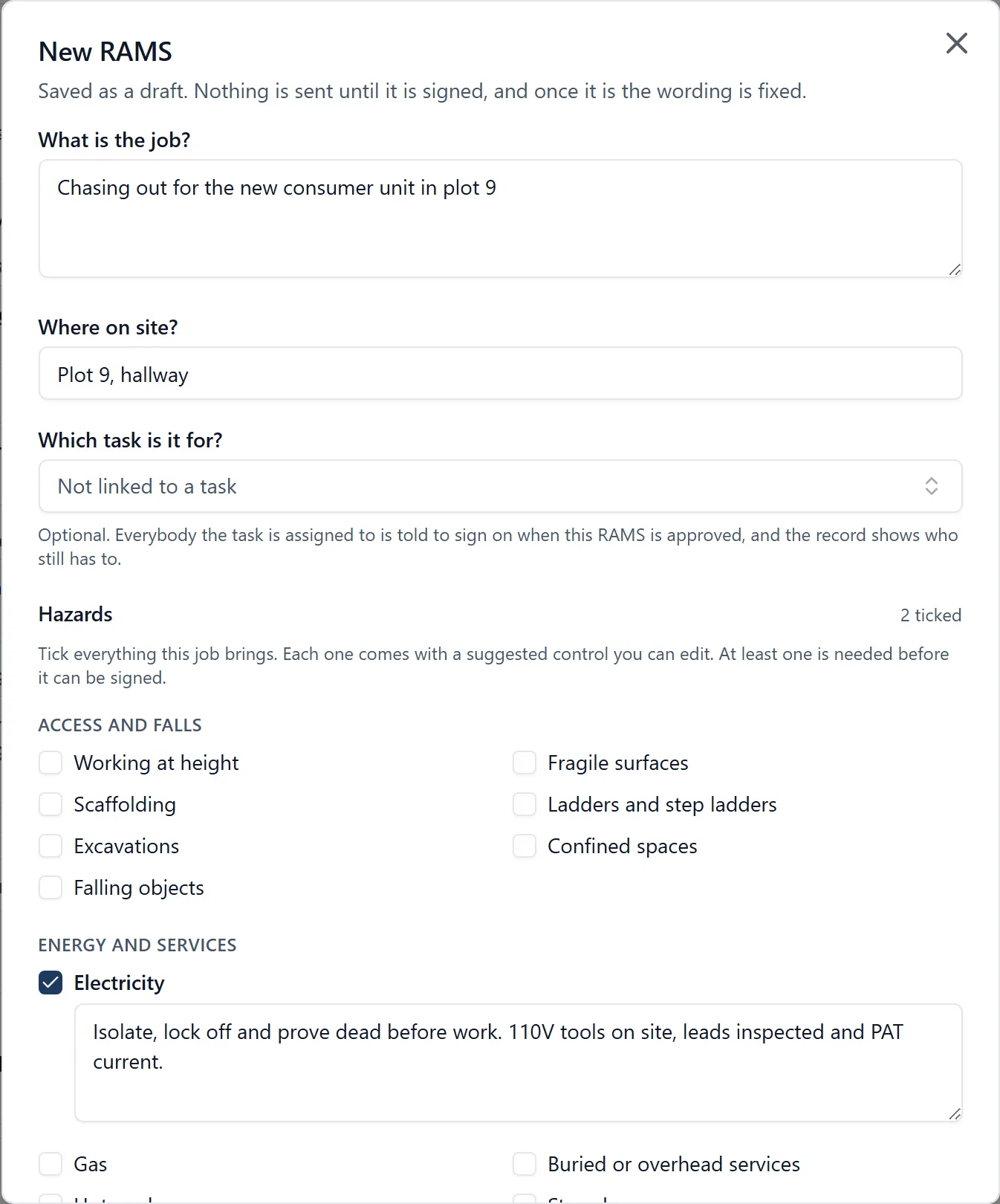
A RAMS is the form filled in before work that carries risk: what the job is, which hazards it brings, what is being done about each of them, how the work will be carried out, and what PPE it needs. The operative doing the work signs it, a site manager approves it with a counter-signature, and the record is filed against the project. It lives in the project’s RAMS section on both the mobile app and the web app.
Why it matters: Every variation is a new RAMS. Changing a window, swapping a door set, cutting out a lintel: each one is its own assessment, several a day on a busy job. On paper they get lost, somebody has to chase the missing ones, and the one an inspector asks for is the one in the back of a van. Here every RAMS is numbered, every signature carries the time it was made, and the whole register can be exported or printed months later.
Where to find it:
- In a browser, the RAMS section in the project’s menu
- On the phone, RAMS in the menu
Raising one:
- Press New RAMS
- Describe the job in a line: “Changing a window on the second floor rear elevation”
- Say where on site it is
- Link the task it is for, if there is one. Everybody that task is assigned to is told to sign on the moment the RAMS is approved, and the record shows who still has to
- Tick every hazard the job brings. Each one arrives with a suggested control measure already filled in, which you edit to say what you are actually doing about it
- Write the method statement: how the work will be done, step by step. If the project has a standard method statement it is already filled in, and a line under the box says so: change it to fit this job
- Choose the PPE the job needs. A hard hat, hi-vis, boots and gloves are pre-ticked
- Press Save draft
A draft is sent to nobody and nobody is told about it. The rest of the site team can open it and read what is coming, and it says whose draft it is, but only you can change it or sign it.
Starting from a previous RAMS: The same job often comes round again: the window on the first floor after the one on the second. Instead of New RAMS, press From a previous RAMS (on the phone, press + and choose From a previous RAMS), then pick the earlier one from the list, which you can search. A new draft opens with its job, place, hazards and control measures, method statement and PPE copied in, and no task linked. Check every line against this job, link its task if there is one, then save it and sign it as usual. The RAMS you started from is not changed, and none of its signatures or its approval come across.
The standard method statement: In a browser, a project administrator presses Template on the RAMS page and writes the method statement every new RAMS on the project starts with. Whoever writes a RAMS still changes it to fit their job. Changing the template later changes what new RAMS start with, never a RAMS already written, and leaving it empty means new RAMS start with an empty method statement, as before.
Signing it, which is what sends it: Press Sign and send for approval, read the declaration, check your printed name and sign in the box with your finger. Before you sign, the app names who it is going to. Signing does three things at once: it records that you prepared the assessment and will work to it, it sends the RAMS to the site’s administrators for approval, and it fixes the wording. From that moment the task, the hazards, the control measures, the method and the PPE cannot be changed by anybody, which is what makes the signature mean something.
You cannot sign one with no hazard ticked. A RAMS with no hazards on it says nothing, so the button waits until at least one is there.
It works with no signal. The whole thing, the signature included, is written to the phone and sent when there is signal again. Filling in a RAMS before starting work is exactly where the bars run out, so the signature is stored as the strokes you drew rather than as a photograph, and needs no connection to exist.
What needs you: Needs you at the top of the register is your own list, and everybody has one: RAMS waiting for your approval, your drafts still to sign, briefings to sign on to before you start, anything sent back to you to put right, and your own RAMS waiting on somebody else. A RAMS you raised yourself is never listed as yours to approve, unless you are the only administrator in the business and nobody else can.
Below it, the register is searchable by the RAMS number, the job, the place, a hazard or anybody’s name, and the chips narrow it to one state and say how many are in each.
Approving it: The site’s administrators get a notification saying a RAMS is waiting, and it appears under To approve, because it is the thing holding work up.
An administrator reads it and either:
- Approves it, by signing their own name under a declaration that they have reviewed it and are satisfied the work can go ahead. The person who raised it is told straight away
- Sends it back, with a reason. The reason is required, because “sent back” on its own is what makes somebody walk across a site to ask what was wrong with it
Until it is approved, the RAMS says so and says the work does not start yet.
Nobody approves their own RAMS while anybody else could. An administrator who raises one needs a second administrator to counter-sign it. That is the whole point of a counter-signature, and the app will not offer the button.
If you are the only administrator in the business, you approve your own. A one-person firm has nobody to counter-sign, so the app lets you: it says so before you sign, the button reads Approve it yourself, and the declaration says what it is, that you prepared it, you are satisfied the work can go ahead, and nobody else has reviewed it. The record and the printed copy then say Approved, no second reviewer beside the signature, for ever. Add a second administrator (People, then the person, then change their role) and the ordinary rule comes back: the next RAMS you raise waits for them.
A RAMS that was sent back is replaced, not edited. It stays as the record of what was refused and why. Open it and press Raise a revised RAMS: a new draft opens with the job, the place, every hazard, every control measure, the method and the PPE copied in, and the reason it was sent back in front of you while you correct it. Save it, then sign it as usual. Only the person who raised the original can do that, so that the administrator who sent it back is still free to approve the new one.
The gang signs on: A RAMS is briefed to everybody working to it, not just the person who wrote it. Anybody on the job can open an approved RAMS and press Sign on to this briefing, which adds their own signature under the same declaration. This is usually where most of the signatures come from: the assessment is approved first thing, then the gang signs on at the morning briefing. Everybody signs once, and a signature cannot be edited or removed by anyone once it is made.
A RAMS linked to a task knows who its gang is. Approving it tells everybody the task is assigned to, by notification, that there is a RAMS to sign on to before they start, and it appears in their own Needs you under To sign on before you start until they have. The record lists them with a tick against everybody who has signed, so the person running the briefing can see at a glance who is missing, and the printed copy says how many of them have signed. Nobody is chased twice: whoever wrote it has already signed, and anybody who signed on early is left alone. A follower on the task is left out, because a follower cannot read a RAMS at all.
Printing one: Print in a browser produces the document to file or hand over: the job, the hazards beside their control measures, the method statement, the PPE, then who raised it and who approved it side by side, and a briefing record listing everybody who signed on with the time each signed, naming the task it was raised for and how many of the people on it have signed. A RAMS that has not been approved says so across the top in plain words, so a draft or a refused one can never be mistaken for an accepted one. Use your browser’s Save as PDF to keep a copy.
Exporting the register: Export produces a spreadsheet of the whole register, with one row per signature, in the order the signatures were made and saying what each one was: raised and signed, approved, or signed on. That is the format an HSE inspector or an insurer asks for: who was briefed on what work, on what date, and when each assessment was approved. It carries the timestamps, the hazards with their control measures, and the decision on each one. If the register was filtered or searched when you exported it, the file says so at the top. The signature drawings themselves cannot travel in a spreadsheet, so the file says whether each was drawn and points you at the printed record for the image.
Which hazards the form offers: The form carries a standard list grouped into access and falls, energy and services, substances, physical, plant and equipment, and the site environment: working at height, confined spaces, electricity, asbestos, silica dust, manual handling, vibration, noise, lifting operations, working alone and the rest. A project’s template can also narrow the list to the ones that apply to it and add hazards specific to the site, though the standard method statement is the part of the template you can change in the app today.
Who can see RAMS: Administrators and members, each other’s drafts included. Followers cannot: a follower is typically a client or an outgoing subcontractor, and the principal contractor’s risk assessments are not theirs to read, so the section tells them it is for the site team. Only administrators can approve or send one back.
What cannot be deleted: A draft can be deleted by whoever wrote it. An administrator can delete one that is still waiting for approval, to clear a mistake off the queue. A RAMS that has been approved or sent back cannot be deleted by anybody, because at that point it is the health and safety record the job is required to keep.