
If you already keep the job in a folder on your computer (a OneDrive or Dropbox folder on it works too), BuildersAI can bring the whole folder in at once. The drawings go into the drawing register with their numbers, titles and revisions read from the file names, everything else goes into Files in the folders it was already in, and then you can start the task list from a programme spreadsheet in the folder, a draft from SiteBot, or a standard programme. Nothing is sent until you have seen what is in the folder, and no task is added until you press the button.
Where to start (app.buildersai.co.uk):
- A new project: click Create New on the Projects screen, then the Start from a folder card. Give the job a name, and its address if you like, and click Create project and choose folder
- When you first sign up: under the question about what kind of sites you run, choose Or start from a folder of your job’s files. After the step for inviting your team, you land on the folder page
- A project you already have: on the Set up your project panel, the drawings job has a line Got the job in a folder? with a Bring in a folder button, until the project has its first drawing. The same Bring in a folder button is on the Drawings page
- From Import Folder in Files: if the folder you chose holds drawings, the box says how many look like drawings and offers Sort them into Drawings. That opens this page with the same folder, so you do not choose it twice
- Just the task list: on a board, click New, then Draft a task list…. It opens the last step on its own, for a project whose files are already in
Who can use it: project administrators, on a project that is not read-only. Only an administrator can add a drawing to the register, so the page is theirs. A member who opens it is told so and offered Open Files, where Import Folder brings documents in without the drawings. Followers are not offered it. It is in the browser only.
Step 1 of 4, Choose your folder: click Choose a folder and pick the folder you keep the job in, or drag the folder onto the box. Nothing is sent yet.
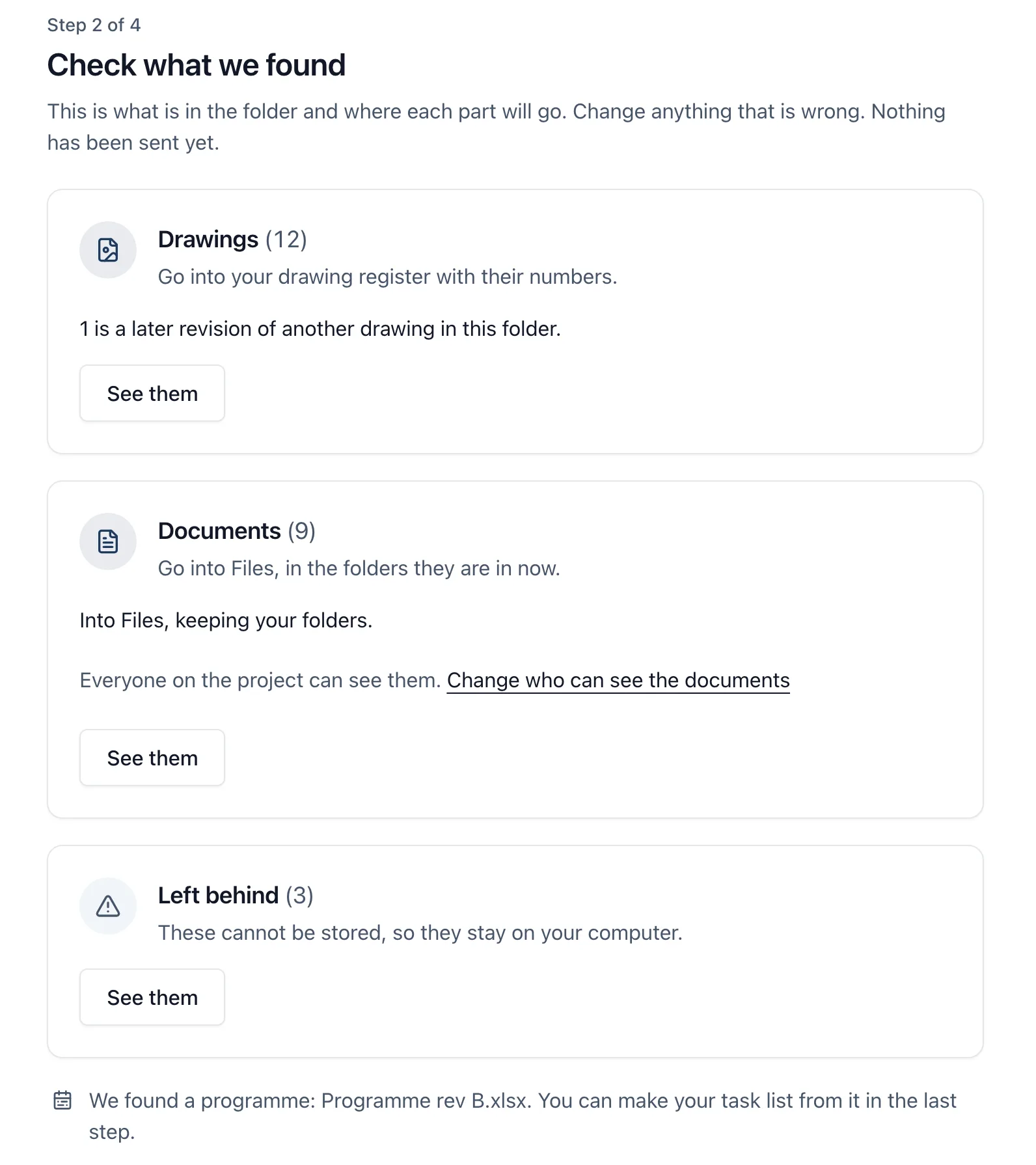
Step 2 of 4, Check what we found: the folder is sorted into cards, each with a count and a See them button that opens its list.
- Drawings: go into your drawing register with their numbers. Each row shows the file’s name, then the Number, Title and Revision read from it, and a Discipline. Type over anything that is wrong: it is kept when you leave the box or press Enter
- Documents: go into Files, in the folders they are in now. Each row says where it will be, for example “In Files: Contracts / Quotes”
- Left behind: files that cannot be stored, each with its reason. They stay on your computer
- If a spreadsheet in the folder looks like a programme, a line under the cards says so: “We found a programme: … You can make your task list from it in the last step.”
The main button says how many files it will send, for example Bring in 20 files. If it cannot be pressed yet, the line beside it says why: a discipline to choose, a drawing with no number, or a box to tick for a big folder. Choose another folder goes back.
Step 3 of 4, Bringing it in: one progress bar, the name of the file going up, and Stop. Leave the page open until it finishes: if you try to leave while files are going up, the browser asks first. Then one sentence you can check against the register, such as “That is your job filed: 11 drawings in the register and 9 documents in Files.”, with Open the drawing register and Open Files. Next: your task list goes on to step 4, and Finish here goes to the project’s Home.
Step 4 of 4, Your task list: see “Starting the task list” below.
How a drawing is recognised:
- Only PDF, JPG and PNG files can go in the drawing register. Anything else in the folder is a document
- A file whose name starts with a drawing number (“2317-A-110 Rev B Ground floor plan.pdf”) is a drawing
- A file in a folder named for drawings (“Drawings”, “DWGs”, “GA”, “Plans”) is a drawing even without a number, and so is a PDF in a folder named for a discipline (“Structural”)
- A name that also says it is paperwork (“Q-1042 Quotation”, an approval, a certificate) is a document, unless it sits in a drawings or discipline folder
- A date at the start of a name (“2026-03-14 Site meeting minutes”) or a camera’s name (“IMG_1234.jpg”) is not a drawing number, and a picture in a photos folder is a photograph
- Nothing is final: Not a drawing on a drawing’s row moves it to Documents, and This is a drawing on a document’s row (PDF, JPG or PNG only) moves it the other way
Revisions:
- The revision is read from the name: “Rev C”, “P05”, “C2”. The number goes into the register without it, so Rev B and Rev C of one sheet are one drawing with two issues
- Two files of the same number in the folder are filed in order: the earlier first, then the later as its next revision, which becomes the current one. The row says “Filed after the earlier …, as its next revision”
- A number already in your register is filed as that drawing’s new revision and keeps its discipline. The row says New revision of that number, and the card counts how many
- A file whose bytes are already in the register, as any issue of that drawing, is left alone
- A new drawing with a plot in its name (“Plot 7”) is given that tag, where the project already has it
“Check this”: a row marked Check this has something worth a look, written underneath in words:
- “No drawing number in the file name, so its title is used”: type the right number over it
- “Check the number: it was read from the start of the file name”: a number like “14A” is as often a house number as a sheet number
- Its name carries a paperwork word such as “quotation”, so check it is a drawing: press Not a drawing if it is not
- “No discipline found”: choose one
Under the row, Our guess says where the number and the discipline came from. Change anything that is wrong. A check never stops the drawing coming in, except a missing discipline or a number you have cleared.
Choosing a discipline: a new drawing needs one, and none is assumed. It comes from the folder the drawing is in (“Structural”) or its file name, never from the job folder’s own name, so “14 Oakfield Road” does not file everything as civil. Drawings with none are gathered in a Choose a discipline box, one line per folder (“3 drawings in Engineer have no discipline”), with File them all as: so a folder of forty sheets is one choice. You can also set a single row’s Discipline. A drawing filed as a revision takes its drawing’s discipline.
Where the documents go: into Files, keeping your folders. The folder you chose is the job itself, so it is not made again: what was inside it lands at the top of Files, in the folders it was in. A folder already in Files with the same name is used rather than made twice. If you came from Import Folder inside a Files folder, they go into that folder. Change who can see the documents offers Everyone, Members only or Admins only. It applies to the documents; the drawings go into the register as every drawing does.
Photographs go to Files, not the Gallery. The Gallery’s own upload keeps the day and place each photo was taken, so if most of the folder is photographs the Documents card says so. Carry on if you want them in Files, or add them in the Gallery instead (see the “photos” topic).
What is left behind, and why: each file says which:
- “Not a file type BuildersAI stores”, such as a Microsoft Project, Asta or P6 file, or a 3D model
- “Larger than 50 MB”
- “Empty”
- “Added by your computer, not by you”, such as Thumbs.db
CAD drawings (DWG, DXF) are not left behind: they go into Files as documents, because the register takes PDF, JPG and PNG.
A big folder: past 500 files or 1 GB, tick “Yes, put … files into …” before the button works. The most in one go is 5,000 files; past that, bring in the folders inside it one at a time.
Stopping and carrying on: Stop lets the file going up finish and stops there. Everything that arrived stays and nothing is removed. The result says what had arrived, and Bring in the remaining sends the rest. Files that failed are listed with the reason, and Try those again sends just those.
Running the same folder again is safe. An unchanged file that is already here is left alone, a document of the same name in the same folder is saved as a new version, a new issue of a drawing is filed as its next revision, and folders already in Files are used again. If nothing has changed it says “Nothing new to bring in: everything in this folder was already here.”
Starting the task list: step 4, Your task list, offers up to three ways. Whichever you choose, you check the list before anything is added, and Not now finishes without one.
- Use the programme we found: only when the folder held a spreadsheet named like a programme. It is read in your browser, with no limit
- Ask SiteBot to draft one: SiteBot reads your quote and schedule of works and suggests the tasks
- Start from a standard programme: the saved templates, with the standard programmes (see the “task_templates” topic)
What a programme spreadsheet needs:
- An Excel file (.xlsx or .xls) or a CSV, with a word such as Programme, Gantt, Task list, Schedule of works or Look ahead in its name, so it is found
- A column of tasks near the top (headed Task, Activity, Description, Item, Works or Name), and dates (Start, Finish) or durations (“5d”, “2 wks”) beside it. Predecessors, an ID column and a WBS or outline column are read too. Dates are read day first, so 02/11/2026 is 2 November
- Phases come from a WBS or outline column, indented names, or heading rows with no dates. Up to 400 tasks
- The sheet’s own dates are kept, and those tasks say Dates from your programme. Anything it could not use is listed under “Worth knowing about the file”
- A sheet that is not a programme (a door schedule, a quote) says “This is not a programme we can read” and why, and the other choices stay
When SiteBot drafts:
- Which documents describe the job? lists the documents in Files that SiteBot can read (PDF, Word, Excel and CSV). The ones that look like a quote, a schedule of works or a specification are ticked already: change them if they are not right. Up to eight
- Each says Ready to read, Still being read (SiteBot waits for it) or Could not be read, with why. Documents are read a little while after they arrive, so one brought in a minute ago may still be being read
- Set The day work starts (the next working day unless you change it), add Anything SiteBot should know if you like, and click Draft my task list
- The screen says “Reading your documents”, then “Drafting your task list”. It usually takes a minute or two, and you can leave the page open. Stop takes you back with your choices kept
- If a document has still not been read after two minutes, you can Draft from what is ready, Keep waiting, or start from a standard programme
SiteBot reads only the documents you tick, and only as you can see them: a document above your access level is not offered. It also looks at the drawing register’s numbers and titles and the specification titles, to name the work the way the job does. It can only suggest a task list: it adds nothing, gives work to nobody and changes nothing in the project.
Checking the list: Check your task list shows phases as headings with their tasks under them. Each task has its name (type over it), its working days (the minus and plus buttons, or type a number), what it starts after, its dates, and Remove. A duration SiteBot estimated says SiteBot’s estimate; one from the documents says where it came from. What SiteBot assumed is listed at the top. Remove this phase takes a phase out with its tasks, and Put it back brings back the last removal.
The dates follow your site’s working days, worked out from Work starts on. Change that day and every date moves, except tasks keeping the dates from your programme.
Nothing is added until you click Add … tasks to the programme. The tasks then go under Boards, each phase a task with its own tasks under it, and “starts after” becomes “comes after” (see the “task_dependencies” topic). Open the programme takes you to them on the board’s Gantt view. Undo takes every one of them out again and returns you to the list. No labels, people or costs are put on them.
Ten drafts a day: each person can ask SiteBot for up to ten task lists in any 24 hours. Each draft SiteBot starts counts, whether or not you add it; waiting for documents to be read does not. A programme spreadsheet and a standard programme have no limit. On a very busy day SiteBot may ask you to try again tomorrow.
Questions people ask:
- Why are my photographs in Files? A folder’s photographs go in with the documents. The Gallery keeps the day and place each was taken and has its own upload, so add them there if you want that
- Why does a drawing say Check this? Something about its name needs a look, and the reason is written under the row. Fix it in place, or press Not a drawing
- Can I use it on my phone? No. Choosing a folder needs a computer’s browser. Once it is in, the drawings, documents and tasks are on the phone like any others
- What if I have an MS Project file? It is not read, and it is left behind. Save the programme from your planning software as an Excel file, put it in the folder and bring the folder in again, or ask SiteBot to draft one, or start from a standard programme
- Why are my DWG files not in Drawings? The register takes PDF, JPG and PNG, so CAD files are kept in Files
For the drawing register itself, see the “plans” topic. For Files and Import Folder, see “files”. For the five setup jobs, see “project_setup”.