
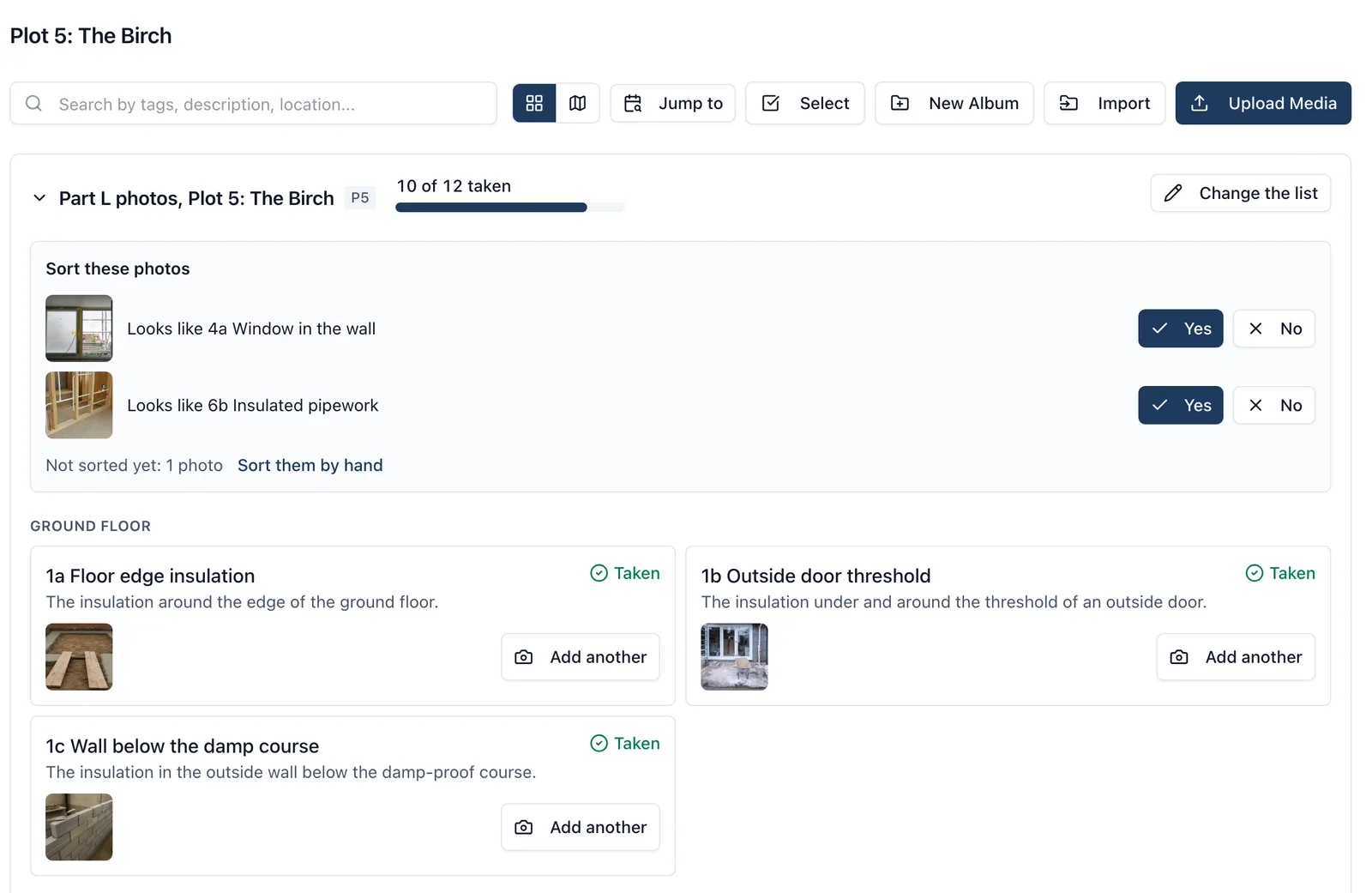
Part L photos turn the photographs a new home needs into a list for each plot that the site works down. Approved Document L (Volume 1, 2021 edition), Appendix B, asks for photographs of every new home on a development, for the energy assessor and the building control body, and says anyone may take them. It wants one photograph of each detail it lists, such as the insulation at the edge of the ground floor or at the eaves, taken when that detail is finished but before it is covered up. The location, date and time of each should be recorded, and each file name should carry the plot and the detail, so plot 1’s eaves photograph is P1/3b. BuildersAI keeps that list for each plot, warns the people on the job the day before a missing one is covered up, and names the files that way in the pack. Check with your energy assessor what they want to receive.
What a plot’s list shows:
- Every detail the document lists, by its own code and a plain name, such as “1a Floor edge insulation” or “3b Eaves and gable edges”, with one line saying what the photograph has to show and when it has to be taken by
- Each detail is Needed, Taken or Not needed, always with a word and a mark, never colour alone
- A count and a bar: “7 of 12 taken”. It counts only the details this plot needs, so a plot with two details marked not needed is finished at 10 of 10
- Airtightness (5) is offered and never counted as missing, because the document asks for it only when the other photographs do not already show the tapes, membranes and seals
- A photograph beats a setting: one taken for a detail marked not needed still counts as taken
Switching a plot’s album on (admins only): A plot’s Part L photos live in its album, so there is nothing new to set up beyond that. If the plot has no album yet, make one first (see the “photo_albums” topic).
In the browser:
- Open Gallery, then the plot’s album
- Click Collect Part L photos for this plot at the top of the album
- Plot reference: what goes in every file name, such as P7. It is filled in from the album’s name (“Plot 7” gives P7), and you can change it. Letters, numbers and hyphens only, up to 12 characters, such as P7, P12A or B2-04. Two albums cannot collect for the same plot: you are told “Another album is already collecting photos for P7.”
- For any detail this plot does not have, switch on Not needed for this plot. A house with no ventilation ducts in the loft, for example, has no 6c
- Choose what covers each detail up, if you want the warning (below)
- Click Save. Nothing is saved until you do
On the phone: open the album and tap Collect Part L photos, then Change. Type the plot reference, switch off Needed for this plot for any detail the plot does not have, and tap Save. Covering tasks are chosen in the browser; the phone shows them.
To change the list later, click Change the list on the album’s Part L panel in the browser, or tap Change at the top of the list on the phone. Stop collecting, at the foot of the same box, switches the list off. The photos keep the details they were marked with, and the list can be switched on again later.
The task that covers a detail up, and the warning the day before (browser):
- In the same box, each detail that something covers up has Covered up by. It lists the plot’s own outstanding tasks first, under “This plot’s tasks”, then the rest of the project’s. The plot’s tasks are found the way the handover pack finds them: the top-level task named after the plot and everything under it, and anything carrying a label with the plot’s name
- The first time, BuildersAI suggests a task where exactly one of the plot’s tasks fits, such as the screed for the floor edge insulation, and says “Suggested from this plot’s tasks”. Change it, or choose No task chosen, before you save
- Equipment labels (6a) are never covered up, so they take no task
- The detail then says what it is waiting on, such as “Before: Screed ground floor, 14 Oct 2026”
- The warning: at 3pm on the working day before that task starts (on the project’s own clock), if the photograph has still not been taken, the people on the task get a push notification, such as “Plot P7: photo still needed. Take 1a Floor edge insulation before Screed ground floor starts tomorrow.” Tapping it opens the plot’s list. If nobody is on the task, it goes to the project’s admins. It goes once per detail and start day, and never to a follower
- It is a push notification only: it is not in the notification feed and is not emailed. It is switched off with Task assignments in your notification settings, the same switch as other news about your own tasks
Taking the photos on the phone:
- Open Gallery and the plot’s album. A bar at the top says how many photos are still to take, with the count and a bar. Tap it. (At the top of the Gallery itself, a Part L photos row lists every plot on the site; tap one to go straight to its list)
- The list is headed with the plot. Each row is a detail by its plain name, with the document’s reference small beside it. Photos to take comes first, with the one about to be covered up soonest at the top, and a warning line when its covering task starts today or tomorrow
- Tap the row for the detail you are standing in front of. The whole row is the button. The camera opens with the detail named at the top and what the photograph has to show
- Take the photo. You are back at the list, and the row has moved down to Taken with a tick and the photo
- Take another, under a taken row, adds a second photograph of the same detail: another wall type, or a close-up
- It works with no signal. The photo and its detail are saved on the phone and sent when it next has signal, like every other photo
- The time and place are recorded as with any photo taken in the app, so keep location switched on for BuildersAI
- Details marked not needed sit folded away under Not needed here at the foot of the list
- On an older version of the app with no “Take photo” camera, tapping a row opens the usual add photo options instead, and the photo you pick is filed into the album with its detail
In the browser, each detail on the album’s Part L panel has Add photo (or Add another), which uploads into the album with that detail on it.
Sorting photos already in the album: Photos added to the album the ordinary way carry no detail until somebody says which one they show.
- The suggestion. BuildersAI already reads every photo that is uploaded. Where it has a good guess at the detail, it asks: “Looks like 3b Eaves and gable edges” in the browser’s Sort these photos box, or “Is this a photo of Eaves and gable edges?” at the top of the list on the phone. Yes marks the photo with that detail. No marks it as not a Part L detail, so the question is not asked again. A photo is marked only when a person presses Yes, and a guess it is not sure of is not shown at all
- By hand, in the browser. The photos with no guess are counted (“Not sorted yet: 4 photos”). Click Sort them by hand and pick the detail for each
- Several at once, in the browser. Click Select in the album, pick the photos, then Mark as Part L detail and choose the detail, or Not a Part L detail
- One photo. In the browser, the Info tab beside the photo has a Part L section showing the plot, with a picker for the detail it shows
Every plot at once:
- In the browser, a Part L photos card at the top of the Gallery sums the site (“5 plots, 2 complete, 41 of 60 photos taken”). Click it for the plot grid: one row per plot in plot order (P2 before P10), one column per detail by its code (point at a code for its name), and in each cell a tick, the word Needed, or a dash for not needed. Each plot’s count and bar is at the end of its row. Click a plot to open its album. The grid only reads: changes are made in the album
- On the phone, the Part L photos row at the top of the Gallery opens every plot on the site, each with its count, for deciding which plot to walk to
The Part L pack (browser):
- When every photo a plot needs is taken, its panel says so (“All 12 taken. Ready for the energy assessor.”) with Produce the evidence pack. It downloads a ZIP of that plot’s Part L photographs and nothing else
- Each photograph is named the way paragraph B8 asks: part-l/P7/3b.jpg, and a second of the same detail part-l/P7/3b-2.jpg, in the order they were taken. Photos with no detail, or marked as not a Part L detail, are left out of a plot’s Part L pack
- The ZIP has a spreadsheet of when and where each photograph was taken, with Plot and Part L detail columns beside each file’s name, and a README saying what the folder is. You can also include date-stamped copies, as with any evidence pack
- To send what you have before a plot is complete, select the photos in the album and click Evidence pack as usual: photographs marked with a detail are named the same way, in the same part-l folder
- The detail is what somebody on the project marked the photograph as. BuildersAI does not check the picture against it, and the pack says so
- For more on evidence packs, see the “photo_annotations” topic
Who can do what:
- Admins switch a plot’s album on, change what it needs, choose the covering tasks (in the browser) and stop collecting
- Admins and members take photos from the list, answer the suggestions, mark photos with a detail, and produce the pack
- Followers can read a plot’s list and the plot grid for the albums they can see. They cannot take or mark anything, cannot produce a pack, and are never sent the warning
- When the project is read-only (the company’s trial has ended or its subscription has lapsed), everybody can still read the lists and the grid, and the pack still works, but nothing can be taken, marked or changed until a plan is chosen
- A photo you are not allowed to see (an admins-only photo, for a member) is not counted for you, so that detail reads Needed to you
Good to know:
- I can explain how Part L photos work, but I cannot read a plot’s list or mark a photo for you: open the plot’s album, or the plot grid
- For albums, see the “photo_albums” topic. For adding and finding photos in general, see “photos”. For everything a plot has in one ZIP for a homeowner or warranty provider, see “handover_pack”