
A walk-round is for walking a site, talking about what you see and taking photos as you go, and coming away with a tidy report. It is made for pricing visits, surveys and site inspections. At the end, what you said is split into points, each with the photos you took around it, and you choose which points are snags, to-dos or materials, and who each snag or to-do is for. It is on the mobile app, and it works with no signal.
Where to find it:
- On your phone: open the project, then the menu, then Walk-round. It is there on a lead too, for a pricing visit
How to do a walk-round:
- Press Walk-round. The camera opens and the phone starts listening. The first time, the phone says why it wants the microphone and the camera before it asks
- Walk the site. Say what you see as you would to the client or the site manager, and take photos with the big round button. Your words come up on the screen as you speak, and the photos you have taken are counted along the bottom
- Press Finish when you are done. A walk-round can be up to 30 minutes and 60 photos; the last two minutes count down
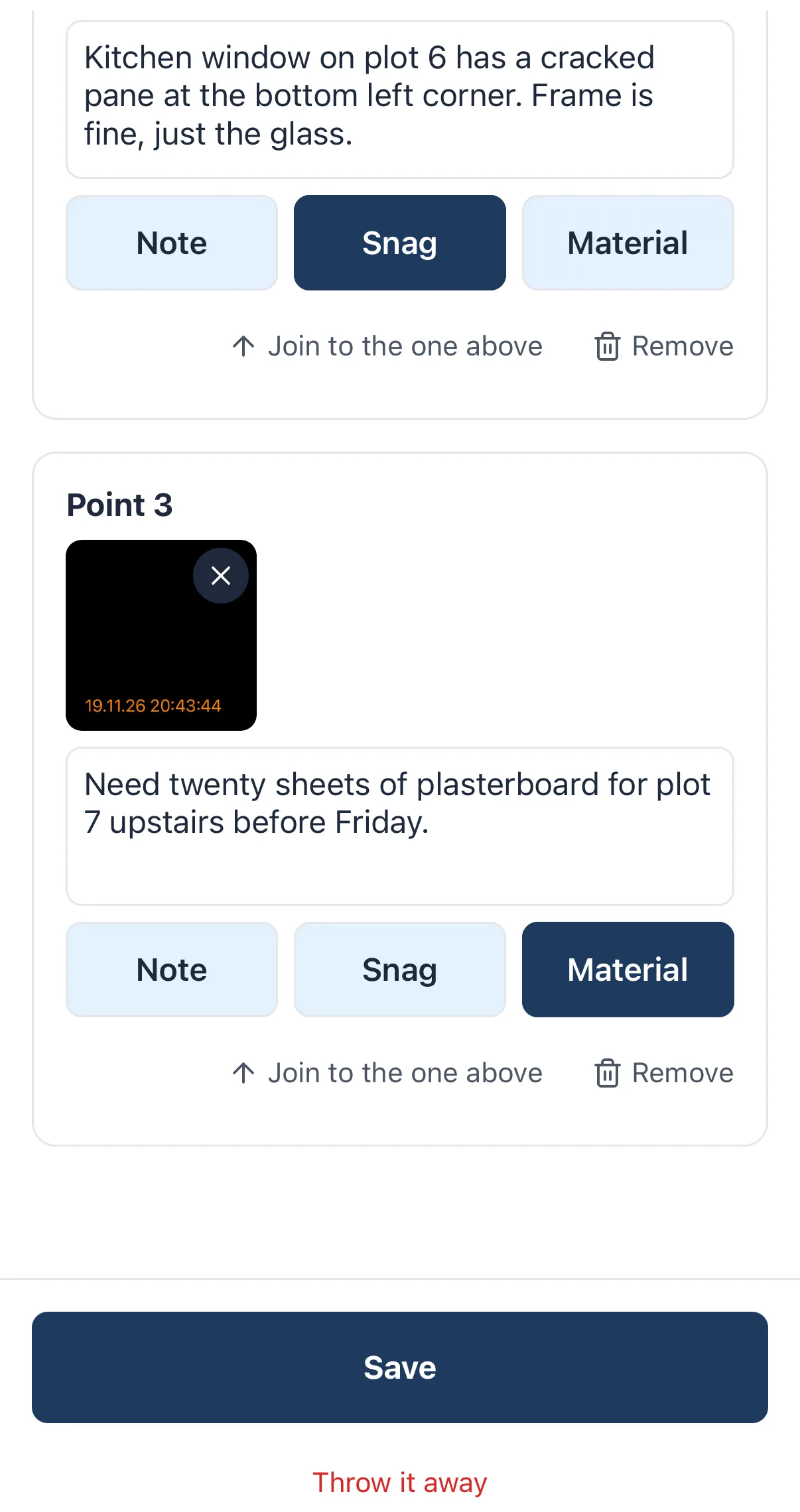
- Read your points. Each one has the words you said and the photos you took around them. For each point you can:
- Correct the words: they are in a box you can type into
- Take a photo off the point, with the small cross on it
- Choose what it is: Note (it goes in the report only), Snag (a snag is raised on the project), To-do (a task is added) or Material (a material request is added). BuildersAI suggests a note, snag or material, marked Our suggestion; you can always pick another
- Change the Title a snag, to-do or material request is saved under. Until you type one, the box shows the title it will get
- For a snag or a to-do, choose Who it is for (the same people you can give any task to) and when it is Due (Today, Tomorrow, Friday or Next week, or No date)
- Move up or Move down, to put the points in the order you want them in the report
- Join to the one above, when one thing was split in two
- Remove a point you do not want
- To add something you did not say on the walk, press Add a point at the foot and type it. You can also say what the walk was for at the top (for example “Pre-start survey, Plot 4”); it is printed at the top of the report
- Press Save
Nothing is saved until you press Save, and you can leave the review and come back to it: the walk is kept on the phone until you save it or throw it away, and for 30 days after you save it.
What Save does:
- Every photo goes in the Gallery, marked as taken in the app, with when it was taken and, if location is on, where. When a project admin saves the walk, the photos go in a new album named for it (“Walk-round 19 Nov 2026 14.32”); only admins can make albums, so a member’s photos go in the Gallery without one
- A snag, to-do or material request is raised for each point you chose as one, with its photos on it and its due date. The people you gave a snag or to-do to are told as when you give somebody a task by hand (by a notification or by email, as each of them has chosen; not you, if you gave one to yourself), and find it in their own tasks
- A PDF walk-round report goes in Files: what the walk was for, the project, the day, who walked it, then each point with its words, its photos, and for a snag or to-do who it is for and when it is due. Press Share report to send it straight from your phone (by email, WhatsApp or any app), or Open report to read it
Changing the report after you have saved it: The walk-round stays on your phone for 30 days after you save it, unless you sign out. Press Change the report on the screen you see after saving, or later press Walk-round in the menu, choose Open it, then Change the report. You can correct the words and titles, change the order, add or remove points, and turn a note into a snag, to-do or material request. Press Save the changes: the report is saved again as a new version of the same file in Files (the earlier version stays in its history), and any new snag or to-do is raised.
A point already saved as a snag, to-do or material request keeps what it was and who it is for: change those on the snag or task itself. Removing a point that was already saved as a snag, to-do or material request leaves it out of the report only. Only the phone that walked the site can change its report. Starting a new walk-round takes the last one off your phone; its report and everything it raised stay in the project.
How points are made: The words you said near a photo go with that photo, whether you talked before or after you took it. Photos taken close together are one point. Anything you said well away from any photo is a point of its own, with no photos. If two things ended up together, or one thing in two, use Join to the one above or correct the words.
With no signal: A walk-round works with no signal. Most phones hear you without signal (a phone that has not got British English dictation on it needs signal to hear you, and photos work either way). The phone keeps the photos on the phone, makes its own suggestion of what each point is, and makes the report. When you press Save everything is kept on the phone and goes up by itself when you have signal again. The screen says so. You can still share the report from your phone straight away.
Things to know:
- Keep the app open while you walk. The screen stays on by itself. If you lock the phone or go to another app, it stops listening, and starts again when you come back. If the app was closed, open the walk-round again and press Carry on to pick up where you were
- If it stops listening, the line over the camera says why and what to do. If the phone does not let BuildersAI listen, press Open Settings, allow the microphone and speech recognition, and come back: it starts listening again by itself. If the phone’s dictation is off or not ready, turn on Dictation (on an iPhone: Settings, General, Keyboard) and press Try again. If it would not start, press Try again, and if it still will not, close the app and open it again, then Carry on. Photos work all the while, and the words you had already said are kept
- The sound is not kept. Your words go in the report, the recording does not
- It listens in English, with British spelling, and knows the words a site uses. Names may still come out wrong: that is what the box before Save is for
- The report is written in English. Your words are printed as you said them, Polish, Lithuanian, Romanian and Bulgarian letters included. A few scripts (Punjabi and Hindi) show as a question mark in the PDF; your words are kept as you said them everywhere else
- Anybody talking nearby may be heard and written down
Who can use it: Members and admins of a project, the same people who can raise snags and take photos. Followers are not offered it, and nobody is offered it on a project that is read-only. The report in Files can be opened by whoever can see files on the project, so a report saved by a member can be read by the project’s followers too, as with any file a member adds.