
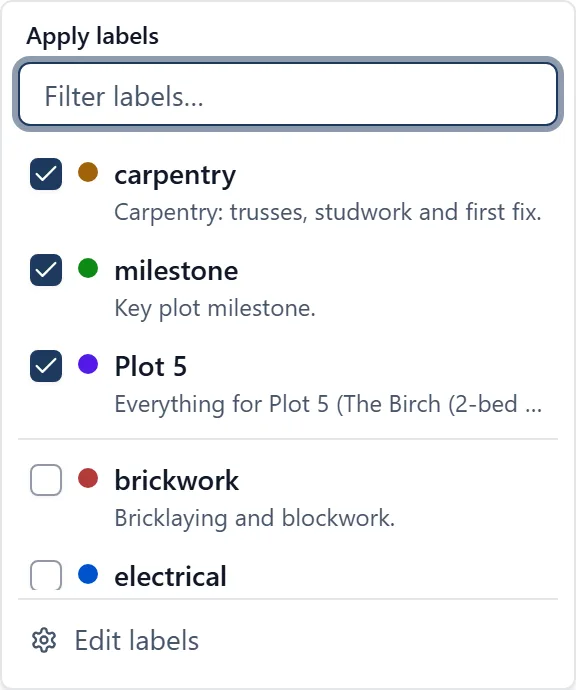
Labels are your own tags on the work. A label is your wording for a slice of the job, put on the tasks it applies to: “Snagging”, “Client decision”, “Awaiting materials”, “Plot 3”, whatever your team actually says out loud.
A label is not a status and not a priority. Status (Open, In Progress, Blocked, Awaiting check, Resolved, Cancelled) and priority (Critical, High, Medium, Low, or None) are fixed lists the app owns, and a task has one of each. Labels are yours: you choose the names, you decide what they mean, and a task can carry as many as you like or none at all.
They belong to the project, not to you. Everybody on the job sees the same list, which is why renaming and deleting one is an admin’s job. Labels go on the work itself: tasks, issues, deliveries, RFIs, inspections and snags.
Putting a label on a task, in a browser:
- Open the task
- In the details panel down the right-hand side, click the heading Labels. It sits just under Assignees
- A small window headed “Apply labels” opens, with a tick box against every label. Click one to put it on, click it again to take it off. The ones already on the task are listed first
- If the list is long, type in the “Filter labels” box at the top. It matches on the label’s name
- There is nothing to save. Click away to close it
On a task you are still creating, the Labels section shows a dashed Add label button instead. Same picker, and the labels go on as soon as the task is created.
Putting a label on a task, on the phone:
- Open the task
- Find the row with the price-tag icon and tap Add labels (or Edit labels if it already has some)
- Tap a label to put it on, tap it again to take it off. A tick marks the ones it is carrying
- Close the sheet
The phone shows labels as small chips on the task in the list, so you can see them without opening anything. In a browser they are not on the board rows: you see them when you open the task, and the task’s history there records who put each one on and when.
Labelling works with no signal on the phone. The change saves on your device and uploads when you are back online.
Making, renaming, recolouring and deleting labels (browser only):
The Labels page is in no menu. The project’s list of labels has a page of its own, and the only way to it is:
- Open any task and click Labels in the panel on the right
- Click Edit labels at the bottom of the picker
Worth bookmarking once you are there. On that page:
- New label, top right, for admins and members. Give it a name, an optional line saying what it is for, a colour from the sixteen swatches (the shuffle button beside them picks one at random), and, for a trade, who does the work under Done by. A chip above shows how it will look. Click Create label
- Add a set, beside it, makes many labels at once. See below
- Edit on any row, for admins, changes its name, its description, its colour or who does the work. Every task carrying it updates at once
- Delete on any row, for admins, asks first, and says plainly that it removes the label from every task it is applied to and cannot be undone. The tasks themselves are not touched
- Search all labels at the top searches names, descriptions and trades, and the list sorts A to Z or Z to A, with numbers in order (Plot 2 comes before Plot 10)
Two labels on one project cannot share a name, whatever the capitals. A project starts with no labels of its own, so the picker says “No labels yet” until somebody makes the first one. A demo project arrives with the labels its template uses. Three other things can add labels for you: a set (below), adding a task template brings any labels its tasks use, and copying a project’s structure into a new one can bring the whole label list across.
Making a project’s labels in one go (browser only):
A new project usually needs thirty or so labels before the work goes in: the plots, the trades, the build phases, the deliveries. Rather than making them one at a time:
- Open Add a set on the Labels page. On a new project, the “Set up your project” panel on the home page offers the same thing as Label the work, with an Add labels button, until the project has its first label
- Switch on the sets you want:
- Plots: choose the numbers, from and to, and you get Plot 1, Plot 2 and so on. “Called” changes the word, for Unit 1 or Flat 1
- Trades: tick the trades on the job, or All. Each one says who does the work: Carpentry is done by a Carpenter, Plumbing and heating by a Plumber
- Phases: a standard build sequence, Groundworks through to Handover. It is a starting point, because timber frame and masonry go in a different order: rename a phase by typing over it, remove one with the cross, or add your own. Back to the standard list undoes your edits
- Logistics: Deliveries, Plant and Materials, edited the same way
- Weather-sensitive work, for admins: the kinds of work that stop for the weather, each with its limits filled in, such as Crane lift at gusts over 25 mph and Concrete pour in rain or below 3°C. Tick the ones on the job. See “Weather limits” below
- The preview beside the choices lists every label that will be made, in its colour, and the button counts them: “Create 27 labels”. Nothing is made before you press it
- Press it. The labels appear on the Labels page straight away. An admin gets an Undo on the message for a few seconds, which deletes exactly the labels that were just made
Labels the project already has are left exactly as they are, and the list says so: they show struck through, as “Already in this project”. That is what makes it safe to run again. Took on plots 7 to 12? Run Plots again for 7 to 12, or for 1 to 12, and only the new plots are made. The same goes for capitals: a project with “electrical” does not get a second “Electrical”. A name chosen in two sets, such as Groundworks as a trade and as a phase, is made once, as the trade.
One set makes at most 500 labels. Colours and names can be changed afterwards on the Labels page like any other label.
Who does the work:
A trade label can say which profession does that work, under Done by on the label. It is a fact about the label, not about who is assigned: a labourer can still be given the groundworks, and a foreman can still pick up a snag on any trade. The Labels page shows it on the row, beside a hard hat. Labels made from the Trades set arrive with it filled in; on any other label an admin can set it with Edit, or ask me. Copying a project’s structure keeps it.
Weather limits:
A label can also say when its work stops for the weather: gusts over a number (in mph, km/h or m/s), rain, or a temperature below a number. An admin sets them with Edit on the label, or under New label when making it, and the Labels page shows them on the row beside a cloud. Every task carrying that label is then weather dependent: the task shows the forecast for the days it is planned against those limits, and says which days break them. It is a warning for planning, never a go or no-go. The “weather” topic has the whole of it.
The Labels page does not exist on the phone. You can put existing labels on tasks and filter by them there. On a project with none yet, the phone’s picker says “No labels yet. Create labels on the web.” To make or rename one from the phone, ask me.
Finding work by its label:
- My Tasks: open the filters and pick the labels you want under Labels. In a browser that is the Filters button beside the search box; on the phone it is the sliders button in the top-right corner. Those choices are yours alone, nobody else’s screen changes. The phone remembers them next time you come back, a browser does not
- A saved view on a board can be filtered to one or more labels by an admin, and that filter then applies for everybody, on the phone as well as in the browser. See the “boards” topic
- The search box on a board reads titles, task numbers and descriptions. It does not read labels, so searching “snagging” will not find the tasks tagged Snagging
- Or just ask me
A task becomes a milestone by carrying a label named “milestone”. That is the whole trick, and nothing else marks one.
- Make a label called milestone on the Labels page, once
- Put it on the tasks that mark a real date: handover, watertight, a section complete
On the programme (a Gantt view, browser only) those tasks get a diamond at the finish of their bar. Hover the bar and it says “Milestone. The diamond marks the finish”, with the date. They are marked as milestones when you print the programme or download it as a spreadsheet.
Two things to watch:
- The name has to be exactly milestone. Capitals do not matter, but “milestones” or “key milestone” will not do it
- A task with sub-tasks under it keeps its bar and gets no diamond. The diamond is for a task that is a single point in time
One other thing the programme reads: grouping a Gantt By trade makes a lane for every label that says who does the work (see above), plus any label named exactly electrical, plumbing, groundworks or safety, in lower case. Anything else lands in an “Other” group.
Or just ask me: “What labels does this project use?”, “What labels are on task 42?”, “Is there a label for client decisions?”, “Put the Awaiting materials label on 118”, “Take Snagging off task 42”, “Make a label called Plot 3 and colour it blue”, “Make a Carpentry label, done by a Carpenter”, “Which of our labels are trades?”. I read the change back to you in one line before anything happens, and before deleting one I tell you how many tasks it is on. This is also how you make or rename a label, or say who does the work on one, from the phone, where the Labels page is not available. Who does the work has to be one of the app’s professions, the same list a person’s profession is chosen from, and I will not guess one for a label that is not a trade. I make labels one at a time, so for a whole set of plots, trades or phases, use Add a set on the Labels page in a browser.
Who can do what:
- Everyone, followers included, can see the labels on work they can already see
- Admins and members put labels on tasks and take them off, and can make new ones, one at a time or with Add a set
- Only admins can rename, recolour or delete a label, change who does the work on one, or set its weather limits, because the whole team’s saved views and checks depend on it. On the Labels page a member sees New label and Add a set, and no Edit or Delete on the rows: to change or remove a label, ask an admin. For the same reason only an admin is offered Undo after making a set
- Followers cannot label anything or change the list. On the Labels page they see the list and no buttons. If a follower asks me to, I will say so rather than pretend
- On a read-only project nobody can make or edit labels, and the Labels page says why at the top. Nobody can delete one either, an admin included, until the project is unlocked
- Deleting is the one to be careful with. It strips the label off every task at once, there is no undo, and any saved view filtering on it stops finding anything