
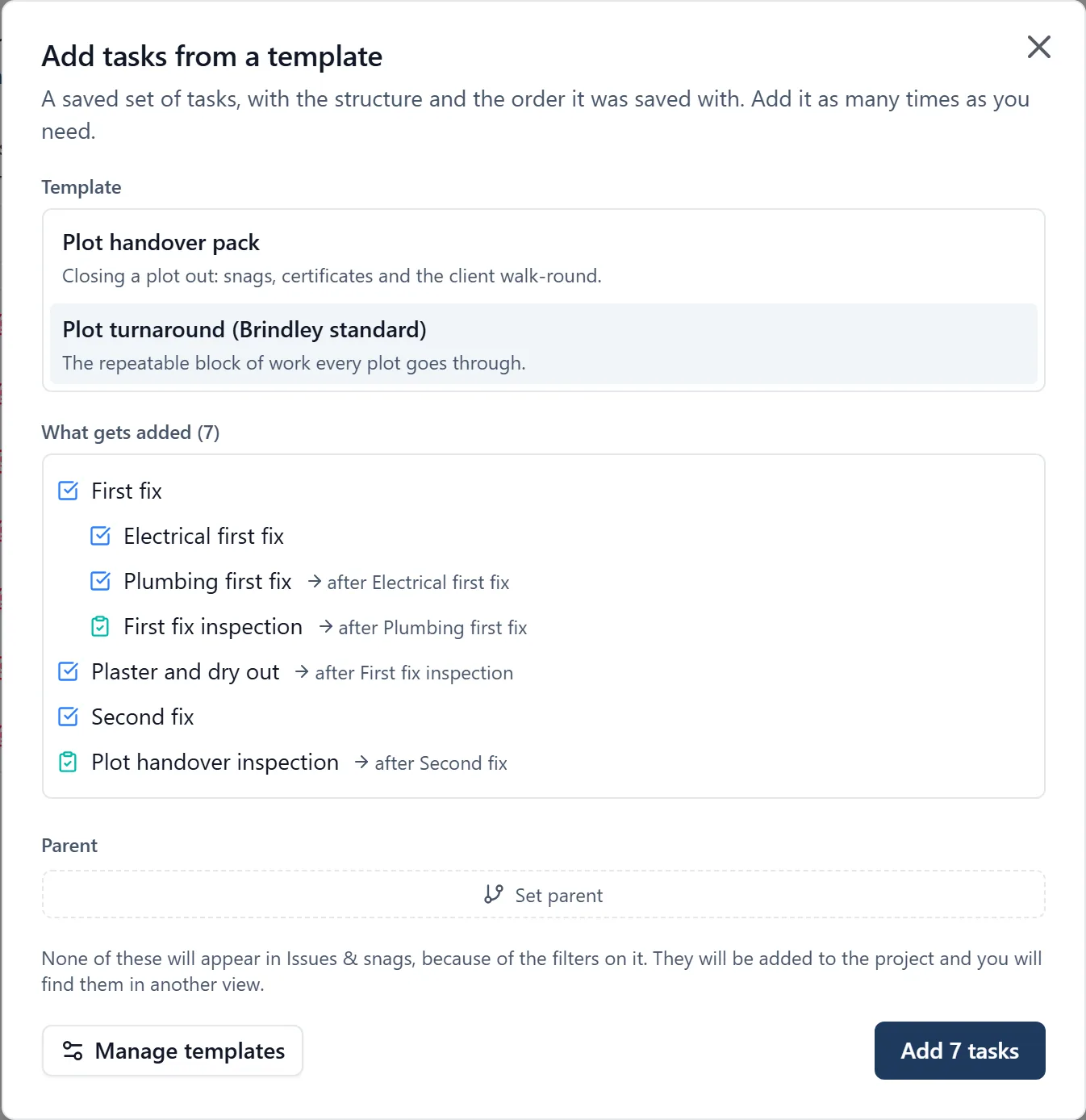
Some sets of tasks come up on every job: the same first fix, the same plot turnaround, the same six stage fit-out. Save that set once as a template, then add it to any job, as many times as you need.
Templates are a browser job. All of this happens at app.buildersai.co.uk. You cannot save a template or add one from your phone. What a template creates is ordinary tasks, so once they are in you work through them on site like anything else.
Three are ready before you make any: Every project is offered three standard programmes, listed under your own templates with the heading “Standard programmes”:
- Commercial fit-out: site set-up and strip out, first fix, boarding and ceilings, second fix, finishes, testing and commissioning, then clean, snag and handover
- New build plot: one house, from setting out and foundations to handover, with the building control inspections in their place. Add it once per plot
- Refurbishment: survey, strip out, structural works, first and second fix, decoration and completion
Each phase waits on the one before it, so once you have dated the phases the arrows and the critical path are there on the programme. They are the same for every customer, so nobody can change them. To make one your own, open it in Manage templates and click Duplicate to edit: the copy belongs to your organisation and you can rename it, add to it and take things out.
What a template keeps:
- The tasks themselves: title, description, kind (task, issue, delivery, RFI, inspection or snag) and priority
- The structure: what sits under what, so a phase arrives with its work nested underneath it
- The order it was saved in
- The labels, by name. If the job you add it to has no label of that name yet, it is created for you
- What comes after what: the ordering links between the tasks in the set. See the “task_dependencies” topic
What it deliberately leaves behind:
- Dates. Everything lands undated and you schedule it on the job in hand. A date from the last job means nothing on this one
- People. Nothing arrives assigned to anybody. Assign it once it is in
- Progress. Every task lands as Open, whatever the tasks it was saved from are doing now
- Comments, files and photos. Those belong to the job they were written on
- Anything private, which never goes into a template at all
Adding a template to a job:
- Click Boards in the left-hand sidebar, then open a board
- Click the New button at the top right of the board, and choose “From template…” at the bottom of the menu
- Pick a template from the list at the top of the dialog. Underneath, “What gets added” shows exactly what you are about to create: every task, indented the way it will be nested, with “after …” beside anything that waits on something else, and its labels
- Optional: use Part of to nest the whole set under a task you already have, for example under “Plot 12”. Leave it empty and the set lands at the top level on its own
- Click Add 12 tasks. The button counts them for you
Two things worth knowing before you click Add:
- The tasks are added to the project, not to the tab you happen to be on. A view is a filter, so the line under Part of tells you how many of them will show in the view you are looking at. Anything that will not show is still added, and you will find it in another view
- Adding the same template twice gives you two separate sets, not a merge. That is the point: eight plots, eight sets
Saving a set of tasks you already have (the easy way): Nobody wants to type thirty tasks into a blank box. Build the work once on a real job, get it right, then keep it.
- Open the board and click the task that sits at the top of the set, the phase or the plot. It opens in a panel on the right
- Click the … button in the top-right corner of that panel
- Choose Save as template. If it is not in that menu, see “Who can do what” below
- It offers the task’s own title as the name. Change it if you like (“First fix”), and add a line saying what it is for
- The dialog tells you how many tasks will be saved, and who will be able to use it: everyone working on your organisation’s projects, or only you if this project does not belong to an organisation
- Click Save template
It saves that task and everything nested under it. A private task cannot be saved as a template, and anything private underneath is left out. A link to a task outside the set is dropped, because the other end will not exist on the next job.
Changing a template:
- Open the New menu, choose “From template…”, then click Manage templates at the bottom left of the dialog. That opens the Task templates editor. The first time, when you have no templates, the picker explains both ways in and gives you a Create a template button
- Pick a template from the list on the left, or click New template underneath that list to type one from nothing. A new one is not saved until you give it a name and at least one task and click Save, so closing the editor before then leaves nothing behind
- Each row is one task. Type its title, click the small icon on its left to change its kind, and use the Comes after button on the right of the row to say what has to finish before it
- Press Enter for the next task and Tab to indent it, which makes it part of the one above
- The buttons on the right of each row do the same jobs by hand: move it up, move it down, indent it, outdent it, and a bin to remove it. The bin takes anything nested under it as well
- Duplicate makes an editable copy, for “like that one, but for the other sort of job”
- Click Save. A row you left without a title is not saved, and a note beside the button says how many
- Changes take effect the next time somebody uses the template. Tasks it has already created are never touched
- A template with no tasks in it is marked Empty in the list and is not offered when you add tasks from a template, because there would be nothing to add. Put some tasks in it, or delete it
Deleting a template: use the bin icon, next to the template in the picker (which asks you to confirm first) or beside its name in the editor. Deleting one that belongs to your organisation removes it for everyone in the organisation, on every project. Tasks it has already added stay exactly where they are.
Or just ask me: I cannot save or add a template for you. That one is a browser job with the buttons above. I can still create tasks, one at a time or a whole list in one go, on your phone as well as at your desk, and I will talk you through any of the steps here if you get stuck.
Not a template, just a list? If the tasks are a one-off, New then Paste a list… turns a list you already have into tasks without saving anything. See the “work_items” topic.
Who can do what:
- Adding a template to a job: project admins and members. It is the same permission as creating a task by hand
- Followers cannot. They do not get the New button at all
- Saving, editing and deleting a template on a project that belongs to an organisation: project admins, plus your organisation’s owners and admins. A member can use the templates but not make or change one
- On a project that belongs to no organisation, anybody on it can save a template, and it is personal: only you can see it, use it or delete it
- A template saved on an organisation’s project is offered on every project that organisation owns, so a business only sets its way of working up once
- Anyone who can add a template can open the editor and read it. The boxes are simply locked if it is not yours to change
- The standard programmes are locked for everyone. Duplicating one is how you get a version you can change