
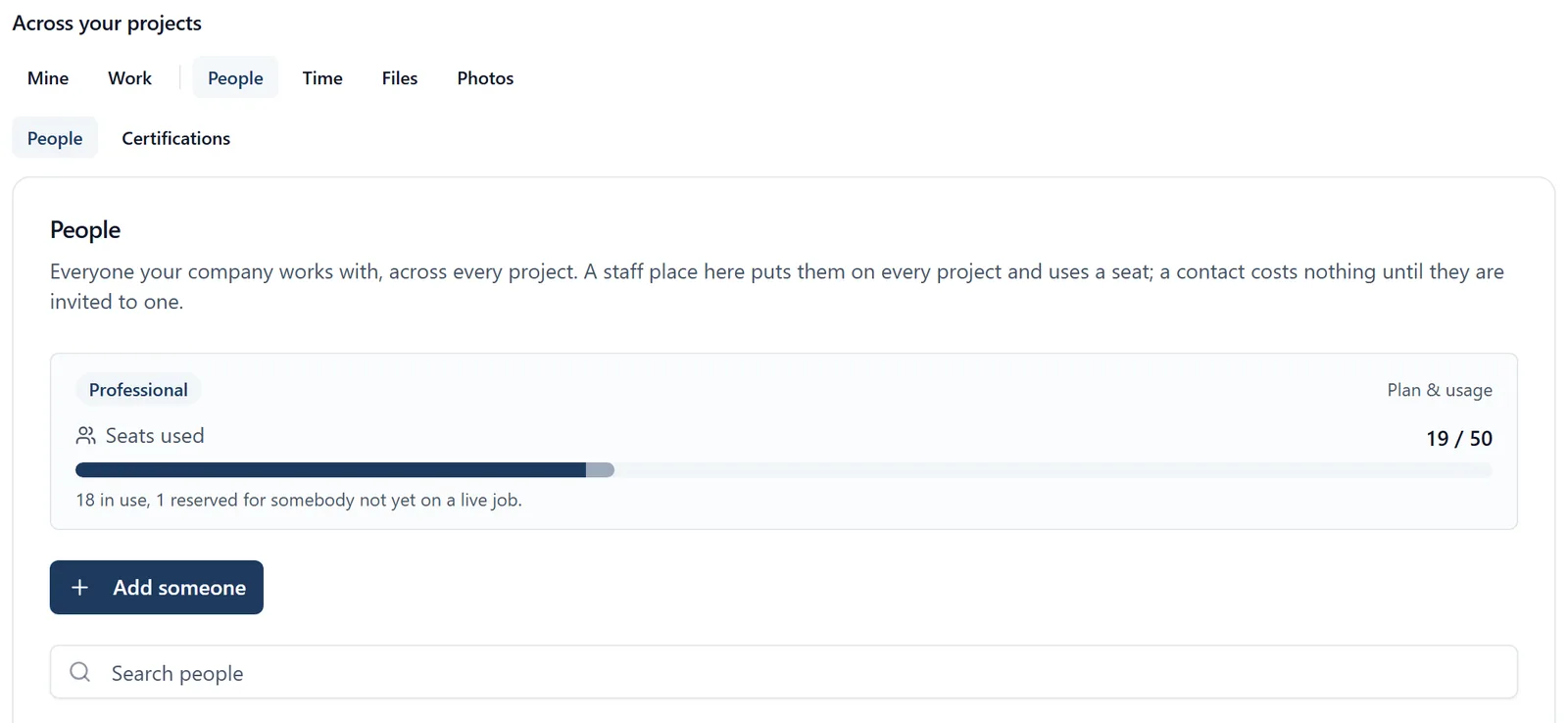
The People page inside a project is one job’s team. This is the list for the whole company: everyone your organisation works with, across the projects it owns, and it is where seats are spent. The full list, with standings, adding somebody and per-project permissions, is on the web app and, for the people who run the company, on the phone under All projects: see “On the phone” at the end.
How to get there:
- Sign in at app.buildersai.co.uk
- Click the BuildersAI logo in the very top-left corner. That takes you to All projects
- Find the panel headed “Across your projects” (it reads “Across the 3 projects you administer” when you run only some of them). Its top row is a set of buttons: Mine, Work, People, Time, Plant, Files, Photos. Click People
- A second row appears underneath: People and Certifications. People is the one you land on
Two things decide whether you get this list. Work, People, Time and Plant are only shown to somebody who administers at least one project. The company list itself is only for an owner or admin of the organisation. If you run projects but not the company account, that same button shows you everybody working across your jobs and what each of them is carrying, which is useful, but it is not this list. (Certifications beside it is the expiring-cards watchlist for those same jobs.)
The list covers the organisation named at the top left of the header, beside the logo. If you work for more than one company, switch there first. There is a pointer to it from the other end too: organisation settings, Plan & usage, where the line under the seat bar links to “All projects, People”.
What is in the list: everyone your company has added, plus everyone on its live projects, in one list. Somebody who arrived through a project and was never explicitly added is here too, badged with the role they hold on your projects. People who have not signed up for BuildersAI yet are in it as well, listed by the name typed on their card, or by their email address if nobody typed one. The box above the list searches by name or email. Only the first 100 are shown. The line under the list counts them up: how many are running the account, how many are staff, how many are external. If there are more than 100, that same line says so and asks you to search.
The four standings. Every row carries one, as a small badge beside the name:
- Organisation Owner: runs the company account (billing, the plan, seats, the two-factor policy) and is an admin of every project the organisation owns. There is one, and it is not something you pick from a list. It moves by handover, in organisation settings under Ownership, and only the owner can do it
- Organisation Admin: “Runs the company account: billing, seats and two-factor, and admin of every project”
- Organisation Member: your own staff. “Joins every project as a member, and uses a seat once any are live”
- Everybody else is badged with the role they hold on your projects: Project Admin, Project Member or Project Follower, or Mixed project roles when it differs from job to job (hover over the badge to see which). Somebody on no project at all reads No projects yet
The first three sentences are the app’s own, shown under the picker as you choose.
“Nothing yet, just a contact” is the safe choice, and it is what the add form starts on. On a real job most of the people in the app are not your staff. Pick Organisation Member only for people you actually employ, because it puts them on every project.
A badge reading · pending means what it names has been chosen for an address with no BuildersAI account yet: a standing across the company, or a role on a project. Nothing applies until they create an account, and then it applies straight away.
A row marked “BuildersAI” is somebody from BuildersAI who has joined your organisation to help you, for example while working through a support request with you. They use none of your seats. An owner or admin of your organisation can remove them at any time, with the bin on their row. Their role cannot be changed, so no Permissions button is offered. The same mark sits beside their name on each project’s People list.
What each row tells you. After the name and the badge comes their email, then one plain line on what they can do today:
- “Project Follower on test1” names the one project somebody is on. “Project Member on 3 projects” counts several, and “On 3 projects, in different roles” is somebody whose role changes from job to job. Where their access came from is on the badge: hover over it
- Somebody who has not signed up reads “Invited to test1 as a project follower, applies when they sign up”: what they will be, where, and that none of it applies until they create an account. Company staff or administrators who have not signed up read “Invited as Organisation Member, applies when they sign up”, and an address with nothing decided for it reads “Has not signed up yet”
- A contact from your book reads “Contact only, no login”
- Nothing more is said for owners, administrators and staff who have an account: the badge already says it all
- A red line reading “The invitation email could not be delivered. Check the address.” means the invitation bounced. See “When an invitation never arrives” below
- The seat is the small people icon at the end of the row: solid for “Uses a seat”, pale for “Seat reserved”, and no icon for no seat. Hover over it for the words. It is there so the list and the bar at the top can be checked against each other by eye
When an invitation never arrives. The usual reason is an address typed one letter wrong. The mail provider tells us so, but often hours after the email went, so it shows on the row whenever you next look rather than at the moment you add them. Whoever sent the invitation is told too, with a notification in the app and on their phone, as long as they are on that project themselves. An owner or admin of the company is, except while company-wide access is switched off or they are excluded from that project: then nobody is told, and the red line on the row is the only sign. To put it right:
- Open the three-dot menu at the end of their row and choose Use a different address. (The same button is at the top of their Permissions, with the reason the mail provider gave.)
- The Add form opens with their details and the same projects already chosen, and the address that failed in the box. If it is one slip away from an address your company already uses, the form suggests the right one: press it
- Click Replace. The old address is taken away first, which frees the seat it was holding, then the corrected address gets the same access and one email about it. Their card moves to the new address, and nothing else on it changes
When the invitation arrived and they have not signed up. Open the three-dot menu on their row and choose Send the invitation again. They get one email naming every project of yours they are waiting on. It can be sent once a day, and if it is refused you are told why. It is offered for somebody invited to a project, not for somebody on the company list with no project yet.
To the right of that, how much they are carrying, shown as “13 open · 3 overdue”. Both numbers are buttons: click one to see the actual work across the projects you administer, and click a row in there to open the task. Beside them, Reassign moves their open work to somebody else. Tick the items you want to move, then pick who takes them. Anybody who is not on all of the projects you ticked is greyed out with the reason (“Not on 2 of these projects”), so you can untick those and try again. The person you pick takes their place on each item, and anybody else already assigned stays on it. Then the Permissions button, then a bin icon.
Seats, and where they go. A seat is a person, counted once for your whole company however many jobs they are on:
- A seat is used by somebody holding a place on a live project. Archived projects do not count. A demo project in your company does, for your own people on it; its made-up crew do not
- A seat is reserved for somebody you have admitted who is not on a live job yet: a staff or administrator address that has not signed up, an address that has been given a project but not signed up yet, or an owner, admin or staff account in a company with no live project yet. They are counted because the check at the door counts them
- The bar at the top of this screen is the same one as Plan & usage. The solid part is in use, the paler part is reserved, and the line under it reads “12 in use, 2 reserved for people not yet on a live job”. It turns amber at 70% and red at 90%
- When there is no room you are refused, and the refusal says the change would go past the number of people your plan covers, and to free a seat or move up a plan
- When billing has lapsed you get a different one: “Your account is not active, so nobody new can be given access. Once billing is up to date this will work again.”
- Moving somebody back to Contact takes away the projects the organisation was giving them, which frees the seat, unless somebody has also put them on a job directly
Adding somebody to the company (not to one job):
- Click Add someone
- Type their name and their email address, side by side at the top. What they can access waits on the address: until there is one, the form says they will be saved as a contact. If no account exists with that address, the form says so, and says everything you set applies the moment they create one. If the address is one slip away from one your company already uses, or from a common one such as gmail.com, the form asks “Did you mean …?”. Press the suggestion to use it. It never stops you adding the address exactly as you typed it
- What they can access comes straight after, and it is one question with two answers:
- In your organisation: a place in the company. An Organisation Member is a member of every project the company has, and an Organisation Admin is an admin of every one, so choosing either is choosing all of your projects at once. Each project row then says so (“Project Member, from the organisation”)
- On each project: a row per project you administer. With no place in the company, set each one to Project Admin, Project Member or Project Follower, or leave it at “Not on this project”. With one, a row offers only more than the company gives (making an Organisation Member the admin of one job). Giving somebody less on one job, or leaving them off it, is done from their Permissions once they are added
- Their details (company, trade and phone) are underneath, and all optional
- Beside the Add button the form says in a sentence what they will get: which projects and in what role, or that they will be a contact. Nothing is sent until you click Add
- It then reports one line per thing it did, ticked or crossed. Any part can fail on its own (a full plan half way down a list of five is the ordinary case), and the report says which
They are emailed when they are given a project, and there is nothing for them to accept.
Changing what one person can do: click Permissions on their row. It has the same two halves: their standing in your organisation at the top, one line per project underneath. A project line set to “Organisation default” means the organisation decides; setting it to a role instead overrides that on that one job. Everything takes effect straight away, except for somebody who has not signed up: the dialog says so at the top, and what you set is saved now and applies the moment they create an account.
Taking somebody off the organisation. The bin icon on their row is the most consequential thing on this screen. It takes away everything your company gives them and everything anybody else has given them on your company’s projects:
- Their standing and their row in this list
- Their access to every project the organisation owns, including any that a project admin put them on, and including archived and demo projects
- Any project already decided for an address that has not signed up, so signing up later does not hand it back
- Any Excluded from this project mark against them, so if you add them back later nothing is quietly still blocking them
- Their seat, where it frees one
Open work assigned to them is unassigned, not moved. If any of it matters, use Reassign first and remove them afterwards.
You are asked to confirm, and the question is filled in with the real answer for that person: the projects by name with the role held on each, a note saying how many of those a project administrator chose rather than the organisation (removing them here overrides that), any project that would be left with no administrator, how many open tasks would be unassigned, and whether it frees a seat. Read that before clicking Remove. There is no undo. Putting them back means adding them again, project by project.
Who cannot be removed here: the owner (hand ownership over first) and yourself (ask another owner or admin to do it), so no bin appears on those two rows. If they are the last administrator your company has, the confirmation says so and gives you no Remove button: make somebody else an admin first.
What removal does not do: it does not delete their BuildersAI account, and it does not take their work out of your projects. Their photos, files, comments and the tasks they created stay where they are.
Deleting a contact asks first. It is permanent: to keep the record, archive it.
Who can do what:
- Only an owner or admin of the organisation can open this list, add somebody, change a standing, or remove somebody. For anybody else the list is simply not there
- A project admin who does not run the company account gets the cross-project people directory in the same place instead, and does their inviting on each project’s own People page
- Only the owner can hand ownership over, from organisation settings
On the phone. An owner or admin of the organisation has this list under All projects, People, with adding somebody, standings, access on each project, a different address for a bounced invitation, reassigning work, contacts, and taking somebody off. The plan and the seats are on the strip at the top of All projects, and the cog beside them opens organisation settings, where the name, the image, the two-factor policy and ownership are changed. Choosing or changing a plan opens the web app in your browser: nothing is bought on the phone. There is no longer an Organisation entry in the side menu. The figures are read while you are online rather than kept on the phone, so with no signal it says so instead of showing an old number. Somebody who works in your projects but does not run the company account sees none of this, on either device. See the “all_projects_mobile” topic.
Or just ask me: on the web app, open me from All projects and I can tell you who is working across your jobs, who has the most on, who is on site now, and whose cards are running out. Standings, seats and removals are this screen’s job, not mine. I cannot read the company list itself and I cannot change anybody’s access.