Connecting Claude to Your Construction Software: MCP Explained for Builders
William Charlesworth-Jones8 min read
Quick Answer
MCP (the Model Context Protocol) is an open standard that lets an AI app such as Claude use another program’s tools, and a custom connector is how you add one of those programs to Claude. Connected to your construction software, your own AI can answer questions about your jobs (“what is overdue on Plot 4?”) and make changes for you (“add a task to chase the scaffolder on Monday”). Before you switch it on, insist that it works as you and sees only what you can, that nothing leaves the company without your confirmation, that every action is logged, that it cannot delete anything, that there are daily limits, and that there is one switch to turn it off.
A lot of builders already use Claude or a similar AI app for letters, method statements and the odd difficult email. Until recently it could only work with what you pasted into it. Now it can be connected to the software your jobs run on, and that changes what it is useful for. It also changes what can go wrong, which is why most of this guide is about safeguards.
What Is MCP, in Plain English?
Think of MCP as a standard plug. Software that offers an MCP connection publishes a list of things an AI app may do with it: “list my projects”, “read the tasks on this job”, “add a diary entry”. An AI app that understands MCP can plug in, see that list, and use those tools when you ask it something. Anthropic introduced MCP as an open standard, and other AI apps have picked it up too, so one connection from your software can work with more than one AI app.
In Claude, the place you add one is called a custom connector. You paste in an address the software gives you, sign in to that software, and approve what the AI app will be allowed to do. From then on, when you ask Claude about your jobs, it can go and look rather than guess.
The important point is that the AI app does not get a copy of your database. It asks for one thing at a time, through the tools the software chose to offer, and the software decides whether to answer.
What Can a Builder Ask It to Do?
The useful jobs are the ones that currently mean opening five screens or phoning round:
“What is overdue on Plot 4, and who is it with?”
“Who was on site at Elm Court yesterday, and what went in the diary?”
“Add a task to chase the scaffolder on Monday, after the roof is felted.”
“Plan next week for the two groundworkers from what is due to start.”
“Draft a purchase order for the scaffold hire from their quotation.”
“Summarise what changed on the drawings this week.”
Because it is your own AI app, it can also combine your job data with things outside the software: a letter to a client in your own style, using the dates from the programme, or a checklist built from a specification it has just read.
How Is This Different From the AI Built Into the Software?
Many construction apps now have an assistant inside them. In BuildersAI that is SiteBot, which works in the web app and on the phone, answers about the job and reads a change back to you before making it. A built-in assistant is the right tool for somebody on site with a phone.
Connecting your own AI app is for the person in the office who already works in Claude all day and wants it to reach into the jobs without switching windows. It works alongside the built-in assistant rather than replacing it, and it brings a different risk: the AI app is not the software vendor’s, so the vendor has to put the guard rails on its side of the plug.
What Safeguards Should You Insist On?
Whichever software you use, ask the vendor for each of these before anyone in your company connects an AI app.
It works as the person, and sees only what they can. The connection should carry the identity of whoever approved it, with exactly their permissions. If your site manager cannot see the money on a job, neither can their AI app. Be wary of any connection that uses a shared company key.
Nothing leaves the company without a person confirming it. Sending an estimate to a client, approving a purchase order, emailing a supplier or announcing something to the whole site should never happen on the AI’s say-so. The AI should prepare it, and a person should see exactly what will go and press a button.
A log of every action, in plain words. Every call should be recorded: who, through which app, on which project, what was read or changed, and the result. Changes made this way should be marked as such in the item’s own history, so nobody mistakes them for something typed by hand.
No deleting. An AI app that misunderstands an instruction should not be able to remove a drawing, a task or a project. Adding and changing can be put right; deleting often cannot.
No changes to who has access. It should not be able to add or remove people, change roles or touch your plan and billing.
Daily limits. A misbehaving app, or an instruction that loops, should hit a ceiling for each person and for the company, with today’s use shown so you can see it coming.
An off switch. One setting that stops every connected app reaching your company’s projects at once, plus a way to remove one person’s access and for each person to disconnect their own apps.
Also ask whether it is off until you switch it on, and who in your company can switch it on. It should be a deliberate decision by an owner, not something that arrives with an update.
A Worked Example: BuildersAI Connected AI
Connected AI is how BuildersAI does this. Here is how it answers each of the safeguards above.
✓Off until switched on, owners and admins only. A company owner or admin turns on Allow connected AI in organisation settings. Only the owners and admins of a company can then connect an app, on that company’s projects.
✓Works as you. It sees and changes only what you can in BuildersAI. Reading money, hours, cards and people’s details can be switched off for the company, and changing money is off until an owner or admin switches it on.
✓A confirmation queue. Anything that sends, signs off or announces waits under Waiting for you to confirm, on the web and on the phone, showing exactly what will happen and any words the AI wrote. Nothing happens until you press Confirm. If it changed since you read it, you are shown the new version, and a proposal lapses after a day.
✓Every call listed.Activity lists every call newest first in plain words, filterable by person, app, project and date, with an export, and a task changed this way says “via Claude” in its history.
✓No deleting, no people changes. It cannot delete anything, add or remove people, change anybody’s role, or change your plan, seats or billing.
✓Daily limits. 1,000 calls a person a day, of which up to 200 can be changes, and 5,000 calls a company a day between everybody, starting again at midnight UK time, with today’s use shown against them.
✓An off switch. Turning Connected AI off stops every connected app straight away. An owner or admin can remove one person’s access, and anybody can disconnect their own apps from their profile.
It works with any AI app that can add a custom connector, including Claude in the browser, the Claude desktop app and Claude Code. On a job whose costs you run it can read the Cost Tracker, purchase orders, estimates and invoices to the client, and draft purchase orders, estimates and change orders, and prepare them to send, which you then confirm. What it can and cannot do is set out in full on the Connected AI feature page.
How Do You Connect Claude to BuildersAI?
An owner or admin opens organisation settings in the web app, chooses Connected AI and turns on Allow connected AI.
In Claude, open Settings, then Connectors, and choose Add custom connector. Paste the address shown under How to connect in Connected AI.
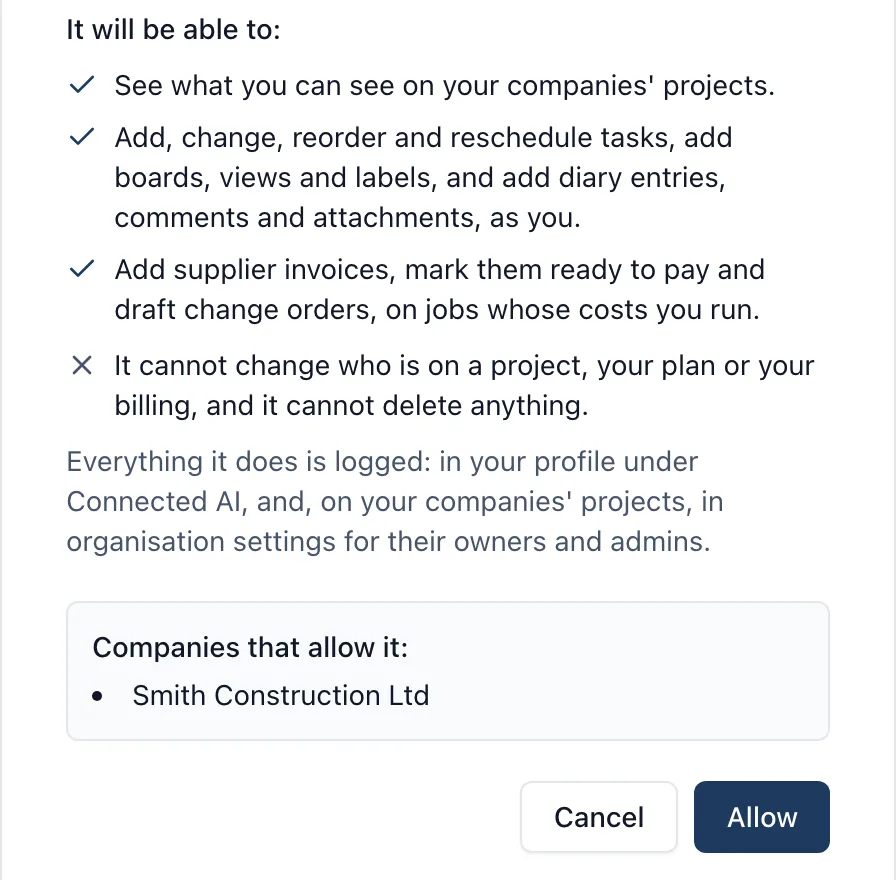
Claude opens a BuildersAI page that says what the app will be able to do. Sign in if asked, read it, and choose Allow.
The page tells you what the app calls itself and that BuildersAI has not checked it, because any app can call itself anything. Choose Allow only if you started connecting it yourself. A connection lasts until you disconnect it, and for 90 days at most before you approve it again. The Connected AI help page has every step.
Pricing is flat, with no per-user fees: BuildersAI Starter is £149 a month for up to 10 people, Professional is £299 a month for 11 to 50, and Business is £599 a month for 51 to 100, all plus VAT, with a 14-day free trial. See the pricing page.
FAQ
What is an MCP server in construction software?
It is the part of the software that offers a standard list of tools an AI app can use, such as reading a job’s tasks or adding a diary entry. An AI app that understands MCP, such as Claude, connects to it and uses those tools when you ask it about your jobs.
Is it safe to connect an AI agent to my project data?
It can be, if the software puts the safeguards on its side: the AI works as you with only your permissions, nothing is sent outside the company without your confirmation, every action is logged, it cannot delete anything, there are daily limits and there is an off switch. Approve only an app you trust and started connecting yourself.
Which AI apps work with BuildersAI Connected AI?
Any AI app that can add a custom connector, the kind the industry calls MCP. That includes Claude in the browser, the Claude desktop app and Claude Code.
Can a connected AI app send things to my clients by itself?
Not in BuildersAI. Anything that sends, signs off or announces waits under Waiting for you to confirm, on the web and on the phone, and nothing happens unless you press Confirm. A proposal lapses after a day.
Who in my company can use Connected AI?
The owners and admins of a company, on that company’s projects, once one of them has switched it on in organisation settings. Each person connects their own app, and it works as them.
See Your Own Claude Working on a Job
See Connected AI and SiteBot side by side on a 30-minute demo.
William grew up in a family that builds houses for a living and has been around construction sites for as long as he can remember. He has seen first hand that eight-figure sites are often run on WhatsApp and spreadsheets, and started BuildersAI to cut the invisible costs that take chunks of margin across a site. His aim is for BuildersAI to be the all-in-one site management platform built in the UK, for UK sites.
AI in construction project management is no longer theoretical. But almost half of UK PMs expect adoption to go wrong. Here is how to get it right and keep your data safe.
UK construction firms use an average of 7 different software systems, but 57% report they don't share data. Here's how to fix your accounting integration.
AI tools have become accessible enough that a 10-person construction firm can benefit just as much as a FTSE 100 contractor, if you know where to start and what to avoid.
12 min read
Get started
Ready to bring your whole team onto
one simple app?
14-day free trial with every feature, no card and no contract, and your team can be set up
within a day.