
Instead of opening a blank project, you can set a new job up in five steps: say what the job is, give it your cost plan, have SiteBot draft the programme from them, turn the site induction on, and bring in the drawings and files. Every step can be skipped, and nothing is added until you press the button that adds it.
Where to start (app.buildersai.co.uk):
- A new project: click Create New on the Projects screen, then Set it up step by step. Give the job a name, and its address if you like, and click Create project and set it up
- A project you already have: while the project has no tasks, the Set up your project panel on its Home has a line Set this job up step by step with a Set it up button
Who can use it: project administrators, on a project that is not read-only, in the browser. It is not on the phone app.
Step 1, the job: write a few sentences about the job: what is being built, roughly how big it is, and anything unusual (the client living in the house, access only through a side gate, no noise before 9am). SiteBot uses this to draft the programme. It needs at least 20 characters, and can be up to 4,000. It is kept in this browser tab until SiteBot drafts from it, so finish the programme step before you close the tab.
Step 2, the cost plan: drop in your cost plan, or your quantity surveyor’s: a spreadsheet (Excel, .xls, .ods or CSV) or a PDF.
- A spreadsheet is read and shown to you first: the trades, the items and the total. Check the columns it picked are right, then click Use it. It becomes a draft estimate called Cost plan on the job’s Cost Tracker, with every line priced as in the sheet. The job’s quote is not changed. The spreadsheet itself is kept in Files, in a Cost plan folder only administrators can open
- A PDF is kept in that same folder. SiteBot reads it in the next step
- SiteBot is never given the prices from a spreadsheet, only the trades, the items and their quantities, and it never puts a price in the programme. Tasks are seen by members and followers, who may not see the job’s money
Step 3, the programme: click Draft it from the job. SiteBot reads your description and your cost plan and suggests phases and tasks in the order the work happens on site, each with how many working days it takes and what it starts after. It can take a minute. You can also start from a programme spreadsheet, choose documents for SiteBot to read, or use a standard programme instead.
Check the list before anything is added: rename, remove or change the days of any task. Then choose:
- No dates yet (the choice to start with): the tasks go in with no dates, each keeping its working days and what it starts after. Use this when you do not know the start day yet
- Give it dates now: pick the day work starts, and every task is given its dates from it, counting only the days the site works
Click Add. Undo takes them all out again. Next carries on with the set-up; Open the programme goes to the Gantt.
Step 4, the site induction: Use the standard induction turns site inductions on for the job, so everybody new to the site is asked to go through it on their phone and sign at the end. Make a slideshow opens the page where SiteBot drafts a slideshow from your company’s induction wording, for you to check and publish.
Step 5, drawings and files: Bring in your job folder sorts a folder of drawings and documents into the drawing register and Files (see “Start a project from a folder”), then brings you back here. Or Add drawings, or Open Files.
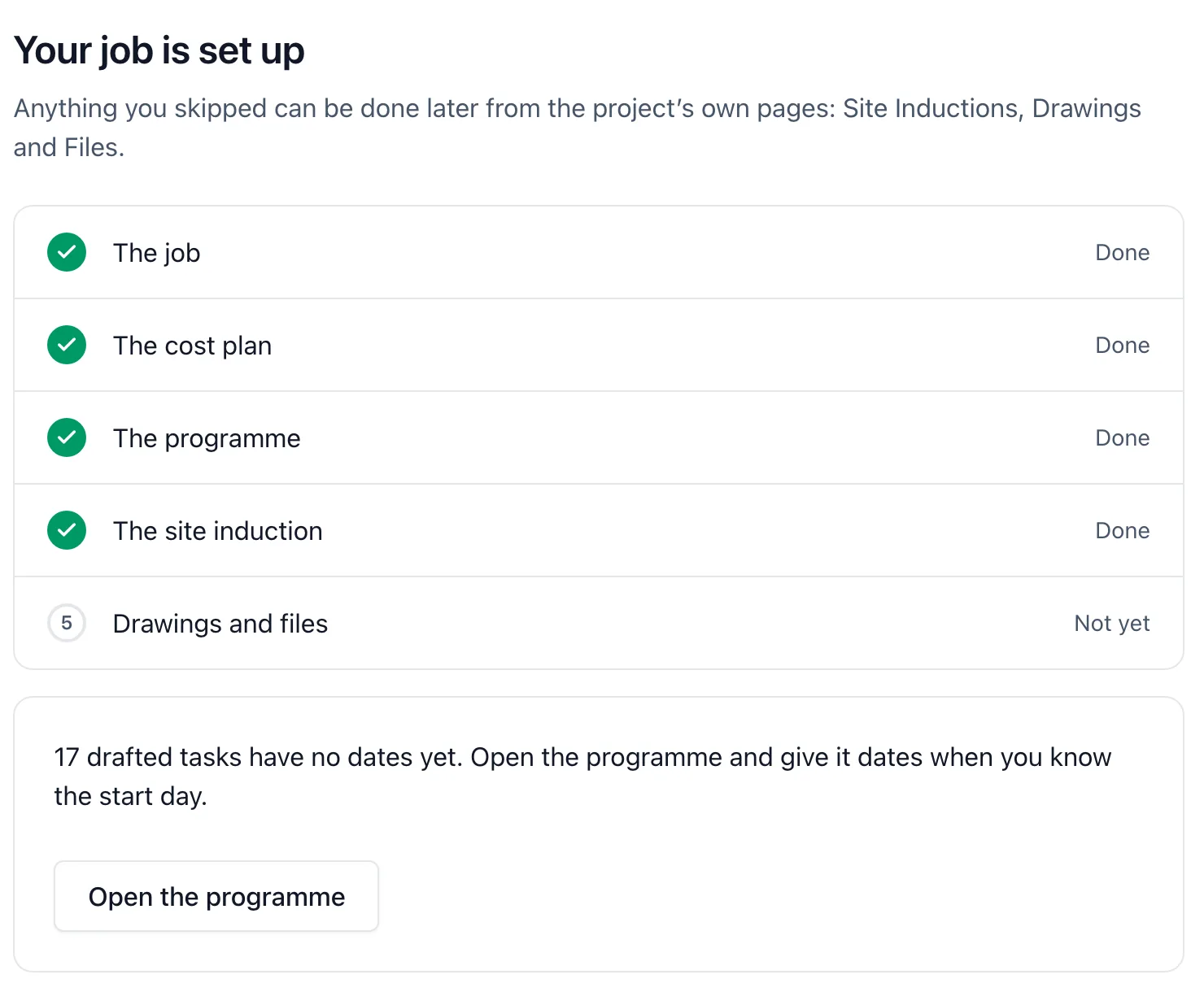
At the end you see each step as Done, Skipped or Not yet. Anything you skipped can be done later from the project’s own pages: Site Inductions, Drawings and Files. If the tasks went in with no dates, it says how many, with Open the programme.
Giving the programme its dates later: when tasks were added with no dates, the programme (the Gantt) shows a line saying how many tasks have working days and no dates yet, with Give the programme dates. Choose the day work starts: it shows when the job would finish, and Give them dates dates every waiting task from that day, keeping each task’s working days and what it starts after, and counting only the days the site works. Tasks that already have dates are never moved, and a task you made yourself with no dates is left for you to date.
Good to know:
- SiteBot’s draft counts towards the ten task lists a person may ask for in a day. It does not use your SiteBot allowance for the week
- The draft keeps what SiteBot was told (your description and the cost plan’s trades and items), so you can see later where the programme came from
- If the project already has a cost plan, a programme or site inductions, that step says so and you can carry on