
SiteBot can draft the trades and lines of an estimate for you to check, and price each line from your own rates and your own past jobs. It is for the job’s admins only, on a draft estimate, in the browser.
Drafting the lines with SiteBot
On a draft estimate, Draft with SiteBot suggests the trades and lines.
- Under What should SiteBot price?, say it in a few words, for example “First fix carpentry and electrics for the ground floor of the extension”. Name a floor or a room to keep to it
- Tick up to 8 drawings or documents for it to read (optional). Under Only these trades (optional) you can pick your own trades to keep to: lines it suggests for other trades start unticked
- With a drawing ticked you may see Let SiteBot look at the drawings too (slower). Under Pages, type the pages to look at, for example 1, 3-4, up to 4 pages in all (page 1 if you type nothing). Anything it measures by eye is marked Rough guess
- Under Your measurements on these drawings, the dimensions you have drawn on the ticked drawings are listed. Tick the ones SiteBot should use and say what each measures, for example “kitchen back wall”. A line that uses one exactly is marked Measured
- Under About the job (optional), choose the kind of job and type the floor area. It is saved on the estimate and the client never sees it
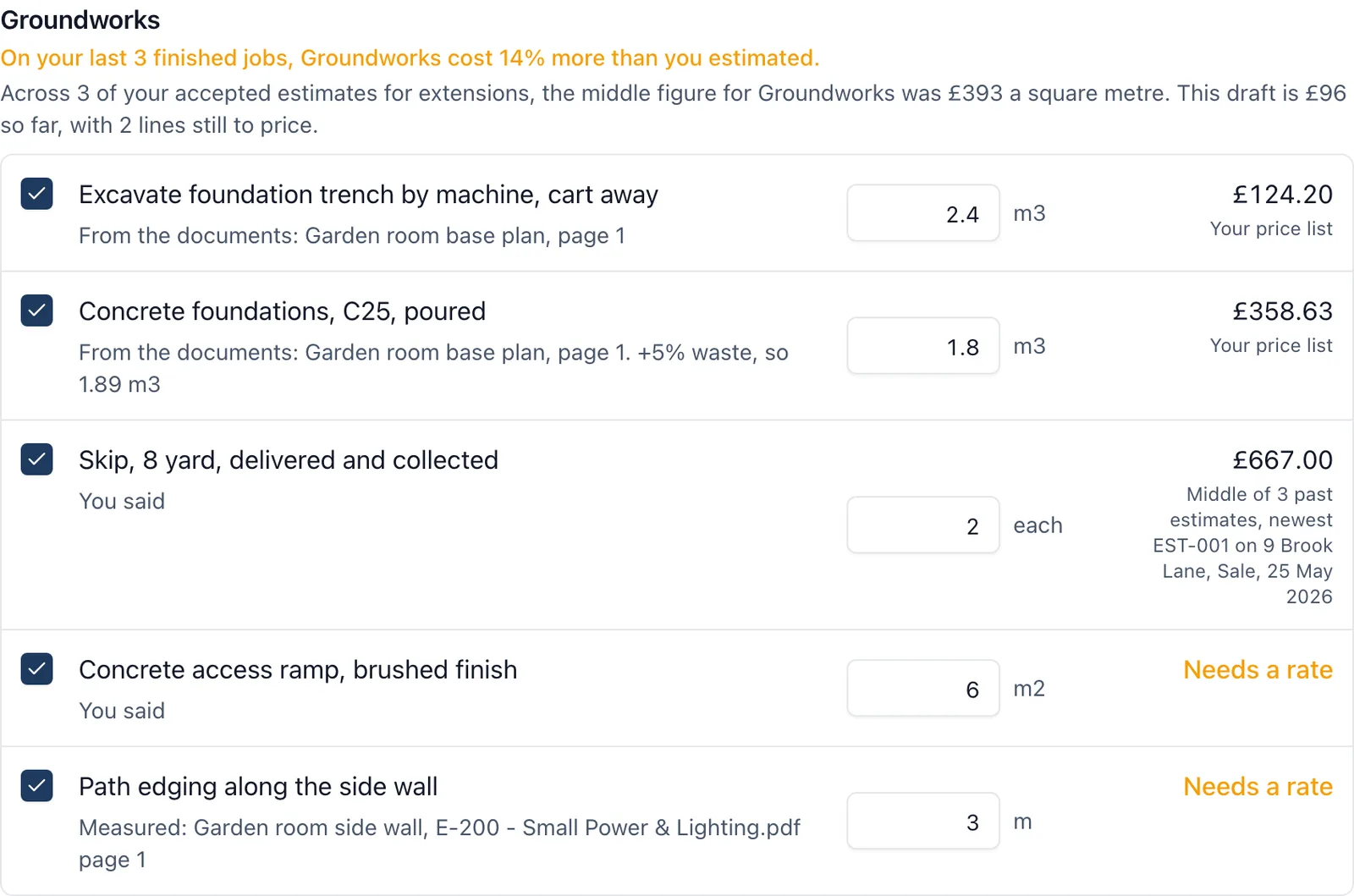
- Click Draft the lines, then check the list. Each line says where its quantity came from (Measured, You said, From the documents, Counted from a schedule, Rough guess or Needs a quantity) and where its price came from: your price list, your past estimates, your day rate for the trade, or Needs a rate. A rough guess starts unticked
- Untick what you do not want, change any quantity, and click Add. Each line goes in with a note saying where its quantity and rate came from
SiteBot is never given your rates. It suggests the lines and the quantities; every price comes from your own rates, and a line with none says Needs a rate and goes in at £0.00 for you to price. The documents you tick are read as they are, so a quote you tick is read with its prices. Check every quantity, and measure the ones that matter.
Where a price comes from
- Your price list first, when SiteBot matched an item in the same unit
- Your day rate for the trade, for a line counted in days
- Your past estimates: the same description and unit, this trade’s before another’s, accepted before sent. With several, it takes the middle of up to five of the newest, so one odd job does not set the rate, and says so (“Middle of 3 past estimates, newest EST-004 on Elm Court”)
- A line priced from a selling rate that is still waiting for a quantity keeps that rate: type the quantity on the estimate and the price is worked out
Each trade against your past jobs
Under each trade the draft can say what it came to a square metre on your past jobs of the same kind, and what this draft comes to so far. It warns in amber only when the trade is fully priced and more than 30% off. On any estimate, About the job sets the kind of job and the floor area. If you have matched your trades to cost codes, it also warns under a trade that ran over on your last finished jobs. Neither ever changes a figure, and neither is ever given to SiteBot.
Your estimating defaults
In your company’s settings, under Price list, Estimating defaults are what a draft is priced with: prelims and contingency as a percentage, a markup and a day rate for each trade, waste for each material, and what each trade always includes, which SiteBot is told. Owners and admins set them. Under From your accepted estimates you may be offered figures from your own past work, and lines that are usually on a trade’s estimates (“Usually on your Electrical estimates”). Use this or Add to what Electrical always includes puts one in the form, and nothing changes until you click Save.
Under Which cost code each trade is, match each trade to one of your cost codes (Match by name fills the obvious ones). How your trades came out then shows, for jobs you have archived as finished, what each trade cost against what you estimated and charged.
Bringing in your past jobs
A new company has no past estimates for SiteBot to price from. Owners and admins can bring in estimates clients accepted before you used BuildersAI: in your company’s settings, under Price list, click Bring in past jobs.
- Choose one or more spreadsheets, one per job, in the same layout as Import a spreadsheet on an estimate
- For each, check the job’s name, type the client’s name and the day they agreed it, and choose the kind of job and floor area if you know them
- Under What it really cost (optional), type what each trade cost you, before VAT. It is offered only for trades with a cost code in your estimating defaults
- Click Bring in 1 job (or however many you chose). Each becomes a finished job with its estimate accepted on the day the client agreed it, as the job’s quote, and what each trade cost as a cost brought forward
Nobody is notified, and nothing is sent to anybody. Brought in estimates are accepted, so they cannot be changed afterwards: check each one before you bring it in. To record an estimate on a job that already exists, use Record the answer on the estimate instead.
From a measurement on a drawing
Measure a length, an area or a circle on a drawing with a scale set, then click Add to estimate under the figure. Choose the draft estimate and the trade, and the measured quantity goes in as a line for you to price. Nothing is saved on the drawing.
What it does not do
It does not measure a drawing for you (SiteBot’s look at a drawing is a rough guess), use anybody’s prices but yours, or keep live merchant prices. It reads the pages you type: it does not know how many pages a drawing has.