
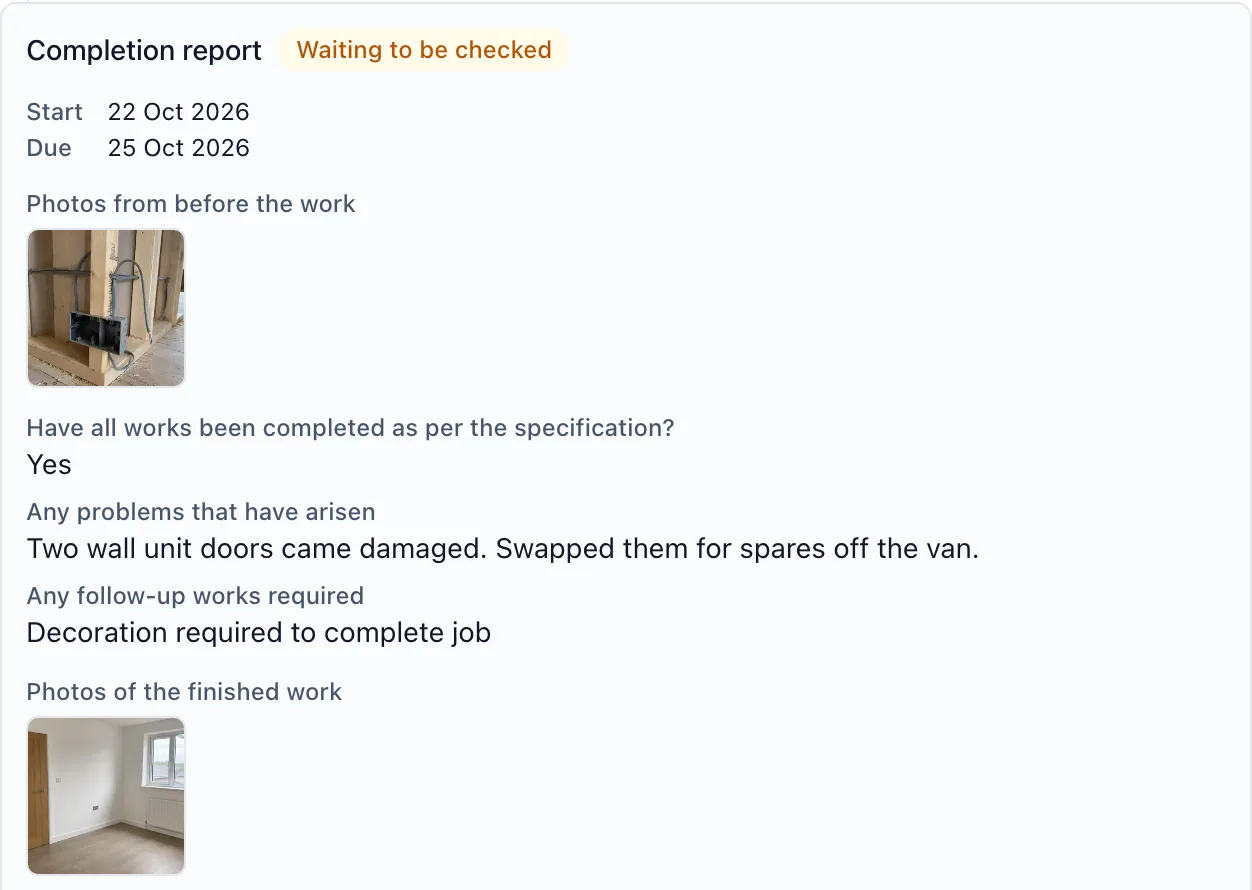
A completion report is the short report whoever did a job fills in when it is finished: photos from before the work, whether all the works were completed as per the specification, any problems, any follow-up works, photos of the finished work, their name and their signature. A project administrator is told, checks it or sends it back, and prints it to send with the invoice. Each job is one of the project’s tasks, so nothing new has to be set up: switch it on and every task can take a report. It lives in each task’s Completion report block, on both the mobile app and the web app.
Why it matters: On a repair or a snag the report is what gets the job paid. On paper it comes back days later, if at all, and the photos are on somebody’s phone. Here the before and after photos, the answers and the signature sit on the job itself, with the time it was sent, and the office prints the same report every time.
Where to find it:
- On a task, the Completion report block, in a browser and on the phone
- On Home, a line in Needs you when a report is waiting for you
The block only appears once completion reports are switched on for the project.
Switching it on (administrators):
- Open the project’s settings
- Switch on Completion reports
It is off until you switch it on. Once it is on, every task can take a report except reminders, notes and private tasks. Switching it off again stops new reports; the reports already on jobs stay on them.
Filling in the report: Anybody on the project as an administrator or member can fill one in, on the phone or in a browser; followers cannot. On the phone it is meant to be done on site, as soon as the job is finished.
- Open the task and press Fill in the report
- Photos from before the work: take one, or choose one already on the task. If there is none, say why under No before photo? Say why
- Answer Have all works been completed as per the specification? with Yes or No. If you answer No, say why under Why not?
- Any problems that have arisen and Any follow-up works required are optional. Leave them empty if there are none, and the report says None
- Photos of the finished work: at least one is needed
- Type your name and sign in the box, under “I confirm this report is a true account of the work.”
- Press Send the report
Up to ten photos before and ten after. Every photo you add goes onto the task’s photos as well. If something is missing, the form says what under the questions, such as “Add at least one photo of the finished work.” or “Sign in the box.”
It works with no signal. On the phone the answers are kept on the phone, so closing the form loses nothing, and once you press Send the report it goes as soon as the phone can. The phone keeps the answers until the office has checked the report, so if it is sent back the form starts from what you wrote; the signature is never kept and is drawn again. The photos follow on their own; until they arrive the office sees “This photo has not arrived from the phone yet.” and is told to look at them before printing the report. The report keeps the name that was typed and whose account it was sent from.
Checking it, or sending it back (administrators): The project’s administrators are sent a notification, “Completion report to check”, which opens the job, and the report reads Waiting to be checked. Look at the photos and the answers, then either:
- Check: you can add a note, which is printed on the report, such as “Fine to invoice.” Checking says you have read it and it is ready to send with the invoice
- Send back: say what needs doing. Whoever sent it is told (“Completion report sent back”), the report reads Sent back with your reason, and they press Fill it in again and send a new one
Checking a report does not change the job: it does not complete the task, and sending one back does not reopen it. Mark the task done as you always would.
A sent report cannot be changed. Nobody, administrators included, edits the answers. If something is wrong, send it back and it is filled in again. Earlier reports stay on the task under Earlier reports, so the history is never lost. Once a job has a report, its task cannot be deleted, moved to another project, made private or turned into a reminder or note, and the report’s photos cannot be deleted, because they are the record. Only deleting the whole project takes them away.
Printing it for the invoice (administrators, in a browser):
- Open the task in a browser and press Print on the Completion report block
- Check the preview, then press Print
- In your browser’s print dialog choose Save as PDF and leave Background graphics on
The printed report has the project’s name and code, the job’s number and title, its description, labels, start and due dates and the names of the other documents on the job (the defect notice, say), the photos from before, the three answers, the photos of the finished work, the signature with the name and the time it was sent, and who checked it with their note. A report not yet checked says “Not yet checked.” on the printed copy, and one that was sent back says “Sent back.”, so a copy is never mistaken for a checked one. The file is named after the project’s code, the job’s number and the day it was sent, such as report-ROS-14-2026-10-31. The phone does not print: it shows the report, and the office prints it from a browser.
On Home: Administrators see a line in Needs you, such as “2 completion reports to check”, and whoever sent a report that came back sees “1 completion report sent back to you”. Each opens the job.
Who sees it: The project’s administrators and members read the reports on a job. Followers (a client, for example) do not see them. A report is sent to your client only when you print it and send it yourself.
What it does not say: A checked report records what the person who did the work said and photographed, and who in your office checked it and when. It never says the work is approved by anybody outside your company, certified, signed off or compliant with anything. It is your company’s own record.