
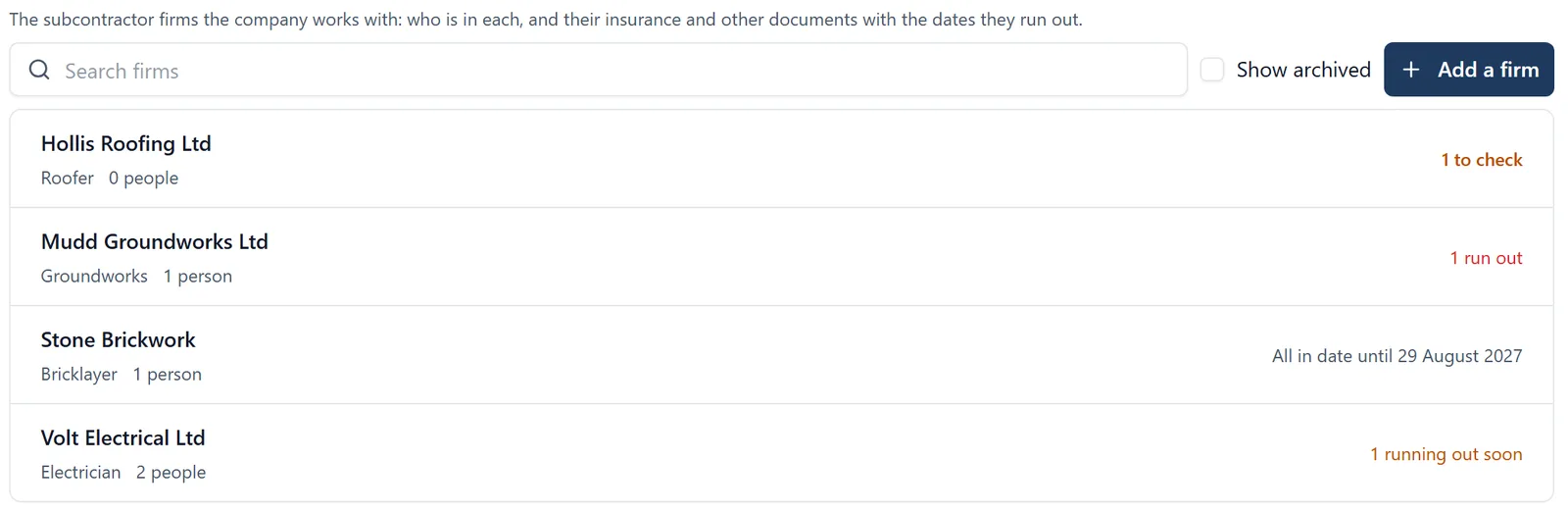
The Firms tab is your company’s list of the subcontractor firms you work with. For each firm it keeps who works for them, their paperwork (insurances, accreditations, their standard RAMS and the like) with the dates it runs out, and lets you brief a RAMS to the whole firm at once. A firm is your own record: another builder who uses the same firm keeps their own, and sees nothing of yours.
How to get there (app.buildersai.co.uk):
- Click the BuildersAI logo in the top-left corner to reach All projects
- If you work for more than one company, check the organisation name beside the logo. The firms belong to that company
- Click Firms in the row of tabs
Adding a firm:
- Click Add a firm
- Type its Name, for example “Volt Electrical Ltd”, and its Trade
- Add a Note if it helps, such as where their office is
- Click Save
Each row says how many people are in the firm and where its paperwork stands: All in date, running out soon, run out, or to check when the firm has sent something you have not looked at yet.
Who works for which firm:
- Open the firm and click Add a person to put somebody in it. You can choose anybody who is an administrator or member of one of your company’s jobs
- A worker can also say who they work for at their site induction. When Who you work for matches one of your firms, they are put in it, and the firm says They said so at their induction. You can move them if it is wrong
- On a job’s People page, open somebody to see their Firm. Your company’s owners and admins can change it there
- A person is in one firm at a time in your company
Being in a firm does not give anybody access to anything. It only decides who a RAMS briefed to the firm reaches, and how lists show people. Seats and what somebody can see are unchanged.
Briefing a RAMS to a firm:
- Open the RAMS, or start a new one
- Under Who signs it?, choose the firm. Firms are listed above people
- Everybody from that firm on this job is added to the people who sign it. Anybody from the firm who joins the job later, or who is put in the firm later, is added too, and is told to sign if the RAMS is already approved
- If you upload the firm’s own RAMS and type its name under Prepared by, you are offered Also brief everybody from that firm on this job
The RAMS shows the firm’s people together under its name, for example Volt Electrical Ltd (2). Taking the firm off takes off the people who were only there because of it. Anybody you chose by name stays.
Only administrators and members of a job can sign a RAMS, so a subcontractor’s worker who signs needs to be a member of the job, not a follower.
A firm’s documents:
- Open the firm and click Add a document
- Choose the file (a PDF or a photo), and say What it is: public liability, employers’ liability, contractors’ all risks or professional indemnity insurance, an accreditation such as CHAS, SafeContractor or Constructionline, a trade body, their standard RAMS or method statement, a pre-start meeting record, important contacts, projects worked on, or something else
- Add the insurer or issuing body, the policy or certificate number, the cover, and Runs out on
- Click Add the document
Each document shows whether it is in date, running out (within 30 days) or has run out. When a new certificate arrives, use Replace on the old one: the new one counts, and the old one is kept under Earlier versions.
An out-of-date document never stops anybody working. It is shown on the firm and emailed about, for your information.
Emails before a document runs out: your company’s owners and admins are emailed a month before a document runs out, a week before, and when it does, between 8am and 6pm.
Asking the firm for its documents:
- Open the firm and click Ask for documents
- Type the email address to send it to, tick what you need, and add a message if you like
- Click Send the link
The firm gets an email with a link. They do not need an account: on the link they upload each document and say what it is and when it runs out. The link works for 30 days, takes up to 20 documents, and stops when you ask the same firm again or click Stop this link.
What the firm sends waits for you. It appears under Waiting to check on the firm. Open it, then click Accept (and say what it replaces, if anything), or Turn down with a reason, which is kept with the document. The firm’s link shows it as not accepted, without the reason.
Who can do what:
- The Firms tab, adding and changing firms and who is in them, documents and asking by link are for your company’s owners and admins
- Seeing which firm somebody is in, and briefing a RAMS to a firm, is for administrators and members of your company’s jobs, by the usual RAMS rules. Followers see nothing about firms
- A firm that has documents is archived, not deleted. Archive a firm when you stop using it, and bring it back if you use them again
- A project that is not in a company has no firms
On the phone, a worker doing their induction can type who they work for, and is shown your firm names to tap when there is a connection. The Firms tab itself is in the browser.