
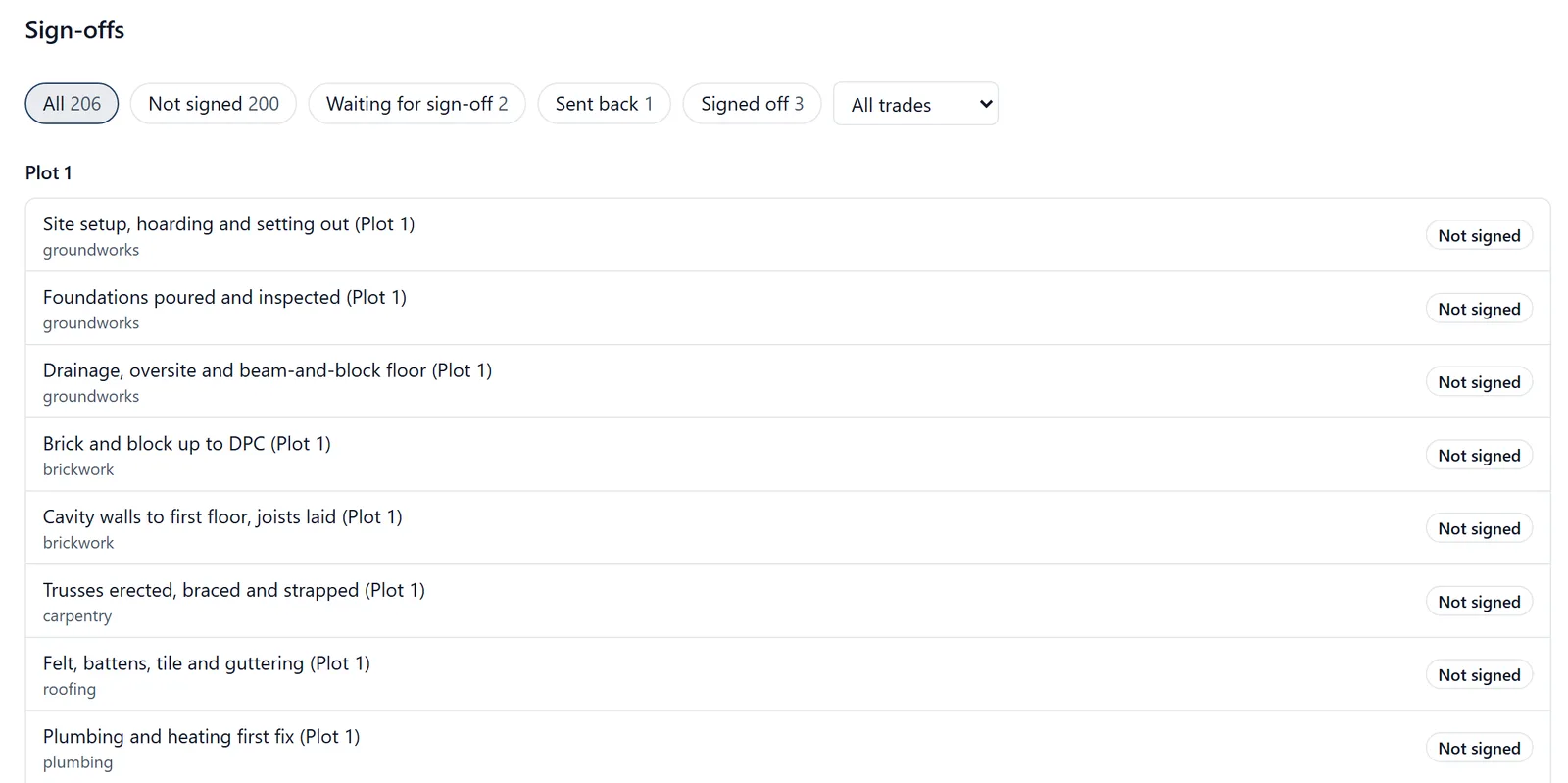
Stage sign-off lets each stage of the work be signed off plot by plot. The person who did the work signs the stage on site, with a photo of the finished work, and a project administrator then signs it off or sends it back with a reason. Each stage is one of the project’s tasks, so nothing new has to be set up: switch it on and every task can be signed. It replaces the QA sheet on a clipboard, and it lives in each task’s Sign-off block and the project’s Sign-offs section, on both the mobile app and the web app.
Why it matters: When a stage is covered up, the photo and the two signatures are the record that it was done and looked at. On paper the sheet is signed at the end of the week, if at all, and the photo is on somebody’s phone. Here the photo, the subcontractor’s signature and the builder’s signature sit on the stage itself, with the time each was given, and the office can see from one list which stages on which plot are still waiting.
Where to find it:
- On a task, the Sign-off block, in a browser and on the phone
- In a browser, Sign-offs in the project’s menu, beside Inductions
- On the phone, Sign-offs in the menu
The Sign-offs entry only appears once stage sign-off is switched on for the project.
Switching it on (administrators):
- Open the project’s settings
- Switch on Stage sign-off
It is off until you switch it on. Once it is on, every task can be signed off except reminders, notes and private tasks.
Signing a stage on site: The person who did the work signs, on their own phone or on yours. Anybody on the project as an administrator or member can record a signature; followers cannot.
- Open the task and press Sign this stage
- Add a photo of the finished work: take one there and then, or choose one already on the task. A photo is required. It is added to the task’s photos too, and is kept for as long as the signature is
- Type the name of the person signing, and their firm if you like
- They sign in the box with their finger, under “I confirm this stage of the work is complete.”
- Press Sign
It works with no signal. On the phone the photo and the signature are saved and sent as soon as the phone can. The record keeps the name of the person who signed and whose account it was signed on, so a subcontractor signing on the site manager’s phone is recorded under their own name, signed on that phone.
Signing off or sending back (administrators): A signed stage reads Waiting for sign-off. Open it and check the photo and the signature, then either:
- Sign off: type your name and sign under “I have checked this stage and sign it off.” Signing off completes the task
- Send back: say what needs doing. The stage reads Sent back with your reason, and once it is put right it is signed again from the start
A stage that has been signed cannot be changed: if something is wrong, send it back and it is signed again. Earlier signatures stay on the task underneath, so the history is never lost. Once a stage has been signed, its task cannot be deleted, moved to another project, made private or turned into a reminder or note, because it is the record. Only deleting the whole project takes it away.
The Sign-offs list: Every stage on the project, grouped by plot, in plot order, with the trade under each stage and where it stands: Not signed, Waiting for sign-off, Sent back or Signed off. The chips across the top narrow it to one of those, with a count on each, and the Trade filter narrows it to one trade. Stages are grouped by the project’s Plot labels (“Plot 1”, “Plot 12a”), and anything without a plot label is listed last under Not on a plot. Plot and trade headings that have stages under them are left out, because a heading is not a stage of work. Click a stage to open its task.
On Home: Administrators see a line in Needs you, such as “2 stages waiting for your sign-off”, which opens the Sign-offs list. Nobody is sent a notification.
What it does not say: A signed-off stage records who signed it, who signed it off and when, with the photo. It never says the work is certified, approved by anybody outside your company, or compliant with anything. It is your company’s own record.
Inductions on the roll call: On a site that asks people to induct, the roll call shows the project’s administrators each crew member’s site induction beside their name: Inducted, Waiting to be countersigned, Not inducted, Asked to redo or Sent back. A line at the top counts the crew on site who have not done the site induction. Members see only their own induction, as they always have, so the roll call shows them nobody else’s.
Checking in before your induction: If the site asks people to induct and you have not done yours (or you have been asked to redo it, or it was sent back), pressing Check In first asks you to Do your site induction first:
- Do the induction takes you to the induction
- Check in anyway checks you in as you asked
It is a warning, never a block. Nobody is stopped from checking in, because a check-in made on a phone with no signal has to be kept, and the time somebody was on site is worth more on the record than off it. Checking out is never warned. The roll call is where the site manager sees who is on site without an induction.