
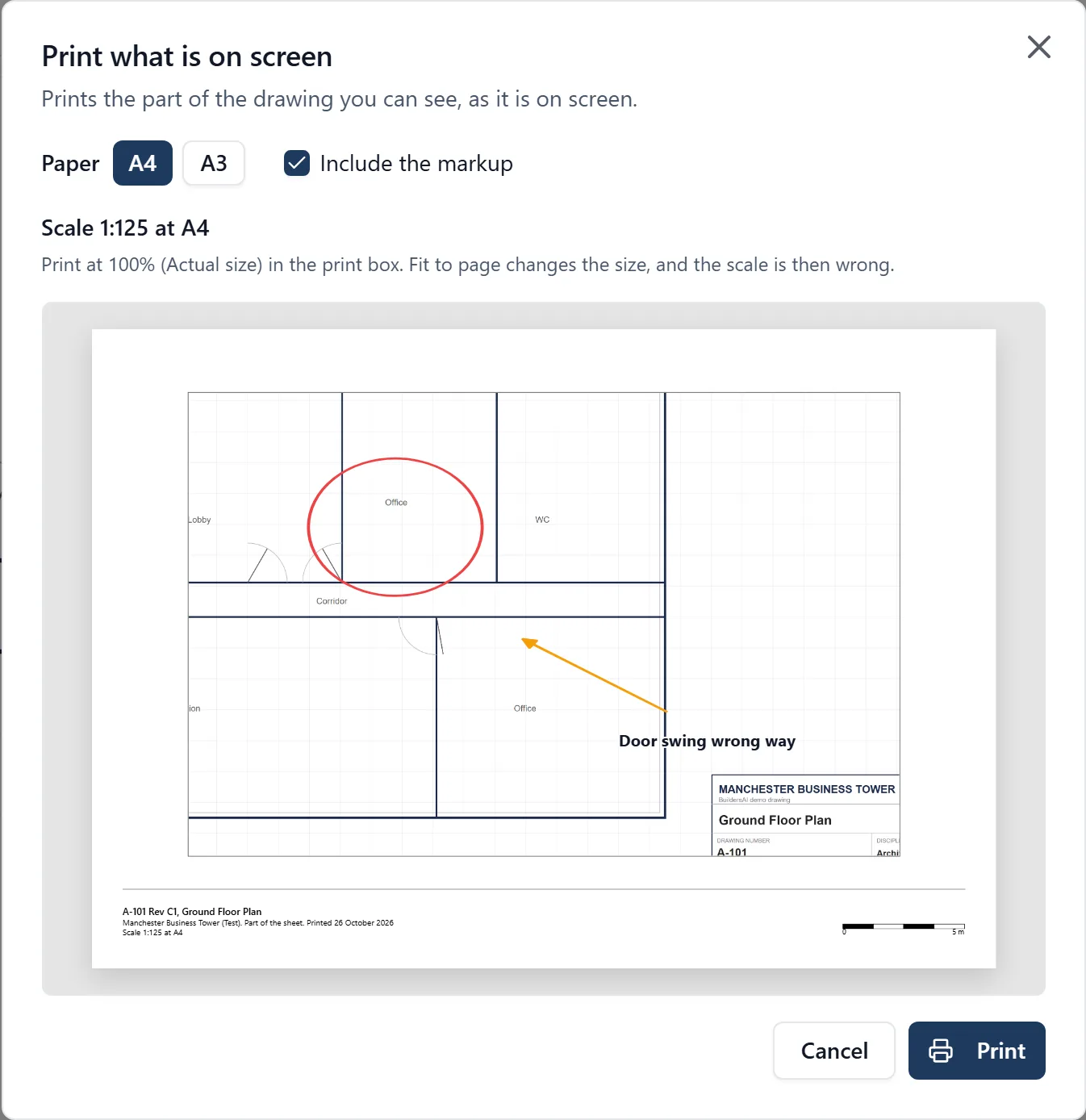
On a computer, a PDF drawing in BuildersAI can be printed the way it is on your screen: zoom in on the bathroom of a ground floor plan and print just the bathroom, on A4 or A3, with its markup and its scale. You can also download the whole drawing as a PDF with the markup drawn on, to send to a trade. Both are in the browser at app.buildersai.co.uk, under Drawings. A drawing added as a photograph (JPG or PNG) has no printer button. The phone app does not print.
Printing what is on screen:
- Open the drawing and move to the part you want, zoomed in as far as you like. Fit page shows the whole sheet, if you want all of it
- Press the printer button in the toolbar above the drawing. A box opens with a preview of the page as it will print, with the paper choice and the markup tick above it
- Choose A4 or A3. The page turns to suit the shape of what you picked: wide parts print landscape, tall ones portrait. The paper you chose last time is remembered on that computer
- Untick Include the markup to print the drawing on its own. It starts ticked when the markup is showing on screen
- Press Print. Your browser’s own print box opens. Choose the printer, or choose Save as PDF there to keep it as a PDF file
The scale on the print:
- When the drawing has a scale set, the print is made at a true scale and says so in the footer, for example Scale 1:20 at A4, with a scale bar. You can put a scale rule on it
- To keep the scale true, the part you picked is printed at the largest standard scale that fits the paper (1:1, 1:2, 1:5, 1:10, 1:20, 1:25, 1:50, 1:100, 1:125, 1:200 and so on), so it can come out smaller than the paper allows, sometimes about half the size. A3 gives a larger print where the next scale up fits
- Print at 100% (Actual size) in your browser’s print box. “Fit to page” or “Shrink to fit” changes the size, and the scale is then wrong
- A drawing with no scale set prints as large as fits and says Not to scale. To print to scale, set one first with Set scale, in the box at the top right of the drawing (see Moving Around and Measuring a Drawing on a Computer). Clients and others who follow a project cannot set a scale: ask an admin or member
- The scale is the one set on that page of that issue of the drawing. A new issue starts with no scale until somebody sets it
What the footer says:
- The drawing number and its revision, and its title when the drawing is printed from its own page
- The project, the page when the drawing has more than one, whether it is part of the sheet or the whole sheet, Markup left out when you unticked it, and the date it was printed
- The scale, or Not to scale
Downloading a drawing with its markup:
- When a drawing has markup on it, the toolbar has a second button beside the printer: Download with markup
- It makes a PDF of the whole drawing, every page, with every shape and label drawn on, named after the drawing with “with markup” on the end. A character the PDF lettering cannot show, such as an emoji, is printed as a question mark
- The drawing itself is not changed: its lines stay sharp at any zoom and its scale is kept, so it can still be measured in another program
- Untick Include the markup to download the drawing as it was issued, with nothing drawn on it. The toolbar’s ordinary download button does the same
- Some PDFs are protected, or damaged, and cannot have anything added to them. For those the box says so, and offers the drawing without its markup instead
Good to know:
- Anybody who can open a drawing can print it and download it with its markup, including clients and others who follow the project
- An earlier issue opened from the revision history prints with its own markup and its own revision in the footer
- Measurements are not printed: they are never saved, only shown while you measure. A dimension drawn as markup is printed, with its figure
- To make a copy for one trade, choose whose markup and which colours go on it: under Include the markup, both boxes list everybody who drew on the drawing and every colour used, all ticked to start. Untick the rest, say everything but the electrician’s blue. A print says on its footer when some markup was left off, such as “Only blue markup”