
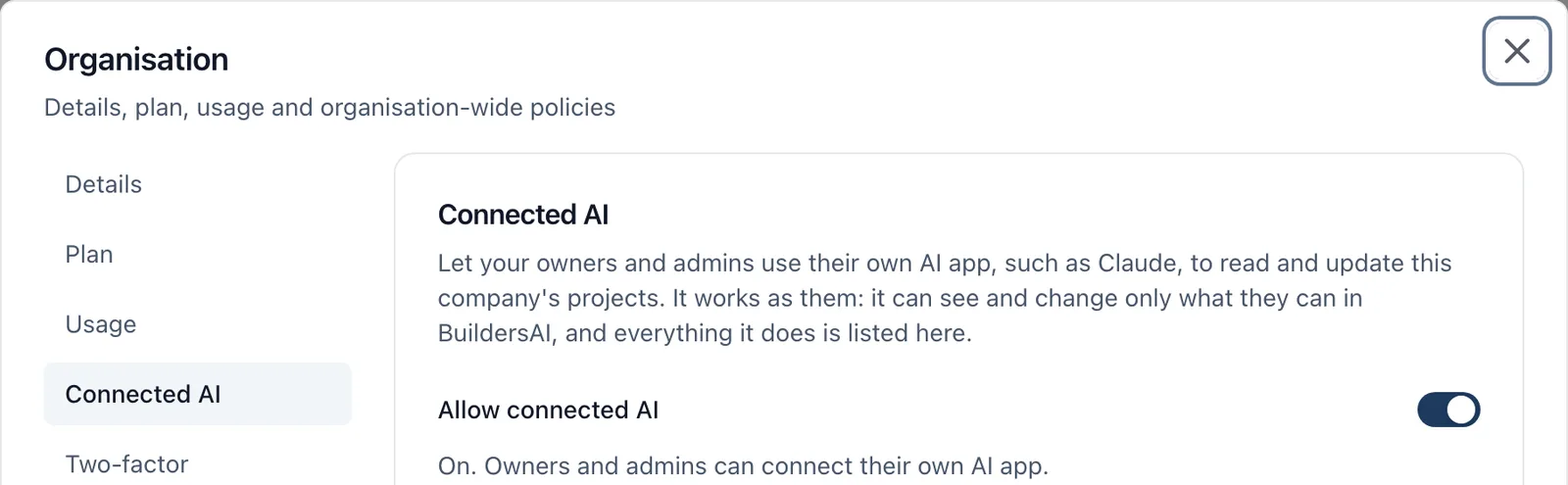
If your company uses its own AI app, such as Claude, it can read and update your projects in BuildersAI for you: “What is overdue on Plot 4?”, “Add a task to chase the scaffolder on Monday”, “Mark the timber merchant’s invoice ready to pay”. It works as you: it sees and changes only what you can, and everything it does is listed for your company’s owners and admins.
Who can use it:
- The owners and admins of a company, on that company’s projects
- Only once an owner or admin has switched it on for the company. It is off until then
- It works with any AI app that can add a “custom connector” (the industry name is MCP), including Claude in the browser, the Claude desktop app and Claude Code
Switching it on (owners and admins, app.buildersai.co.uk):
- Open organisation settings: the cog beside your company’s name, or Settings on the All projects page
- Choose Connected AI
- Turn on Allow connected AI
Turning it off stops every connected app reaching the company’s projects straight away.
Connecting Claude:
- In Claude, open Settings, then Connectors, and choose Add custom connector
- Paste the address shown under How to connect in Connected AI: it is
https://app.buildersai.co.uk/mcp - Claude opens a BuildersAI page. Sign in if asked (and confirm your second factor, if you have one), read what the app will be able to do, and choose Allow
The page tells you what the app calls itself and that BuildersAI has not checked it, because any app can call itself anything. Choose Allow only if you started connecting it yourself.
If none of your companies has switched it on yet, the page says so and does not offer Allow: ask an owner or admin to switch it on first.
What it can do:
- Read your projects: tasks, drawings and what changed on them, the site diary, who is on site, files, specifications, photos, the weather and more
- Add and change tasks: create them (one or a list), update, complete, assign, link one after another, label them, add comments and diary entries, arrange boards and views
- Read a document’s text, page by page, and the versions of a document
- On a job whose costs you run (you are its administrator): read the Cost Tracker, purchase orders, estimates, invoices to the client and the supplier book; draft purchase orders, estimates and change orders. Once your company lets it change money (below), it can also add a supplier invoice from its figures, close, reopen or cancel a purchase order, draft invoices to the client, bring a cost forward and change the supplier book. Amounts are in pounds
- Time on site, the card register, RAMS, inductions, stage sign-offs, visitors and the incident register (the number, kind and status of each report, never what happened or anybody’s injury)
- Plan the week: the people planner, plant bookings, the lockup, delays, contacts, task reminders and your own notes
- Claude asks you in its own window before it uses a tool, unless you have told it to stop asking. Everything it does is recorded either way
Anything that leaves BuildersAI is yours to confirm: Your AI app can prepare, but never do by itself, anything that sends, signs off or announces: sending an estimate, change order or purchase order, approving a purchase order, an email or a tender package, sending the people plan, approving or rejecting a specification, an announcement, adding people to an approved RAMS, marking an invoice that came in by email ready to pay, marking an invoice to the client ready, or sending an invoice to your books.
It waits for you in BuildersAI, under Waiting for you to confirm (on the web and on the phone; when it is for a project you are also sent a notification). Each one says exactly what will happen, shows any words the AI wrote for you, and has Confirm and Turn down. Nothing happens unless you press Confirm. If anything about it changed since you read it, you are shown the new version first. Money and anything sent outside the company asks for your second factor, if you have one. A proposal waits for a day, then lapses.
What your company allows (owners and admins): Under Connected AI in organisation settings, in a browser:
- Let connected AI change money (off until you switch it on): adding supplier invoices, closing, reopening or cancelling purchase orders, invoices to the client, costs brought forward and the supplier book. Approving a purchase order is always something it prepares for you to confirm
- Let connected AI prepare things for you to confirm (on)
- Let connected AI read money, hours, cards and people’s details (on): the Cost Tracker, timesheets, cards, and people’s contact details, phone numbers, visitors, who is on site, who is off and accident reports
Reading can never change anything: BuildersAI itself stops a read from writing.
Approve only an app you trust. Approving an app lets it work in BuildersAI as you: it can read what you can read and make the changes above. It is given a key that works only at the connected AI address, where everything above applies and every call is recorded, so it cannot sign in as you or change your password, email or sign-in. Disconnect any app you no longer use.
What it cannot do:
- Delete anything
- Add or remove people, or change anybody’s role
- Change your plan, seats or billing
- Send, sign off or announce anything by itself: it prepares it, and you confirm it in BuildersAI
- Sign anything, record a client’s answer, check somebody’s card, or read an injury or a witness statement
- Mention a client or anybody else following a project in a comment
- Attach the invoice document itself: it adds the figures, and you attach the document in the Cost Tracker
- Read the files themselves (photos and drawings): it reads a document’s text, not its pictures
Seeing what it did: Organisation settings, Connected AI, shows:
- Today: the company’s calls against its daily limit, and each person’s calls and changes on this company’s projects against their own daily limits
- Last 30 days: calls a day
- Connected apps: who has connected which app, when, and when it was last used. Remove access stops that person using any AI app on this company’s projects; Allow again undoes it
- Activity: every call, newest first, in plain words (“Steve Gaskin, through Claude, added a supplier invoice on Plot 4”), with what was sent for every change, and for a task or a Cost Tracker entry a link to it. A change to an existing task or a comment records which item and which fields, never the words, so a private reminder’s words are never in the list. What a change sent is shown to the person who made it and to the job’s administrators. Filter by person, app, project, reads or changes, result and dates, and Export CSV. A read records which project it looked at, never what it read
A change made this way also says so in the task’s history: “via Claude”.
Your own view is in your profile settings, under Connected AI: your apps (with Disconnect, which removes the app’s access for every company at once), your use today and your own activity, including calls that touch no company’s project, such as listing your projects.
How long a connection lasts: Until you disconnect it, and for 90 days at most: after that the app asks you to approve it again. It also ends at once if your password changes, or if BuildersAI support signs you out everywhere or resets your second factor.
Daily limits:
- 1,000 calls a person a day, of which 200 can be changes. One change is one call, and one call can add up to 100 tasks at once
- 5,000 calls a company a day, everybody’s together
- No more than 60 calls a minute from one person’s app
- They start again at midnight UK time. When a limit is reached, the app is told so and nothing more is read or changed until then; reading still works when only the changes have run out
When it says no: The app passes on exactly why, and the same sentence is in the activity list. The usual reasons:
- Your company has not switched it on
- You are not an owner or admin of the project’s company, or you are not on that project
- An owner or admin removed your connected AI
- A daily limit was reached
- The app sent requests too fast
On the phone: Organisation settings on the phone shows Connected AI too: the switch, today’s use, connected apps (with Remove access) and the latest activity. Your profile has your own apps and use. You connect an app from the app itself, not from the phone.