
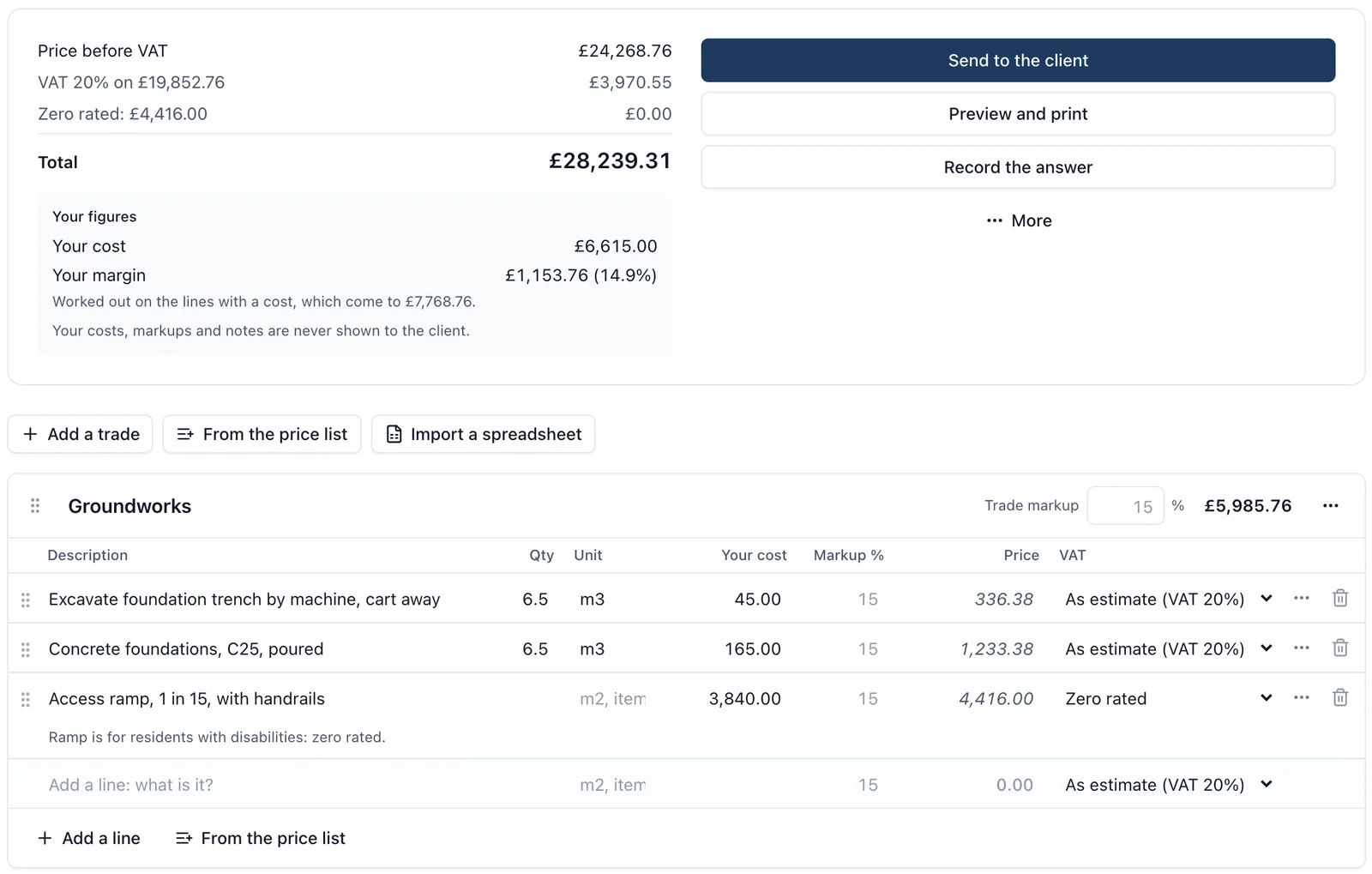
An estimate is your price for a job, written the way you want the client to read it: one line per trade (“Electrical £5,160”), or every line with its quantity and rate. You build it from your own rates, check it, print it on your company’s letterhead or send it to the client by email, and once the client accepts it, it is locked and becomes the job’s quote on the Cost Tracker. It is for the job’s admins only, and it is a browser page: there are no estimates on the phone.
How to get there (app.buildersai.co.uk):
- Open the project. If the job has not been won yet, make a project for it first: a project is just a name, and the estimate lives on it
- In the sidebar, under the Admin heading, click Cost Tracker
- Estimates is above Change orders on the page. Click New estimate, give it a title (for example “Ground floor refurbishment”), and it opens
Who can see it: only the job’s admins. Members and followers never see an estimate in the app, its figures are never sent to a phone, and I cannot read them for anybody. The client sees only what you send or print: the document, never your costs or markups.
Trades and lines
An estimate is a list of trades (Groundworks, Electrical, Plastering), each with its lines.
- Add a trade starts a new one; click its name to rename it, and drag trades or lines to put them in order
- Add a line adds a line to a trade. Press Enter in the last box of a line to start the next one
- A line can be one figure: type the description and the Price, and leave the quantity empty. “Electrical, £5,160” is a whole line
- Or a quantity and your cost for one: type 42.5 in Qty, m2 in Unit, your cost for one m2 in Your cost and a Markup %, and the price is worked out for you
- Price is always the line’s price to the client before VAT. Whatever you type there is what counts, so you can round a worked-out figure
Your costs and markup (never shown to the client)
You can keep margin in two ways, and mix them on one estimate:
- Put your overhead and profit straight into each price, and leave Your cost empty
- Or type Your cost (what a subcontractor quoted you, or your cost for one unit) and a Markup %, and the price is worked out from them. A line with no markup of its own follows its trade’s markup, and a trade with none follows the estimate’s default. So a subcontract can carry 10% while your own labour carries 30%
The totals on the right show the price, the VAT and the total, and under them your own figures: what the lines cost you and your margin in pounds and as a percentage of the price. Your costs, markups and notes are never shown to the client.
VAT on each line
Each line can say its VAT: VAT 20%, VAT 5%, Zero rated, Exempt or No VAT. A line that says nothing follows the estimate’s default, which you set in the estimate’s settings. VAT is worked out on the total of each rate, and the document shows each rate on its own line, so an estimate mixing standard and zero rated work reads correctly. A new estimate starts on the rate your company chose under Organisation settings, Price list, Estimating defaults (VAT a new estimate starts on: zero rated suits a builder of new homes), or VAT 20% if it chose none; changing it changes no estimate already made. If your business is not VAT registered, set it to No VAT. Whether a piece of work is zero rated or reduced is your decision, or your accountant’s: BuildersAI does not decide it.
Your company’s price list
Your rates, kept once for every job. An owner or admin of the company keeps it under Organisation settings, Price list: each item has a trade, an optional code, a description, a unit, and either your cost and markup or a selling rate, and its VAT. An item with your cost and no markup of its own takes the estimate’s markup when you add it.
- On an estimate, From the price list lets you search it, tick several items and add them as lines in one go
- Save to price list, on a line’s menu, keeps a line you typed for next time. Only an owner or admin of the company can save to the price list
- Import from a spreadsheet brings in a list of rates you already keep in Excel or as a CSV file
- Changing a price later changes nothing on an estimate you have already written: each line keeps the figures it was given
Importing your QS’s spreadsheet
If a quantity surveyor prices the job for you, or you keep your own pricing spreadsheet:
- On the estimate, click Import a spreadsheet and choose the file (Excel or CSV)
- BuildersAI guesses which column is which (description, quantity, unit, rate, amount, trade, VAT) and shows you its guess. Change any column that is wrong
- If no column is chosen as the trade, rows with a description and no figures are read as trade headings. Rows that are totals (“Sub-total”, “Carried to summary”) are left out, and it says how many and why
- Check the preview, then click Import (the button says how many lines, for example Import 42 lines). The trades and lines are added to the estimate, and you can change anything afterwards
What the client sees, and the letterhead
In the estimate’s settings:
- What the client sees: Each trade’s total (one line per trade, the way most builders send it) or Every line, with quantities and rates
- An introduction above the prices, terms below them, and a Valid until date
The document carries your letterhead: your company’s picture as the logo, its name, address, phone, email, website, company number and VAT number. An owner or admin sets these once under Organisation settings, Details, Letterhead, along with the standard terms and how many days an estimate stays valid, which every new estimate starts with.
Preview and print shows the document exactly as the client will see it, and prints it or saves it as a PDF, so you can send it however you like.
Sending it to the client, and their answer
Send to the client asks for their name and email address, starting from the client on the job (People, under Others on this job) the first time and whoever it was last sent to after that, and emails them a link. The link opens the document; they tick to accept it and its price, type their name and sign, or decline it with an optional reason. You get a push as soon as the client accepts or declines. If the email does not leave, you are given the link to send another way.
If the client says yes on site, by phone or by email, click Record the answer, choose accepted or declined and type who answered. You can do this from a draft too, if you sent the client a printed copy.
Once it is accepted
An accepted estimate is locked: nothing on it can change. It becomes the job’s quote on the Cost Tracker, with its number (EST-001) as the quote’s reference, and the screen says so before you send it or record the answer. If you accept a second estimate on the same job, the newest accepted one becomes the quote. You can still edit the quote by hand on the Cost Tracker afterwards.
Changing an estimate you have sent
An estimate with the client cannot be changed, so the client never accepts something different from what they were sent. To change it, choose Take back to change it from the More menu: the link stops working and it is a draft again, ready to change and send again. (Withdraw on its own takes it back without reopening it.) A declined estimate can go back to a draft the same way. Once an estimate’s Valid until date has passed, the client can only decline it: click Take it back to change the date, change the date, and send it again. To price a new version while keeping the old one, choose Copy to a new draft from the More menu: it makes a new draft (EST-002) with every trade and line. A draft, a withdrawn or a declined estimate can be deleted; an accepted one never can.
Invoicing the client each month, line by line
Once an estimate is accepted, you invoice the client by drawing down part of each of its lines, and of any signed change order, and BuildersAI remembers what is left on every line. If you invoiced 50% of Electrical last month, next month Electrical shows 50% left.
- On the Cost Tracker, under Invoices to the client, click New invoice. It is numbered INV-001, INV-002 on the job
- Every line of the accepted estimate is listed by trade, with what was agreed, what other invoices have drawn (drafts included, so two cannot draw the same money) and what is left. Signed change orders are listed after them
- Tick each line you are invoicing this month, and type the amount in pounds, or switch the box to % and type a percentage of the line. The figure it comes to is shown as you type, and you are stopped before going past what is left. Lines with nothing left are tucked under Show finished lines
- Amounts are before VAT. VAT is worked out from each line’s rate on the estimate, and a change order’s VAT in proportion to what you draw
- Click Save, then Mark ready when it is right. Print shows it on your letterhead, with each line’s agreed amount, what was invoiced before, this invoice and what is left, and you can print it or save it as a PDF
BuildersAI does not send the invoice to your client. Print it, or copy it into QuickBooks, Xero or Sage and send it from there, as you do now. If your company has connected QuickBooks, Send to QuickBooks on a ready invoice puts it there as a draft for you, still unsent. Once your accounts have numbered it, type that number into Number in your accounts: it is printed instead of INV-001, and the client sees it too. The printed copy counts only invoices marked ready under Invoiced before.
A draft counts against what is left, so two drafts cannot invoice the same money. A ready invoice can be taken Back to draft to change it. Cancel invoice gives back what it drew on every line; if it is already in your accounts, cancel or credit it there too. Only a draft can be deleted.
If the job has no accepted estimate, only signed change orders can be invoiced this way, and on a cost plus job its costs too (below). Put the agreed price in as an estimate, one line per trade, and click Record the answer. The lines come from the estimate that is the job’s quote: if another estimate becomes the quote later, its lines are the ones offered from then on, whole, and what was invoiced on the old one stays invoiced: the invoice page says how much, so you can take it into account.
If you have switched on Show the client the money on this job (under What the client sees on the Cost Tracker), the client sees each invoice you have marked ready, what has been invoiced so far and, on a fixed price job, what is left to invoice, never a draft. An invoice you take back to a draft or cancel leaves their list, so its number goes missing from it: tell them if you cancel one they have already been sent. Record their payments on the Cost Tracker as before.
Invoicing a cost plus job from its costs
On a cost plus job (set under Quote and VAT on the Cost Tracker, with your markup) the client pays what the job costs plus the markup, so each invoice is drawn from the costs on the Cost Tracker instead.
- Click New invoice. The invoice takes the job’s markup, and the VAT rate of the job’s last invoice (20% the first time). Change either on the invoice while it is a draft
- Under Costs since the last claim, choose Up to (today, or the end of the month) and click Add costs since the last claim. Every supplier invoice up to that date that is not on another invoice is ticked. Costs you typed without an invoice, and invoices you have hidden from the client, are listed but left for you to tick: tick one and it goes on this invoice, so the client sees it. If a supplier invoice is corrected after you added it, press Take the new figure before marking it ready
- Each cost goes on whole and at cost, before VAT, as its supplier invoice shows it. The markup is added once, on all of them together, as its own line, so it matches your accounts to the penny
- VAT on costs and markup is your own rate, not what the supplier charged: a subcontractor who charges no VAT is still charged on at 20%, and a zero rated new build is set to zero once
- Save, Mark ready and Print as above. The printed invoice lists each cost by cost code with its supplier, their number and date, then the costs, the markup, VAT and the total
A cost can be on only one invoice. Next month every cost not yet on an invoice is offered, which is what “since the last claim” means; cancelling an invoice gives its costs back. A cost on an invoice cannot be deleted until it is taken off. Figures brought forward when the job came across are never offered: they were invoiced before. If a supplier invoice you add was already invoiced to the client somewhere else, choose Already invoiced to the client on its row in the Cost Tracker, and it is never offered.
The supplier invoices go with it. With QuickBooks connected, Send to QuickBooks attaches each supplier invoice’s PDF to the invoice, set to go with it when you send it from QuickBooks. If one could not be attached (too large, say), the invoice’s books box says so. Without QuickBooks, Download with invoices gives you one PDF: a first page listing every cost and the totals, then each supplier invoice in the same order, to send with your invoice. A document it cannot read is named on the first page, so you can send it separately.
Drafting it with SiteBot, and your past jobs
On a draft estimate, Draft with SiteBot suggests the trades and lines for you to check, priced from your own rates and past estimates; your company’s Estimating defaults and Bring in past jobs are under Price list in its settings. The Drafting an Estimate with SiteBot page explains all of it.
What it does not do yet
It does not keep live merchant prices, or build a rate up from labour, plant and materials: a line’s cost is one figure. With QuickBooks connected, a ready invoice can be sent there as a draft (see the Connecting QuickBooks page); it is not written to the accounts file for Xero, retentions are not held back, part of a cost or your labour from timesheets cannot be invoiced on a cost plus job (type the labour as a cost), and CIS or the reverse charge on an invoice to a client who is a contractor is put right in your accounts.