
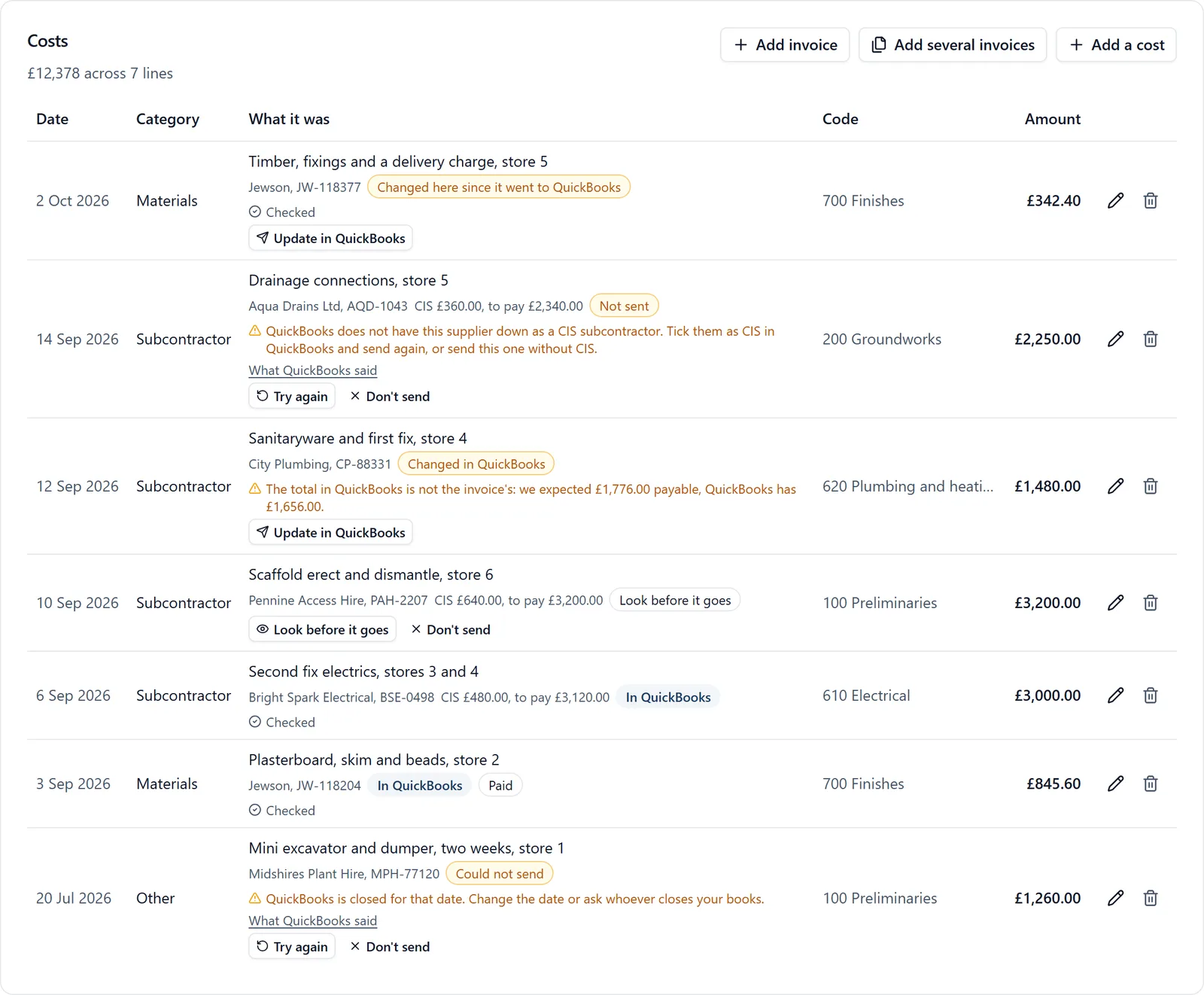
A company can connect its QuickBooks Online to BuildersAI. Once it is connected, the supplier and subcontractor invoices on a job’s Cost Tracker go straight into QuickBooks as bills, with the invoice attached if you choose, against the right supplier, job and account, and with any CIS deduction written the way you choose. Every bill is read back from QuickBooks after it goes and checked against what the supplier is owed. Nothing goes until somebody presses Send, unless you choose otherwise.
The connection is being switched on company by company. If you are an owner or admin and do not see Accounting in Organisation settings, email support@buildersai.co.uk and we will tell you when it can be turned on for you. Until then, the bill file still works as it always has (the supplier invoices help page explains it).
How to get there (app.buildersai.co.uk):
- Click your organisation’s name at the top left, next to the BuildersAI logo, and click the small cog on the organisation’s row. Only owners and admins of the company see the cog
- Click Accounting in the list down the left side
- Click Connect QuickBooks. QuickBooks opens and asks you to sign in and choose which company’s books to connect. Agree, and you come back to BuildersAI
What connecting reads: your lists in QuickBooks: suppliers, customers and projects, accounts, products and services, VAT codes and terms. You choose from them rather than typing names. Refresh the lists reads them again after you add something in QuickBooks. The section says who connected it, when, and when the lists were last read.
How bills are written: Each choice is filled in with our best guess from your books, marked Our suggestion. Change any of them and it is marked Chosen; Use our suggestion puts the guess back. The choices are:
- Where costs go: to an account (category), or to a product or service. Products and services are what QuickBooks uses to show cost by job, so the guess picks them when your books use them
- A cost code with no link: send it to a fallback account, or wait until the cost code is linked
- How the job is shown: as the customer, a project, a class, a location, or not at all
- VAT: each line’s VAT code, keeping the supplier’s VAT to the penny, or let QuickBooks work it out
- CIS: QuickBooks works the CIS out, take it off as a line to an account you choose, send the full amount with the CIS in the note, or do not send CIS bills at all
- A supplier QuickBooks does not hold as CIS: wait and tell you, or send it the other way at once
- Bill number, Due date when the invoice prints none, Invoice documents (attach them or not), When bills go (when somebody presses Send, or as soon as an invoice is marked Ready to pay), Look before it goes (a CIS supplier’s first bill, every supplier’s first bill, or never) and A supplier QuickBooks does not have (offer to create them, or never)
Under the choices, How a bill will look in QuickBooks writes two made-up invoices with your settings as they are now: a subcontractor’s labour and materials at 20% CIS, and a merchant’s invoice with VAT. Nothing is sent.
Links: Ours on the left, QuickBooks’ on the right. A bill goes only when its supplier, job and cost code are linked.
- Suppliers: each of your contacts, with the QuickBooks supplier it is. A supplier QuickBooks does not have can be made there with Create in QuickBooks. Each also shows whether QuickBooks has them down as CIS, and How their CIS goes lets you send one supplier’s CIS differently from the rest
- Jobs: each live job, with its QuickBooks customer, project, class or location (whichever you chose above)
- Cost codes: each cost code, with the account or product it goes to
- The Set up list at the top says what still needs a link, and reads Everything a bill needs is linked. when nothing does
Sending invoices: On a job’s Cost Tracker, a job admin presses Send to QuickBooks to send every invoice marked Ready to pay that has not gone yet, or sends one from its own line. From All projects, Time, Export, choosing a QuickBooks bill shows Send to QuickBooks beside the file download, for the invoices in that export. An invoice that has gone in a bill file is never sent again, and one that has been sent is never put in a file.
Every job’s bills in one place: go to All projects and click Bills. It lists every supplier invoice on every job you run, with where each one is: To check (waiting under a job’s Invoices to check), Ready to send, waiting or sending, Needs attention, In QuickBooks and Paid. Narrow it to one job, one supplier or the invoice dates, or search by supplier or invoice number. Send on a line, or Send to QuickBooks above the list, sends what has never been sent, exactly as it would go from its job. Anything that needs checking or putting right is done on its own job: click the line to go there. You see the bills of the jobs you run and no others.
Before a first bill from a CIS supplier goes, Look before it goes shows it as QuickBooks will see it: each line, its amount and VAT code, and what is payable to the supplier. Press Send when it is right.
What each invoice line says:
- In QuickBooks with Checked: the bill is there and its figures match what the supplier is owed. Once QuickBooks records a payment it says Paid or Part paid and how much is left
- Waiting for a look: press Look before it goes to see the bill, then Send. Don’t send takes it off the list to go
- Not sent, with the reason, and Try again once you have fixed it. For example, QuickBooks does not have the supplier down as a CIS subcontractor: tick them as CIS in QuickBooks and try again, or send that one without CIS
- Could not send, with the reason, such as the books being closed for that date. Change the date or ask whoever closes your books, then Try again
- Changed here since it went to QuickBooks: somebody corrected the invoice afterwards. Update in QuickBooks sends the correction
- Changed in QuickBooks or Deleted in QuickBooks: somebody changed the bill in QuickBooks. Both figures are shown so you can see which is right
- A check that does not match says how, with both figures: for example QuickBooks did not take the CIS off, or the VAT is not the invoice’s
Invoices to your client: an invoice you draw down from an estimate, or from a cost plus job’s costs (on the Cost Tracker, under Invoices to the client) can go to QuickBooks too, once you have marked it ready. Open it and press Send to QuickBooks. It arrives as a draft invoice to the job’s customer that has not been sent: check it there, and send it to your client from QuickBooks as you do now. BuildersAI never emails it, and QuickBooks does not either until you tell it to.
- The job must be linked to a QuickBooks customer or project, on Links, Jobs
- Every line goes on one product or service, chosen under Invoice number on an invoice to a client in How bills are written; VAT uses the same VAT codes as your bills, from each line’s rate on the estimate
- On a cost plus job each cost goes as its own line at cost, then one Markup at line, at your VAT rate on costs. Each supplier invoice’s PDF is attached to it, set to go with it when you send it from QuickBooks. The invoice’s books box says if one could not be attached; send that one with Download with invoices
- Invoice number on an invoice to a client says whether QuickBooks numbers it or it carries the job’s code and our number. Either way its number in QuickBooks is written into Number in your accounts
- If you take it back to a draft or cancel it here, the page says QuickBooks still has the old one. Mark it ready again and press Update in QuickBooks, or void it in QuickBooks: BuildersAI never changes your books by itself
- When the client pays it in QuickBooks, the invoice says Paid in QuickBooks, and the payment is added to the job’s Cost Tracker under Payments received, marked From QuickBooks, dated as QuickBooks dates it. A part payment comes over as it is, and a credit note used up in the same payment is taken off, because it is not money received. Change or delete it in QuickBooks and it follows here; it cannot be changed or removed on the Cost Tracker
- On a job whose figures exclude VAT, a payment from QuickBooks counts its share of the invoice before VAT, as you would have typed it, and says what QuickBooks holds beside it
- If you had already typed that payment in yourself, the one you typed says Possibly the same as a payment from QuickBooks. If it is the same money, remove the one you typed; the one from QuickBooks is removed in QuickBooks. BuildersAI never removes one of yours
How the CIS is learned: the first CIS bill to a supplier tells us whether QuickBooks holds them as CIS. If QuickBooks takes the CIS off, they are marked CIS; if it refuses, they are marked Not CIS and their bills wait (or go the other way, as you chose). You can set either by hand on Links, Suppliers.
Disconnecting: Disconnect stops BuildersAI sending bills and reading your lists. Bills already in QuickBooks stay there, and bills waiting to go are not sent. Connect again reads your lists afresh and fills in our suggestions again, so check the settings and links before you send anything.
Who can do what: owners and admins of the company connect, disconnect and change the settings and links. A job’s admins send that job’s invoices, from its Cost Tracker, which only they see.
What it does not do yet: it works with QuickBooks Online only. Supplier invoices and the invoices you draw down for your client are sent; hours and payments to suppliers are not. What is read back from QuickBooks is what happened to what we sent (paid, changed or deleted) and your client’s payments against the invoices we sent. Costs you paid in QuickBooks are not read into the Cost Tracker. Xero has the bill file.