
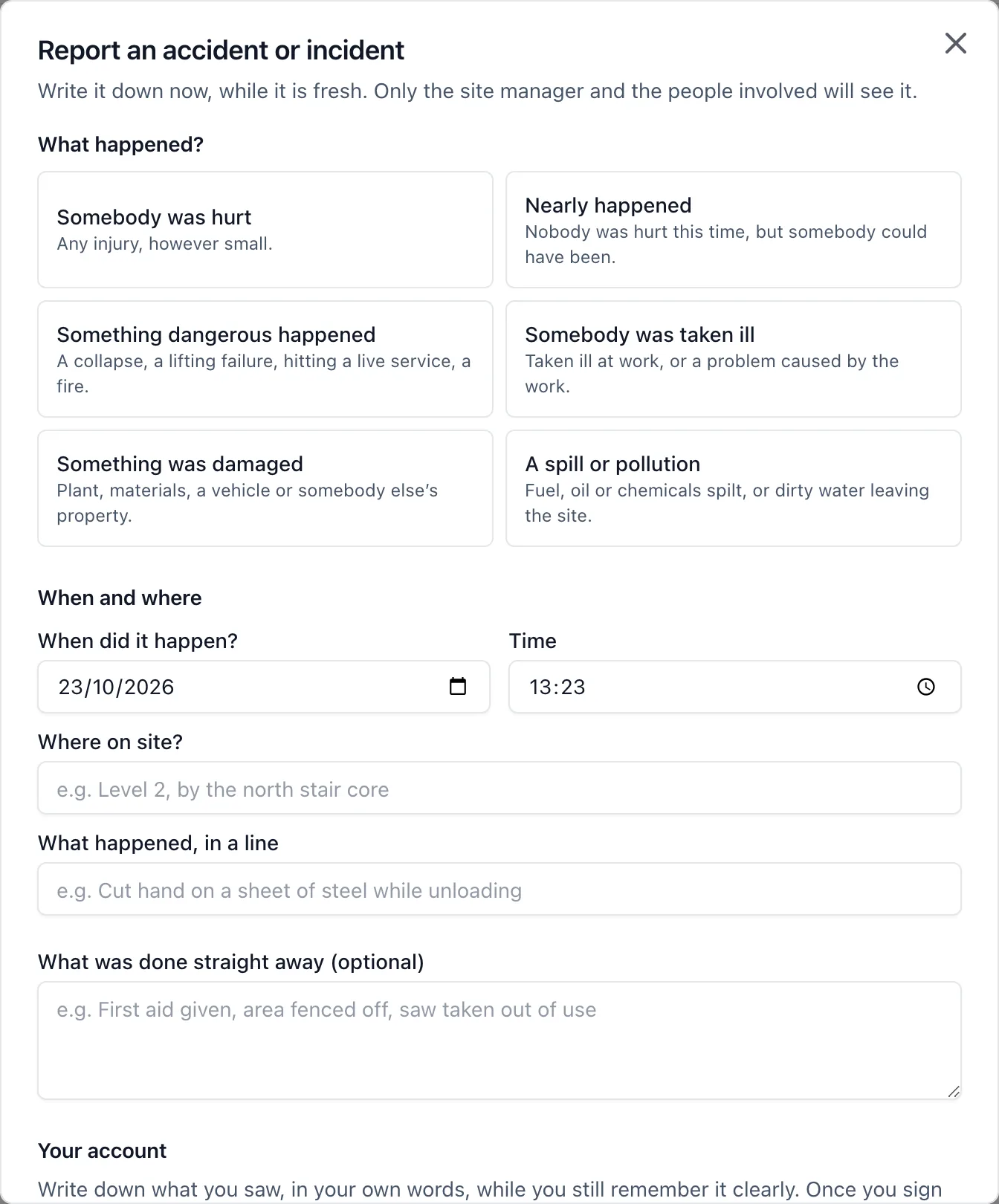
When something happens on site, write it down there and then: an accident, a near miss, something dangerous, somebody taken ill, damage, or a spill. Anybody working on the site can report it from their phone in a minute, even with no signal, and each person who saw it writes and signs their own account while they still remember it clearly. The site manager looks into it and closes it. It replaces the accident book and the paper incident form, and it lives in the project’s Accidents section on both the mobile app and the web app.
Why it matters: The best account of an accident is the one written the same day, in the words of the person who saw it. On paper the form is filled in at the end of the week, by one person, from memory. Here the report is made at the scene, every witness is asked for their own account on their own phone, and the record keeps who was checked in on the site at that moment without anybody typing it.
Where to find it:
- On the phone, the Report an accident card on the project’s Home, or Accidents in the menu
- In a browser, Accidents in the project’s menu
Who can report: Every administrator and member of the project. Followers (clients and visiting subcontractors) do not report, but they can be asked for a statement and write it. Reporting still works on a project that has become read-only.
Reporting one:
- Press Report an accident
- Say what happened: Somebody was hurt, Nearly happened, Something dangerous happened, Somebody was taken ill, Something was damaged or A spill or pollution
- When it happened (it starts at now), where on site, and what happened in one line
- If somebody was hurt, who: one of the team or a subcontractor (pick them from the project), or a visitor or a member of the public (type their name). Then the injury: what it is, where on the body, the treatment, who gave first aid, the hospital, whether they are off work and whether they are under 18
- What was done straight away, if anything: first aid, the area fenced off, the machine stopped
- On the phone, Add photos of where it happened, the equipment or the paper form. Never photograph the injury itself
- Your own account, in your own words
- Check your printed name, sign in the box with your finger, and send it
It works with no signal. The report, your account, your signature and your photos are saved on the phone and sent as soon as the phone can, even if you close the app first. Once it is sent, your account and your signature cannot be changed, but you can add to it.
Your photos go to the site’s administrators, and leave your phone. Only the project’s administrators see the photos on a report. Once a photo has been sent it is taken off your phone, and the report on that phone says how many you sent from it. Until then it shows as Waiting to send. You can add more from the report afterwards until it is closed: up to ten in all, unless you are one of the site’s administrators. If one cannot be sent, the report says why and you can remove it. Photos cannot be added on a project that has become read-only.
Statements from everybody who saw it: The person who reported it, or a site administrator, can Ask for a statement from anybody on the project. They get a notification, and a line on their Home: Write your statement. Each person writes what they saw and signs it on their own phone.
For somebody with no account (a delivery driver, a member of the public), use Write down somebody’s account: write down what they tell you, read it back to them, and sign it as the person who took it down. The record says who wrote it down.
A signed statement is never changed. A correction is an addition to it, which shows under it with the time it was added.
Who can see what:
- The report (what, where, when, who): the project’s administrators, whoever reported it, the person who was hurt, and anybody with a statement on it. Nobody else on the site.
- Each statement: the administrators and the person who wrote it. One witness never sees another witness’s account.
- The details of the injury: only the person who was hurt and the people who run the company (the company’s owners and admins). Not the rest of the site team, and not whoever wrote them down once they are sent.
- Photos, the investigation and the history: the project’s administrators.
Looking into it and closing it (administrators): The site’s administrators are told the moment a report is sent, and it appears in Needs you on their Home, after anything overdue. Open it to:
- Move it to being looked into
- Write down the root cause (why it happened, not only what happened) and the lessons
- Add actions: tasks on the project to stop it happening again, or say why none is needed
- Add photos of where it happened, the equipment, or the paper form. They are for administrators only and never appear in the gallery. Do not photograph the injury itself here. Photos the person who reported it took are already there, marked Taken by the person who reported it
- Record what you decided about RIDDOR (below)
- Close it. A report closes only once it has a root cause and either an action or a reason why none is needed. A closed report can be reopened, and nothing is taken off it until it is
Under At the time, every report shows what the app knew at the moment it happened: who was checked in, how many visitors were signed in, the injured person’s site induction, and the RAMS approved by then and whether they had signed each. It is saved when the report arrives, so it says what was true then, not now. The History shows every change with who made it and when.
RIDDOR: Some accidents, illnesses and dangerous occurrences must be reported to HSE under RIDDOR. BuildersAI does not tell you whether something must be reported: check HSE’s guidance (there is a link on every report), then record what you decided, Reported to HSE with the date and HSE’s reference, or We decided it does not need reporting. The record says who recorded it and when.
Printing a report: Print on any report gives a copy with every statement the reader can see and their signatures, the investigation, the actions and the RIDDOR record. It says on the paper what it does not include (the photos, what the app knew at the time and the history).
Good to know:
- Reports are numbered on each project (Incident 1, Incident 2), so a gap would show
- A report made on a phone with no signal is numbered when it arrives
- Nothing about an accident is deleted by BuildersAI. A report goes only if its project is deleted