
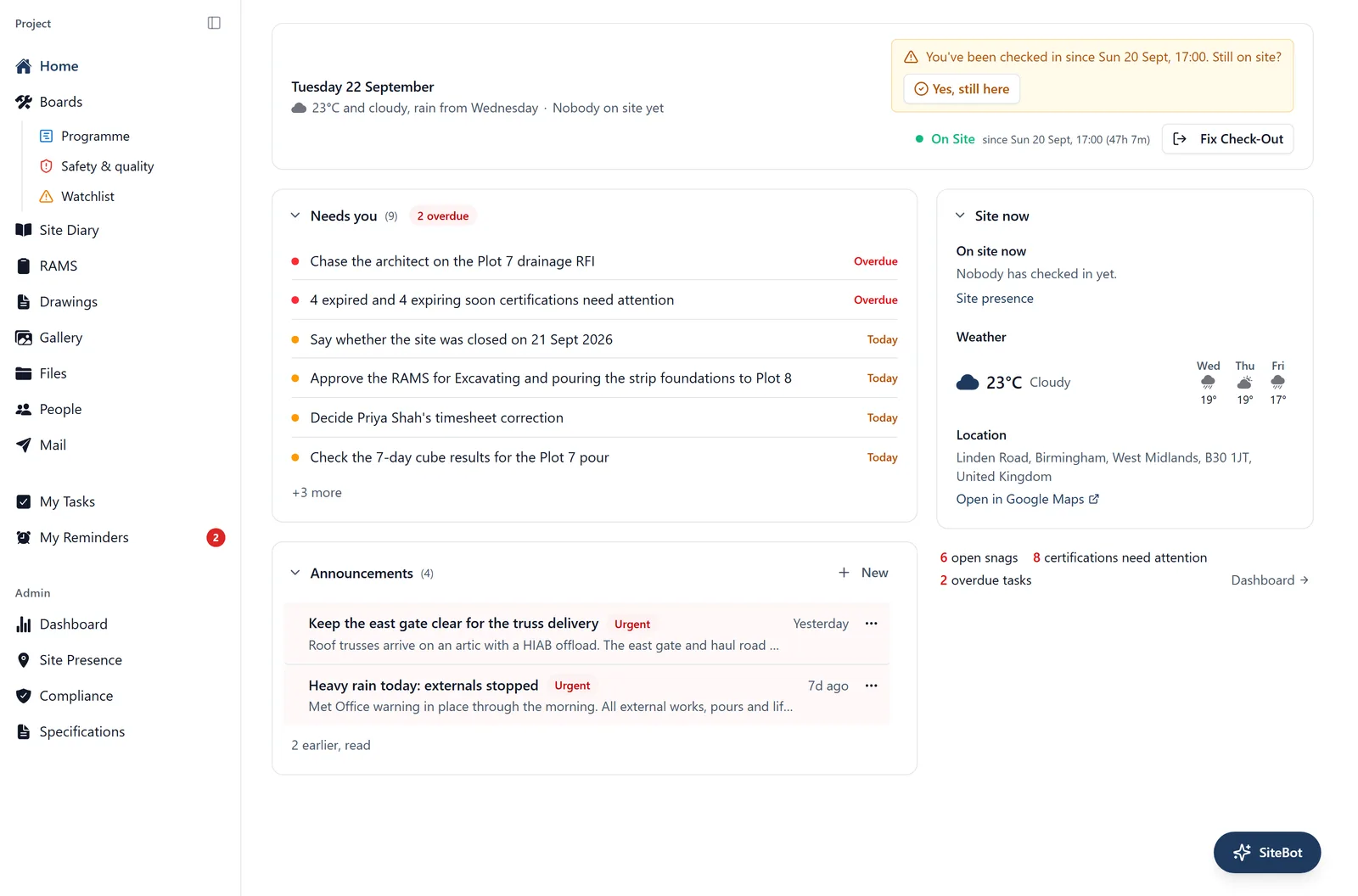
BuildersAI is also available as a web app at app.buildersai.co.uk (same login as the mobile app, near-identical feature set).
How to log in:
- Open a browser and go to app.buildersai.co.uk
- Use the same email and password as the mobile app
- Pick your project and you’re in (or create a new one, see “Creating a project”)
A new project opens on a setup panel. Five jobs (drawings, team, first task, first photo, site location), each ticking itself off from the project’s data, and a shorter sidebar with a “More” entry until the project is set up. See the “project_setup” topic for the full walkthrough.
Getting help inside the web app: the SiteBot button sits in the bottom right corner of every screen. Press it and ask “how do I…” in your own words: inside a project SiteBot reads this guide to answer. Empty screens (no drawings yet, no people yet) carry a button of their own with the question for that screen already written, so one press asks it. On the All projects screen SiteBot opens a conversation that cannot read this guide, so open a project first when you want a how-to answer.
Notifications are the bell in the header, not a menu entry, so they are one click away from every screen rather than one navigation. A dot means something is unread. It shows the project you are in, or every project when you are on All projects, and See all notifications at the bottom opens the full list, which is where you post an announcement, filter by type and see who has viewed one.
What’s New (what we have changed): in the header, left of your account, there is a small sparkle button. A dot on it means there is something in there you have not read yet. Click it for the list of changes, newest first, one at a time with pictures of the real screens. Opening it marks everything as read, so the dot goes. This one is browser only: the phone has no version of it.
What the web app does: Pretty much everything the mobile app does:
- Create projects, manage members, send invitations, change roles
- Upload and view drawings, photos, files
- Create and manage work items on boards: tasks, issues, deliveries, RFIs, inspections and snags, plus your own private reminders on My Reminders
- Track certifications and view the compliance dashboard
- Check site presence, add missing departures (admin)
- Read and write up the site diary, and search what was written on any day
- View specifications and run document search
- Use SiteBot
- Read announcements and your notifications
- Manage project settings (rename, delete with 7-day grace, organisation seats)
Things the web app does that mobile doesn’t:
- All projects for everybody: one screen spanning every job you are on, reached by clicking the BuildersAI logo in the top-left corner. In the browser every member and follower has it, with their own work, the documents and the photographs across their jobs. On the phone it is for administrators only. See the “all_projects” and “all_projects_mobile” topics
- Printing a diary day: the Print button on a diary day. The phone reads and writes the diary too, but cannot print a day. See the “site_diary” topic
- Building boards and views: creating, editing, deleting and reordering boards, their groups and their saved views. Mobile can browse them all but not build them. See the “boards” topic
- The Cards (kanban) and Gantt layouts: the programme in its Classic, Crew flow, Look-ahead and Milestones modes, with dependency arrows, scheduling conflicts and baselines
- Adding drawings: one “Upload Plans” box takes many files at once, reads the number, title and discipline out of each filename, and spots revisions of drawings you already have
- Printing the programme: print the schedule, or download the same rows as a CSV
- Exporting a view: download what any board view shows as a CSV, to send a trade its snag list without them needing an account. See the “boards” topic
- Task templates: save a set of tasks once, then add it to your other jobs. See the “task_templates” topic
- The plant board as a grid: the company’s machines on one board, booked onto sites in half days. A tablet has it too; a phone lists the machines instead, and both are for administrators. See the “plant_board” topic
- Availability: who is off, recorded once for the company, with a warning wherever work is given to somebody who will not be there. See the “availability” topic
- The project’s label list: making, renaming, recolouring and deleting labels. The phone can put an existing label on a task, but not change the list itself, unless you ask SiteBot to do it for you. See the “labels” topic
- Photo evidence packs: download the photos you have picked as one zip file, with a list of what is in it
- Importing a folder of photos: add photos taken on a camera, and see which ones were taken away from site before they upload
- Jumping to a date in the gallery: a small calendar showing which days have photos
- Clickable member names: click a name on the dashboard or in site presence to go to the People screen
Things the mobile app does that web doesn’t:
- Offline mode: view files, drawings and photos with no signal
- Checking in with no signal: a check-in made in a dead spot waits on the phone and goes up when you are back in range. See the “site_attendance” topic
- Push notifications: phone alerts for announcements, mentions, reminders
- Take photos with the camera + offline upload queue
- Light and dark mode: the web app has a single theme
- Arranging your Home cards: tap the sliders icon in the top-right of the Home screen to drag the cards into the order you want and switch off the ones you do not use. The browser’s Home page folds its sections instead
- Updating itself: at the bottom of the side menu (☰) there is Update & Restart, with the version you are running
Ctrl-K: search every project at once: Press Ctrl-K (Cmd-K on a Mac) on any screen once you are signed in, and a search box opens over the top of whatever you were looking at. In the browser there is no button, no menu entry and no icon for this anywhere, so the keys are the only way in. On the phone it is for administrators: the magnifying glass at the top right of All projects opens the same search, with the same five groups.
- It looks across every project you are on in the organisation you have picked, not just the one you are in
- It covers task titles and descriptions, comments on tasks, site diary entries, documents in Files (both the file name and the words inside the file) and project names. It does not cover drawings, so use the search box on the Drawings screen for those
- Type at least two letters. The box reads “Search tasks, comments, diary, documents”
- Results come back in groups, tasks first, six of each at most. Every result names the project it belongs to, so a “Kitchen snag” on two jobs is never confusing, and a task also shows its number
- Use the up and down arrow keys and press Enter to open the highlighted one, or click it. Escape closes the box
- It only ever shows you things you are already allowed to see
- It will not open while you are typing into a box, so click out of a comment first
When to use which:
- Desk / laptop work: web is easier for batch uploads, large-screen plan review, content search across drawings
- On site: mobile is the only option (offline, GPS check-in, camera, push notifs)
One project at a time on the phone, unless you administer one. The phone has a Projects screen, but for a member or a follower it is only for choosing which job to open. After that, every screen you look at belongs to that one job. An administrator has All projects, which searches across their jobs and puts their work, people, hours, plant, materials, documents and photographs side by side. For everybody else that is browser only, including the Ctrl-K search above. To change job, tap the project name at the top of the side menu (☰).
Tip: Bookmark app.buildersai.co.uk for quick access from your computer.