
Manage your BuildersAI account: sign up, sign in, change your password, manage privacy, or delete your account.
Signing up:
- Open the mobile app or go to app.buildersai.co.uk in a browser
- Tap “Create Account” (or “Sign Up”)
- Enter your first name, last name, email, optional phone number, and a password (at least 8 characters)
- Tick the box agreeing to the Terms of Service and Privacy Policy
- Tap Create Account
- Check your email for a 6-digit verification code and enter it on the next screen
A few minutes after you enter the code, one welcome email arrives. It lists the five jobs that get a new project going and links to the page that explains each one. If somebody invited you, there is no welcome email: their invitation already told you where to go.
Logging in:
- Use the same email and password on the mobile app and at app.buildersai.co.uk (same account, same data)
- Logging out on one device does not log you out on other devices
- If you are told “This account has been suspended”, that is not a wrong password, and resetting your password will not clear it. It is a block we have put on the account. Email support@buildersai.co.uk from the address on the account and we will look into it. On the phone the same refusal comes up headed Account Suspended
Where your account settings live:
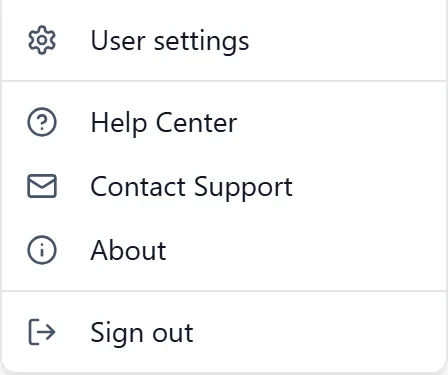
- In a browser: click your avatar at the top right of the header, then User settings. A Profile window opens with five sections down the side: Personal, Sign-in & security (your email, your password and two-factor, all in one place), Notifications, Certifications and Delete account. The same menu holds Help Center, Contact Support, About and Sign out. There is no Profile entry in the sidebar, so this menu is the way in
- On the phone: open the side menu (☰ in the top-left) and tap Profile
Your name, your phone number and your photo:
- In a browser: click your avatar at the top right, then User settings, then Personal. You can set a Profile Photo, your First Name and Last Name, a Display Name and a Phone Number, then click Save Changes. The photo has its own buttons: Upload image, then Replace image or Remove once one is there. PNG, JPEG or WebP, up to 5 MB
- On the phone: the same four name and phone fields are on the Profile screen, below your email, password and two-factor rows. A Save button appears at the bottom as soon as you change one of them. There is no profile photo on the phone, so add that in a browser
Your Display Name is the name your team sees beside you on tasks, comments and the people list. Without a photo, your initials are shown instead.
Your profession: Your profession (your trade) is yours. It starts as the one you chose when you signed up, and every project you are on shows it beside your name without anybody typing it again. It goes with you if you move to another company.
- In a browser: click your avatar at the top right, then User settings, then Personal. Pick one under Profession and click Save Changes
- On the phone: open the side menu (☰), tap Profile, tap the Profession row, pick one, then tap Save
- Clicking or tapping the one already chosen (in a browser), or None (on the phone), clears it
A different profession on one project: A project can call somebody something different on that one job, for instance a bricklayer who is the foreman there. It shows on that project only and does not change their profile. An admin of the project can set it for anybody, and you can set your own.
- On the phone: open the person from the People screen, tap the profession badge under their name and pick one
- In a browser: open the person from the People page and pick one under Profession
- The line underneath says whose it is: their own, from their profile, or set for this project, which also tells you what their own is
- To go back to their own: choose Use their own, at the foot of the list on the phone or in that line in a browser. The project then follows their profile again, including when they change it
- Somebody who has never set one shows no profession until they add it to their profile or the project sets one
- In the Add people list, each person shows with the profession you will see them under: what your other projects call them, or their own where those say nothing
Changing your password while you are signed in:
- In a browser: click your avatar at the top right, then User settings, then Sign-in & security. On the Password card, click Change Password. On the phone: open Profile and tap Change beside Password
- Type your Current Password, then the new one twice
- Press Update Password (Update password on the phone)
- You may then be asked for an Authentication Code. Type the 6-digit code from your authenticator app and press the button again. In a browser it now reads Verify and update
If it tells you the current password is wrong, that is the top box, not the new one. If you cannot remember it at all, sign out and use “Forgot password?” below instead.
Changing the email address you sign in with: Your email address is how you sign in, so we check the new one is really yours before we move you over. You keep signing in with the old address until you have typed the code in.
In a browser:
- Click your avatar at the top right, then User settings, then Sign-in & security
- On the Email Address card, click Change Email
- Enter the New Email and your Current Password, then click Send code
- You may then be asked for an Authentication Code. Type the 6-digit code from your authenticator app and click Verify and continue
- A screen headed “Confirm your new email” opens. The code goes to the new address, so open that inbox and type the 6 digits in. Resend code sends another, with a minute to wait between goes
On the phone:
- Open the side menu (☰) and tap Profile
- Tap Change beside your email address
- Enter the new email and your current password, tap Update Email, and type in the authenticator code if you are asked for one
- “Confirm your new email” opens. Type in the 6-digit code we sent to the new address and tap Confirm change
If you walk away before typing the code, nothing is lost. A reminder sits in the email part of your settings with Resend and Cancel Change on it. On the phone it has an Enter Code button too, and a small warning dot appears on the Profile row in the side menu. In a browser a thin strip also runs across the top until you close it with the X. Until you enter the code your account stays on the old address, so keep signing in with that one.
Forgot your password? It works the same way in both places. We email you a 6-digit code, you type the code in, then you set a new password. There is no link to click in the email.
On the phone:
- On the login screen, tap “Forgotten password?”
- Enter your email and tap Send Reset Link (the button still says link, but what arrives is a code)
- The next screen asks for the code. Type in the 6 digits from the email and tap Verify code. If nothing arrives, tap Resend code
- Enter your new password twice and tap Reset Password
In a browser at app.buildersai.co.uk:
- Click “Forgot password?”, which sits just above the password box on the sign-in card
- Enter your email and click Send code
- Type the 6 digits from the email into the boxes. Resend code sends another one, and “Wrong email? Go back” takes you back a step
- Enter your new password twice and click Update password
Analytics & Crash Reports, on the phone: You can opt in or out of anonymous usage data:
- Open the side menu (☰ in the top-left) and tap “App Settings”
- Find the Privacy section
- Toggle Analytics & Crash Reports on or off
Analytics & Crash Reports, in a browser: You are asked once, the first time you sign in. A card lists what we collect (how the app is used, error reports, device and browser information) and what we never collect (your messages, your SiteBot conversations, the contents of your files), and you click Accept Analytics or Decline. There is no switch in the browser settings to change that answer afterwards. To change it, use the mobile app, or email support@buildersai.co.uk.
Deleting your account, on the phone:
- Open the side menu (☰) and tap “Profile”
- Scroll to the bottom and tap Delete Account
- Read what will be deleted (your profile, certifications, check-in history, SiteBot conversations, project memberships) and what is preserved anonymously (in projects other people work on, the photos, files and work items you created stay, marked as “Deleted User”)
- Check your projects. A project nobody else works on is listed under Deleted with your account with the date: it is deleted when your account is, photos, drawings and files included. An archived one is listed under Kept: it stays in BuildersAI, and BuildersAI support can remove it or hand it to someone else
- If you’re the only admin of a project other people work on, it is listed with who can still manage it once you have gone: your company’s admins, or, where there are none, BuildersAI support, who can appoint a new admin. The project stays with the people on it. Tick the box to confirm you understand, and if someone else should run it, make them an admin before you start
- Check your company, if you run one on your own. When other people work in it, the screen says Somebody else has to run your company first and the deletion cannot go ahead until one of them is an Organisation Admin. That is done under All projects, People, in a browser or on the phone. When nobody else works in it, it is listed under Your company closes with your account: a plan paid through BuildersAI carries on until the date, then runs to the end of the month already paid for and stops, and one we invoice you for stops being invoiced
- Add a Reason for leaving if you want to (it is optional), enter your password, and tap Delete My Account
Deleting your account, in a browser:
- Click your avatar at the top right, then User settings, then Delete account
- Click Delete Account
- A project nobody else works on is listed under Your projects with the date it is deleted with your account, and an archived one is listed there as kept
- If you’re the only admin of a project other people work on, it is listed under You are their only admin, with who can still manage it, and you tick one box: “I understand these projects carry on without me as admin”. The project stays with the people on it. If somebody else should be running it, make them an admin before you start
- If you run a company on your own and other people work in it, it is listed under Somebody else has to run your company first, and Delete My Account stays off until one of them is an Organisation Admin. Choose who runs it opens the company’s people. If nobody else works in it, it is listed under Your company closes with your account, with what happens to its plan: one paid through BuildersAI carries on until the date, then runs to the end of the month already paid for and stops. Cancel it sooner opens the plan, if you would rather stop it now
- Enter your password, add a reason if you want to, and click Delete My Account
After requesting deletion, your account enters a 30-day grace period, and the email confirming it names the projects that go with your account, the ones that stay, and any company that closes with it. To cancel, sign back in and open the same Delete Account screen, then press Cancel Deletion in a browser, or Cancel Deletion Request on the phone. Cancelling keeps your projects and your company exactly as they were, because nothing is deleted or cancelled before the date. If other people start working in your company while you wait, the same screen says so: make one of them an Organisation Admin before the date, or the company is left with nobody to run it. After 30 days, deletion is permanent and the data cannot be recovered.