
Two-factor authentication adds a second step when you sign in: your password, then a 6-digit code from an authenticator app on your phone. It means somebody who has your password still cannot get into your account.
You need an authenticator app. Google Authenticator, Microsoft Authenticator, Authy and 1Password all work. Any app that does standard 6-digit codes is fine.
It is the same account either way, so set it up wherever you are. The two screens are not the same, though, so use the right set of steps.
Turning it on in a browser:
- Click your avatar at the top right, then User settings, then Sign-in & security
- Find Two-Factor Authentication and click Set up
- Enter your current password to confirm it is you
- A QR code appears. Scan it with your authenticator app. If you cannot scan it, the key is printed underneath: click the key to copy it, then type it into the app by hand
- Your authenticator app now shows a 6-digit code that changes every 30 seconds. Type the current one in
- Save your recovery codes. They are shown once, on this screen, and never again
Turning it on from the phone: There is no password step and no QR code on the phone. You get the key itself.
- Open Profile (side menu ☰, then Profile)
- Find Two-Factor Authentication and tap Set up
- Tap Set up authenticator app
- The key is on the screen. Tap Copy key and paste it into your authenticator app, or tap Open in your authenticator app to hand it straight over
- Your authenticator app now shows a 6-digit code that changes every 30 seconds. Type the current one in
- Save your recovery codes, then tap I’ve saved my codes. They are shown once and never again
Recovery codes matter more than people expect. They are one-time codes that get you in when you have not got your authenticator app: phone lost, phone replaced, app deleted, or you changed device and did not move your codes across. Save them somewhere that is not your phone. Printed and in the site office safe, or in a password manager. A screenshot on the phone that also holds the authenticator is no use when the phone is the thing that went missing.
Each code works once. You can get a fresh set whenever you want, and the old ones stop working the instant you do.
Getting new recovery codes:
- In a browser: click your avatar, then User settings, then Sign-in & security, then Regenerate recovery codes on the Two-Factor Authentication card. If a code box appears, type the current 6-digit code from your authenticator app in and press the same button again. The new codes are then shown once, with Copy and Download beside them. Download saves them as a small text file, which is the easy answer to “where do I keep these”: print it, or put it in a password manager. Press I’ve saved my codes when they are safe
- On the phone: open the side menu (☰), tap Profile, then tap New recovery codes under the Two-Factor Authentication row. Confirm, and the new codes appear on screen and go onto your clipboard at the same time. There is no download button on the phone
Turning 2FA off:
- In a browser: the same card has a Turn off button. If a code box appears, type the current 6-digit code in and press Turn off again
- On the phone: open Profile and tap Turn off beside Two-Factor Authentication, then confirm
Two things to know before you try either of those:
- You may be asked to prove you still have the authenticator app. If a code box appears and the app is gone, you cannot get past it. Use a recovery code to sign in first, which clears the old authenticator, or email support@buildersai.co.uk. The browser screen says the same thing under the code box
- If your organisation requires 2FA, there is no Turn off button at all. In a browser the card names the organisation in its place, along the lines of “Required by Smith Construction Ltd and cannot be turned off”. On the phone it reads “Required by your organisation”. New recovery codes still works either way
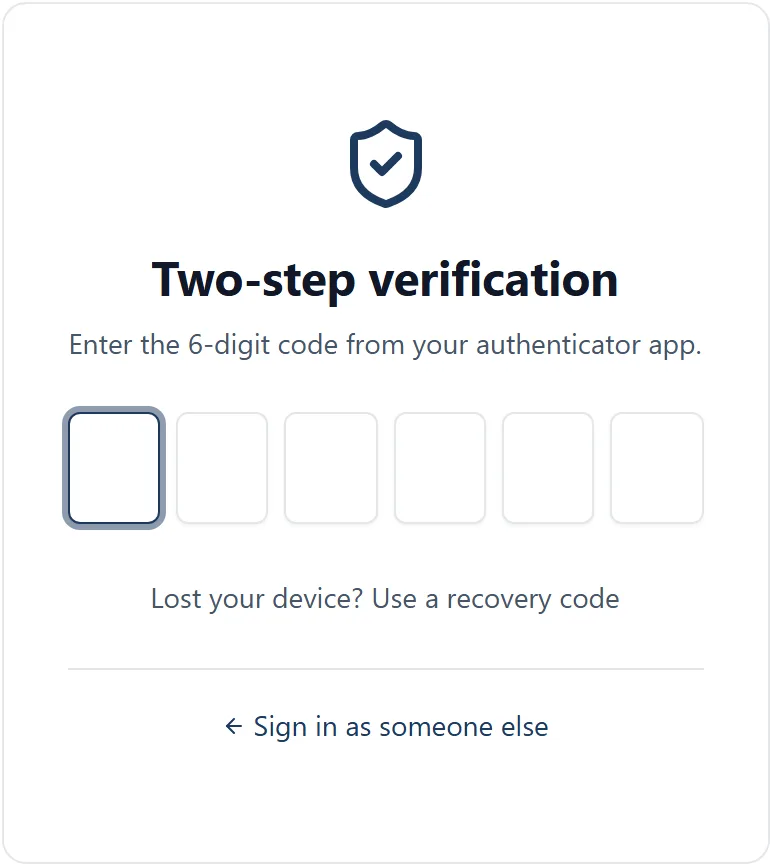
Signing in once it is on: Enter your email and password as normal, then you are asked for the 6-digit code. Open your authenticator app and type the current one. If you have not got the app to hand, use one of your recovery codes instead.
Lost your phone but still have a recovery code: You do not need us. On the screen asking for the 6-digit code, choose Lost your device? Use a recovery code and enter one. That removes the old authenticator, so you can pair a new one straight away. Each code works once.
Lost your phone and your recovery codes: Email support@buildersai.co.uk from the address on your account. We confirm who you are and then reset the second step for you, and you set up a new authenticator the next time you sign in. You cannot reset it yourself, and we cannot do it on request alone, because otherwise anybody who could talk their way past support could take an account off 2FA.
Two things worth knowing about a reset. Your authenticator app is removed and any recovery codes you were given are cancelled, so you get a fresh set when you set it up again. And a reset does not sign you out anywhere: if you are worried somebody else has your password, change it as well.
If your organisation requires 2FA: An organisation can make 2FA mandatory for everyone in it. It arrives in two stages, and the first is a warning rather than a wall.
Stage 1, the warning. A strip appears at the top of the app reading “Two-factor authentication will soon be required” and naming the exact date it starts (in a browser it names the organisation too). You carry on working as normal. In a browser the strip carries a Set up now button and an X to put it away; on the phone you tap the strip itself and it takes you straight to setup. Putting it away is not permanent, on purpose: it comes back the next time the app loads, because it is a deadline rather than a notice.
Stage 2, the wall. On that date, if you still have not set it up, you are stopped on the way in and have to do it before you can carry on. You cannot skip past it.
The block is on your whole BuildersAI account, not on one job. It covers every other project you are on, projects belonging to other organisations, and your own settings screens. Follow the steps above and it lifts straight away.
Worth planning for before you go on site: enforced 2FA needs a connection. Once the date has passed, the phone app will still open with no signal for 7 days after the last time you signed in with your 6-digit code. After that, opening it with no signal gives you “Connection required” and a Try again button instead of your projects. If you are heading somewhere with no coverage, open the app and sign in properly before you set off.
Turning 2FA on for a whole organisation (organisation admins):
- In a browser, find your organisation’s name at the top left, next to the BuildersAI logo, and click the small cog beside it. If there is no cog there, click the name to open the list, then click the cog on the row you want
- Choose Two-factor from the list down the left side, then find the Two-factor authentication card
- Turn on Require two-factor authentication. One more setting appears underneath it
- Grace period. Choose how long people get: Immediately, 1 day, 3 days, 7 days, 14 days or 30 days. The line above the box reads “Members are nudged until” and then the exact date, so read that back before you commit. Until that date people see a banner naming it and carry on working; after it they are stopped. Immediately locks out anybody who has not already set it up, the moment you save
- Click Save changes
On the phone: All projects, the cog on the organisation strip, then Two-factor. The same switch and the same grace periods. If you switch it on with Immediately and have not set up your own second step, the phone takes you to set it up at once.
How far it reaches. Everybody who is on one of the organisation’s projects, everybody on the organisation’s own people list, and its owners and admins. It then applies to their whole BuildersAI account rather than only to your jobs, so somebody who works for two firms is held to your rule everywhere, including in the other firm’s projects and in their own settings.
Editing the grace period later does not move a deadline that is already running. Once enforcement is on, changing the grace period stores the number for the next time it is armed and deliberately leaves the running date where it is, so nobody part way through their window loses it. The card tells you so, where the date normally sits. If you genuinely need to give everybody longer, switch enforcement off, save, then switch it back on with the longer period: that arms a fresh window for everyone, including anybody already locked out.
Two more things worth knowing before you switch it on:
- A one-admin organisation is allowed to turn this on, and that is worth naming. If you are the only administrator and you lose both your authenticator app and your recovery codes, the only way back for your whole organisation is BuildersAI support
- Arm it when the crew can get a signal. Once somebody is past their date, the phone app will not open offline unless they have signed in with a code in the last 7 days, so first thing on a site with no coverage is the worst possible moment
Common problems:
- “Invalid code”: the codes are time-based, so check your phone’s clock is set to update automatically. A phone a minute out generates codes the server rejects
- New phone: set 2FA up again on the new phone before wiping the old one if you can. If the old phone is already gone, use a recovery code to sign in, then regenerate
- Code already used: recovery codes work once each. Use the next one down