
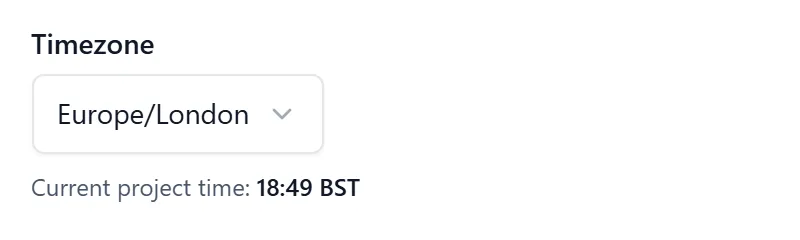
All dates and times in BuildersAI (check-in times, task due dates, attendance history, announcements) are shown in the project’s timezone, not your device’s local time.
Why this matters: If you’re a site manager reviewing check-in times from London but a team member checked in from a site in a different region, both of you see the same time in the project’s timezone. This avoids confusion when comparing records.
“Today” and “overdue” belong to the site too: A task is overdue once its day has passed on site, not where you happen to be standing. The same task reads the same way in the app, in the browser and on anybody’s screen: a saved view with “Overdue” ticked lists the same work for everyone, the My Tasks count in the side menu turns over at the site’s midnight rather than yours, and work due today is not called late because your device is hours ahead.
A date with no time on it is a day on site: Pick the 18th as a due date and it is the 18th on that project, whoever set it and wherever they were. A time is different. 9am on a task is 9am on site, which is a real moment, so it stays put.
How to change the project timezone (admins only):
- Open the side menu (☰ in the top-left corner)
- Tap “Project Settings”
- Find the “Timezone” field
- Tap it and select the correct timezone from the list (e.g., “Europe/London”)
- Your changes save automatically
Non-admins can see the current timezone displayed in Project Settings (read-only).
Common timezones for UK construction:
- Most UK projects: Europe/London (automatically adjusts for BST/GMT)
- International projects: select the timezone where the site is located
If dates or times look wrong, check with your project admin that the correct timezone is set.