
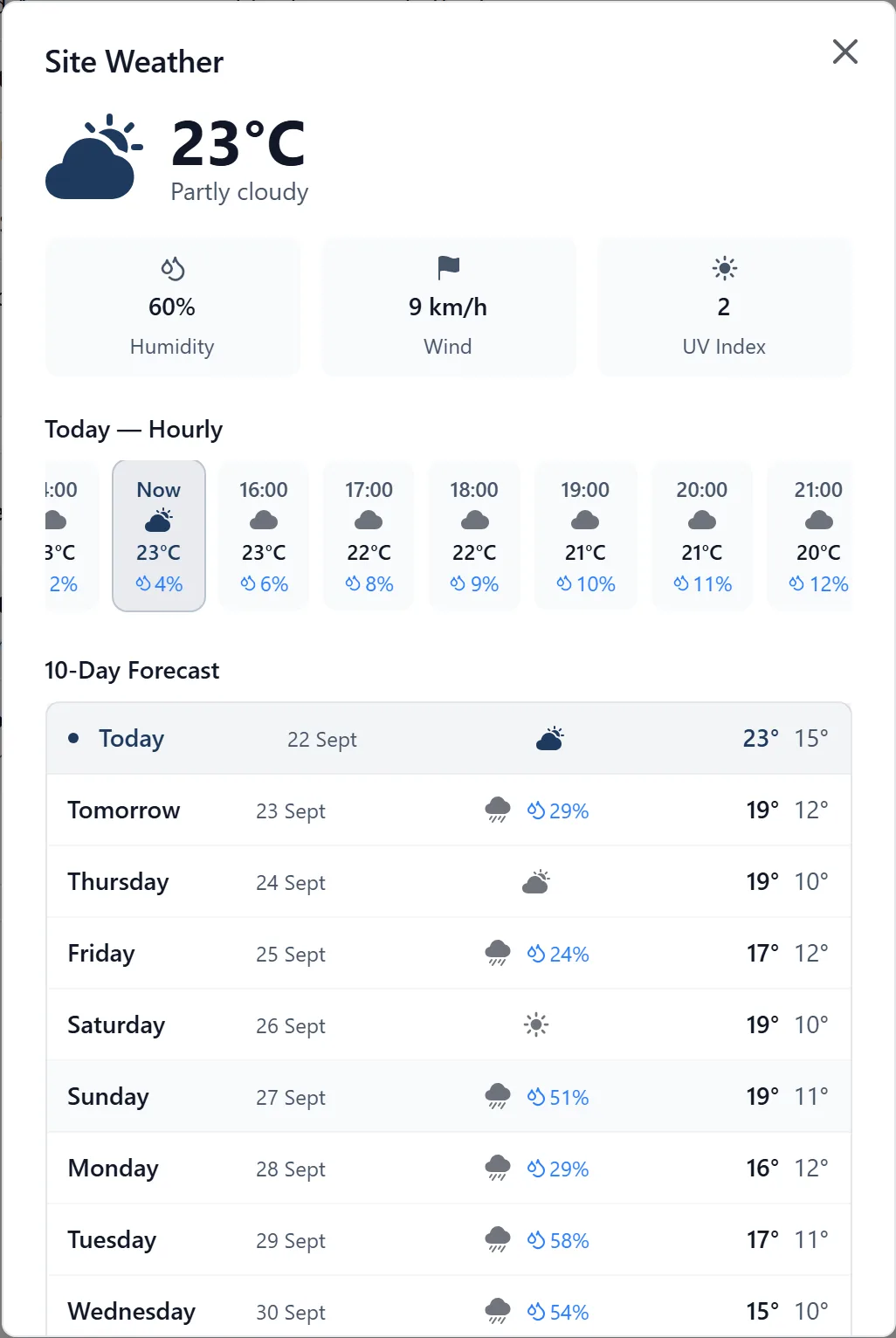
The app shows a weather forecast for your project’s location on the Home screen.
Where to find it:
- On the phone the weather is in the site card at the top of the Home screen (tap the house icon in the bottom bar), under the site’s address
- It shows the current conditions and today’s temperature for your site, with the next few days along the bottom
- Tap the weather to open the full forecast, including hourly and multi-day breakdowns, or tap one of the days to open the forecast on it. Tap the address above it to open the site in a maps app
- The full forecast opens on today’s conditions, then hour by hour for the day you have picked, then a 10-Day Forecast you can tap along to change day. Sunrise, sunset and the wind gusts for the day you have picked sit underneath
- The figures come from Open-Meteo, a weather service built on the national forecasters’ models, and every forecast says so underneath
- You can move the site card, or hide it: tap the sliders icon in the top right of Home and use Home layout. So it may not sit where these steps say it does
- In the browser the weather is at the top of the project Home page, in a sentence under the date: “22° and partly cloudy, rain from Wednesday”, so the one question most people have is answered without opening anything. Click the sentence to open Site Weather, which has the same hour by hour and ten day detail
How it works:
- The forecast is based on your project’s address and location coordinates
- If you see “Weather unavailable”, ask your project admin to add the project location in Project Settings
- The full forecast is headed “Site Weather”
Ask me:
- “What’s the weather tomorrow?” I’ll tell you the forecast for your site
- “Will it rain this week?” I’ll check the multi-day forecast
- “What’s the temperature on site today?” I’ll look it up for you
Ask me for a briefing: The most useful weather question is not really a weather question. Ask me for a briefing, or “what’s happening today”, and I put the day together in one answer:
- What is starting soon and is not ready to start, worst first, and what each job is waiting on. That is the part worth reading before anybody gets in a van. See the “prerequisites” topic
- What is overdue, and what is due and starting today
- The forecast, with the things about it that actually stop work called out: heavy rain, winds over 25 km/h for handling sheet material, over 40 for lifting and MEWPs, and frost for concrete, screed, render and mortar
- Whose cards are expiring or have expired, if you are a project admin
- Who was on site, and whether the site diary has gone quiet
One thing the briefing does not do: check your weather-dependent work. The task screen and the warnings do that (see below), but the briefing’s weather warnings are general. So when I say “the render on plot 4 is down for Thursday and Thursday is forecast wet”, I am reading two lists side by side rather than telling you the app has spotted a clash, and I will say so. Ask for a briefing first thing, while there is still time to move something.
You don’t need to navigate anywhere for the days ahead. Just ask, and I’ll answer with your site’s forecast.
Weather-dependent work:
Some work stops for the weather: a crane lift in a wind, a pour in the rain, render in a frost. You can mark that work so the task itself shows the forecast for the days it is planned, against the limits for that kind of work.
It works through labels. A project admin sets the limits on a label once, on the Labels page in a browser, and any task tagged with that label is weather dependent. A label can say three things:
- Gusts over a number, in mph, km/h or m/s. It is the gust that counts, not the average wind
- Needs dry weather: stops for rain
- Lowest working temperature, in °C, checked in working hours and through the night after, to 08:00, because a frost overnight is what spoils concrete, mortar and render
To set them, open the Labels page, click Edit on a label (or New label) and fill in the weather limits. Add a set on the same page has a Weather-sensitive work set with the common ones ready to go: Crane lift at 25 mph, MEWP work at 28 mph, Roof covering at 30 mph or rain, and Concrete pour, Flat roofing, External brickwork and External finishes, which stop for rain or cold. Change the numbers to your own, or to what your lift plan says.
Marking a task, in a browser: once any label in the project has weather limits, a task has a Weather section, under Labels. Click Mark weather dependent and tick the kind of work it is. It is the same as putting the label on under Labels.
Marking a task, on the phone: open the task and put the weather label on under Labels, as with any label. The Weather row under it then shows the check.
What the task then shows:
- “Over the limit on Tue 29 Sept”, in red, with what breaks the limit: “Gusts to 34 mph from 11:00 to 15:00, over the 25 mph limit”, or “Rain from 13:00 to 17:00 (3.5 mm)”
- A strip for each day it is planned, hour by hour, red where the limit is broken
- Or “No day over the limit in the forecast”, with the time the forecast was made
- Or why it cannot be checked yet: no date, the site location is not set, or it is further off than the check reaches (today and the next six days), in which case it is checked nearer the time
It checks the working hours, 06:00 to 19:00, or the task’s own time if it has one. On a job spread over several days it skips the days the site does not work. Today, it only looks at the hours still to come. An hour counts as wet at 0.2 mm of rain or a 60% chance, and a thunderstorm breaks any wind limit.
In a browser, weather-dependent work carries a small cloud on a board’s list and on My Tasks, red when a day is over the limit. On the phone the cloud is on the cards of a board.
Being told before the day comes:
You do not have to keep looking. The app checks the forecast for weather-dependent work four times a day, at 07:00, 11:00, 15:00 and 19:00 on site, and tells the people on the task by a push to their phone:
- The first time a day goes over the limit, up to a week ahead: “Lift module 3 on Tue 6 Oct: gusts to 34 mph forecast from 11:00 to 16:00, over the 25 mph limit”. That is the time to move a crane booking or a gang. You are told once for each day, however often the forecast changes its mind after that
- At 3pm on the last working day before, if that day is still over: “Lift module 3 tomorrow: gusts to 31 mph forecast, over the 25 mph limit”. On a Monday to Friday site, Friday afternoon covers the weekend and Monday. Nothing is sent if the forecast has come back under the limit
- It goes to the people on the task. If nobody is on it, it goes to the project’s admins instead
- It also shows on your Home, under Needs you, as “Check the weather for Lift module 3: over its limit on Tuesday”, for as long as the forecast says so. Tap it to open the task
Every warning names the day, the number and the limit, and it is still a forecast. Nothing is sent from a demo project. The warnings come under the Task assignments switch in your notification settings, with the other news about your own work.
The app keeps a record of each check: the first time a task’s day was looked at, and every time it went over or came back under, with the forecast behind it and when that forecast was made. It is part of the project’s data export.
It is a warning, not a decision. The forecast is for 10 m above the ground, and a crane hook or a roof edge can be windier. Whether a lift goes ahead is decided on the day, on site, by the people responsible for it. The app never calls a day safe.
How far ahead I can see, and how far back:
- I can see today and the next six days, hour by hour for the first 24 hours. Ask me about a fortnight on Friday and I have nothing for you
- The screens go further than I do: the full forecast, on the phone and in the browser, runs to ten days
- I have no record of the weather on a day that has gone unless it was written into the site diary at the time. For a past day in the last two months, open the Site Diary and pick the day: the weather for that day is shown on it. Further back, the diary has the weather only for the days somebody wrote up, as it was recorded then. If somebody wrote that day up, I can read it back to you
Who can do what:
- Everybody on the project can see the forecast and ask me about it, whatever their role
- The site diary is admins and members only, so a follower cannot look up what the weather did on a day that has gone
- Only an admin can set the project location, and the forecast is worked out from it
- Only an admin can set the weather limits on a label. Admins and members can mark a task weather dependent, and everybody sees the check