
Times get recorded wrong: a check-out somebody forgot, a phone that caught the site as it drove past, an arrival that went in at the wrong hour. Putting one right is a different job from recording it, and it is not everybody’s to do. An admin of the project changes a recorded time directly, their own included. Everybody else asks, and an admin decides. An administrator decides, in the browser or on the phone. Either way the change is written to the corrections log. Checking in and out, the Site Presence dashboard and the hours reports themselves are the “site_attendance” topic.
What the warnings on the hours are telling you: Three things go wrong with a recorded day, and they do not cost you the same thing.
- Checked in and out more than twelve hours apart. The time is counted in full. Worth confirming it was a real day rather than a check-out somebody forgot
- A check-in with no check-out. Nothing says how long they stayed, so that day counts no time at all until somebody supplies the departure. A check-in becomes one of these once it has been open longer than the site’s check-out cut-off, which is 12 hours unless a project admin has changed it in Project Settings (see the “project_settings” topic). Until then the person simply shows as on site
- A check-out with no matching check-in. That counts no time either, and it is the one to watch: a day counting zero looks exactly like a day the person was never there
The warnings sit with the totals rather than under the table, and the export carries the same sort of note at the top of the file along with the dates it covered, because a spreadsheet outlives the screen it came off. The reports these warnings appear on, and the Export itself, are in the “site_attendance” topic.
Have the broken ones emailed to you each morning:
- Click your avatar at the top right, click User settings, then Notifications
- Turn on Email notifications. That is the master switch, and nothing is emailed while it is off
- Turn on Daily time corrections
Each morning you then get the check-ins with no check-out and the check-outs with no check-in, across the projects you administer. There is a shortcut too: when the hours report is warning you about records like these it offers “Email me daily”, which turns the same thing on in one click. On the phone the same shortcut is on All projects, Time, Time on site. The switch itself is still in the browser.
Your own check-out on the day is not a correction at all. If you are still checked in from earlier and the card is asking whether you are still on site, the button on your own card has already become “Fix check-out time” on a phone, “Fix Check-Out” in a browser. Set the time you actually left and nobody has to approve it. That one is in the “site_attendance” topic.
Forgot to check out (admins only):
- If a worker forgot to check out, an open session shows up in their timeline as ongoing with “Forgot to check out?”
- Open the worker’s timeline (from their profile or the Site Presence dashboard) and tap “Fix check-out time” on the open session: set the actual departure time and save
- You can also use Edit arrival time or Edit departure time on existing sessions if a value is wrong (departure must be after arrival)
Letting somebody correct their own times without asking: If the same person fixes their own times most weeks and you are tired of approving it, you can let their corrections apply on the spot.
- Open the project’s People page in a browser and click that person
- Find the Timesheet corrections card
- Click “Trust corrections”. The button then reads “Require approval”, which puts them back to asking
On the phone: All projects, People, the person’s Permissions, then Trust corrections.
Two things about it that catch people out:
- It is set for the whole organisation, not for this job. Their corrections then apply straight away on every project in that organisation, including sites you have nothing to do with
- It does not switch off the record. Their change is still logged with who, what and why, and the request is marked as applied without review. Nobody is notified about it, because there is nothing for anybody to decide
Only an owner or an admin of the organisation can grant this. Being an admin of the project is not enough, and if you are not one the card is not there. You cannot turn it on for yourself either.
The corrections log: who changed whose hours, and why: Open All projects, click the Time tab, then “Corrections log”. Every change to recorded times in the organisation chosen at the top is in there, however it was made: a correction somebody asked for and an admin approved, a trusted person’s own change, or an admin editing a time in place.
- Filter by what happened: Times changed, Added, Discarded, Restored, Deleted
- Filter by where it came from: “From a request” (somebody asked and it was applied) or “Made directly” (an administrator changed it in place)
- Search the reasons people gave, and narrow it to a range of dates. The dates are your own calendar days, and each row names the day of the reading it changed
The log is written by the system itself rather than by whoever made the change, so an hour cannot move without a line appearing here. That is what makes it worth reading in a pay dispute or a claim. You see the log for the projects you administer.
If your own recorded time is wrong (members): You cannot change a recorded time yourself, because it feeds a timesheet and a timesheet feeds pay. You ask instead, and an admin decides. (An admin of the project does not have to ask: they change their own times the same way they change anybody’s.)
- Open your own profile: on a phone, tap the People icon in the bottom bar and tap your own name. In a browser, open the People page and click your own name
- Find the day on your Site Presence timeline. On a phone, tap the time that is wrong: it has a small question mark beside it. In a browser, click “Ask to correct” on that row
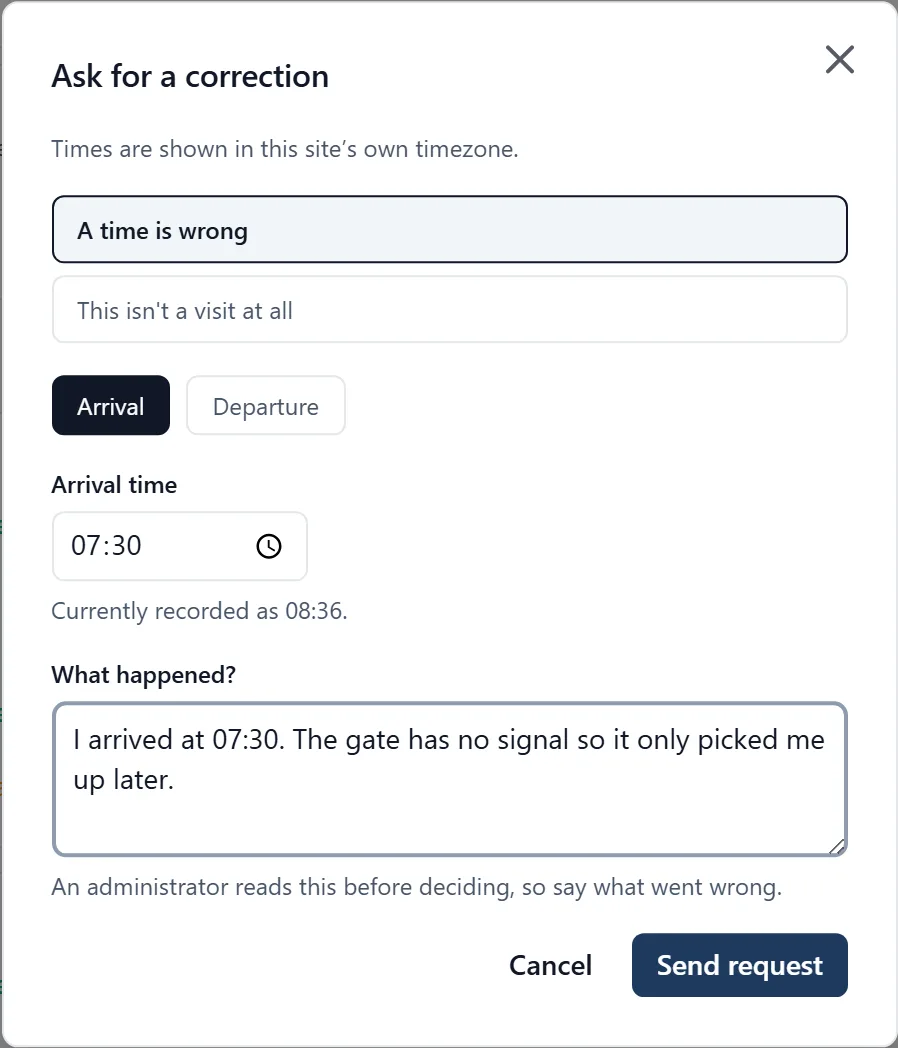
- Say what is wrong. In a browser there are three answers: “A time is wrong”, “My departure was never recorded” (only offered when that session has no departure) and “This isn’t a visit at all”, for a reading that should never have counted, such as your phone catching the site while you drove past. On a phone you can ask for a time to be changed, and the other two are a browser job
- Set the time it should be (a discarded reading needs no time), then write what happened under “What happened?”. The reason is required, because an admin reads it before deciding
- Send it with Send request. The button stays greyed out until you have given a reason, and a time that is different from the one recorded where you are changing one
The screen then tells you which of two things happened, and they are not the same thing:
- “Sent to an administrator for review.” Your recorded time does not change while the request is waiting. An admin of that site either approves it or turns it down, and they get a notification on their phone
- “Your time has been corrected.” Your organisation has given you standing trust, so it applied on the spot. It is still recorded against your name
Discarding a reading deletes nothing. The reading stays on the record, marked as not counting.
Asking needs a connection, unlike checking in and out. In a dead spot it will not send until you have signal.
Following up on what you asked for: Open All projects, click the Mine tab, then “My corrections”. Waiting, Approved, Rejected and All are separate tabs. They are your corrections in the organisation chosen at the top, and a line over the list says when more of yours are waiting in another. While a request is still waiting you can click Withdraw and take it back, which is the right move if you asked in error rather than leaving an admin to work it out. When it is decided you get a notification and an item under the bell. On the phone this is for administrators: All projects, Mine, My corrections. Open one to read what was decided, or to Withdraw it while it is still waiting. Everybody else follows up in a browser.
Deciding somebody else’s request (admins): In a browser or on the phone. The push about a request opens the list on the phone.
- Open All projects and click the Time tab
- Click “Requests to decide”. The chip carries the number waiting on you in the organisation chosen at the top
- Each row names the person, the job, what they are asking for (change a time, add an arrival, add a departure, discard a reading), the time they want, and their reason in full
- Type a note if you want to explain the decision, then click Approve or Reject
Approve writes the change into the record. Reject leaves the time as it is. Either way the person is told, so they are not left checking.