
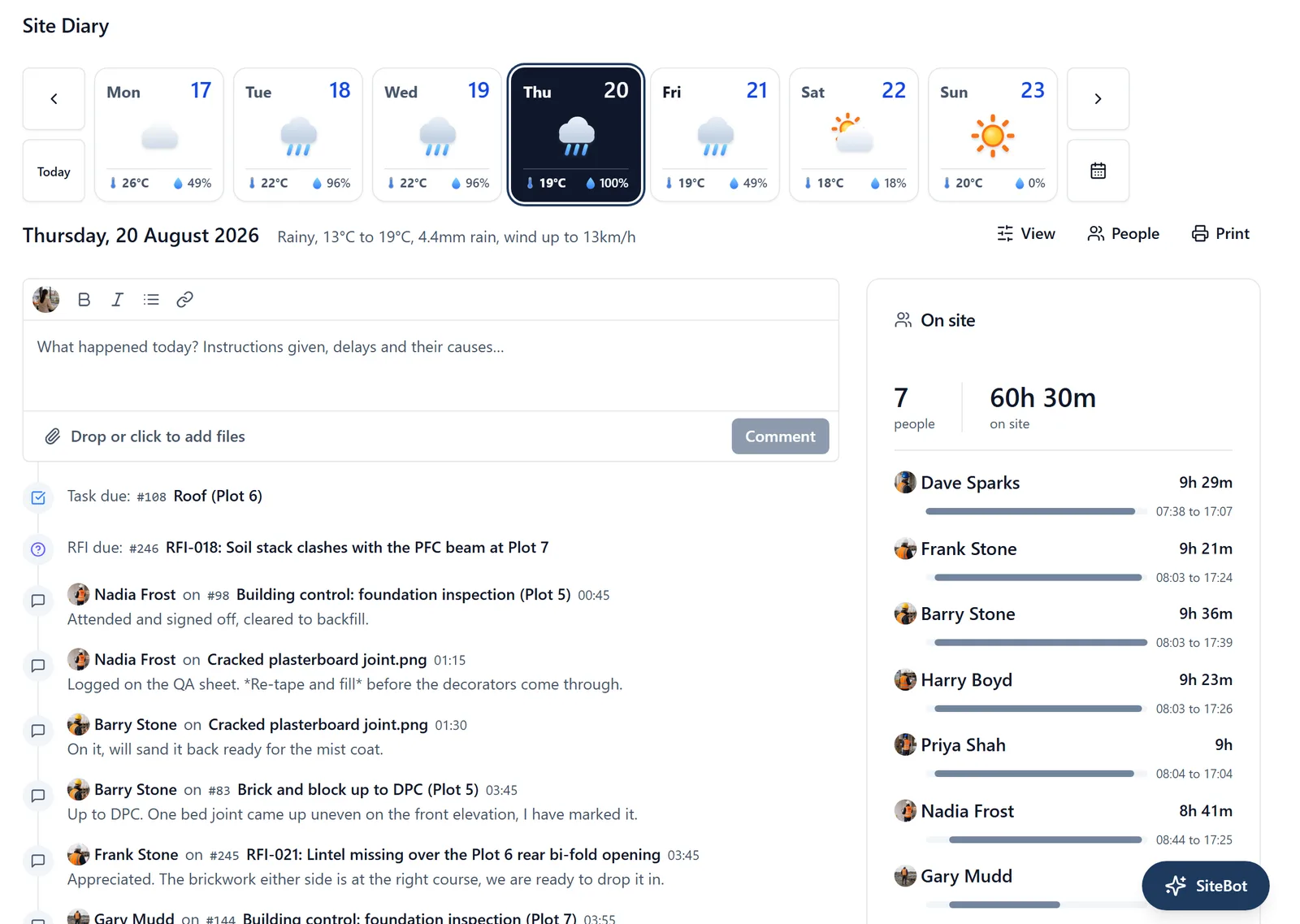
The Site Diary is the project’s day-by-day record: one page per day showing what happened on site. It is on both the mobile app and the web app, reading and writing the same record, so a day written up on a phone on site is there in the browser at the office, and the other way round.
Where to find it:
- On your phone: open the side menu (☰ in the top-left) and tap Site Diary, or tap it under the shortcuts on Home. When a day with people on site was never written up, Needs you on Home says so and takes you to that day, and when a recent weekday has nothing on it, it asks an admin whether the site was closed
- In a browser (app.buildersai.co.uk): open Site Diary in the left-hand sidebar. In a brand-new project it sits under More until the project is set up. On Home, Today on site links to it and Needs you asks the same
What is on a day:
Most of the diary fills itself in from things the team is already doing. You do not fill in a form. One day’s page shows:
- No work carried out, first of all, when the day was recorded as one: why, the note, and who recorded it (see “When no work was carried out” below)
- The weather for that day, along the top, with each day of the week in a strip you tap or click to move between days. Each day in the strip carries its own weather, so which days it rained is visible at a glance. The strip reaches back about two months. Further back than that, a day shows the weather it was written up with, and none if nobody wrote it up
- On site: who was there, with the time each person arrived and left, their hours, and the total for the day
- Visitors: people who are not on the team, signed in at the gate: building control, the client, the HSE, a delivery driver, the architect. Each with who they are from, why they came, when they arrived and left, and who they came to see
- Due: what was due that day (deliveries, inspections, tasks). A delivery, an RFI or an inspection also carries its own facts after its name, such as “(Ibstock, Part delivered)”: see the “working_on_a_task” topic
- Raised: RFIs, issues, snags and tasks added that day
- Completed
- Status and date changes: including anything marked Blocked, and any date that slipped past its programme baseline. The slip is measured against the baseline in force on that day, so re-baselining the programme later never changes what a day already says. A task added after the last baseline was taken has none to slip past
- Booked ahead: work booked in that day for a later date
- Photos, and Files and drawings, added that day. A photo posted with a diary entry is also in the Gallery, on the phone and in a browser, labelled as from the Site Diary
- Drawing markup made that day
- Said on tasks and drawings: what people said in comments on tasks and drawings that day, so a conversation held on a snag still appears in the day’s record
- Announcements posted that day to everyone on the project. An announcement sent only to people the admin chose is left out of the diary for everybody, including the people it went to, so the diary reads the same whoever opens or prints it
- The written record: what people typed up about the day, in their own words
Everything sits in one list in time order, oldest first unless you change the order, so a day reads start to finish rather than as a set of separate lists.
When somebody stops work on a task: Set a task’s status to Blocked from the task itself, and you are asked one question: “Why has work stopped?”. Type a sentence, for example “waiting on the architect’s answer to RFI 014, nothing on the rear elevation until it lands”. It goes onto the diary against today, next to the change of status, in the words used at the time.
- In a browser, open the task and click the status pill. On your phone, open the task, tap Edit, pick Blocked, then save
- You are asked once, on the way into Blocked, not every time the task is opened afterwards
- You can skip it. The task still moves to Blocked, and the day shows it as blocked with no reason given rather than making one up
- Keep it to a sentence or two. There is room for 500 characters
- The shortcuts do not ask. In a browser, dragging a card into the Blocked column or right-clicking the circle beside a task sets Blocked on the spot. So does holding that circle down on your phone. None of them record a reason, so open the task itself when the reason matters
- When work starts again and the task leaves Blocked, the reason comes off the task, because an old reason sitting on running work reads as a live problem. What went on the diary that day stays on that day
Log activity, from Home on your phone: The quickest way to put your day in the diary, for anybody on the team who does not want to learn the rest of the app. On the phone’s Home, press Log activity and fill in whatever applies:
- What did you do? A line is plenty: “First fix plumbing, plots 3 and 4”
- Photos: take them there and then or choose them from your phone
- Anything hold you up? Tap what it was (weather, materials, access, plant, labour, information, instruction or other) and add a line if you want to: “No copper on site until 11”
Then press Add to today’s diary. It goes into today’s site diary under your name, and the photos go into the Gallery like any other site photo, on the phone and in a browser. It asks for no hours and never will: it is for saying what happened, not for timesheets. It works with no signal too: the entry is kept on the phone and reaches the diary when you next have signal, and the line under the button says so until it has. Under the button Home then says when your last entry went in, so you know it is there.
Log activity is for members and admins, like the rest of the diary. Anybody who records their work on a job needs to be a member of it, not a follower.
What held somebody up: An entry that says what held its writer up shows it set apart under the entry, in amber: Held up: Materials and their words. It is a flag, not a delay: it says nothing about how much time was lost, because the person logging it was never asked. In a browser, an admin or member reading the day can press Record as a delay on it. That opens the delay with the cause and the words already filled in, and you add the time lost. Once a delay on the same day says the same thing, the entry shows In the delay register instead of the button. See the “delay_register” topic.
How to write in the diary:
- Open Site Diary and pick the day (the week strip at the top, the arrows for other weeks, or the calendar button)
- Go to the box at the bottom of the day. On the phone it stays pinned below the day and reads “What happened on site?”
- Type what happened. On the phone, tap the camera button to attach photos or videos, taken there and then or chosen from your library. In a browser you can also @mention someone, reference a task with # and its number, and attach photos or documents by dragging them in or clicking to add files
- Post it: the send arrow on the phone, or Comment in a browser
On a phone it is the same box with fewer trimmings: type what happened, tap the camera icon to add a photo, then tap the send icon. @mentions and # task references are the browser’s.
It is a thread, not a single box: several people can write up the same day and nothing overwrites anyone else. Each entry shows who wrote it and when.
Writing up a day afterwards: You can write into today or any past day. If an entry is written on a different day from the one it is filed against, it is labelled (for example “filed 3 days later”). That is deliberate: a note written at the time carries more weight than one written the following week, and the diary should not hide the difference.
When no work was carried out: On a weekday when nobody checked in and nothing was written, the day asks “Was the site closed?”, and the answer (rained off, a bank holiday, a shutdown) is recorded against the day with its reason. How that works, and why it matters in a delay claim, is its own topic: see the “no_work_days” topic.
Future days: You can look at days that have not happened yet to see what is booked in, but you cannot write in them. For something that needs doing on a future day, create a task or a reminder instead.
Finding a day, and searching what was written:
The week strip at the top moves you between the days of one week, and the arrows either side of it move a week at a time. To go further back than that, use the calendar button at the right-hand end of the strip, under the forward arrow. It opens Find a day, which does two jobs.
Browse the month. The whole month as a grid, with a dot on every day somebody wrote up. The arrows either side of the month name move a month at a time. The dots are the point of it: you can see which days are worth opening before you open one.
Search what was written. The box at the top searches every day of this project, not only the day you happen to be on. Type two letters or more and the results replace the month grid. Each result shows the date, who wrote it, and the words that matched, and a line above them says how many entries were found and how many days they are spread across. Tap or click a result to go straight to that day.
Four things worth knowing about the search:
- It searches what people wrote, and nothing else. Photos, deliveries, check-ins and status changes are put together for each day as you open it, and are not stored as words anywhere, so there is nothing in them to match. The panel says so under the results
- It matches whole words. Search for “concrete”, not “conc”
- The closest matches come first, and a common word comes back trimmed to the best thirty. Two words find a day faster than one
- On the phone the calendar and its dots work with no signal. The search needs a connection, because it asks the server across every day of the project
Choosing what you see:
- In a browser, click the View button next to the date for a checklist of the kinds of entry (written record, on site, due, raised, changes, completed, photos, files, announcements and so on) and turn any of them off. Order, in the same menu, switches between oldest first and newest first. People, next to View, lists whoever appears in that day and lets you hide anyone, which is how you read one subcontractor’s day out of a busy one
- On the phone, tap the funnel icon in the top-right. One sheet holds all three: the kinds of entry, the order, and the people. Each row shows how many entries it would hide
The kinds and the order are remembered for you, on every day you open, until you change them. The people filter is not remembered: it answers a question you had once, and keeping it would mean opening the diary tomorrow to a day that silently omits most of what happened.
If anything is hidden, the diary says so, so you can always tell you are looking at part of a day rather than all of it. In a browser the View or People button turns amber and reads “Showing 12 of 26”; on the phone the funnel icon fills in and the day says how many entries are hidden. Click Show the whole day in the browser menu, or Show all on the phone, to clear it.
On the phone, with no signal: The whole day reads offline: who was on site, what was due, raised and completed, photos and files, what people wrote, the delays, and whether no work was carried out. You can write with no signal too. An entry and its photos, a delay, and a day with no work are kept on the phone and reach the diary when it next connects, as a check-in does. If the project refuses one when it arrives (because you have since been taken off the job, say), the phone tells you rather than letting it disappear.
Three things need signal, and the day says so: searching across days, the lines for a task’s status or date changing, and the weather forecast. A day written up with none gets its weather from the next entry posted with some.
Reading one person’s day out of a busy one: Next to View is People. It lists whoever appears in that day, and unticking a name hides what that person did. That is how you read one subcontractor’s day out of a day when thirty people were on site. In a browser there is a search box at the top of the list for a big crew. Like View, the button turns amber and names the count (“3 of 8 people”) as soon as anybody is hidden. On a day nobody appears in there is nothing to narrow by, so the button is not there at all.
Two things about People catch people out. Entries that name nobody stay put: a due date, a completion and an announcement belong to the day rather than to a person, so they are still there with everybody unticked, and the menu says so. And unlike View, this choice is not remembered. Leave the diary and come back and the whole day is shown again. That is deliberate, because a people filter that quietly survived until tomorrow would hide most of a day without telling you.
On the phone all three sit in one place. Tap the funnel icon in the top-right corner of the Site Diary screen to open Filter the day: the kinds of entry, the order, and the people, in one sheet. The funnel fills in solid while anything at all is hidden. A line under the day counts what the kinds are hiding and names them, so if you have only unticked people the funnel is the one thing telling you.
Visitors who are not on the team: Building control, the client, the HSE, a delivery driver, the architect: people on site who are not members of the project are signed in on the day’s Visitors card, beside On site in a browser and above the day on the phone. Each visit is a row in the day at the time they arrived, it prints with the day, and Visitors in the View menu shows or hides them like any other kind of entry. Signing somebody in and out, correcting a visit, the roll call and inductions are all in the “visitor_register” topic.
Who can see it: Members and admins only. Followers (clients, visiting subcontractors) cannot see the diary at all, because it carries labour hours, delay causes and what was blocked. On the phone the Site Diary entry does not appear in a follower’s side menu. The visitor register follows the same rule: a follower is not shown it, because a list of who visited, with their phone numbers, is not theirs to read.
Admins also see a certification check: anyone who was on site that day holding a certification that had already expired. This is only shown to admins, on the phone and in a browser alike.
Printing a day (browser only):
- Open the day you want
- Click Print, at the right-hand end of the row holding View and People
- Your browser’s print box opens, so you can put the day on paper or save it as a PDF
It prints the day as it stands on screen. The sidebar, the week strip and the buttons at the top are left off. The top of the sheet carries the project name (and its code, if it has one), the date, and the time you printed it, so the page stands on its own once it is in a file.
If View or People is hiding anything, the print says so at the top, in a box reading “This is a filtered copy of the day” that names what was left out. That is there so that part of a day cannot be passed off as the whole of it. When you want the whole day, clear the filters first: neither button should be amber.
There is no Print on the phone. Open the day in a browser when you need a copy.
Why it matters: A diary is the record you reach for months later, in a delay claim or a dispute over what was agreed. That is why it records who wrote what and when, why an edited check-in time is flagged as edited, and why a late entry says so.