
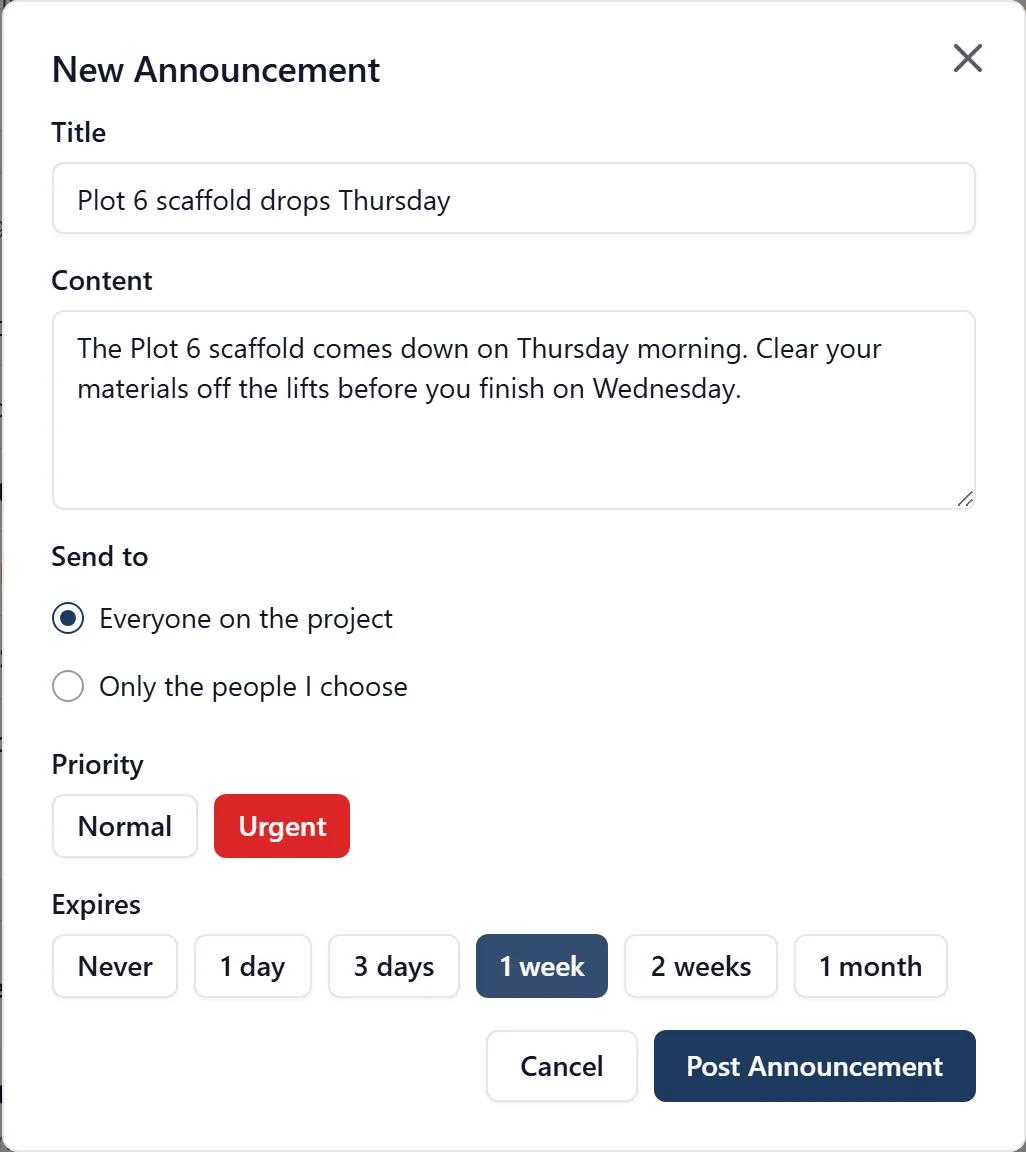
Admins can post announcements to everyone on the project, or to just the people they choose.
How to read announcements:
- Announcements appear on the Home screen (house icon in the bottom bar)
- Urgent announcements are shown with a highlighted “URGENT” banner on the Home screen
- You also get a notification: the bell in the top-right corner in a browser, or Notifications in the side menu on your phone
- Tap or click one to read the whole thing. The Home screen and the notification list both show the first line or two; opening it gives you the full text, who posted it, and whether it has been corrected since
- An announcement sent only to some people carries a Selected people label, so you know it was not sent to the whole job
Creating an announcement (admins only):
- Open the side menu: tap the three-line icon (☰) in the top-left corner
- Go to Notifications, then tap the “Announcements” tab
- Tap the round + button or “New Announcement”
- Type a title and the announcement text
- Under Send to, leave Everyone on the project, or choose Only people I choose and tick who it is for
- Optionally mark it as Urgent: urgent announcements are highlighted and send high-priority notifications
- Tap “Post”
- Everyone it was sent to gets a notification
Sending to some people, not the whole job: Not everything is for everyone. A reminder about one trade’s method statement, a word with the two subcontractors on the east elevation, a note to the people who will be on site on Saturday: choose Only people I choose and tick them.
- Only the people you tick get the notification, and only they and you can see the announcement at all. It does not appear in anybody else’s notifications or Home screen, on the phone or in a browser
- It is left out of the site diary for everybody, because the diary is the shared record of the day and it should read the same whoever opens it
- You are not in the list yourself. You always see what you sent
- Who viewed lists exactly the people you sent it to, with who has opened it
- In a browser the same choice is under Send to in the New Announcement dialog, from the project’s Home page or from Notifications
- Posting needs an internet connection either way, and you need at least one person ticked before Post will go
Announcements that clear themselves: An announcement can be given an expiry when you post it. It then drops off the Home screen and out of everybody’s notifications on its own when its time is up, so nobody has to remember to take it down.
- On your phone it is Auto-expire after, on the same screen where you type the announcement. The choices are No expiration, 1 day, 3 days, 1 week, 2 weeks and 1 month
- In a browser you get the same choices under Expires in the New Announcement dialog, whether you post from the project’s Home page or from Notifications
- The clock starts the moment you post it, so “1 week” means a week from now
Use an expiry for anything with a date attached: Thursday’s road closure, a delivery window, a visit. Leave it on no expiry for something that should stand until an admin takes it down, like a site rule. A notice about one day’s closure still sitting at the top of everybody’s Home screen a fortnight later is what the setting is there to prevent.
An expired announcement is hidden, not destroyed. If it was sent to everyone, it still appears on the site diary against the day it was posted, so the record of what the team was told stays whole.
Or ask me: “Post an announcement that the site will be closed on Friday”. I’ll read the announcement back to you first, and the app will not let me post it in the same reply, so you get a turn to say “cancel”. When I post one it goes to everyone on the project; to send one to chosen people, use the New Announcement screen. I can correct one you have posted as well, on the same terms as the Edit button below: no new notification goes out, and I cannot change who it went to.
Who has read it: Every announcement keeps a record of who has opened it, and that is what makes it a record rather than a shout. If the people who needed it have not opened it, you know to go and say it face to face.
In a browser, from the project’s Home page: click the three-dots button on the right of the announcement and choose Who viewed. You get the counts (viewed, not viewed, total), then everybody it went to, each with the date and time they opened it, or “Not viewed” against anybody who has not. Click a name to open that person on the People screen.
Home shows in full the announcements you have not read yet, and any urgent one while it stands; the rest are folded under a line reading “N earlier, read”, which you click to open them out. For an older one that has expired, open the bell and then See all notifications: click the announcement to read it in full, or hover over it for the Who viewed button on the right. That list is shorter, a “3 of 8 viewed” line and then the names, with a time against the people who have opened it and nothing against those who have not.
On your phone: open the side menu (the three-line icon in the top-left corner), tap Notifications, then the “Announcements” tab, and tap Who viewed on the announcement, or open the announcement and tap Who viewed at the bottom. You get Viewed, Not Viewed and Total, then each person with the time they opened it. On the phone the button is only on the announcements you posted yourself. To check one somebody else posted, use a browser.
Correcting one you have posted: A time changes, a gate number is wrong, a date moves. You can correct an announcement you posted yourself, and it does not send everybody a second notification.
- In a browser: open the announcement and click Edit, or use the three-dots button beside it on the Home page. From Notifications, hover over it and click Edit
- On your phone: open the side menu (☰), tap Notifications, open the announcement and tap Edit at the bottom
- Or ask me: “change Friday’s announcement to say 0900”. I read the correction back before making it
- You can change the title, the text, whether it is urgent, and when it expires. The expiry starts again from the moment you save, so choosing “1 week” on something posted three days ago means a week from now. Leave it on Leave as it is to keep the expiry you already set
- Who it went to cannot be changed. To reach different people, post another announcement
What happens when you save a correction: Nobody’s phone buzzes again. Instead the announcement goes back to unread for everybody who had already read it, so it comes back to the top of their Home screen and their notifications with the correction in it. Anybody who had not read it yet simply sees the corrected version.
- The announcement is marked Edited, and opening it says when you corrected it, so nobody has to guess which version they are looking at
- Who viewed is not wiped. It still shows who had opened the original, which is the record that matters if somebody acted on the first version
- You do not get your own announcement back as unread. You wrote the correction
If a correction genuinely needs to interrupt people, post a new announcement as well and mark it urgent. Editing is for putting the record right, not for raising the alarm twice.
Who can do what:
- Only admins can post announcements
- You can edit and delete the announcements you posted yourself. An announcement carries your name, so another admin cannot rewrite or remove it. If somebody has left, an announcement of theirs stays up until its expiry
- Admins can see who has read an announcement in a browser. On the phone you see it for the ones you posted yourself
- Members and followers can read the announcements sent to everyone, and the ones sent to them