
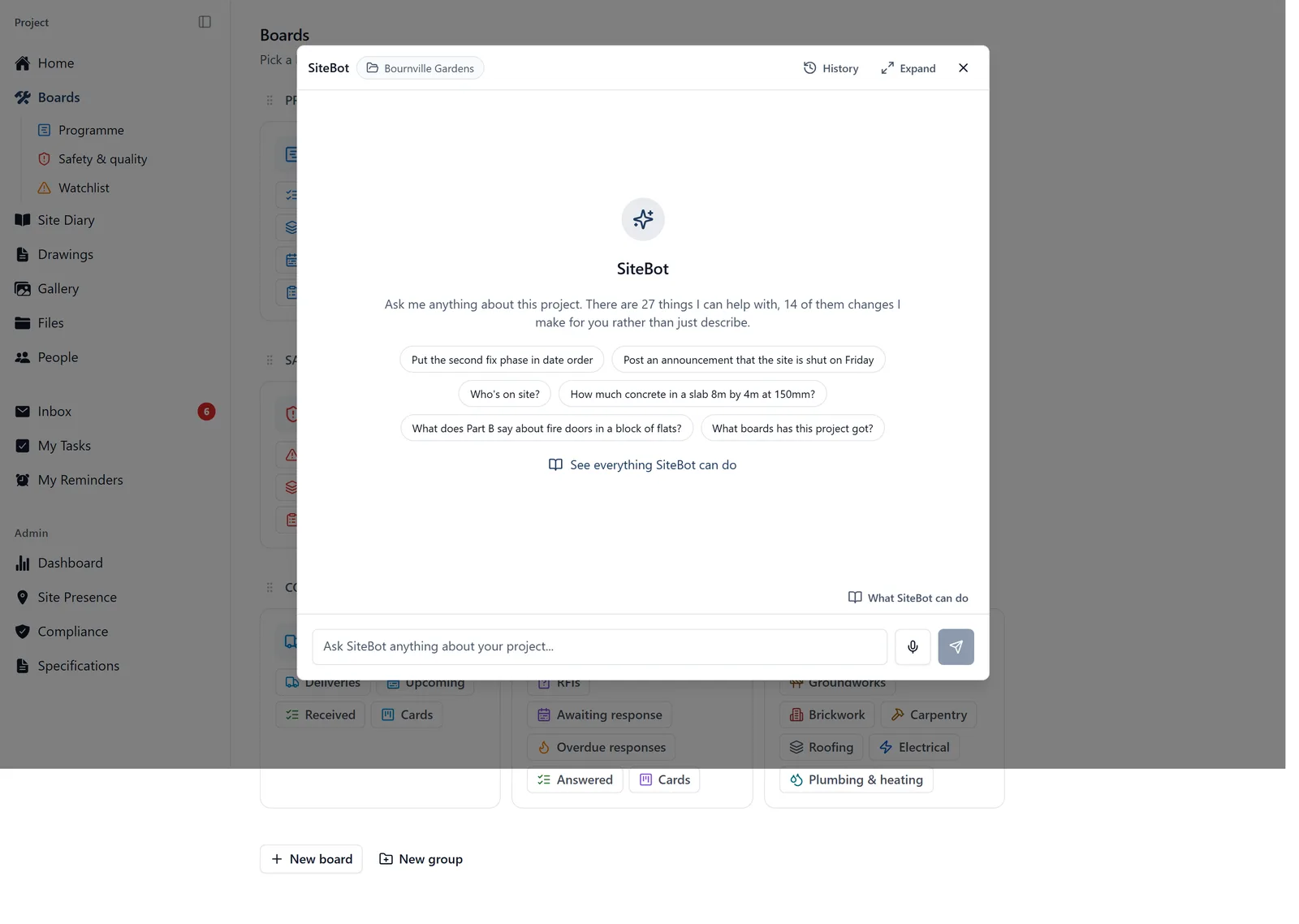
I’m SiteBot, your assistant. I can help you manage your project, look up information, and explain how the app works.
How to find me:
- On the mobile app, tap the “Ask SiteBot” button on the Home screen
- In the browser, click the “SiteBot” button in the bottom right corner of any project page
- In the browser, outside a project, that same button reads “SiteBot, all projects” and opens a chat about the projects you are on in one organisation
- Not on WhatsApp any more. I used to answer messages there and I no longer do, so ask me in the app instead. WhatsApp still reaches a person on our team for support, just not me
I need a signal, and most of the app does not: Photos you take and tasks you change with no signal are held on your phone and go up when you are back on. I am the exception: I answer from our servers, so I need a connection.
- On the phone the chat still opens and everything already said is there to scroll back through. A line above the message box reads “You’re offline. SiteBot requires an internet connection.”, and the box will not take a message until you have signal
- In the browser there is no such block. Ask a question with the connection down and you get a red error line under the conversation instead of an answer. Ask it again once you are back on
What I can do on this project, for you as a project admin:
What a project admin can ask for
In the app this list is cut to your own role, so a member or a follower sees fewer of these. This is the fullest version.
1. **Project Details** - Look up this project's name, address, key dates and current status
2. **Team Information** - Look up project members, their roles, trades and contact details, and set up changes to who is on the project for you to confirm: add people by email, remove somebody, or change a role
3. **Site Attendance** - Check who's on site today or on any specific date, including visitors still signed in from the register, view attendance history
4. **Weather** - Get current conditions and forecasts to help plan outdoor work
5. **Photos & Albums** - Find site photos by what someone wrote on them, or by tag, date or location; read and set a photo's title and note; file photos into albums; browse and manage the album structure, including who can see each album
6. **Certifications** - Check worker qualifications, CSCS cards, expiring certificates, and manage your own certifications
7. **Calculations** - Convert units, calculate areas/volumes, and work out material quantities
8. **Specifications** - Search extracted specifications from uploaded documents (materials, dimensions, methods, site decisions)
9. **Document Search** - Full-text search across all processed documents
10. **Files & Plans** - Browse project files and construction drawings, and see the folder structure they are filed into
11. **UK Building Regulations & Health and Safety Law** - Search the knowledge base: the Building Regulations 2010, every Approved Document A to T (2010 to 2024 editions), CDM 2015 with L153, the Health and Safety at Work Act, the Building Safety Act, work at height, lifting equipment (LOLER), work equipment (PUWER), managing health and safety at work (MHSWR), manual handling, hazardous substances (COSHH), asbestos, electricity at work, reporting injuries (RIDDOR), noise at work and PPE
12. **Recent Activity** - Catch up on what has changed lately: tasks raised or closed, photos added, people on and off site
13. **Announcements** - View project announcements from admins
14. **App Help** - Explain how to use the app, find features, and navigate screens, including boards, saved views and the programme
15. **Boards & Views** - List, create, rename, restyle and delete the boards the project's work is organised onto, and the saved views (tabs) on them, including what each view filters to and how it is grouped
16. **Programme & task order** - Read how tasks are linked in sequence: what a task comes after, what comes after it, the full knock-on chain if it slips, and any scheduling conflicts
17. **Readiness & Prerequisites** - Whether work can start: what a task needs done first, whether it will be there in time, and a sweep of what starts soon and is not ready
18. **Who Is Qualified** - Who on the project holds the cards a piece of work needs, whether each is valid, expiring or expired, and how much they already have on that day
19. **The Day's Briefing** - A day in one answer: what is overdue, due and starting, what is starting soon and is not ready, the weather and what would stop work, whose cards are lapsing, who was on site, and whether the diary has gone quiet
20. **Site Diary** - Read the day-by-day site record (who was on site, what was due, raised, completed or slipped, what people wrote up, and the days recorded as no work carried out) and add entries to it
21. **Task Management** - Create, update, and complete tasks, issues, snags and reminders, one at a time or a whole list in one go
22. **Comments** - Read the discussion on a task, issue, file or photo, and post a comment, including @mentioning people to bring them in
23. **Labels** - See the labels this project uses, put them on tasks and take them off, and create, rename or recolour them
24. **Attachments & Markup** - See which files are attached to a task, attach or detach project files, and read the markup and points of interest people have added to a drawing or document
25. **Task Ordering** - Sort tasks into a new manual order (by start, due date, number, title, status or priority), previewing what would move before anything is written
26. **Project Archiving** - Archive this project or restore it from the archive, and check its current archive status
27. **Reusing This Setup** - Start a new project carrying this one's structure: its boards, saved views, labels, folder and album trees and drawing tags, without any of the tasks, files or photos
28. **Programme Changes** - Say what a task comes after or take it back, and move a task with everything that follows it
29. **Announcement Management** - Create, update, and delete project announcements
30. **Specifications (Admin)** - View all specs including pending and rejected; filter by verification status
The same list, browsable, in the app:
- On the phone, tap the list icon in the top right of the chat screen, or “See everything SiteBot can do” on an empty chat
- In the browser, click “What SiteBot can do”, just above the message box on the right
- It is the same list, cut to your role, but each one carries a paragraph on what it is good for and what it does not know, and the ones that change something are marked “Changes things”
- Under each are example questions. Tap or click one and it comes straight to me
Things you can ask me, in your own words:
- What's the site address?
- Will it rain tomorrow?
- How much concrete in a slab 8m by 4m at 150mm?
- What does Part B say about fire doors in a block of flats?
- How do I find a drawing on my phone?
- Is plot 14 ready to start?
- What happened on site yesterday?
- Attach the ground floor plan to task 42
- Set up a new job with the same boards as this one
- What specs are still waiting to be verified?
Deliveries, RFIs and inspections: ask me whether the bricks turned up, which inspections failed, or which RFIs are still unanswered (the “working_on_a_task” topic has more). Where nobody has filled a field in, I say not recorded rather than guessing.
Working out quantities, areas and conversions: Give me the sum in your own words and I will work it out properly instead of estimating it in a sentence.
- “Convert 12 feet to metres”
- “What’s 47.5 square metres in square feet?”
- “What’s the area of a room 4.2 metres by 3.6?”
- “Add up 2.4, 3.6 and 1.85 metres” I know units and geometry: metric and imperial length, area, volume, weight and temperature. I do not know your supplier’s coverage rates or what you allow for waste, so give me those figures. Say the units, because “4.2 by 3.6” could be metres or feet. It is the one thing I can do from anywhere, including “SiteBot, all projects”.
Read back before I act: Before I create, change or delete anything, I show you a one-line summary and stop there, or every line numbered for a whole list. Tell me what to change and I redo the summary before acting. That is not just manners: the app will not let me write a change in the same reply that proposes it, so you always get a turn to stop it.
What the read-back covers, and what it does not:
- It is live for your very next message and nothing after that. Ask me something else first and the proposal is dead, so I have to put the whole thing to you again
- A “no” is the end of it. I will not bring the same change back three messages later as though it had been settled
- One read-back is one job. The same thing twice is two read-backs
- A list is one job too. Paste a programme or a round of snags and I read the whole list back once, labels and sub-tasks included, and it goes in as one change rather than a question per task
- Change any detail (the wording, the date, the priority, who it is for) and it counts as a different job. The one I read back before is thrown away, and you get a fresh read-back with your change in it. That is what stops a task you asked for as high priority going out as low
- Leave a proposal sitting for fifteen minutes and it lapses. Ask again and we start that one over
Using your voice:
- Tap the microphone icon (🎤) next to the text box to speak instead of type
- Handy when your hands are dirty or you’re wearing gloves
The buttons under each answer: Under every answer I give there is a row of small buttons, the same ones on the phone and in the browser. Tap them on the phone, click them in the browser.
- Plain text: drops the formatting so you see the bare words, which is what you want for pasting into a message. Press it again to get the formatting back
- Copy: copies the whole answer. A tick shows for a couple of seconds so you know it went
- Read aloud: reads the answer out to you, which is the one for gloves on or hands full. Press it again to stop. It is only there if your phone or browser can speak
- Thumbs up and thumbs down: tell us whether the answer was any good. Thumbs down is how a wrong answer gets reported, so please use it. On the phone, pressing the same thumb again takes it back
Tips for getting the best answers:
- Be specific. “Find photos of the cracked lintel on Plot 3” works better than “find photos”. The same goes for anything you ask me to change
- Inside a project, I only see that project. Opened from outside a project in the browser, I answer across the projects you are on in one organisation, never two organisations at once, and from there I can look things up but not change anything
- In the browser, a small pill at the top of the chat names what you are asking about: the project you are in, or the organisation. On “SiteBot, all projects”, click that pill to see which projects are covered
- I remember what we’ve talked about in this session, so you can ask follow-up questions
- When I look something up, you’ll see a brief loading indicator, just wait a moment
Asking me about all your projects at once: Click the BuildersAI logo in the top left to step out of the project you are in. The button in the bottom right then reads “SiteBot, all projects”.
- Ask me things like “what have I got on across all my jobs”, “find the photo of the damaged kerb, whichever job it was on”, or “which job had the party wall problem”
- If you cannot remember which job something was on, ask anyway. I search tasks, comments, diaries, documents and project names in one go, and I only show what your role on each job lets you see
- I can also put every project’s announcements in front of you in one list
- Everything I list names the job it is on, because task numbers start again on every project: there is a #64 on most of them
- If you administer projects, ask for the wider picture too: how your jobs compare, what is overdue across them, who is on site, who is carrying the most work, and whose cards are running out. Those cover the projects you administer, and where that is fewer than the projects you are on, I say so rather than let you read it as all of them
- If you work for more than one company, change the organisation in the top bar and ask again
- On the phone this is for administrators (the “all_projects_mobile” topic). Otherwise, on a phone I am always about the project you are in
Starting a fresh conversation:
- On the phone, tap the bin icon in the top right of the chat screen, then “Clear chat” on the “Clear this chat?” question. The bin only shows once there is something to clear
- Clearing on the phone clears that phone. The conversation is still on your account, so it is still in your list in the browser, under the short title it was given. To be rid of it, delete it there. Deleting your BuildersAI account removes all of them (see the “account” topic)
- In the browser, click “New Chat” at the top of the conversation list, or the History button then “New” in the small chat panel. Your earlier conversations are kept, so starting a new one does not throw them away
Your earlier conversations, in the browser: Every conversation is kept and given a short title of its own after your first question, so you can go back to what I told you last week.
- Click Expand at the top right of the chat panel to open the full page. (The History button gets you there too: “See all, with search, on the full page” at the bottom of it)
- Your conversations run down the left, grouped under Pinned, Today, Yesterday, Previous 7 days and Older, each with its date and how many messages
- Type in the Search chats… box above the list. It looks at the titles and inside the messages
- Hover over a conversation for two small buttons: a pin, which holds it at the top under Pinned, and a bin, which deletes it after a “Delete chat” check. That one does not come back
- New Chat at the top starts a fresh one
- The small panel over your work has the same list behind the History button, with New next to it
- A project’s conversations and an “all projects” conversation are kept apart, so the list only ever offers you the ones belonging to what you are asking about now
Every plan comes with a weekly SiteBot allowance: Your organisation’s plan includes an amount of SiteBot use each week, shared by everyone on its projects, and each person has their own, at most half of it (a follower less). I stop on a read-only project. A week runs Monday to Sunday and resets at midnight UTC on Monday. Only conversations with me count: photos being sorted, drawings being read and documents being indexed never do, however many you upload.
- You are told before it runs out. From 80% a line under the conversation says how much is used and when it resets, in the browser and on the phone alike.
- When it is used up, I say so and stop answering until the reset. The message says whose allowance it was, yours or the organisation’s, and when it comes back. Everything else in the app carries on as normal; nothing is frozen.
- Where to see it: in the browser, an owner or admin finds a SiteBot this week bar beside the seats on the organisation’s Plan & usage page. On the phone, a project’s settings show your own week.
- Need more? A bigger plan comes with a bigger allowance, and an owner or admin changes the plan on Plan & usage. For a one-off increase, email support@buildersai.co.uk.
Who can do what:
- Everybody can ask me. What I can change for you is set by your role on the project, and the list above is already cut to yours
- Nobody else on the project can open your conversations
- Admins get a SiteBot Usage block on the project Dashboard, on the phone and in the browser: how many conversations, how many people used me, how many questions were asked, and the thumbs up and thumbs down. It is counts only, and it does not show what anybody asked me