
The app records who is on site from people checking themselves in and out. Admins and members get the check-in bar on their Home screen, and admins also get the Site Presence dashboard. Presence figures show up on the Project Dashboard too, alongside the rest of the job’s numbers: see the “project_dashboard” topic.
This topic is about getting on the record and reading it back. Putting a recorded time right, whether you are asking for a correction, deciding somebody else’s, or editing a time as an admin, is the “timesheet_corrections” topic.
Checking in is your job, and so is making sure it went in. If you are expected to check in, do it when you arrive on site, check out when you leave, and look at the check-in bar to make sure it says you are on site. It is up to your company to make sure everybody who should check in knows that, and knows how.
How site presence works:
There is one way to be recorded as on site: checking in yourself. You tap “Check In” when you arrive and “Check Out” when you leave, in the check-in bar on the Home screen, or in a browser.
The app used to offer automatic check-in as well, where the phone tried to notice you arriving and leaving on its own. It has been retired: it could miss a visit, record one late, or record somebody who only drove past, and a check-in you make yourself, with the location reading described below, is a record you can rely on. Check-ins it made before it was retired stay on the record, marked Recorded automatically.
How to check in:
- Go to the Home screen. On a phone, tap the house icon in the bottom bar. In a browser, click Home in the left-hand sidebar
- Find the check-in control. On a phone it is the check-in bar, a slim bar that reads Off site until you check in and On site since the time you arrived after. In a browser it is the Check In button on the right of the bar at the top of the Home page, the one that shows today’s date and the weather. Tap “Check In” on a phone, or click it in a browser
- The first time, you are asked for your location: see “Checking in needs your location” below
- On a phone, a time picker opens on the time it is now. Confirm it to check in at this minute, or set it back to the time you actually arrived first
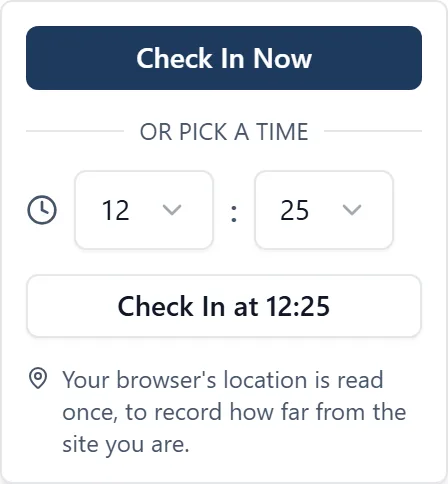
- In a browser, a small panel opens. Click “Check In Now”, or under “or pick a time” set the hour and the minutes (they go in fives, and start at the five minutes just gone, so 07:47 shows as 07:45), then click the button underneath, which reads “Check In at 07:45” or whatever time you set
Arriving at seven and remembering at ten is the ordinary case, and the time picker is there for exactly that. Put in the time you got to site, not the time you got round to opening the app.
How to check out:
- On the Home screen, tap “Check Out” in the same bar, or click it in a browser
- Pick the time the same way: now, or the time you actually left
- If you checked in on an earlier day you get the date as well as the time, so a departure you are writing down the next morning lands on the day it belongs to
Two times will not go in: anything in the future, and a departure earlier than the arrival it belongs to.
Checking in from the site poster: a site can have a printed poster with a QR code at the gate or in the cabin. Point your phone’s camera at it and tap the link, or tap Scan site poster under the check-in bar in the app, and sign in if asked. The check-in then opens by itself, takes the location reading every check-in takes, and records the poster; if you are already on site it offers the check-out. A follower is told that followers do not check in, and “This poster isn’t working” means ask the site team. If your phone opens any address other than the one printed under the code, do not sign in. Admins print posters from Project Settings: see the “project_settings” topic.
Checking in needs your location. A check-in is where the app records how far from the site you were, so it needs the phone or the browser to allow BuildersAI your location. Only while you are using the app: it is never used in the background.
- The first time, the check-in bar says why before anything is asked: “Checking in uses your location”. Tap Continue, then allow location when the phone or the browser asks. On an iPhone choose Allow While Using App; on Android, While using the app
- If you said no before, the check-in bar says “Location is not allowed for BuildersAI” and offers Open settings. On an iPhone, tap Location there and choose While Using the App. On Android, tap Permissions, then Location, and choose Allow only while using the app. Come back to the app and your check-in carries on by itself
- If location is switched off for the whole phone, the check-in bar says so. On Android, tap Open location settings, turn Location on in the phone’s own settings, and come back: your check-in carries on by itself. On an iPhone, turn on Location Services in Settings, under Privacy & Security
- In a browser, the panel asks first too. If your browser blocks location for the site, the panel says “Location is blocked for this site”: open the site’s settings from the icon beside the address bar, allow Location, then click Try again
- Checking out never asks. A check-out takes a reading if location is already allowed, and goes in either way
- A site with no map pin asks nothing, because there is nothing to measure from. An admin sets the pin in Project Settings
Each check-in says how far from the site it was made. When you check in or out, the phone or the browser reads your location once, and the app keeps the distance from the site’s pin. It never keeps where you were, only how far away. Once location is allowed, the reading never stops a check-in going in.
- The distance shows under the check-in, for example “40m from site”, in your check-in bar on the phone and wherever an admin reads your times: your timeline, your profile, and a day opened from the Time tab
- A check-in made clearly further out than the site radius is marked in amber, and on the Time tab that day carries “away from site”. Being marked is not being refused: it is a question for whoever checks the timesheet
- With no reading, the line says why: “No location: not allowed”, “No location: none available”, “No location: none in time” or “Not measured: the site has no map pin”
- Set the time back and the reading is still from the moment you tapped, so it says when it was taken, for example “read at 10:02”. A check-out tapped more than fifteen minutes after the time it records is never marked away, because by then you could be anywhere
- If an admin later moves the pin, older check-ins say “Measured from where the site pin used to be”
- A phone set to Approximate location (Android) or with Precise Location off (iPhone) can only place you to within a couple of kilometres, so its readings come out far from the gate. Set it back to precise in the phone’s settings for BuildersAI
On a phone none of this needs signal. A check-in or check-out made in a dead spot sits on the phone and goes up when you are back in range.
Checking in and out is yours to do, not mine. I cannot check you in or out, and there is no way to ask me to. Presence is the record of where you actually were, read back later in a timesheet, a delay claim or an accident investigation, so it comes from your own tap on Check In, never from a conversation. What I can do is tell you who is on site and pull up the attendance history.
“Still on site?”, and fixing your own check-out: If you have been checked in a long time and have not touched the app for a while, the check-in bar asks you about it. In a browser it reads “You’ve been checked in since 07:12. Still on site?”. On a phone, “Still on site? It’s been a while since we last heard from you.”
- If you are still there, tap “Yes, I’m still on site” (“Yes, still here” in a browser) and the prompt goes away
- If you left hours ago, the check-out button has already changed for you. On a phone it reads “Fix check-out time”, in a browser “Fix Check-Out”. Use it, set the time you actually left, and the day records the hours you did
- A check-in more than 48 hours old is too old to fix this way. In a browser the bar says so and points to “Ask to correct” on your own record
This one is in your own check-in bar, so you can put it right yourself. You do not have to wait for an admin. A time on any earlier day, or anybody else’s time, is a correction: see the “timesheet_corrections” topic.
Seeing who is on site right now (admins and members):
- The Home screen shows who is currently on site
- Or ask me: “Who is on site?” or “Who’s on site today?”
Site Presence dashboard (admins only):
- Open the side menu (☰) and tap “Site Presence”
- You’ll see:
- On Site Now: a live count of who is currently checked in
- Daily Activity: a bar chart showing total hours recorded each day
- Team Presence: a table showing each team member’s total hours and days on site for the selected period
- Use the date range filter (This Week, Last Week, This Month, or Custom) to view different time periods
Hours across every site you run (admins only): click the BuildersAI logo in the top-left corner to reach All projects, then click Time. Its four chips are Time on site (one row per person per job per day over Today, This week, This month or a custom range, with an Export button for a spreadsheet), Timesheets (what people reported, beside their time on site, below), Requests to decide (approve or reject the corrections your team has asked for) and Corrections log (every change ever made to anybody’s recorded times, and why). On the phone an administrator has the same four chips under All projects, Time. See the “all_projects” topic for the tab itself, and the “timesheet_corrections” topic for those last two chips.
Everybody’s hours across every job: That dashboard covers one project. When you are totalling a pay week across all of them, open All projects and choose the Time tab, in a browser or on an administrator’s phone.
- Time on site adds up each person’s time, with a line for each day they were on each job, over Today, This week, This month or a Custom range
- On a custom range the arrows step by the range’s own length, so a fortnight moves a fortnight at a time and a four week period moves four weeks. The screen says “stepping 14 days at a time” so there is no guessing
- Export, at the top right beside the total, gives you a spreadsheet (CSV) of exactly what is on screen. Where your projects belong to an organisation the same menu also offers a Generic spreadsheet, a Xero bill, a QuickBooks bill and Past exports, so you can check whether August has already been billed without producing another export to find out. On the phone the export is the spreadsheet only
- Check out on somebody’s row asks first: it records them as leaving now. If you know when they left, open the day and record that time
- You get the Time tab if you administer at least one project
We call it time on site rather than hours worked, and that is deliberate. These are check-ins: a record of somebody being at the place, only as complete as the check-ins that were made, and not an account of what they did there.
Keeping a timesheet instead (browser and phone): If you move between jobs all day, checking in and out of each one is not how you work. Keep a timesheet instead: for each day, a line per job saying what you did and how long.
- In a browser open My Timesheet in any project’s sidebar, or All projects, then Mine, then My timesheet. Both are the same week across every job you work on; opened from a project, a new line starts on that project. On the phone, My timesheet is on the home screen and in the menu, and it saves with no signal
- Add a line: pick the job, or No job for the office, pricing or the merchants. Type the hours the way you would write them (2.5, 2:30 or 45m), or use the buttons to move a quarter of an hour. Say what you did. A task is optional. Tick Travel for time on the road
- On an empty day, Same as copies the last day you worked, so Monday offers Friday. Then change what was different
- Only you and the people who run your jobs can see your timesheet. Nobody is asked to fill one in, and it is never added to your check-ins: the two are shown side by side
- Once your company has billed a line through an accounting export it is marked Exported and you can no longer change it. Ask an administrator
Timesheets beside time on site (browser, admins only):
- All projects, Time, then Timesheets shows each person’s reported hours beside their time on site, day by day, as a week or a month
- A chip appears only where they are worth a second look: more than half an hour apart, a timesheet with No check-in, or a check-in with No timesheet. Neither figure is changed. Somebody who never checks in in the period gets no No check-in chips, and somebody who never keeps a timesheet gets no No timesheet chips, because every one of their days would carry one
- If nobody in the period checked in, which is the usual case for a company that keeps timesheets instead, the On site column is left out and the page says why. The project dashboard’s hours card does the same
- The list beside the dates chooses one person. The page, its total and both exports then cover just them, and the address can be sent to somebody else
- Add a line enters somebody’s time for them, on a job you run
- Export gives a spreadsheet, and where your jobs belong to a company account a Generic spreadsheet, Xero bill or QuickBooks bill built from the reported hours. Time on no job is left out of a bill, and the file says how much
- The project dashboard’s Reported column shows each person’s reported hours for the month
Timeline view:
- Each worker’s check-in and check-out events are recorded with a timestamp and how they were recorded: Manual for a check-in made by the person, Admin for one an admin added or corrected, and Recorded automatically for the ones automatic check-in made before it was retired
- Admins can view individual timelines from the team member’s profile
- Unusual sessions are flagged on the timeline. A visit under five minutes shows as “Brief visit” and is greyed back: usually a check-in and check-out made by mistake, or, on older records, a phone catching the edge of the site as somebody drove past. A session over sixteen hours carries a warning triangle. A session nobody closed reads “No departure recorded”
A day carrying a warning is not a day you can leave. A check-in with no check-out, and a check-out with no check-in, count no time at all until somebody puts them right. What each warning means, how to have the broken ones emailed to you every morning, and how to fix, edit or discard a recorded time are all in the “timesheet_corrections” topic.
Who can do what:
- Admins and members can check in and out
- Followers cannot check in, and do not see who is on site
- Admins can view the full Site Presence dashboard, team history, and fix or edit session times (fixing and editing are in the “timesheet_corrections” topic)