
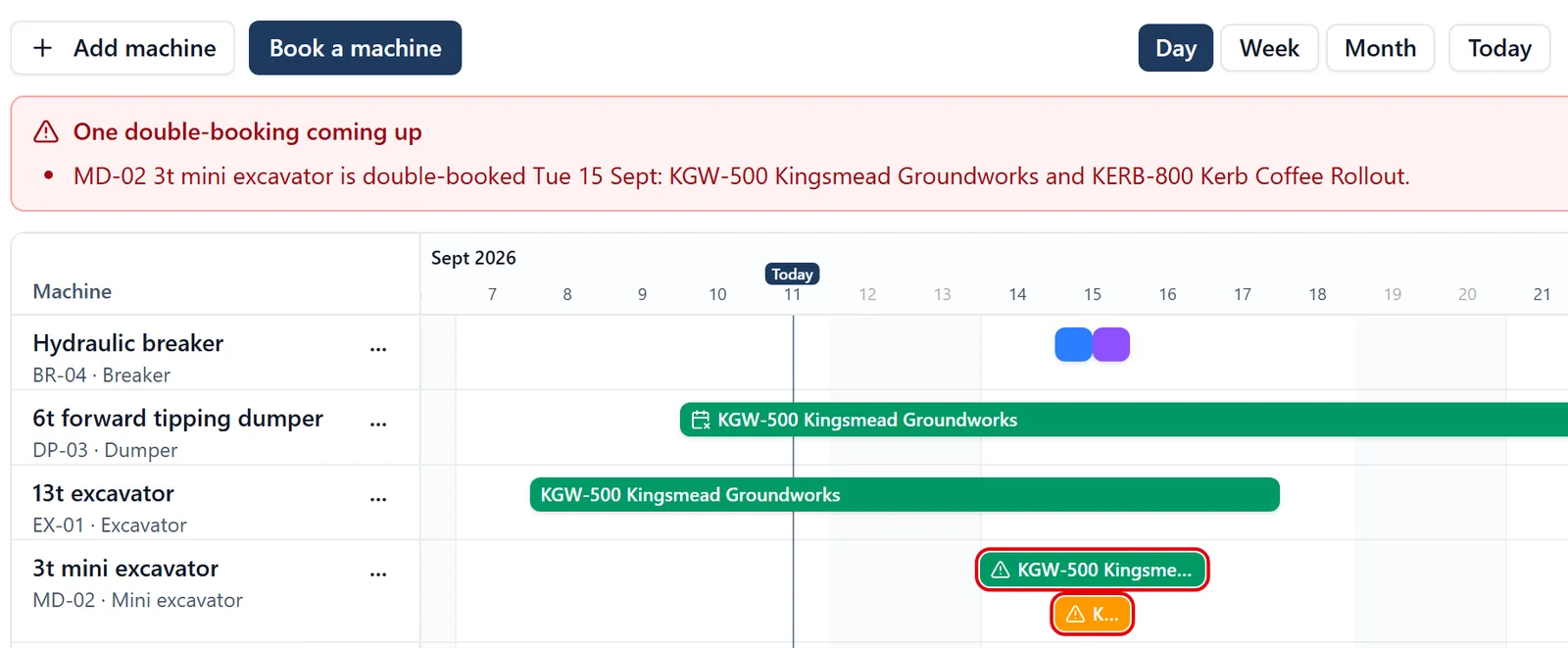
The Plant tab keeps track of which machine is on which site, and tells you when one has been promised to two. Every digger, breaker, mixer and anything else you move between jobs sits down the left, the days run across, and each booking is a bar in the colour of its site. It is in the browser and, for administrators, on the phone: see “On the phone” below.
How to get there (app.buildersai.co.uk):
- Click the BuildersAI logo in the top-left corner to reach All projects
- If you work for more than one company, check the organisation name beside the logo. The board shows that organisation’s machines and sites
- Click Plant in the row of tabs
Reading the board:
- Machines are listed down the left with their fleet number or registration and their category. A Hired badge marks hired plant: hover over it to see who it is hired from
- Each bar is one booking. Its colour is the site, and the key under the board says which colour is which job
- A booking can start or finish at midday, so half a column is half a day. A breaker on one site in the morning and on another in the afternoon is two short bars side by side, and that is not a clash
- Day, Week and Month at the top right change how many days fit on the screen, and Today brings today back into view. The board opens on today
- Hover over a bar to see the site, the dates, the task it is for, the note and who booked it
Double-bookings: When one machine is booked on two sites for the same half day, a red box above the board says so: which machine, which day, and both sites. Click a line in it and the board scrolls to the clash. On the board both bookings are drawn, one above the other, each with a red outline and a warning mark, so neither hides the other.
- The red box lists only clashes that are not over yet. Past ones are still drawn on the board
- A clash never stops a booking being saved. Sometimes the right answer is to move the other job, and that is your call to make
Plant that is still booked out: When a machine is past the date it was due back and nobody has said it came back, an amber box above the board names it: the machine, the site, the day it was due and how long ago that was. For hired plant it also names the hire company, because the charge runs until somebody stops it. This is the box that catches the machine everybody thinks was off-hired weeks ago.
- It looks at every booking you have ever made, not only the ones the board is showing, so something forgotten eight months ago still appears
- The board draws the days a machine ran on past its date as a hatched amber tail on its bar, up to today
- Two buttons settle it, and both leave the register saying something true:
- It came back records the day it came off site. It offers the day it was due back, which is usually right: the machine did go back and nobody said so. If it went back later, say which day, and the booking still shows the date it was due, so the overrun stays on the record
- Still out moves the date you now expect it back. It asks for a date, so the machine is flagged again if it overstays that one too
- Neither button claims to know where the machine is. The app only knows whether anybody has told it, which is exactly the gap this is for
Booking a machine (admins):
- Click Book a machine, or click an empty day on a machine’s row to start a booking for that machine from that day
- Choose the Machine and the Site. The site list holds the jobs you can book onto
- If you like, choose the Task it is for: type part of its title or its number. “Use the task’s dates” then copies the task’s start and due dates into the booking
- Set From and Until. Each has a second box: Start of day or Midday for the start, Midday or End of day for the finish. The line underneath reads the booking back to you, for example “Tue 15 Sept afternoon to Thu 17 Sept”
- Add a Note if it helps: “with operator”, “low-loader Monday first thing”
- Click Book. If the machine is already booked for any of that time, a red panel lists what it would clash with before you save, and the button reads Book anyway instead
Changing or cancelling a booking: click its bar. Change what you need and click Save, or click Cancel booking and confirm. A booking you are not allowed to change opens read-only.
A booking keeps its own dates. Naming a task records which job needs the machine, but the booking does not move when the task does. If the task moves clean away from the booking’s dates, the bar carries a small calendar mark and the booking says “The task no longer falls on these dates”, so you can move one or the other.
Keeping the list of machines (organisation owners and admins):
- Add machine sits at the top left of the board. Give it a name, a category (type your own, or pick one of the suggestions), a fleet number or registration, and choose Owned or Hired. For hired plant, add the hire company, so whoever sees a clash knows who to ring
- A fleet number or registration can only be used once among the machines you have in use, so the same digger cannot be entered twice and hide its own clash
- The … button beside a machine’s name opens Edit machine…, Retire and Delete
- Retire a machine that has left the fleet. It comes off the board and cannot be booked, and its past bookings are kept. Show retired at the top right brings retired machines back into view, and Bring back into the fleet reverses it
- Delete is for a machine that has never been booked, such as one added by mistake, and asks you to confirm. A machine with bookings has a history, so for that one Delete is greyed out and says to retire it instead
What you see of other sites: if a machine is booked on a site you are not on, the bar is drawn hatched and labelled Another site, and opening it shows the machine and the dates and nothing else. You still see that the machine is busy, and a clash with your own booking is still flagged, without being told which job it is on.
SiteBot cannot read the plant board yet, so the board itself is the place to look.
On the phone (administrators): open All projects and tap Plant. A phone opens on two boxes, plant still booked out and double-bookings, and then lists the machines, each saying where it is booked now or next. Tap a machine for its bookings. A tablet shows the board itself, with Day, Week, Month and Today. Book a machine is at the top, and on a tablet you can tap an empty day. Tap a booking to read it, then Change booking, Cancel booking, It came back or Still out. Keeping the list of machines is behind Fleet, at the top of the Plant tab: Add machine there, and retiring, bringing back and deleting on a machine’s own page. There is no hovering on a phone: tap a bar or a machine to see what a hover shows in the browser. All of it needs a connection.
Who can do what:
- The Plant tab is offered to anybody who administers at least one project in the organisation, and to the organisation’s owners and admins. Members and followers do not get it
- Booking onto a site, and changing or cancelling its bookings, is for that site’s admins, and for the organisation’s owners and admins on any of its sites
- Adding, editing, retiring and deleting machines is for the organisation’s owners and admins only
- Seeing which site a booking is on needs you to be on that site, or to run the organisation
- A project that is not in an organisation cannot book plant, and neither can a demo project
- A project whose subscription has lapsed cannot take new bookings, though its existing ones can still be cancelled
- Saying a machine came back is for the same people who can cancel its booking, and it works even on a finished job or one whose subscription has lapsed, because closing the record frees the machine. On those, Still out is not offered, since their bookings cannot be moved
The Monday email says so too. If you have the weekly digest turned on in your notification settings, it counts the machines past their return date across the sites you administer, so the ones nobody has looked at reach you without your going to find them.