
A prerequisite is something that has to be done before a piece of work can start: the boards delivered before the plasterer comes, building control signing off the foundations before the drainage goes in, an answer to an RFI before the joiner cuts anything. Recording them lets the app answer “is plot 7 ready?”, and warn people the afternoon before they would travel to a job that is not ready.
A prerequisite is not the same as Comes after:
- Comes after is the order of work. Move the task in front and this one moves too, and the programme draws an arrow between them. See the “task_dependencies” topic
- A prerequisite is a condition. It moves nothing and draws no arrow. It only says “not until that is done”
A task can have both, and often will: plastering comes after first fix, and also needs the boards delivered, which is a prerequisite.
How to add a prerequisite (browser):
- Open the task
- In the right-hand panel, find Prerequisites, just under Comes after
- Click it (or Add prerequisite if there are none yet)
- Search for the delivery, inspection, RFI or task it needs, and tick it. Tick as many as it needs
- Each one is saved straight away. Untick one to take it off
Reminders and notes cannot be prerequisites: a reminder is personal to whoever wrote it, and a note is never “done”.
How to add one on your phone: Open the task. The Prerequisites section sits under Comes after. Tap Add prerequisite, search, and tick. Remove one with the X next to it. It works offline and saves when you are back online.
Reading the readiness line: At the top of the Prerequisites section, a coloured label says whether the work can start:
- Ready: everything it needs is done
- Waiting: something is not done yet, but it is due on or before this work starts
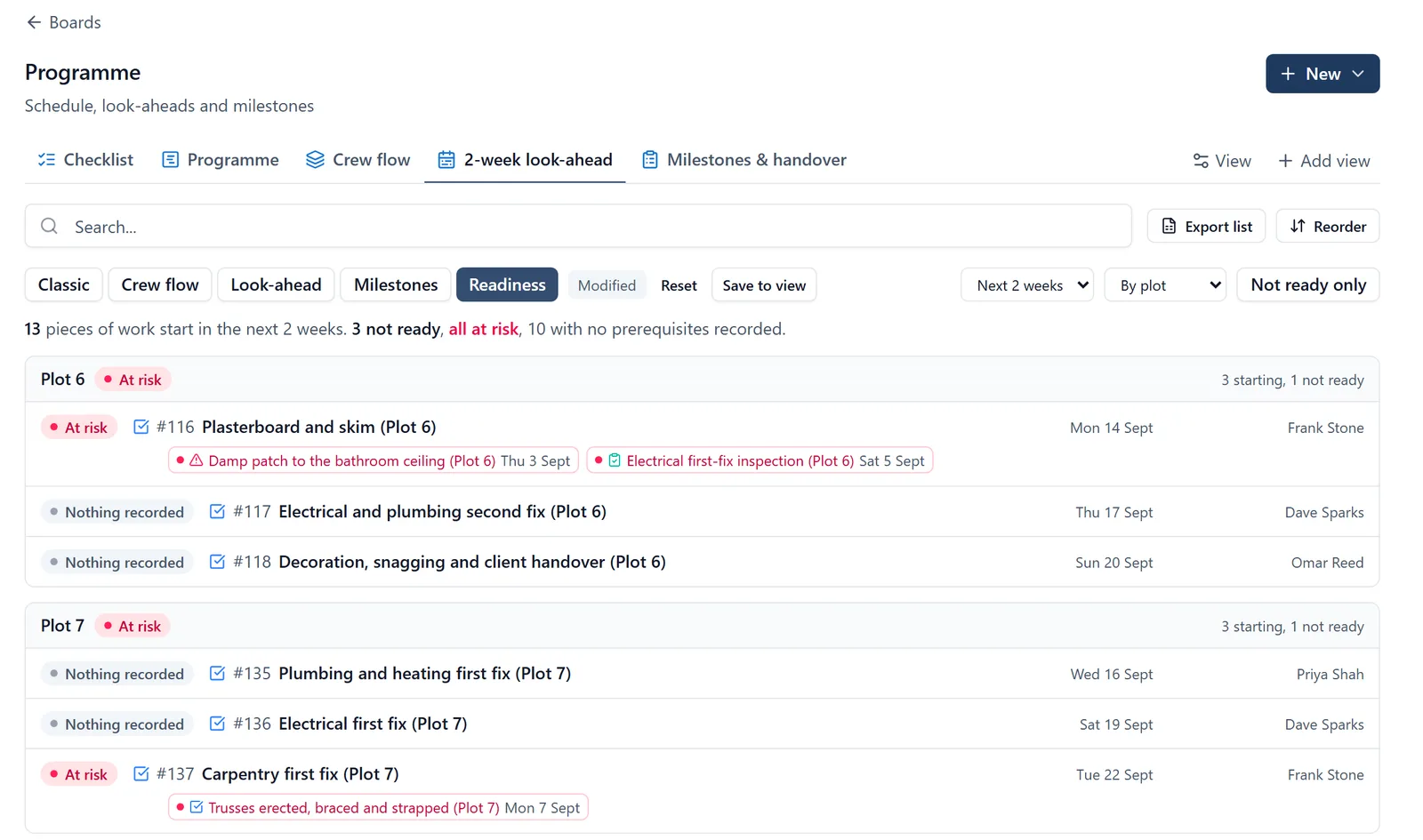
- At risk: something will not be done in time. It is overdue, or due after this work starts, or has no date at all. Work that has already started, or starts today, with something still outstanding is also at risk
- Nothing recorded: no prerequisites have been added, so the app cannot say. This is not the same as ready
Each prerequisite is listed with its date, in red when it is late. “Done” means nothing is outstanding on it: Resolved, or Cancelled, because work that is not going to happen cannot hold anything up. A snag that is only Awaiting check is NOT done, and still holds up whatever waits on it: “the trade says it is fixed” is not the same promise as “it is fixed”.
Needed by: Open a delivery or an inspection and the same panel shows Needed by: the work waiting on it, and when each piece starts. That is where the person bringing the delivery sees who they would hold up.
Something you cannot see: If a prerequisite is a private task you are not on, you will not see what it is, but you will be told it exists and whether it is done: “And 1 you cannot see, not done yet. Ask a project admin.” That is deliberate. Knowing something private stands in the way is better than travelling to site for work that is not ready.
Is plot 7 ready? The Readiness view (browser):
- Open Boards, then a board with a programme view (the Programme board on the demo)
- Open a Gantt view, then press Readiness in the row of modes, next to Look-ahead
- It lists the work starting in the next 1, 2, 4 or 6 weeks, grouped by plot. Each plot card has its own label, so plot 7 is ready when its card says Ready
- Each row shows the state, when it starts, who is on it, and what it is still waiting on. Click a row, or any prerequisite on it, to open it
- Not ready only cuts the list to the problems. Group by can also sort it by phase, trade, assignee or status
It uses the board’s own filters for the work it lists, but looks across the whole project for prerequisites, so a delivery on another board still counts.
The warning the afternoon before: At 3pm on a weekday (in the project’s own timezone), the app looks at work starting on the next working day. On a Friday that means Saturday, Sunday and Monday. For anything not ready:
- The people assigned to the work get a push: “Not ready to start: Plastering is due to start on Monday, but 1 prerequisite is not done yet.” If nobody is assigned, the project’s admins get it instead
- The people assigned to each prerequisite that is not done get a push saying what is waiting on it: “Needed on site on Monday: Boards delivery has to be done before Plastering starts on Monday.”
Each piece of work is warned about once for each start date. Nothing is sent about work starting today (people have already left), about work already in progress, or from a demo or archived project. Nobody is ever sent the name of a task they cannot see.
It comes under the Task assignments switch in your notification settings, with the other news about your own tasks. See the “notifications” topic.
Who can do what:
- Admins and members can add and remove prerequisites
- Followers can see the readiness of their own tasks but not change prerequisites. On the phone, followers do not see the Prerequisites section
Asking me instead of opening the view: I can answer the readiness question directly, not only explain where it lives.
- “Is plot 14 ready to start?” reads the plot and everything under it, and tells you how many pieces are not ready and what each is waiting on
- “What is the plastering waiting on?” lists the prerequisites with their dates, and marks which ones will not be there in time
- “What is starting next week that is not ready?” sweeps the whole project, worst first, so you can see the week before it happens
- “What does the scaffold inspection unblock?” goes the other way: the work waiting on that one thing I count what you cannot see, the same way the panel does, so a private delivery still shows up as something outstanding without being named. If you are a follower, I answer about the work you are on rather than the whole site, and I will say so.
Or just ask me: “How do I add a prerequisite?”, “What does At risk mean?”, “When does the not-ready warning go out?”