
A handover pack is one ZIP file holding everything the project has for a single plot, for a homeowner or a warranty provider: its drawings, a record of each inspection and snag, its photographs and its documents, with an index page you can print. It is made in the browser, by admins and members. There is no handover pack on the phone.
How to produce one (app.buildersai.co.uk):
- Open the project and go to Drawings, then click Handover pack. The button is there once the project has a tag group called Plot. You can also open a plot’s own top-level task, click the three dots, and choose Produce handover pack
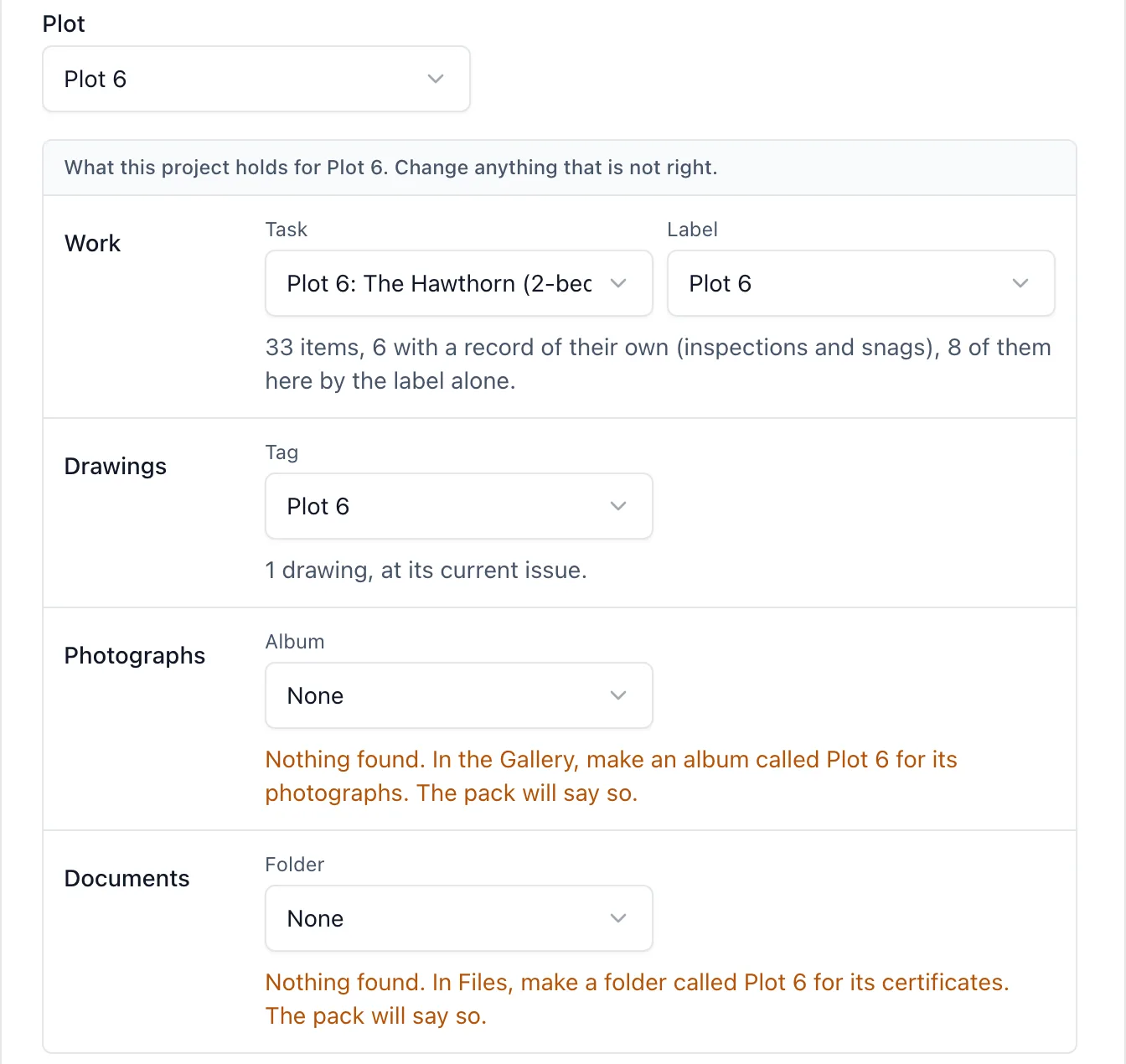
- Choose the Plot. The box then shows what the project holds under that name, and how much of it
- Anything it matched wrongly, change: each part has its own picker, and each can be set to None
- Click Produce pack. The ZIP downloads to your computer
There is nothing new to fill in. A plot is a name, and the pack gathers what already carries it:
- Work: the top-level task called after the plot, with everything under it, and anything carrying a label with the plot’s name. So a loose inspection labelled Plot 7 is included even though it is not filed under the Plot 7 task
- Drawings: every drawing tagged with the plot, each at its current issue
- Photographs: the album named for the plot
- Documents: the folder named for the plot in Files, sub-folders included, each document at its current version
- “Plot 7: The Willow” counts as Plot 7, and Plot 1 never picks up Plot 12
A plot that is only partly marked up still gets a pack. If there is no album or no folder for the plot, the box says “Nothing found” and tells you what to make. The pack is still produced, and its index says in plain words what the project did not hold, so nobody reads a missing section as a plot with no photographs.
Inside the ZIP:
- index.html: open this first. It opens in any browser, lists everything with a link to each file, and prints as the pack’s contents page
- drawings: the plot’s drawings
- records: one page per inspection and per snag, with their photographs. Every other item on the plot is a row in the index
- photos: the album’s photographs, with a spreadsheet of when and where each was taken
- documents: the plot’s folder from Files
- manifest.csv, naming every file in the pack with a checksum, and README.txt, saying what the pack is and is not
What a record says: where the item stands and, once it is finished, who marked it complete and when, from the task’s own history, along with its description, photographs, comments and every change made to it. It never calls that a signature: it is the account that made the change and the time it reached BuildersAI. An inspection also shows who carried it out and its outcome, where those were filled in. The pack is a copy of the project record. It is not a warranty, a certificate or a signature, and it says so on its first page.
What is left out, and said:
- Private items are left out, and the box and the index both say how many. A private item is for the people on it and the project’s admins, and a file can be forwarded
- Only what you can already see is included. A photograph or a drawing above your own access level is not in the pack, and the index says how many were left out for that reason
- Reminders and material lines are not part of a plot’s handover and are not in it
Good to know:
- Up to 500 photographs and 2 GB in one pack
- BuildersAI keeps a record of who produced each pack, for which plot and when, with a checksum of its manifest, so a pack can be checked against that record later. It also appears in the project’s audit trail
- It works on a project whose subscription has lapsed, because a pack is how you take your record with you
- I can explain the pack, but I cannot produce one for you: it is made from the Drawings page or the plot’s task
- For photographs on their own, with date-stamped copies, use an evidence pack instead. See the “photo_annotations” topic
- For putting the plot’s tag on a drawing, see the “plans” topic. For albums, see “photo_albums”. For folders, see “files”. For labels, see “labels”